An Array input is an editing interface for lists of structured data in data files or front matter. By configuring your inputs, you can customize the appearance and functionality for a better editing experience.
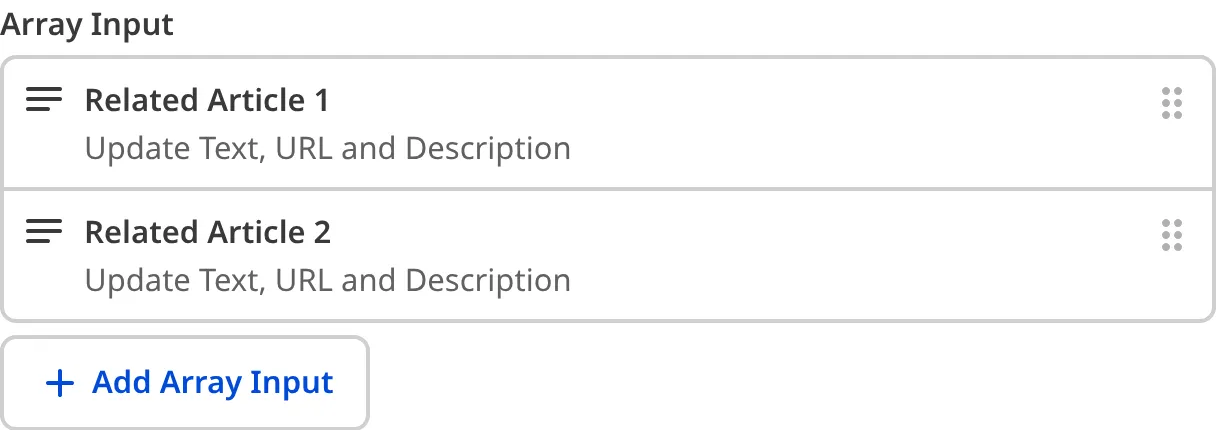
These instructions assume that you know how you want to populate the values of your Array input, and where you want to configure it in the configuration cascade. For more information, please read our documentation on Array inputs, inputs in general, populating an Array input, and the configuration cascade.
To configure an Array input:
- Open your website files in your local development environment, or log in to CloudCannon and select the Site for which you want to configure your input.
- Navigate to the location in the configuration cascade where you want to configure your input. This can be the root of your CloudCannon Configuration File, within the
collections_config.*key in your CloudCannon Configuration File, a Schema file, the frontmatter of a markup file, or any where you configure a Structure. - Identify the
_inputskey, or create one at that level of the configuration cascade. - Add an input name key for your input under the
_inputskey (a.k.a.,_inputs.*). We recommend naming your input something simple that indicates the function or context. - Add the
typekey under your input name key, with the valuearray. - (Optional.) Add any other general configuration keys (e.g.,
label,comment,context) under your input name key. - Define how CloudCannon should populate your input by adding the
structureskey under_inputs.*.options, or adding an empty input type. - (Optional.) Add any other specific configuration keys under
_inputs.*.options(e.g.,preview,value_key,allow_empty).
CloudCannon will now apply this input configuration to all markup files that use your input name key, without needing to save your configuration. This allows you to make changes to your input configuration and see those changes affect inputs live.
When you are happy with your input configuration, you must save your input configuration.
_inputs:
  staff:
    type: array
    options:
      structures: _structures.staff_members
_structures:
  staff_members:
    values:
      - value:
          name:
          position:
          image:
{
"_inputs": {
"staff": {
"type": "array",
"options": {
"structures": "_structures.staff_members"
}
}
},
"_structures": {
"staff_members": {
"values": [
{
"value": {
"name": null,
"position": null,
"image": null
}
}
]
}
}
}All inputs are defined under the _inputs key, regardless of where they are in the configuration cascade.
This Array input is called staff.
The value of the type key determines the input type. This is an array input.
The structures key determines what should populate the input.
For more information on Structures, please read our documentation on structures.
When you add your input key name to a data or markup file, your configured Array input will appear in the Data Editor, Visual Editor, or Content Editor.
---
staff:
  - name: Karen Key
    position: Project Manager
    image: /images/team/karen_key.jpg
  - name: Holly James
    position: Engineering Team Lead
    image: /images/team/holly_james.jpg
---

Page content goes here.To allow Organization Members to populate an Array, your input must have at least one item, an entry input type, or a structure.
Input configuration options#
General configuration options are available for all input types. You can define the label, comment, and context box for your Array input, whether it is hidden or disabled, and how CloudCannon should handle configuration at multiple levels of the configuration cascade.
Specific configuration options for Array inputs include defining structures, configuring previews, and how CloudCannon handles empty values. You can also add input validation to require a value, specify the minimum and maximum number of items, or match a regular expression.
Here is an example of an Array input using some of the most commonly used configuration keys.
_inputs:
  page_sections:
    type: array
    options:
      structures: _structures.components
      preview:
        text:
          - key: name
        subtext:
          - key: description
        image:
          - key: my_image
        icon: article
      min_items: 3
      max_items: 5
      required: true
{
"_inputs": {
"page_sections": {
"type": "array",
"options": {
"structures": "_structures.components",
"preview": {
"text": [
{
"key": "name"
}
],
"subtext": [
{
"key": "description"
}
],
"image": [
{
"key": "my_image"
}
],
"icon": "article"
},
"min_items": 3,
"max_items": 5,
"required": true
}
}
}
}For a complete list of configuration keys available for inputs please read our Inputs reference documentation.
These keys configure the appearance and functionality of Array inputs in CloudCannon.
This key toggles whether CloudCannon will hide the add button, and context menu actions on each item for adding new items to this Input.
Setting this key to true will hide the add button and context menu actions for adding new items.
By default, this key is false (i.e., the add button and context menu actions are displayed).
Defaults to: false
Appears in: Array Input options.
This key toggles whether CloudCannon will hide the context menu actions on each item for removing them.
Setting this key to true will hide the context menu actions for removing items.
By default, this key is false (i.e., the context menu actions for removing items are displayed).
Defaults to: false
Appears in: Array Input options.
This key toggles whether CloudCannon will hide the controls on each item for moving them.
Setting this key to true will hide the controls for moving items.
By default, this key is false (i.e., the controls for moving items are displayed).
Defaults to: false
Appears in: Array Input options.
This key defines how an 'empty' value will be saved. Does not apply to existing empty values.
Defaults to: null
Allowed values: null array
Appears in: Multiselect Input options, Multichoice Input options, Array Input options.
Show examplesHide examples
In this example, we have configured how empty array values will be saved.
_inputs:
  tags:
    type: array
    options:
      empty_type: array
{
"_inputs": {
"tags": {
"type": "array",
"options": {
"empty_type": "array"
}
}
}
}This key defines the maximum number of items CloudCannon will allow in an Input.
When configured, CloudCannon will prevent you from adding more items to this Input.
If the Input already contains more items, CloudCannon will require you to remove items until the Input contains a valid number to save your changes, or discard your unsaved changes.
Value can be any positive integer.
If options.min_items is also configured, this key cannot be a lesser number.
This key has no default.
This key is available for Array and Multiselect or Multichoice Inputs.
Appears in: Multiselect Input options, Multichoice Input options, Array Input options.
Show examplesHide examples
In this example, we want to add an array of filepaths to our homepage's featured_posts Input. This Input limits you to a maximum of five array items.
_inputs:
  featured_posts:
    type: array
    options:
      max_items: 5
      max_items_message: Cannot be more than 5
      min_items: 2
      min_items_message: Cannot be less than 2
{
"_inputs": {
"featured_posts": {
"type": "array",
"options": {
"max_items": 5,
"max_items_message": "Cannot be more than 5",
"min_items": 2,
"min_items_message": "Cannot be less than 2"
}
}
}
}This key defines a custom error message that explains why a value has failed the validation criteria from options.max_items.
This key requires you to define options.max_items.
This key has no default.
This key is available for Array and Multiselect or Multichoice Inputs.
Appears in: Multiselect Input options, Multichoice Input options, Array Input options.
Show examplesHide examples
In this example, we prompt our team to enter a valid number of items using a custom message.
_inputs:
  featured_posts:
    type: array
    options:
      max_items: 5
      max_items_message: Cannot be more than 5
      min_items: 2
      min_items_message: Cannot be less than 2
{
"_inputs": {
"featured_posts": {
"type": "array",
"options": {
"max_items": 5,
"max_items_message": "Cannot be more than 5",
"min_items": 2,
"min_items_message": "Cannot be less than 2"
}
}
}
}This key defines the minimum number of items CloudCannon will allow in an Input.
When configured, CloudCannon will prevent you from removing items from this Input below this value.
If the Input already contains fewer items, CloudCannon will require you to add items until the Input contains a valid number to save your changes, or discard your unsaved changes.
Value can be any positive integer.
If options.min_items is also configured, this key cannot be a greater number.
This key has no default.
This key is available for Array and Multiselect or Multichoice Inputs.
Appears in: Multiselect Input options, Multichoice Input options, Array Input options.
Show examplesHide examples
In this example, we want to add an array of filepaths to our homepage's featured_posts Input. This Input limits you to a maximum of two array items.
_inputs:
  featured_posts:
    type: array
    options:
      max_items: 5
      max_items_message: Cannot be more than 5
      min_items: 2
      min_items_message: Cannot be less than 2
{
"_inputs": {
"featured_posts": {
"type": "array",
"options": {
"max_items": 5,
"max_items_message": "Cannot be more than 5",
"min_items": 2,
"min_items_message": "Cannot be less than 2"
}
}
}
}This key defines a custom error message that explains why a value has failed the validation criteria from options.min_items.
This key requires you to define options.min_items.
This key has no default.
This key is available for Array and Multiselect or Multichoice Inputs.
Appears in: Multiselect Input options, Multichoice Input options, Array Input options.
Show examplesHide examples
In this example, we prompt our team to enter a valid number of items using a custom message.
_inputs:
  featured_posts:
    type: array
    options:
      max_items: 5
      max_items_message: Cannot be more than 5
      min_items: 2
      min_items_message: Cannot be less than 2
{
"_inputs": {
"featured_posts": {
"type": "array",
"options": {
"max_items": 5,
"max_items_message": "Cannot be more than 5",
"min_items": 2,
"min_items_message": "Cannot be less than 2"
}
}
}
}This key toggles whether CloudCannon requires this Input to have a value.
Setting this key to true will require you to enter a value to save your changes, or discard your unsaved changes.
By default, this key is false (i.e., CloudCannon does not require this Input to have a value).
This key is available for Array, Code, Color, Date and Time, File, Number, Object, Select and Multiselect, Text, Rich Text, and URL Inputs.
Defaults to: false
Appears in: options, Textarea Input options, Code Input options, Color Input options, Number Input options, Range Input options, URL Input options, Select Input options, Rich Text Input options, Date/Datetime Input options, Time Input options, File Input options, Multiselect Input options, Choice Input options, Multichoice Input options, Object Input options, Array Input options.
Show examplesHide examples
In this example, we want to require our team to enter an author value for markup files with this Input.
_inputs:
  author:
    type: text
    comment: Enter the name of the author for this blog post.
    options:
      required: true
{
"_inputs": {
"author": {
"type": "text",
"comment": "Enter the name of the author for this blog post.",
"options": {
"required": true
}
}
}
}This key defines a custom error message that explains why a value has failed the validation criteria from options.required.
This key requires you to define options.required.
This key has no default.
This key is available for Array, Code, Color, Date and Time, File, Number, Object, Select and Multiselect, Text, Rich Text, and URL Inputs.
Appears in: options, Textarea Input options, Code Input options, Color Input options, Number Input options, Range Input options, URL Input options, Select Input options, Rich Text Input options, Date/Datetime Input options, Time Input options, File Input options, Multiselect Input options, Choice Input options, Multichoice Input options, Object Input options, Array Input options.
Show examplesHide examples
In this example, we prompt our team to enter an Input value using a required message.
_inputs:
  author:
    type: text
    comment: Enter the name of the author for this blog post.
    options:
      required: true
      required_message: You are not allowed to leave this blank.
{
"_inputs": {
"author": {
"type": "text",
"comment": "Enter the name of the author for this blog post.",
"options": {
"required": true,
"required_message": "You are not allowed to leave this blank."
}
}
}
}This key defines the data formats for items in this array. When adding an item, team members are prompted to choose from the values you have defined.
Appears in: Array Input options.
This key defines the JSON Path selector that CloudCannon should use to determine if the value of an Input is unique.
When configured, CloudCannon will require the value of the Input to be unique compared to the value defined on the JSON Path.
If the Input already contains a non-unique value, CloudCannon will require you to change it to a valid value to save your changes, or discard your unsaved changes.
Value must be a valid JSON Path.
This key has no default.
This key is available for Array inputs.
Appears in: Multiselect Input options, Multichoice Input options, Array Input options.
Show examplesHide examples
In this example, we want our team to add article filepaths to the related_articles Input. This Input requires all the filepaths to be unique.
_inputs:
  related_articles:
    type: array
    options:
      unique_on: $.path
{
"_inputs": {
"related_articles": {
"type": "array",
"options": {
"unique_on": "$.path"
}
}
}
}related_articles:
- path: /articles/first-article.md
featured: true
- path: /articles/second-article.md
featured: false{
"related_articles": [
{
"path": "/articles/first-article.md",
"featured": true
},
{
"path": "/articles/second-article.md",
"featured": false
}
]
}This key defines a custom error message that explains why a value has failed the validation criteria from options.unique_on.
This key requires you to define options.unique_on.
This key has no default.
This key is available for Array inputs.
Appears in: Multiselect Input options, Multichoice Input options, Array Input options.
Show examplesHide examples
In this example, we want our team to add article filepaths to the related_articles Input. This Input requires all the filepaths to be unique.
_inputs:
  related_articles:
    type: array
    options:
      unique_on: $.path
      unique_on_message: The value for path must be different for all items.
{
"_inputs": {
"related_articles": {
"type": "array",
"options": {
"unique_on": "$.path",
"unique_on_message": "The value for path must be different for all items."
}
}
}
}related_articles:
- path: /articles/first-article.md
featured: true
- path: /articles/first-article.md
featured: false{
"related_articles": [
{
"path": "/articles/first-article.md",
"featured": true
},
{
"path": "/articles/first-article.md",
"featured": false
}
]
}This key defines the appearance of a Card.
You can configure Card preview for Collections, Schemas, Object inputs, Array inputs, Select inputs, Structures, the Structure modal, Snippets, and the Snippet modal.
For more information about previews, please read our documentation on configuring card previews.
Appears in: Select Input options, Multiselect Input options, Choice Input options, Multichoice Input options, Object Input options, [*], schemas.*, collections_config.*.
Show examplesHide examples
In this example, we have configured the appearance of file Cards in the Collection browser.
collections_config:
  blog:
    preview:
      text:
        - key: title
      subtext:
        - key: author
      icon: edit_note
      icon_color:
        - key: color
        - '#ff0000'
      image:
        - key: image
      metadata:
        - template:
            - url
        - icon: event
          text:
            - template: Published on {date|date_long}
      gallery:
        - key: featured_image
{
"collections_config": {
"blog": {
"preview": {
"text": [
{
"key": "title"
}
],
"subtext": [
{
"key": "author"
}
],
"icon": "edit_note",
"icon_color": [
{
"key": "color"
},
"#ff0000"
],
"image": [
{
"key": "image"
}
],
"metadata": [
{
"template": [
"url"
]
},
{
"icon": "event",
"text": [
{
"template": "Published on {date|date_long}"
}
]
}
],
"gallery": [
{
"key": "featured_image"
}
]
}
}
}
}In this example, we have configured the appearance of Cards in inputs using the Structure staff.
_structures:
  staff:
    values:
      - value:
          _type: Employee
          name:
          job_description:
          profile_picture:
        preview:
          text:
            - key: name
            - Employee
          subtext:
            - key: job_description
            - Description of position
          image:
            - key: profile_picture
          icon: support_agent
      - value:
          _type: Manager
          name:
          job_description:
          profile_picture:
          url:
        preview:
          text:
            - key: name
            - Manager
          subtext:
            - key: job_description
            - Description of position
          image:
            - key: profile_picture
          icon: face
{
"_structures": {
"staff": {
"values": [
{
"value": {
"_type": "Employee",
"name": null,
"job_description": null,
"profile_picture": null
},
"preview": {
"text": [
{
"key": "name"
},
"Employee"
],
"subtext": [
{
"key": "job_description"
},
"Description of position"
],
"image": [
{
"key": "profile_picture"
}
],
"icon": "support_agent"
}
},
{
"value": {
"_type": "Manager",
"name": null,
"job_description": null,
"profile_picture": null,
"url": null
},
"preview": {
"text": [
{
"key": "name"
},
"Manager"
],
"subtext": [
{
"key": "job_description"
},
"Description of position"
],
"image": [
{
"key": "profile_picture"
}
],
"icon": "face"
}
}
]
}
}
}preview.icon — Array Preview Entry|Key Preview Entry|Template Preview Entry|Text Preview Entry|Raw Text Preview Entry|False Preview Entry#This key defines the icon displayed on Cards in the Collection browser, Structures, and Snippets.
The value can be an array or a single value, and reference a key, template, text string, that results in one of Google's Material Symbols. When multiple entries are provided, CloudCannon will use them in order as fallback options.
For Cards in the Collection Browser, this key defaults to the value of collections_config.*.icon. Otherwise, this key has no default.
Appears in: preview, metadata[*], gallery, picker_preview, Snippet preview.
Show examplesHide examples
In this example, we have configured the icon for Cards in the blog Collection to use the edit_note icon.
collections_config:
  blog:
    preview:
      icon: edit_note
{
"collections_config": {
"blog": {
"preview": {
"icon": "edit_note"
}
}
}
}In this example, we have configured the icon for Cards in the blog Collection with an array of values to provide fallback options. CloudCannon will use the value of logo first, then fall back to the edit_note icon.
collections_config:
  blog:
    preview:
      icon:
        - key: logo
        - edit_note
{
"collections_config": {
"blog": {
"preview": {
"icon": [
{
"key": "logo"
},
"edit_note"
]
}
}
}
}preview.icon_background_color — Array Preview Entry|Key Preview Entry|Template Preview Entry|Text Preview Entry|Raw Text Preview Entry|False Preview Entry#This key defines the background color of the icon displayed on Cards in the Collection browser, Structures, and Snippets.
The value can be an array or a single value, and reference a key, template, or text string. When multiple entries are provided, CloudCannon will use them in order as fallback options.
Color values can be hex codes (e.g., #ff0000), CSS color names, or reference a data key that contains a color value.
Appears in: preview, metadata[*], gallery, picker_preview, Snippet preview.
Show examplesHide examples
In this example, we have configured the icon background color for Cards in the blog Collection with an array of values to provide fallback options. CloudCannon will use the value of bg_color first, then fall back to the static hex color value.
collections_config:
  blog:
    preview:
      icon_background_color:
        - key: bg_color
        - text: '#f0f0f0'
{
"collections_config": {
"blog": {
"preview": {
"icon_background_color": [
{
"key": "bg_color"
},
{
"text": "#f0f0f0"
}
]
}
}
}
}preview.icon_color — Array Preview Entry|Key Preview Entry|Template Preview Entry|Text Preview Entry|Raw Text Preview Entry|False Preview Entry#This key defines the color of the icon displayed on Cards in the Collection browser, Structures, and Snippets.
The value can be an array or a single value, and reference a key, template, or text string. When multiple entries are provided, CloudCannon will use them in order as fallback options.
Color values can be hex codes (e.g., #ff0000), CSS color names, or reference a data key that contains a color value.
Appears in: preview, metadata[*], gallery, picker_preview, Snippet preview.
Show examplesHide examples
In this example, we have configured the icon color for Cards in the blog Collection with an array of values to provide fallback options. CloudCannon will use the value of color first, then fall back to the static hex color value.
collections_config:
  blog:
    preview:
      icon_color:
        - key: color
        - text: '#ff0000'
{
"collections_config": {
"blog": {
"preview": {
"icon_color": [
{
"key": "color"
},
{
"text": "#ff0000"
}
]
}
}
}
}preview.image — Array Preview Entry|Key Preview Entry|Template Preview Entry|Text Preview Entry|Raw Text Preview Entry|False Preview Entry#This key defines the image displayed on Cards in the Collection browser, Structures, and Snippets.
The value can be an array or a single value, and reference a key, template, or text string that results in a file path or URL to an image file. When multiple entries are provided, CloudCannon will use them in order as fallback options.
Appears in: preview, metadata[*], gallery, picker_preview, Snippet preview.
Show examplesHide examples
In this example, we have configured the image for Cards in the blog Collection with an array of values to provide fallback options. CloudCannon will use the value of featured_image first, then the {thumbnail} template, and finally fall back to the static text value.
collections_config:
  blog:
    preview:
      image:
        - key: featured_image
        - template: '{thumbnail}'
        - text: default-image.jpg
{
"collections_config": {
"blog": {
"preview": {
"image": [
{
"key": "featured_image"
},
{
"template": "{thumbnail}"
},
{
"text": "default-image.jpg"
}
]
}
}
}
}In this example, we have configured the image for Structure Cards to display the profile_picture key.
_structures:
  staff:
    values:
      - value:
          _type: Employee
          name:
          profile_picture:
        preview:
          image:
            - key: profile_picture
{
"_structures": {
"staff": {
"values": [
{
"value": {
"_type": "Employee",
"name": null,
"profile_picture": null
},
"preview": {
"image": [
{
"key": "profile_picture"
}
]
}
}
]
}
}
}preview.subtext — Array Preview Entry|Key Preview Entry|Template Preview Entry|Text Preview Entry|Raw Text Preview Entry|False Preview Entry#This key defines the secondary text displayed below the main text on Cards in the Collection browser, Structures, and Snippets.
The value can be an array or a single value, and reference a key, template, or text string. When multiple entries are provided, CloudCannon will use them in order as fallback options.
Appears in: preview, picker_preview, Snippet preview.
Show examplesHide examples
In this example, we have configured the subtext for Cards in the blog Collection with an array of values to provide fallback options. CloudCannon will use the value of author first, then the {writer} template, and finally fall back to the static text value.
collections_config:
  blog:
    preview:
      subtext:
        - key: author
        - template: '{writer}'
        - text: Unknown author
{
"collections_config": {
"blog": {
"preview": {
"subtext": [
{
"key": "author"
},
{
"template": "{writer}"
},
{
"text": "Unknown author"
}
]
}
}
}
}In this example, we have configured the subtext for Cards in the blog Collection to display the author key.
collections_config:
  blog:
    preview:
      subtext:
        - key: author
{
"collections_config": {
"blog": {
"preview": {
"subtext": [
{
"key": "author"
}
]
}
}
}
}preview.text — Array Preview Entry|Key Preview Entry|Template Preview Entry|Text Preview Entry|Raw Text Preview Entry|False Preview Entry#This key defines the main text displayed on Cards in the Collection browser, Structures, and Snippets.
The value can be an array or a single value, and reference a key, template, or text string. When multiple entries are provided, CloudCannon will use them in order as fallback options.
Appears in: preview, metadata[*], gallery, picker_preview, Snippet preview.
Show examplesHide examples
In this example, we have configured the main text for Cards in the blog Collection with an array of values to provide fallback options. CloudCannon will use the value of title first, then the {name} template, and finally fall back to the static text value.
collections_config:
  blog:
    preview:
      text:
        - key: title
        - template: '{name}'
        - text: Untitled
{
"collections_config": {
"blog": {
"preview": {
"text": [
{
"key": "title"
},
{
"template": "{name}"
},
{
"text": "Untitled"
}
]
}
}
}
}In this example, we have configured the main text for Cards in the blog Collection to display the title key.
collections_config:
  blog:
    preview:
      text:
        - key: title
{
"collections_config": {
"blog": {
"preview": {
"text": [
{
"key": "title"
}
]
}
}
}
}Valid values#
Here are some examples of valid values for an Array input.
Empty/null value:
array:
Any valid list of values:
array:
  - value1
  - value2
  - value3
Any valid list of objects:
array:
  - name: Item 1
    description: First item
  - name: Item 2
    description: Second item
Any valid array of values:
array = ["value1", "value2", "value3"]
Any valid array of tables:
[[array]]
name = "Item 1"
description = "First item"

[[array]]
name = "Item 2"
description = "Second item"
Empty/null value:
"array": null
Any valid array of values:
{
      "array": [
        "value1",
        "value2",
        "value3"
      ]
    }
Any valid array of objects:
{
      "array": [
        {
          "name": "Item 1",
          "description": "First item"
        },
        {
          "name": "Item 2",
          "description": "Second item"
        }
      ]
    }
Unconfigured Array inputs#
In some cases, CloudCannon can still detect an Array input even if you have not configured it.
CloudCannon will interpret any unconfigured input with a list of nested values or keys as an Array input. You cannot create structured Array inputs without configuration.
animals:
  - bear
  - lizard
  - swan
  - name: Dog
    fun_fact: Man's best friend.
image: /images/my-dog.pngThis behavior is convenient if you have simple inputs or do not want to configure inputs. It is also beneficial for new websites on CloudCannon where you have yet to create any CloudCannon-specific configuration.
We recommend configuring your inputs for greater control over their functionality and appearance.