The Visual Editor API is designed for experienced CloudCannon developers. If you need help with custom integrations or your CloudCannon setup in general, please contact our friendly support team.
CloudCannon's Visual Editor API CloudCannon's Visual Editor API is a public JavaScript API for building custom integrations with the Visual Editor. It lets you run your own code inside the Visual Editor to read and write content, listen for changes, and upload files using code running inside your website files. A website in CloudCannon that includes all the files, content, configuration, and settings needed to edit, build, and host a complete website. The structured data that precedes the main content in a markup file, typically stored at the top of a file between two sets of triple-dash characters. This data often contains information about the file that should not be in the content body, such as the file title, author, and SEO information. A Data Panel is a panel of Inputs for editing a focused scope of structured data, such as image details, link attributes, or Site configuration. Data Panels appear in several places across CloudCannon — in the Visual Editor, in the Content Editor when you edit a snippet, image, or link, and in Configuration Mode, such as the Edit Advanced panel. Developers can also build custom Data Panels with full Input support using the Visual Editor API. A person who belongs to the same Organization as you. Organization Members are other CloudCannon users who have been invited to your Organization to collaborate on Sites, edit content, or manage settings. Each Organization Member has their own CloudCannon account with individual permissions assigned through Permission Groups, and uses one Seat in your Subscription Plan. Organization Members were previously called Team Members.Visual Editor API
Site
Front Matter
Data Panel
Organization Member
This article assumes you know how to initialize the Visual Editor API and access files, Collections, and Datasets. For a complete list of API objects and methods, please read our reference documentation on the Visual Editor API.
Read and write file data#
You can read and write to your website files with the Visual Editor API using the following functions:
- Use
*.data.get()and*.data.set()for structured data: the front matter of a content file, or the full contents of a data file (such as JSON or YAML). - Use
*.content.get()and*.content.set()for file body content. - Use
*.get()and*.set()for raw source. - Use
*.metadata()for file metadata (you cannot write to file metadata).
The Visual Editor API has no method to save or publish. Writes such as *.data.set() and *.content.set() update the Visual Editor data model and mark the file as having unsaved changes. An Organization Member using an integration made with the API must still save or publish the file as usual.
Structured data
Calling *.data.get() returns the structured data in the accessed file: every field in the front matter of a content file, or the full contents of a data file (such as JSON or YAML). The Visual Editor API returns a JavaScript object, or a JavaScript array if the file's top-level value is a list.
const api = window.CloudCannonAPI.useVersion('v1', true);
const file = api.currentFile();
const frontmatter = await file.data.get();
console.log(frontmatter);
console.log(frontmatter.title); Create a file variable to access the file currently open in the Visual Editor using api.currentFile().
Create a frontmatter variable to read the structured data in file.
Log the full object returned by file.data.get() so you can inspect the structured data.
Log the title value from the file.data.get() object.
*.currentFile() throws if the current page has no associated source file, such as a generated pagination page. Wrap it in a try/catch, or use *.file(path) to target a specific file. For a try/catch example, please read our documentation on accessing files, Collections, and Datasets.
You can also read one field at a time by passing a slug option to *.data.get(). When you supply { slug: 'author' }, CloudCannon returns only that field's value instead of the entire object.
const file = api.currentFile();
const author = await file.data.get({ slug: 'author' });
console.log(author);Pass the { slug: 'author'} option to file.data.get() to read the specific structured data field author.
Calling *.data.set() allows you to write to a structured data field in an accessed file by passing the field's slug and the new value. This updates the Visual Editor data model and marks the file as having unsaved changes. The change will be visible in any open Editing Interfaces (not only the Visual Editor).
const file = api.currentFile();
await file.data.set({
  slug: 'title',
  value: 'Updated title'
});Create a file variable to access the file currently open in the Visual Editor using api.currentFile().
Call file.data.set() to write to a structured data field in file.
Pass the { slug: 'title'} option to specify the structured data field to update.
Pass the { value: 'Updated title'} option with the new value for the field.
*.data.set() updates one field per call. To update several fields, call it once for each field.
Body content
Body content is the part of a file that comes after the front matter (for example, the Markdown body of a blog post).
Calling *.content.get() allows you to read the body content of an accessed file as a string, or undefined if the file does not exist.
const file = api.currentFile();
const content = await file.content.get();
console.log(content); Create a file variable to access the file currently open in the Visual Editor using api.currentFile().
Create a content variable to read the body content of file as a string.
Log the body content of file.
Calling *.content.set() allows you to replace the body content of an accessed file by passing a string. This updates the Visual Editor data model and marks the file as having unsaved changes. The change will be visible in any open Editing Interfaces.
const file = api.currentFile();
const content = await file.content.get();
await file.content.set(`${content}\n\nAppended paragraph.`); Create a file variable to access the file currently open in the Visual Editor using api.currentFile().
Read the current body content of file as a string.
Call file.content.set() to replace the body content of file, appending a new paragraph to the existing content (e.g., if content was "Hello world", the result passed to set() would be "Hello world\n\nAppended paragraph").
Raw source
Calling *.get() allows you to read the entire raw source of an accessed file as a string, including both front matter and body content. Use this when you need access to the complete file rather than structured data or body content separately.
const file = api.currentFile();
const raw = await file.get();
console.log(raw); Create a file variable to access the file currently open in the Visual Editor using api.currentFile().
Create a raw variable to read the entire raw source of file as a string.
Log the raw source of file.
Calling *.set() allows you to replace the entire raw source of an accessed file by passing a string. Use this for files that are not structured data, or that are not normally editable through CloudCannon. This updates the Visual Editor data model and marks the file as having unsaved changes. The change will be visible in any open Editing Interfaces.
const file = api.file('/public/robots.txt');
const raw = await file.get();
await file.set(raw.replace('old text', 'new text')); Use api.file() with a source path to access a specific file, regardless of which page is currently open in the Visual Editor.
Read the entire raw source of file as a string.
Call file.set() to replace the raw source of file with the updated string.
File metadata
Calling *.metadata() allows you to read metadata about an accessed file, such as its file size and when it was created or last modified. File metadata is read-only. You cannot write to it using the Visual Editor API.
const file = api.file('/content/pages/about.md');
const meta = await file.metadata();
console.log(meta); Use api.file() with a source path to access a specific file. You can also use api.currentFile() to read the metadata of the file currently open in the Visual Editor.
Create a meta variable to read the metadata of file.
Log the metadata of file.
Open the Visual Editor Data Panel#
You can use Data Panels in CloudCannon's Visual Editor to edit the value of structured data fields in your files.
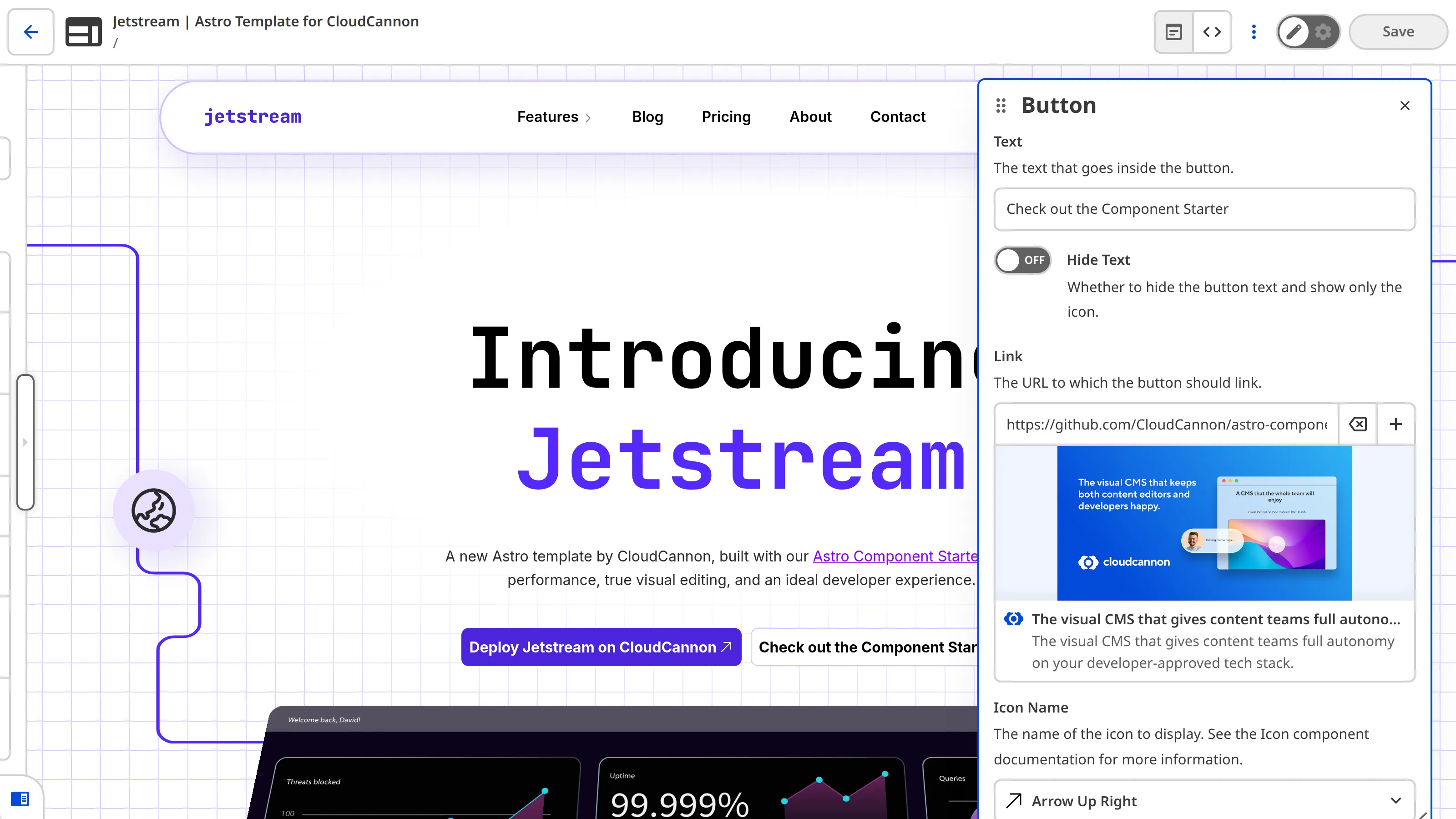
By calling *.data.edit() and passing a slug option, you can open a Data Panel for a specific field. This is useful when you want to use CloudCannon's built-in interface for your custom integration.
Optionally, pass a position object to anchor the Data Panel to the HTML element that triggered the action (for example, the element the Organization Member clicked).
const file = api.currentFile();
const element = document.querySelector('#hero-image');

element.addEventListener('click', (event) => {
  const rect = element.getBoundingClientRect();
  file.data.edit({
    slug: 'hero_image',
    position: {
      x: event.clientX,
      y: event.clientY,
      left: rect.left,
      width: rect.width,
      top: rect.top,
      height: rect.height
    }
  });
});Create a file variable to access the file currently open in the Visual Editor using api.currentFile().
Select the element that should open the Data Panel when clicked, such as the image in your preview.
Listen for a click on that element. The event provides the cursor coordinates.
Call element.getBoundingClientRect() to get the element's size and position for anchoring the panel.
Call file.data.edit() to open the editing panel for a field in file.
Pass the { slug: 'hero_image' } option to specify which field to open in the Data Panel.
Optional. Pass a position object to tell CloudCannon where to anchor the editing panel relative to the element.
Edit Array Inputs#
You can use the Visual Editor API to add, remove, and reorder items in an Array Input, either in the front matter of a content file or in a data file.
Add an item
Calling *.data.addArrayItem() allows you to add an item to an array field in an accessed file.
const file = api.currentFile();
await file.data.addArrayItem({
  slug: 'items',
  index: null,
  value: { title: 'New item', description: '' }
});Create a file variable to access the file currently open in the Visual Editor using api.currentFile().
Call file.data.addArrayItem() to add an item to an array field in file.
Pass the { slug: 'items'} option to specify the array field to add an item to.
Pass index: null to append the new item to the end of the array, or pass a number to insert it at a specific position.
Pass a value option with the content of the new item.
Remove an item
Calling *.data.removeArrayItem() allows you to remove an item from an array field in an accessed file.
const file = api.currentFile();
await file.data.removeArrayItem({
  slug: 'items',
  index: 2
});Create a file variable to access the file currently open in the Visual Editor using api.currentFile().
Call file.data.removeArrayItem() to remove an item from an array field in file.
Pass the { slug: 'items'} option to specify the array field to remove an item from.
Pass an index option to specify the position of the item to remove.
Move an item
Calling *.data.moveArrayItem() allows you to reorder items within an array field, or move items between different array fields, in an accessed file.
const file = api.currentFile();
await file.data.moveArrayItem({
  fromSlug: 'items',
  fromIndex: 0,
  toIndex: 3
});Create a file variable to access the file currently open in the Visual Editor using api.currentFile().
Call file.data.moveArrayItem() to move an item within or between array fields in file.
Pass a fromSlug option to specify the array field containing the item to move. Pass a toSlug option to move the item to a different array field.
Pass a fromIndex option to specify the current position of the item.
Pass a toIndex option to specify the new position of the item.
Lock editing on a file#
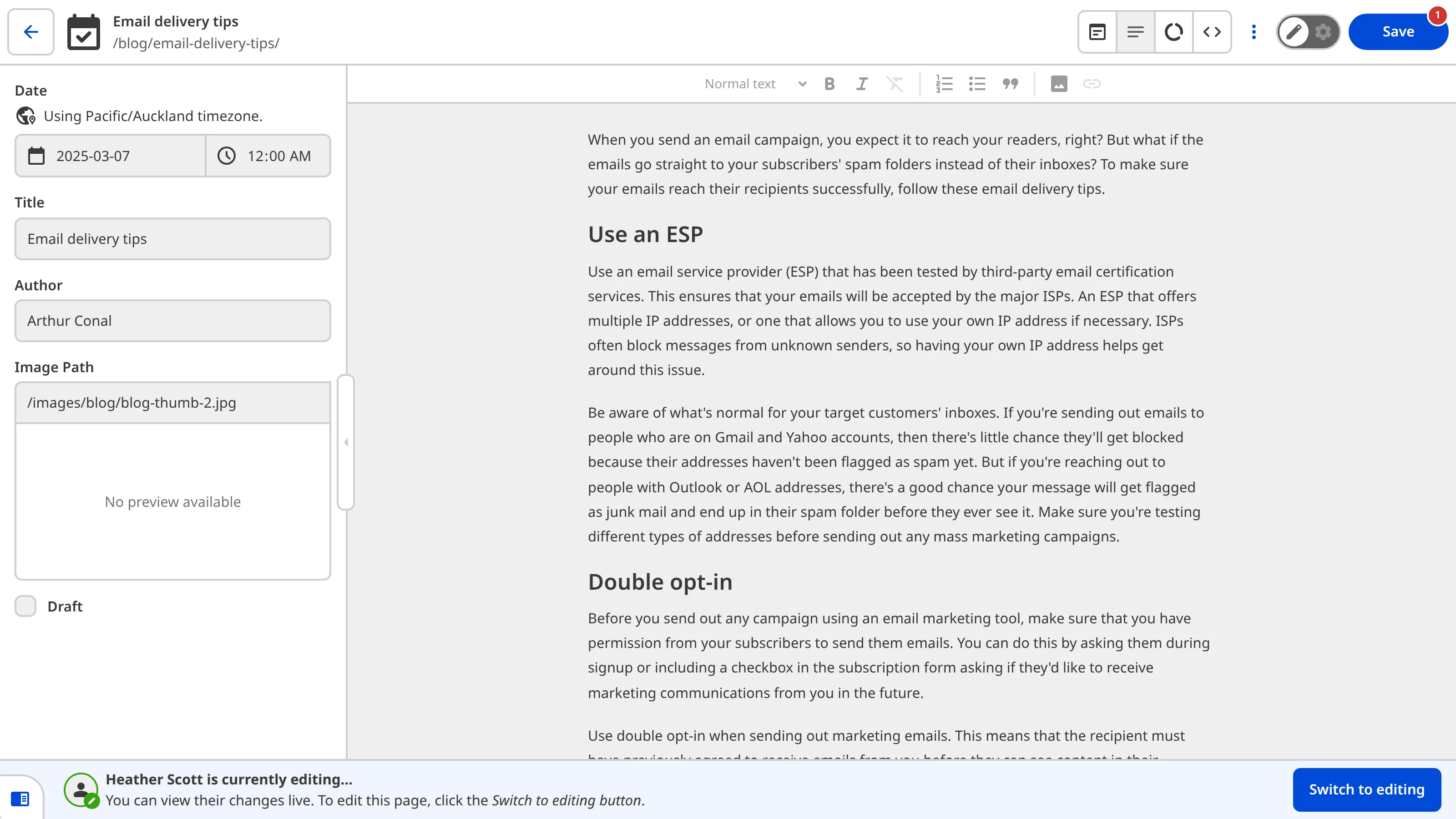
Claiming a lock on a file gives your integration the editing lock for that file. Only one lock can be held at a time, so other Organization Members working in the Visual Editor see the file as read-only while your integration holds it. Use *.file() to access the file you want to lock, call claimLock() before making changes, and releaseLock() when you are done.
const file = api.file('/_data/settings.yml');
const lock = await file.claimLock();

if (lock && !lock.readOnly) {
  try {
    await file.data.set({ slug: 'status', value: 'in-progress' });
  } finally {
    await file.releaseLock();
  }
}Use api.file() to access the specific file you want to lock. File locking is most useful when your integration needs to modify a shared file that other Organization Members might also be editing.
Call claimLock() to request an editing lock on file. It resolves to an object with a readOnly property, or undefined if the file does not exist.
Only write if you actually hold the lock. The check fails in two cases: claimLock() resolves to undefined when the file does not exist, or to { readOnly: true } when another Organization Member already holds the lock. Either way, your integration skips the write.
Release the lock in a finally block so it is always released, even if the write throws partway through. Otherwise other Organization Members are left viewing the file as read-only until they take the lock back manually.
A lock is cooperative, not absolute. An Organization Member editing in the Visual Editor can take the lock from your integration at any time: when they open a file that is already being edited, CloudCannon shows them a banner with a Switch to editing button. Clicking it hands them the lock, moves your integration to read-only, and keeps any unsaved changes. Because a held lock is not a guarantee of exclusive access, call claimLock() again and check readOnly before resuming writes to confirm your integration still holds the lock. For how this looks to an Organization Member in the Visual Editor, please read our documentation on Editing sessions and collaboration.
Read Input configuration#
Calling *.getInputConfig() allows you to read the resolved Input configuration for a field in an accessed file. Pass a slug option to specify the field.
const file = api.currentFile();
const inputConfig = await file.getInputConfig({ slug: 'hero_image' });
console.log(inputConfig?.type);Create a file variable to access the file currently open in the Visual Editor using api.currentFile().
Call file.getInputConfig() with a slug option to get the resolved Input configuration for that field.