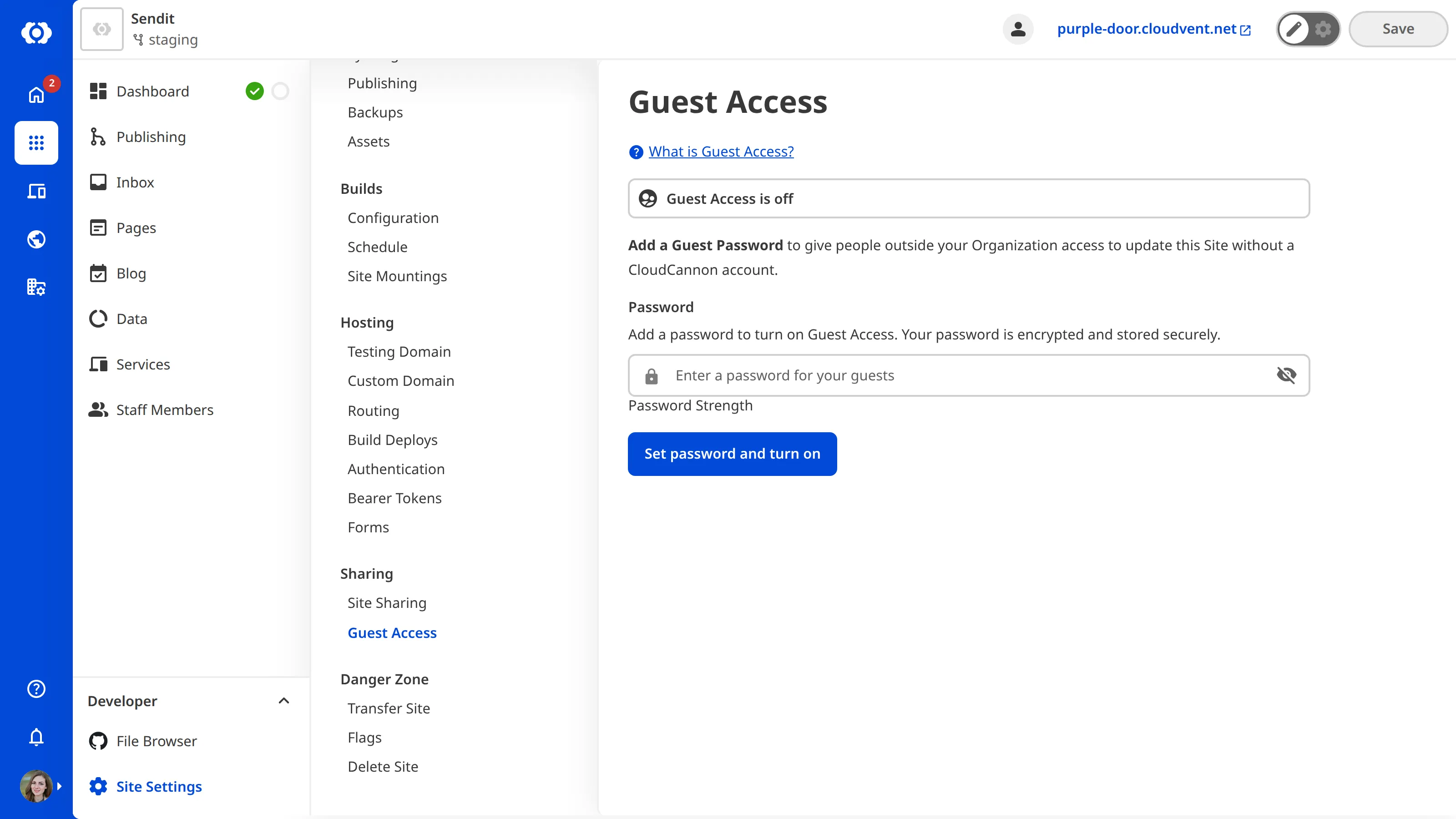
To add a Guest Access password to your Site:
- Navigate to the Guest Access page under Site settings.
- Under the Password tab, set the password to log in to the Site. For security reasons, the password must be at least six characters long
- Click the Set password and turn on button to enable Guest Access for this Site.
Guests can now log in to your Site on the Guest Login Page using the password you set. The Guest Login Page will be the Site domain with the suffix “/update” unless you have configured the URL to use a different subpath.
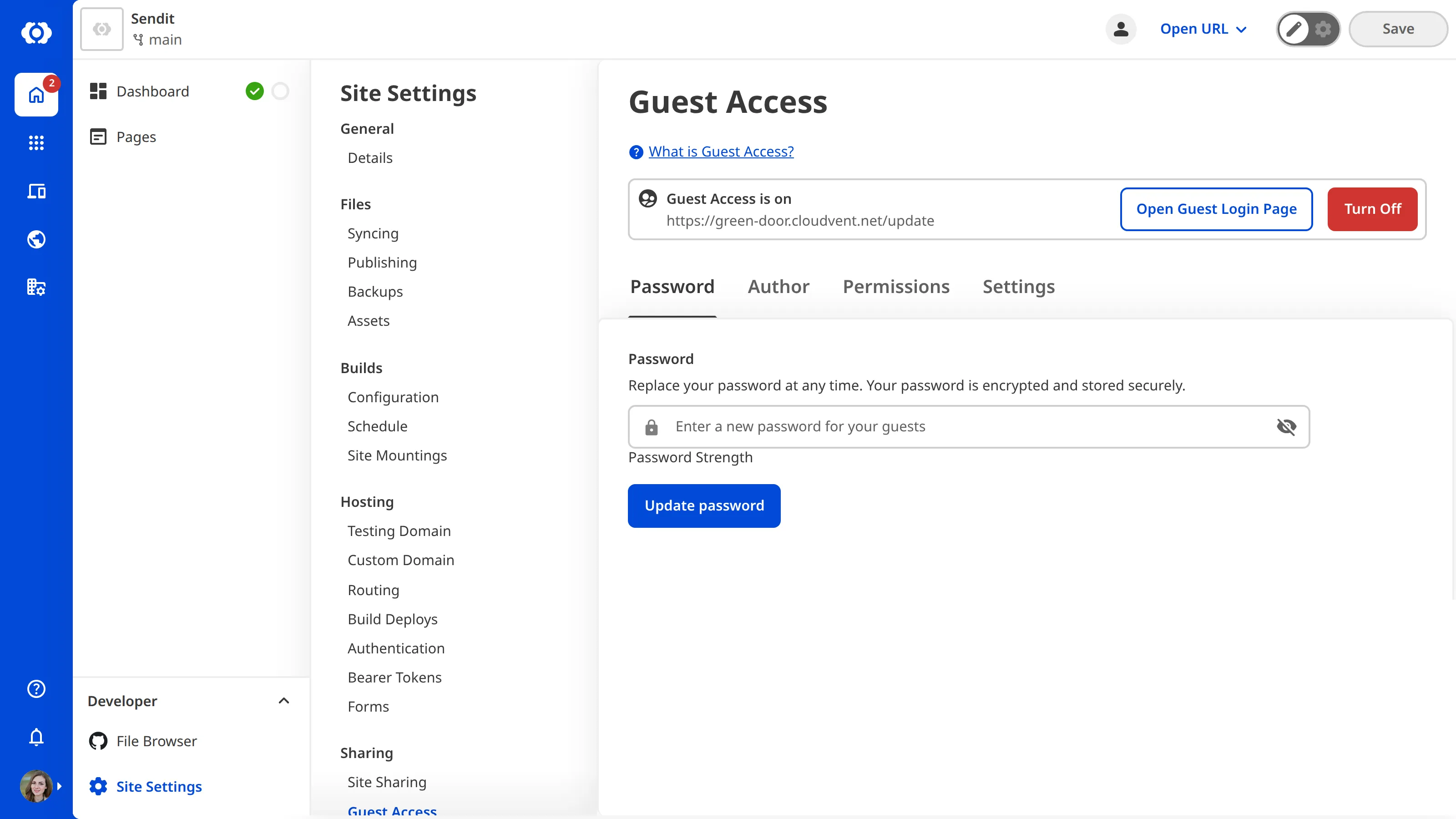
To open the Guest Login Page for your Site, click the Open Guest Login Page button.
To turn off Guest Access for a Site, click the Turn Off button at the top of the Guest Access page.