Deleting a Project A way to group multiple Sites from the same Git Repository, allowing you to define a main branch, as well as branching and publishing rules. You can access the Projects Browser using the Projects link in the App Sidebar. A website in CloudCannon that includes all the files, content, configuration, and settings needed to edit, build, and host a complete website.Project
Site
These instructions assume you have already created a Project.
Deleting a Project cannot be undone.
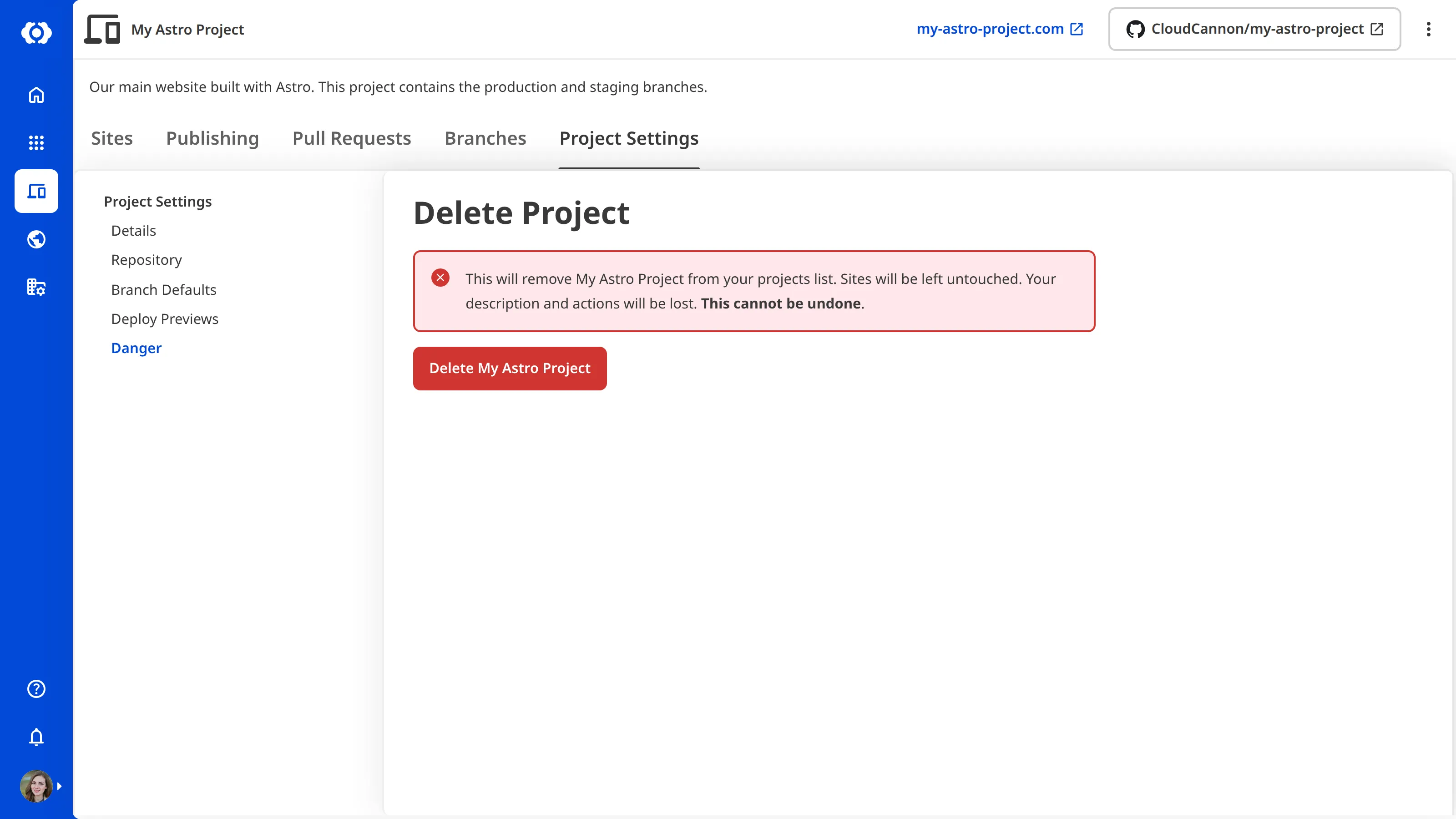
To delete a Project:
- Click Projects in the App Sidebar. CloudCannon will open the Projects Browser.
- Select the Project you want to delete. CloudCannon will open the Project Sites Browser.
- Click the Project Settings tab.
- Select Danger from the Section Navigation.
- Click the Delete [Project Name] button. CloudCannon will open the Please confirm this action modal.
- Click the Confirm button to delete the Project.
CloudCannon will delete your Project and return you to the Projects Browser.
What happens when you delete a Project#
Deleting a Project affects each part of the Project differently:
- Connected Sites — Not deleted. Each Site remains in your Organization as a standalone Site and continues to work as normal.
- Branch Defaults — Deleted. The default publish mode, authentication, and permission settings configured for the Project are removed.
- Deploy Preview settings — Deleted. The automation settings for Pull Request comments and automatically created Sites are removed.
- Related links — Deleted.
- Project description — Deleted.
- Custom Permission Groups — The groups themselves are not deleted, but any permissions scoped to this Project are removed from those groups.