An Access Key is a personal credential that lets other programs take action in CloudCannon on your behalf. You can use an Access Key to authenticate the official CloudCannon CLI, or a third-party program built with the CloudCannon Software Development Kit (SDK), so those tools can act without logging in through your internet browser. You create Access Keys on the Access Keys page under Account Settings. For more information, please read our documentation on creating an Access Key.
An Access Key is tied to your personal CloudCannon account and inherits your account's access and Permissions. Any program that holds it can take any action you can take across every Organization A workspace in CloudCannon that groups together Sites, Organization Members, and shared resources. It is also the unit CloudCannon bills for. You can define permissions for your Organization, controlling the access each Organization Member has to resources on CloudCannon. You can create and be a part of multiple Organizations. A website in CloudCannon that includes all the files, content, configuration, and settings needed to edit, build, and host a complete website.Organization
Site
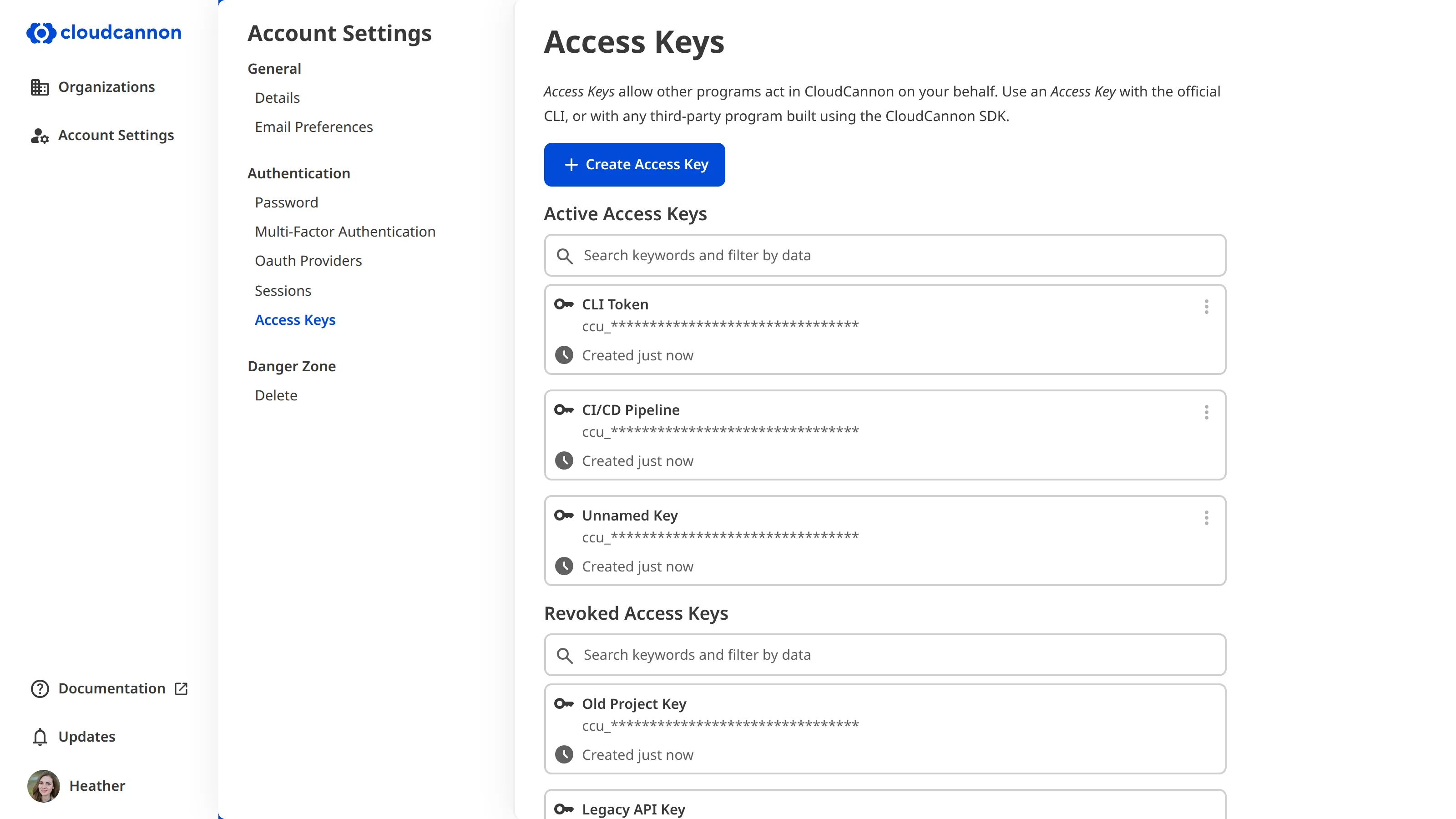
Each Access Key has two parts:
- Access Key ID — A public identifier that begins with
ccu_. CloudCannon uses the ID to look up which key is making a request. - Access Key Secret — A private value that proves the request is genuinely from you. CloudCannon shows your Access Key Secret only once, at the moment you create the key. Copy it and store it somewhere safe, such as a password manager. If you lose the secret, you cannot recover it.
When you set up the CLI or an SDK-based program, you provide your Access Key ID and Access Key Secret once. From then on, the tool uses these values to sign each request it sends to CloudCannon, and CloudCannon verifies the signature before allowing the request. You do not need to handle the signing yourself; the CLI and SDK do it for you.
Permissions and security#
An Access Key inherits your CloudCannon account's full permissions. There are no narrower scopes to limit what a key can do, so a program using your Access Key can take any action you can take. For this reason, treat each Access Key like a password, and create a separate key for each program so you can revoke one without affecting the others.
You can only make an Access Key for your own account. Access Keys should never be shared.
Access keys bypass multi-factor authentication and SSO enforcement. A request made with an Access Key is allowed even when your Organization enforces MFA or SAML SSO, because the key authenticates without an interactive login.
An Access Key does not expire on its own. It remains valid until you revoke it.
Revoking Access Keys#
You can revoke an Access Key at any time from the Access Keys page. When you revoke a key, CloudCannon moves it to the Revoked Access Keys list and rejects any request signed with it. Revoke a key whenever you suspect its secret has been exposed, or when the program using it no longer needs access.
CloudCannon keeps revoked keys in the Revoked Access Keys list for a short period so you can confirm which key you removed, then deletes them permanently 30 days after revocation.