Connecting a Publish Branch The branch containing the copy of your website to which you want to publish your changes (sometimes called the "upstream" branch). Defining a Publish Branch allows Organization Members to work on separate branches in parallel before publishing their changes to a shared branch. A website in CloudCannon that includes all the files, content, configuration, and settings needed to edit, build, and host a complete website. A workflow that controls how changes move between multiple Sites in a Project. Branching an existing Site allows Organization Members to draft changes on an independent, identical copy, then publish those changes back when they are ready. Common workflows move changes from draft Sites to a Staging Site to a Production Site, protecting each upstream Site from changes until they are ready.Publish Branch
Site
Publishing Workflow
When you create a branched Site inside a Project, CloudCannon connects it to a Publish Branch automatically. For more information, please read our documentation on what publishing is.
These instructions assume you have at least two branches in your Git Repository, with a Site connected to each.
To connect a Publish Branch to a Site:
- From your branched Site, click Site Settings in the Site Navigation.
- Click Publishing in the Section Navigation.
- Search for the branch you want to connect as your Publish Branch, then click Add Publish Branch.
CloudCannon will connect the branch as your Site's Publish Branch. Your team can now publish changes via the Publishing link in the Site Navigation of the branched Site.
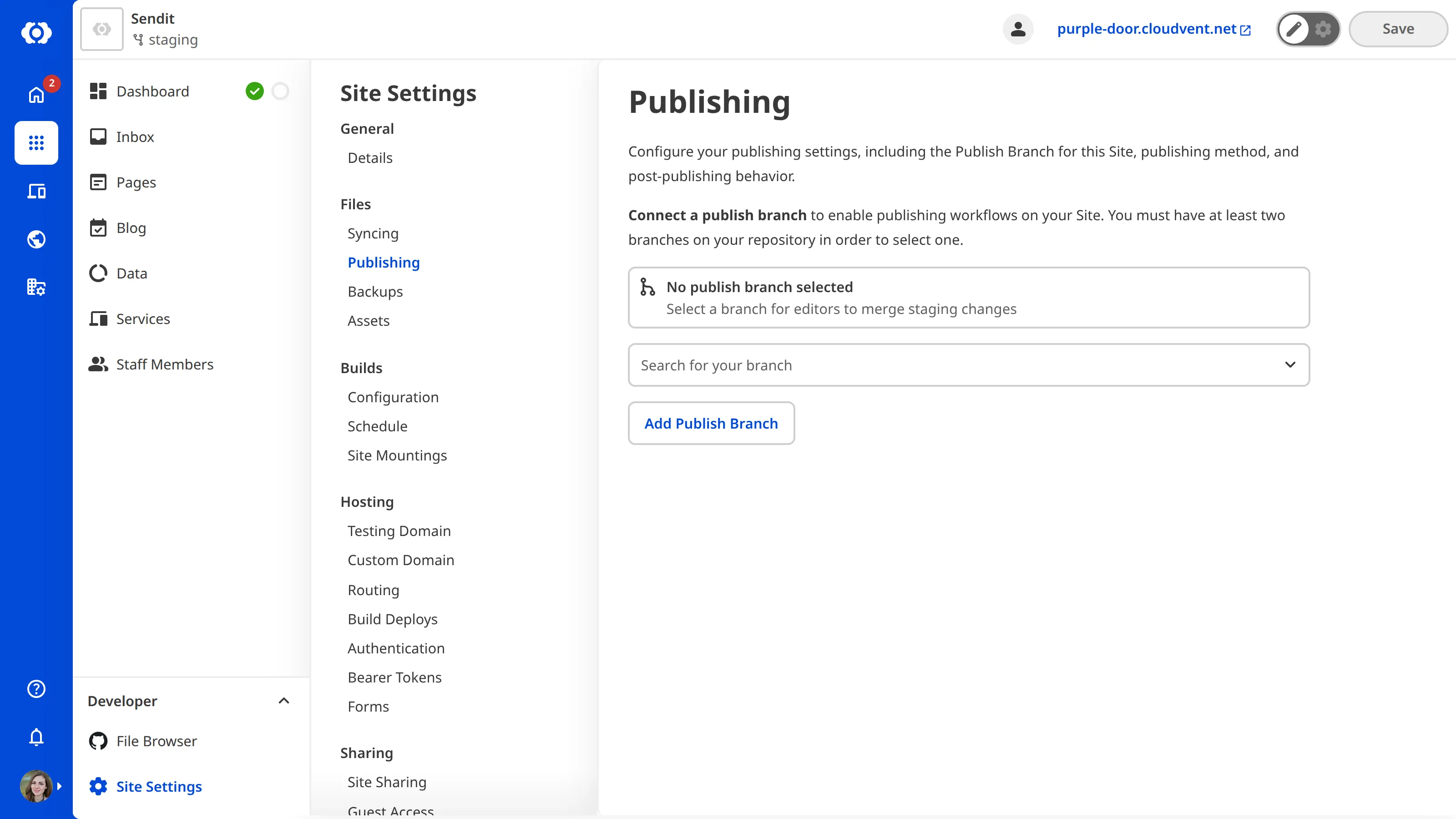
You can remove the Publish Branch at any time by clicking Remove Publish Branch on the same page. After connecting your Publish Branch, you can also change your Publishing Method or turn on delete after publishing.