Branch Defaults are the settings CloudCannon applies to new branched Sites A website in CloudCannon that includes all the files, content, configuration, and settings needed to edit, build, and host a complete website. A way to group multiple Sites from the same Git Repository, allowing you to define a main branch, as well as branching and publishing rules. You can access the Projects Browser using the Projects link in the App Sidebar. The branch in your Git Repository that represents your live or production content within a Project. The Main Branch determines where new branch Sites are created from and where changes are published to by default. Deploy Previews are a set of automations that CloudCannon can run whenever a Pull Request is opened, closed, or updated in your Git Repository. When enabled, CloudCannon can post a comment on each Pull Request with details of any connected Sites, and automatically create and delete a Site for each Pull Request. This lets your team review and edit changes in CloudCannon before a Pull Request is merged.Site
Project
Main Branch
Deploy Preview
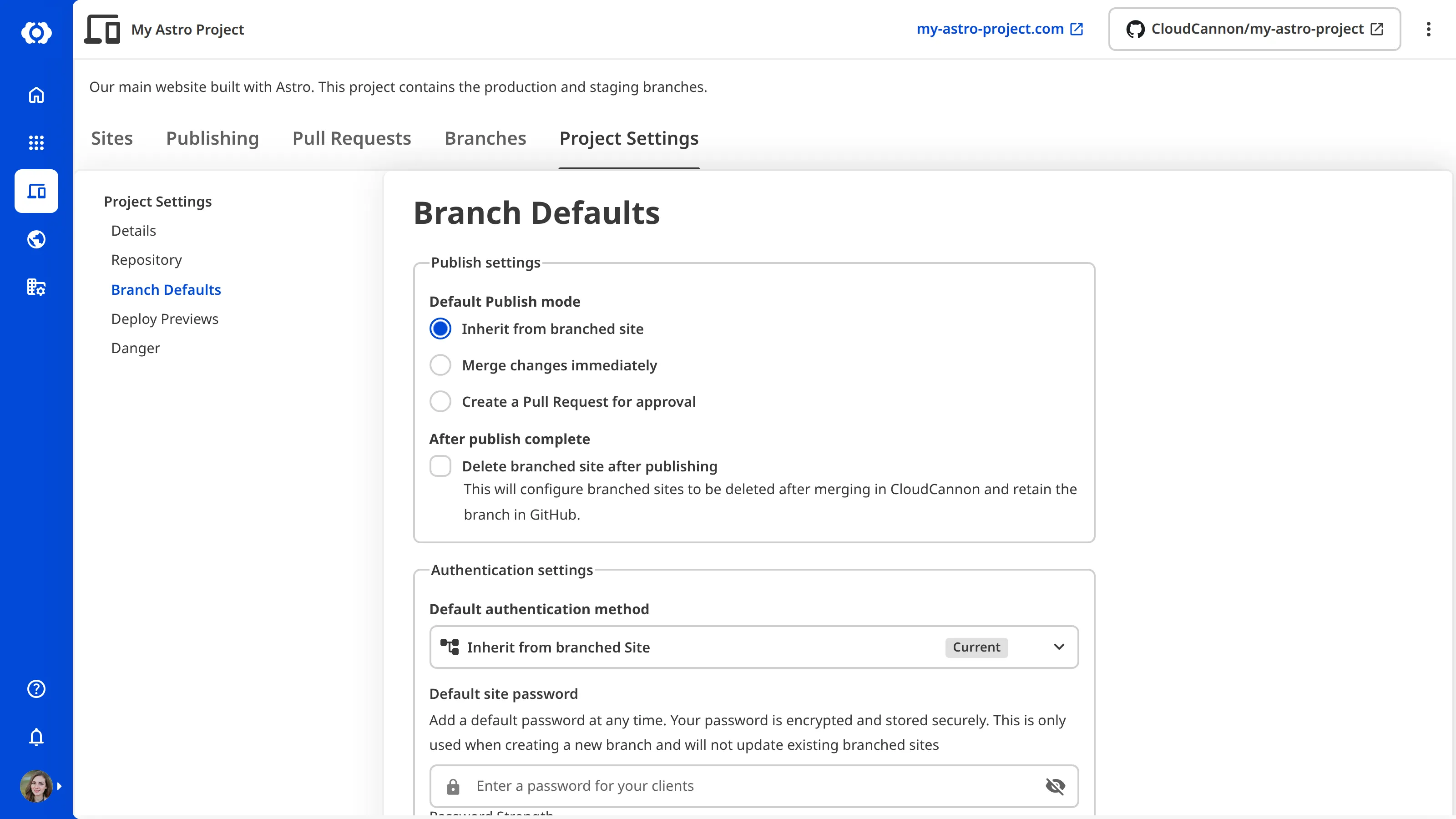
When you create a new branched Site, CloudCannon copies the source Site's configuration, then applies any default configuration set in your Branch Defaults. This separation lets you keep production settings on your Main Branch (for example, a public Site with no authentication) while applying stricter defaults to branched Sites (for example, password protection on every Testing Domain).
You can configure Branch Defaults at any time from Project Settings. Branch Defaults apply to Sites created after the change; existing Sites keep their current settings.
Publish settings#
Publish settings control the behavior of a branched Site when it publishes back to its Publish Branch. These are the same as the settings you can control per-Site from the Publishing page under Site Settings, except that they apply by default to all branched Sites in a Project.
Default Publish mode determines how CloudCannon merges changes from the branched Site. By default, this is set to Inherit from branched site, so a branched Site uses the same publish mode as the Site it was branched from. Alternatively, you can set it to Merge changes immediately or Create a Pull Request for approval, so the same publishing mode is used by all branched Sites in a Project. For more information, please read our documentation on what Publishing Methods are.
The Delete branched site after publishing checkbox controls whether CloudCannon will clean up your Project by removing branched Sites after they have published to their Publish Branch. By default, this setting is unchecked. It seeds the default Delete this site after publishing setting on every new branched Site in your Project, including Sites CloudCannon creates automatically from Pull Requests through Deploy Previews. This behavior does not affect the branch in your Git Repository. For more information, please read our documentation on turning on delete after publishing.
Authentication settings#
Authentication settings control who can see Testing Domains for Sites in your Project and how they can gain access to them. These are the same settings you can control per-Site from the Authentication page under Site Settings, except that they apply by default to all branched Sites in a Project.
Default authentication method determines whether a visitor needs to authenticate their identity to view a Testing Domain. By default, this is set to Inherit from branched site, so a branched Site uses the same authentication method (if any) as the Site it was branched from. Alternatively, you can set it to CloudCannon (requires an account in your Organization), Password, or None. For more information, please read our documentation on Authentication.
The Default site password creates a shared password that applies to all branched Sites in the Project that use Password authentication.
Permission settings#
Permission settings are available for Organizations that use Custom Permission Groups.
By default, Organization Members in Custom Permission Groups can always view, edit, or merge the branched Sites they create. CloudCannon does this by granting new permissions to their Custom Permission Group when they branch a Site inside a Project.
CloudCannon adds these permissions to each Custom Permission Group that gave the Organization Member permission to create the branched Site. A group qualifies when it has the site-branch:create or *:create resource with a Global scope, or a Site or Project scope including the branched Site. Other Permission Groups are not updated, such as those scoped to a different Project or Site, groups where the branching resource is an exception, and groups without any branching permissions.
CloudCannon adds the following permissions to each qualifying Custom Permission Group, scoped to the new branched Site:
site:file:write— Edit content files.site:dam:write— Edit assets in the DAM.site:inbox:write— Manage form submissions.site:publish:write— Publish changes back to the parent Site.site:details:read— View Site details.site:activity:read— View Site activity.site:build:details:read— View build details.site:sync:details:read— View sync details.site:build-deploys:details:read— View build deploy details.
You can see this list in CloudCannon by clicking the Show permissions button in the Permission settings section.
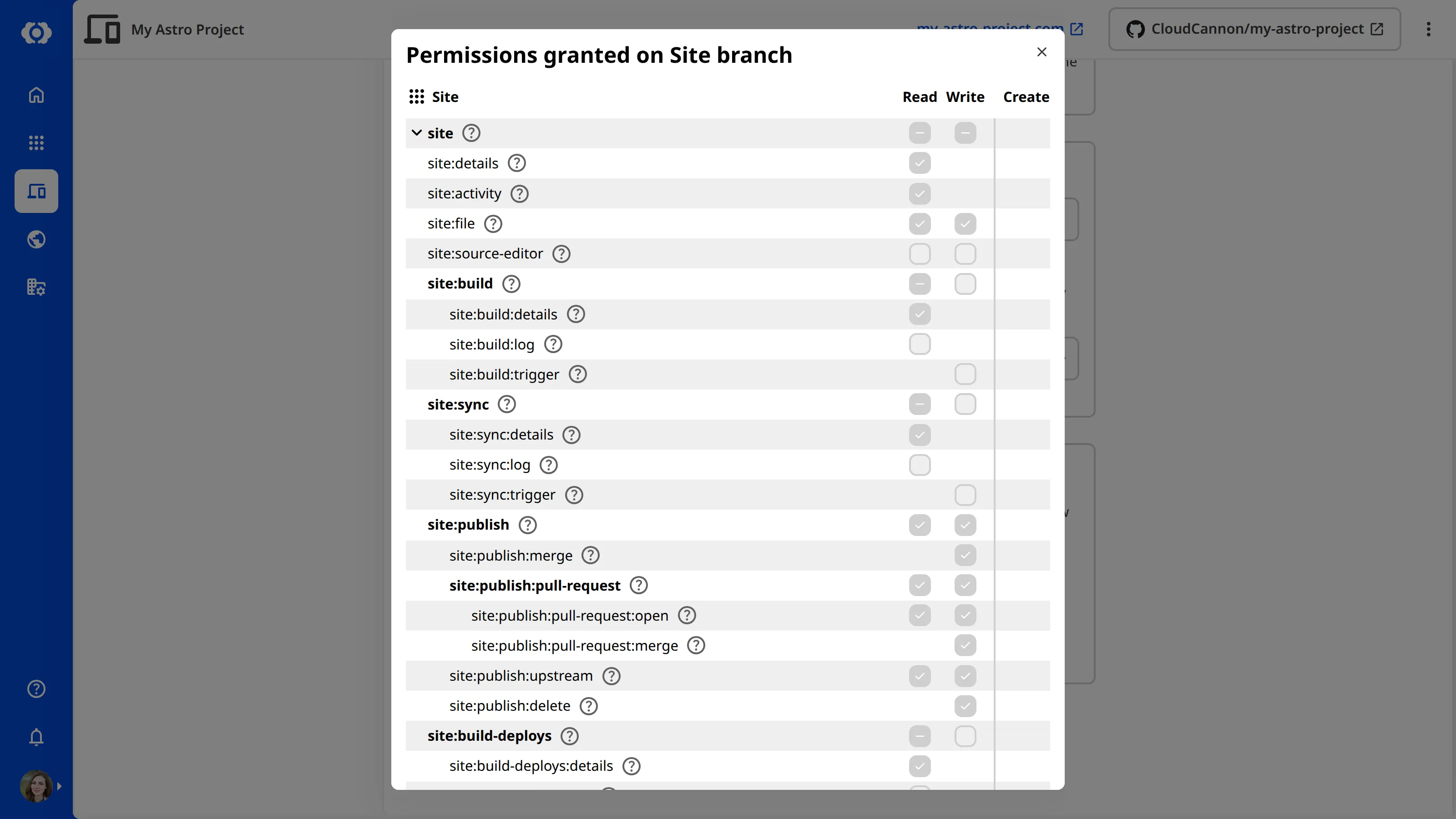
You can disable this behavior with the Do not grant new permissions on Site branch setting, which restricts Organization Members to Site permissions defined specifically in their Custom Permission Groups.