Direct Upload lets you create a Site A website in CloudCannon that includes all the files, content, configuration, and settings needed to edit, build, and host a complete website. A web-based service that hosts Git Repositories. CloudCannon supports GitHub, GitLab, and Bitbucket as Git Providers for syncing your website's code and content files. A storage location for the code and files that make up your website. CloudCannon supports the repository providers GitHub, GitLab, and Bitbucket, and highly recommends using a repository to store your website's files for better version control and collaboration.Site
Git Provider
Git Repository
You can upload your files as a folder or as a zip file. The Upload a zip file option also accepts .tar, .gz, and .bz archives. The total size of your folder or archive must be 524.29 MB or less.
The Upload a folder and Upload a zip file options are only available when your browser window is at least 650 pixels wide.
Create a Site from a folder#
When you upload a folder, CloudCannon lets you choose which files inside it to include before it creates your Site. CloudCannon selects every file except hidden files and the contents of _site, dist, node_modules, .sass-cache, and .idea folders, and never uploads your .git folder.
To create a Site from a folder:
- Navigate to the Sites Browserby clicking the Sites button in the App SidebarGlossary term
Sites Browser
CloudCannon's interface for managing and organizing all the Sites within an Organization. The Sites Browser allows you to browse, search, and open Sites, displaying key information like name, icon, branch, Build status, and domain. You can access the Sites Browser from the App Sidebar.
.Glossary termApp Sidebar
The left-most UI panel in the CloudCannon app. This panel contains links to your Organization Home, Sites, Projects, Domains, and Org Settings pages, as well as app Updates and your Avatar.
- Click the Create a Site button. CloudCannon will open the Create a Site page.
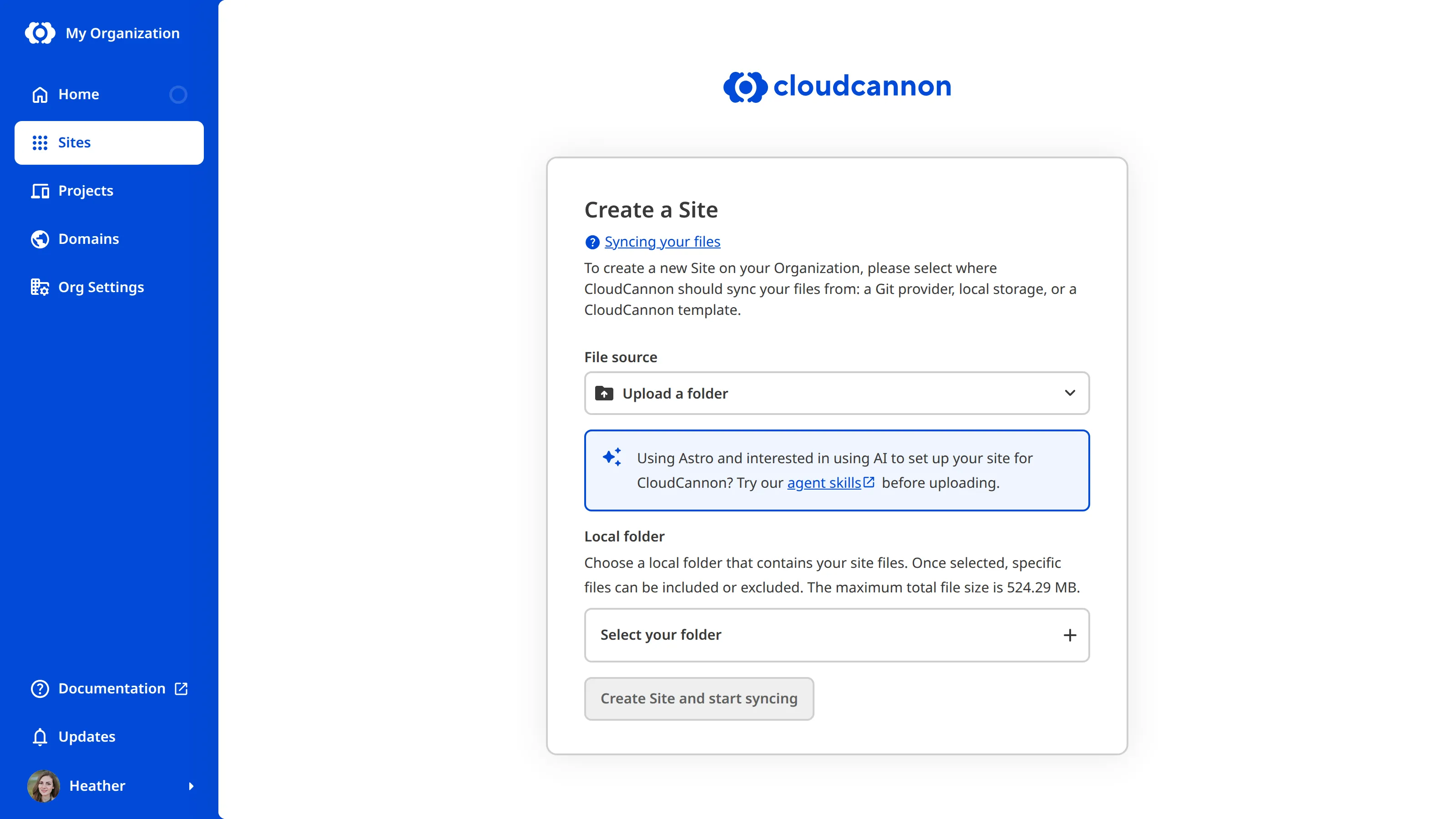
- Select the Upload a folder option from the File source dropdown.
- Click the Select your folder button.
- Choose the folder that contains your website files. CloudCannon will open the Confirm your files modal.
- Deselect any files you don't want to upload, or select any excluded files you need.
- Click the Confirm selection button.
- Enter a name for your Site in the Site name field.
- Click the Create Site and start syncing button.
CloudCannon will create your Site, upload your files, and open the Site Dashboard. Follow the Getting started steps there to configure your Site.
Create a Site from a zip file#
If your zip file contains a single top-level folder, CloudCannon uses the contents of that folder as the root of your Site.
To create a Site from a zip file:
- Navigate to the Sites Browser by clicking the Sites button in the App Sidebar.
- Click the Create a Site button. CloudCannon will open the Create a Site page.
- Select the Upload a zip file option from the File source dropdown.
- Click the Select your zip file button.
- Choose the zip file that contains your website files. CloudCannon will fill in the Site name field from the name of your zip file.
- Change the name in the Site name field if you want a different name.
- Click the Create Site and start syncing button.
CloudCannon will create your Site, upload your files, and open the Site Dashboard. Follow the Getting started steps there to configure your Site.
Add more files later#
Once your Site exists, you can upload more files or folders from the File Browser CloudCannon's interface for managing and organizing files in your site repository. Tools in the File Browser allow you to navigate, upload, delete, and manage files and folders using the same file architecture as your Git Repository.File Browser
If you later connect your Site to a Git Provider, CloudCannon backs up your current files and replaces them with the files from your Git Repository.