An input comment is the help text CloudCannon shows beneath an input's label in the Data Editor CloudCannon's editing interface for managing structured data files and the Front Matter of markup files. The Data Editor is most useful for YAML, TOML, JSON, CSV, and TSV file types, and Markdown or MDX files with Front Matter. This editing interface also doubles as the sidebar and data panels in the Visual Editor and Content Editor.Data Editor
comment key in your input configuration, and your team reads it while they edit.
Comments are where you explain what a field is for, what format a value should take, or where the value ends up on your Site A website in CloudCannon that includes all the files, content, configuration, and settings needed to edit, build, and host a complete website.Site
_inputs:
  seo_description:
    type: textarea
    label: SEO Description
    comment: Shown in search results, so keep it under 160 characters
{
"_inputs": {
"seo_description": {
"type": "textarea",
"label": "SEO Description",
"comment": "Shown in search results, so keep it under 160 characters"
}
}
}
Where comments appear#
comment is the most common of several keys that render the same way. Each sits in a different place in the Data Editor, and all of them accept the same Markdown.
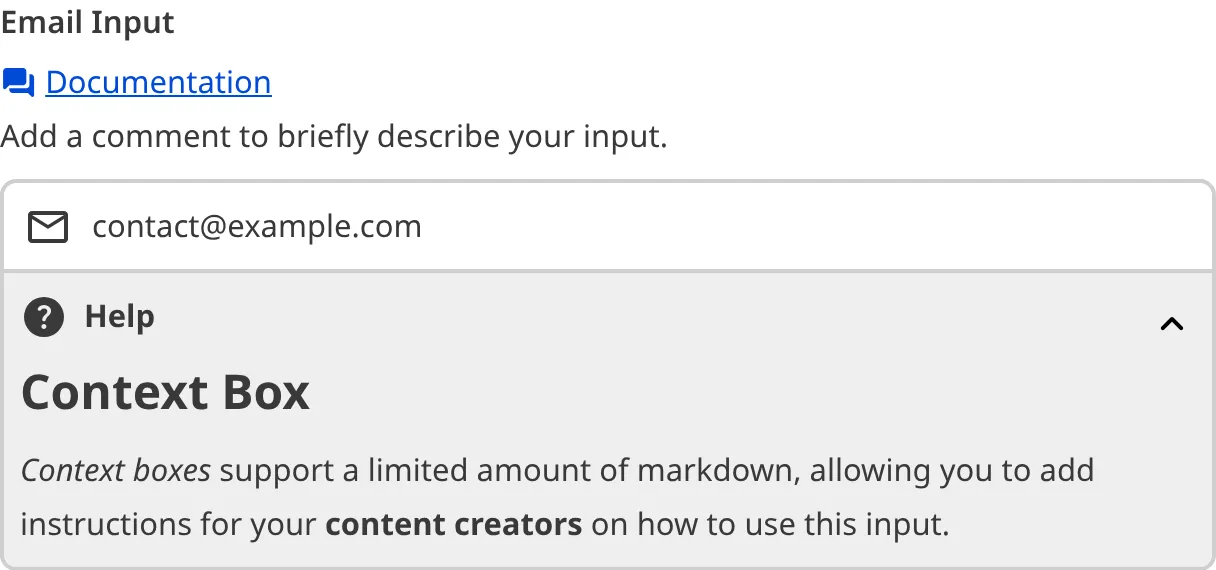
comment— Beneath an input's label. This is the one you will reach for most.disabled_message— Replaces the usual subtext while an input is disabled, so you can say why it cannot be edited.context.content— An expandable section below the input, for longer explanation that would crowd the label. Pair it withcontext.titleto label the control that opens it.- A group's
comment— Beneath the heading of a group inside an Object input, describing the fields it collects. entries.comment— Above the key field when someone adds or renames a key in a mutable Object input.
Each of these is an input configuration key, so you can set it at any level of the configuration cascade. For more information, please read our documentation on using the configuration cascade.
What you can write in a comment#
A comment is not plain text, but it is not full Markdown either. CloudCannon renders a limited set and strips anything outside it, so a heading or a list will not survive.
You can use links, bold, italic, subscript, superscript, and inline code.
_inputs:
  api_key:
    comment: Paste the value of `JETSTREAM_API_KEY` from your **provider dashboard**
{
"_inputs": {
"api_key": {
"comment": "Paste the value of `JETSTREAM_API_KEY` from your **provider dashboard**"
}
}
}Keep comments short. The text sits between the input's label and the input itself, so a long comment pushes the fields your team is editing further down the page. Where you need more room, use context.content instead, which stays collapsed until someone opens it.
Linking into CloudCannon from a comment#
A link in a comment can point anywhere, and it can also point back into CloudCannon using the A group of related files with a similar format (e.g., a folder of pages, blog posts, or data files). Once you group your files into Collections, they appear in the Site Navigation for easy access.cloudcannon: scheme. This is how you send an Organization Member from a field's help text to the file, CollectionCollection
CloudCannon links work in comment, in disabled_message, and in a group's comment. A link in context.content can open a destination in the app but cannot open a field, and links in entries.comment do nothing at all.
_inputs:
  author:
    comment: Choose from the team listed in [your staff
      Collection](cloudcannon:collections/staff)
{
"_inputs": {
"author": {
"comment": "Choose from the team listed in [your staff Collection](cloudcannon:collections/staff)"
}
}
}A link to a field — one written as A Data Panel is a panel of Inputs for editing a focused scope of structured data, such as image details, link attributes, or Site configuration. Data Panels appear in several places across CloudCannon — in the Visual Editor, in the Content Editor when you edit a snippet, image, or link, and in Configuration Mode, such as the Edit Advanced panel. Developers can also build custom Data Panels with full Input support using the Visual Editor API.cloudcannon:# followed by a slug — opens a Data PanelData Panel
data-cms-editor-link-style has no effect in a comment.
Two more things behave differently here. A path beginning with collections/ names the Collection key, as the app's own URL writes it. And two paths work only in a comment: cloudcannon:!home opens your Organization home, and cloudcannon:!support opens the support widget.
For the syntax these links share with the rest of CloudCannon, please read our documentation on what the CloudCannon link protocol is.