Editor Links are ordinary CloudCannon's visual editing interface provides a user-friendly way of updating your website files on an interactive preview of your webpage. You can navigate around your website preview using links/buttons, as you would on the live version, and edit your content inline on the page, or with the data panel or sidebar. What you see in the Visual Editor is what your website visitors will see on your live webpages.<a> elements whose href uses the cloudcannon: scheme. In the Visual EditorVisual Editor
Use them to put an edit button next to each item in a list, or to send a Organization Member A person who belongs to the same Organization as you. Organization Members are other CloudCannon users who have been invited to your Organization to collaborate on Sites, edit content, or manage settings. Each Organization Member has their own CloudCannon account with individual permissions assigned through Permission Groups, and uses one Seat in your Subscription Plan. Organization Members were previously called Team Members.Organization Member
Editor Links use the CloudCannon link protocol. For the full syntax, please read our documentation on what the CloudCannon link protocol is.
Linking to a field in the current file#
Prefix the slug with cloudcannon:# to open the field behind a value in the file you are previewing. Name each step from the root of your data, separating objects and properties with a dot, and denoting array items with a zero-based index in square brackets.
<a href="cloudcannon:#title">Edit the title</a>

<a href="cloudcannon:#array[1]">Edit the second array item</a>

<a href="cloudcannon:#object.title">Edit a value inside an object</a>

<a href="cloudcannon:#object.array[0].title">Edit the title of the first item in an object's array</a>Opens a Data Panel over the page, positioned near the link you clicked.
Indexes start at 0, so [1] is the second item.
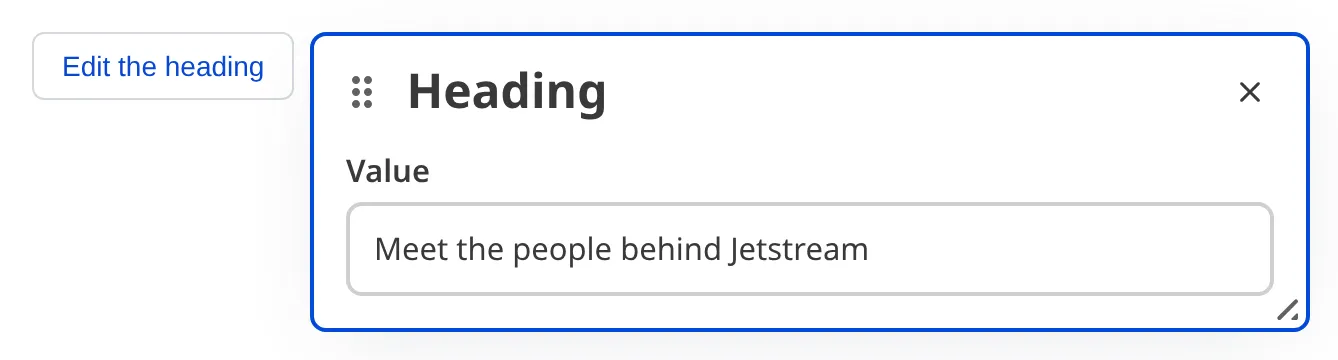
Editor Links open an existing field. To give an Organization Member a control that adds a new array item, use a Visual Data Binding ending in [+] instead. For more information, please read our documentation on what Visual Data Bindings are.
Opening in the sidebar
By default, an Editor Link opens a Data Panel A Data Panel is a panel of Inputs for editing a focused scope of structured data, such as image details, link attributes, or Site configuration. Data Panels appear in several places across CloudCannon — in the Visual Editor, in the Content Editor when you edit a snippet, image, or link, and in Configuration Mode, such as the Edit Advanced panel. Developers can also build custom Data Panels with full Input support using the Visual Editor API.Data Panel
data-cms-editor-link-style attribute with a value of sidebar to open the field in the sidebar instead. The sidebar replaces its list of fields with the one the link names, and a Back link returns to the list.
<a href="cloudcannon:#title" data-cms-editor-link-style="sidebar">Edit the title</a>
Linking to other parts of CloudCannon#
Drop the # and name a path to open somewhere else in CloudCannon. CloudCannon resolves the path against your Site, so dashboard opens its Site Dashboard.
To open a Collection A group of related files with a similar format (e.g., a folder of pages, blog posts, or data files). Once you group your files into Collections, they appear in the Site Navigation for easy access.Collection
collections/ followed by the path that Collection reads from in your repository. CloudCannon matches that path against your Collection configuration and opens the Collection it belongs to. Use the path, not the Collection key that appears in the app's own URL — a key CloudCannon cannot match as a path opens the Collection Browser instead.
<a href="cloudcannon:collections/staff">Open the staff Collection</a>

<a href="cloudcannon:collections/staff/jane-doe.md">Open a file in the staff Collection</a>

<a href="cloudcannon:dashboard">Open the Site Dashboard</a>Adding edit links to a list#
Putting an Editor Link inside a loop gives every item its own edit button. In Hugo:
<ul class="blog-posts">
  {{ range .Pages }}
    <li class="blog-post">
      <h3>{{ .Title }}</h3>
      <a href="cloudcannon:collections/content/{{ .File.Path }}" class="editor-link">Edit post</a>
      <p>{{ .Summary }}</p>
      <a href="{{ .RelPermalink }}">Read more</a>
    </li>
  {{ end }}
</ul>The path has no leading slash, which is the form CloudCannon resolves against your Site.