Unlike other types of Editable Region, re-rendering Component Editable Regions requires CloudCannon to run your template code in the browser of whoever is editing the page. Most components need no extra configuration or code changes beyond installing the integration. However, some depend on things a browser cannot provide, such as a secret or a server-only environment variable, a Node package with no browser equivalent, or image processing that happens at build time.
When CloudCannon cannot render a component, it replaces that component in the Visual Editor CloudCannon's visual editing interface provides a user-friendly way of updating your website files on an interactive preview of your webpage. You can navigate around your website preview using links/buttons, as you would on the live version, and edit your content inline on the page, or with the data panel or sidebar. What you see in the Visual Editor is what your website visitors will see on your live webpages.Visual Editor
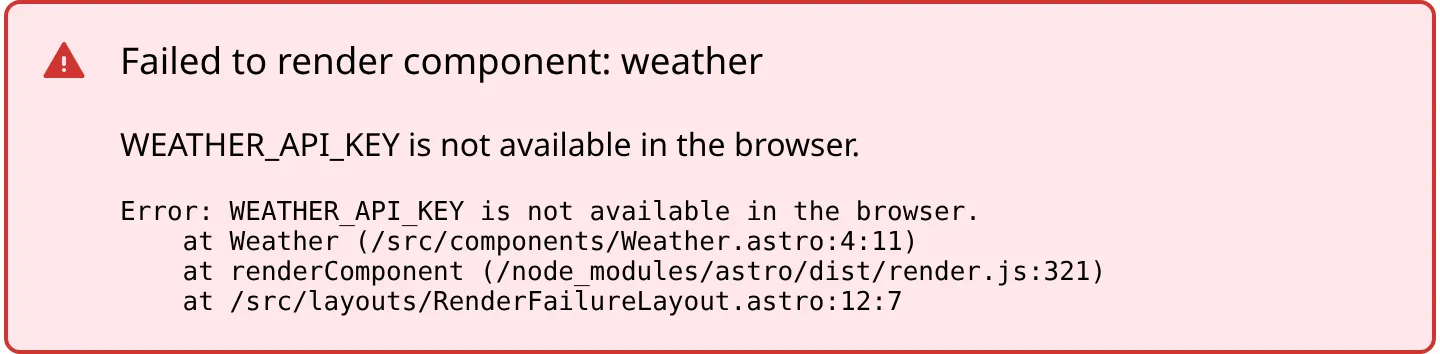
To handle this issue, you must give CloudCannon something simpler to render while someone is editing the page in the Visual Editor, without affecting what appears on the live webpage after you build. The Error Card will name the dependency that could not run, which is what decides which method you should use: replacing what CloudCannon renders, detecting the Visual Editor, stubbing a dependency, or supplying missing data.
Before we begin, this article assumes you have already installed the Editable Regions A designated area within a webpage template that Organization Members and Guests can modify in the Visual Editor. Editable Regions make content editable directly on the page, without anyone touching code.Editable Region
Ways to provide a fallback#
The options available to you depend on your SSG. They fall into four kinds:
- Replace what CloudCannon renders — point CloudCannon at a simpler version of your component or template, which it uses instead of the original. Use this when you want your team to keep editing the component's content. Available for Astro, Eleventy, Hugo, and JavaScript frameworks.
- Detect the Visual Editor — check whether your code is running in CloudCannon's renderer, and render something else when it is. Use this when the component has nothing worth editing and you only need the page to render. Available for Astro and Hugo. Sites built with JavaScript frameworks use
window.inEditorModeinstead. - Stub a dependency — name a package that cannot run in a browser, so CloudCannon replaces it with a stub. Use this when a single package stops CloudCannon building the browser bundle at all. Available for Eleventy.
- Supply missing data — pass values or files that CloudCannon's renderer cannot read for itself. Use this when the component would render correctly if it could reach the data it needs. Available for Eleventy and Hugo.
In every case, your built Site A website in CloudCannon that includes all the files, content, configuration, and settings needed to edit, build, and host a complete website.Site
Astro
Replace the component in the Visual Editor
Register a different component under the name your templates already use.
To replace a component in the Visual Editor:
- Create a simpler version of your component in your local development environment.
- Register your replacement under the name your templates already use.
- Save your changes and rebuild your Site.
import { registerAstroComponent } from '@cloudcannon/editable-regions/astro';
import EditorFriendlyCard from '../components/editor-friendly/Card.astro';

registerAstroComponent('card', EditorFriendlyCard); Registering EditorFriendlyCard under the name card means every Editable Region with data-component="card" uses it.
CloudCannon will render your replacement in the Visual Editor, and the original component on your live Site.
Detect the Visual Editor
The Astro integration defines a global boolean called ENV_CLIENT, which is true when your code runs in CloudCannon's renderer and false in a normal build.
To render a fallback when your component cannot run in the Visual Editor:
- Open the component that cannot render in your local development environment.
- Add a condition on
ENV_CLIENTthat returns a fallback instead of the code that cannot run. - Save your changes and rebuild your Site.
---
import WeatherWidget from "./WeatherWidget.astro";
---

{ENV_CLIENT
  ? <p>Weather is not available while editing.</p>
: <WeatherWidget />}CloudCannon will show your fallback in the Visual Editor, and render the component normally on your live Site.
Imports from astro:content, astro:assets, and astro:env keep working in the Visual Editor, with some exceptions that need a fallback: build-time image processing, inferRemoteSize(), and server-only secrets are unavailable, defineCollection() and reference() cannot run inside a component, and render() returns your raw Markdown without your remark transformations or headings.
Eleventy
Replace an include in the Visual Editor
CloudCannon resolves component names the same way your templates resolve includes. Use the components option to point a component name at a different template, which CloudCannon uses instead of the one it found.
To replace an include in the Visual Editor:
- Create a simpler version of your include in your local development environment.
- Map your component name to your replacement with the
componentsoption. - Save your changes and rebuild your Site.
eleventyConfig.addPlugin(editableRegions, {
  liquid: {
    components: {
      "author-card": "./src/_includes/editor-friendly/author-card.liquid",
    },
  },
});Names you register with components take precedence over the includes CloudCannon finds for itself.
CloudCannon will render your replacement in the Visual Editor, and the original include on your live Site.
Replace a helper in the Visual Editor
CloudCannon copies your filters, shortcodes, paired shortcodes, and custom tags out of your Eleventy configuration file. Any that depend on a Node package cannot be copied, so provide a browser version and register it under the same name.
To replace a helper in the Visual Editor:
- Create a browser version of your filter, shortcode, paired shortcode, or tag in your local development environment.
- Map its name to your browser version in the Editable Regions plugin options.
- Save your changes and rebuild your Site.
export default () => "Image adjustments are not previewed while editing";eleventyConfig.addPlugin(editableRegions, {
liquid: {
filters: {
sharpen: "./img/sharpen-browser.js",
},
},
});The same option is available for shortcodes, pairedShortcodes, and tags.
CloudCannon will use your browser version in the Visual Editor, and exclude the original from the copy it sends to the browser.
Stub a package
CloudCannon always stubs Node built-in modules and the Eleventy toolchain out of the browser bundle. If your configuration file uses another package that cannot run in a browser, name it with the browserStub option.
To stub a package out of the browser bundle:
- Open your Eleventy configuration file in your local development environment.
- Add the package name to the
browserStuboption. - Save your changes and rebuild your Site.
eleventyConfig.addPlugin(editableRegions, {
  liquid: {
    browserStub: ["sharp"],
  },
});CloudCannon will replace that package with a stub when it builds the browser bundle.
Stubbing stops a package from breaking the bundle, but it does not make the code that uses it work. If a filter, shortcode, or tag calls the stubbed package while CloudCannon renders your template, it will still throw. Provide a browser version for that helper as well.
Pass build data to the Visual Editor
Templates rendered in the Visual Editor cannot read the global data your build provides. Pass any values they need with the globals option. Values must be JSON-serializable, because CloudCannon embeds them at build time.
To pass global data to your templates in the Visual Editor:
- Open your Eleventy configuration file in your local development environment.
- Add the values your templates need to the
globalsoption. - Save your changes and rebuild your Site.
eleventyConfig.addPlugin(editableRegions, {
  globals: {
    env: { API_BASE: process.env.API_BASE },
  },
});CloudCannon will expose those values to your templates in the Visual Editor.
Values you pass with globals are included in the file CloudCannon sends to the browser. Do not pass secrets.
Hugo
Replace a template in the Visual Editor
Use the templates_overrides option to swap a template for a simpler version. The key is the path of the template CloudCannon found, and the value is the path of the replacement. Relative paths resolve against the root of your Hugo project.
To replace a template in the Visual Editor:
- Create a simpler version of your template in your local development environment.
- Map the path of the original template to your replacement with the
templates_overridesoption. - Save your changes and rebuild your Site.
[params.editable_regions.templates_overrides]
"layouts/partials/card.html" = "overrides/card.html"CloudCannon will render your replacement in the Visual Editor, and the original template on your live Site.
Detect the Visual Editor
The Hugo module defines a site parameter called ENV_CLIENT, which is true when your code runs in CloudCannon's renderer and false in a normal build.
To render a fallback when your template cannot run in the Visual Editor:
- Open the template that cannot render in your local development environment.
- Add a condition on
site.Params.ENV_CLIENTthat outputs a fallback instead of the code that cannot run. - Save your changes and rebuild your Site.
{{ if site.Params.ENV_CLIENT }}
  <p>Weather is not available while editing.</p>
{{ else }}
  {{ partial "weather-widget" . }}
{{ end }}CloudCannon will show your fallback in the Visual Editor, and render the template normally on your live Site.
Bundle extra files
CloudCannon finds your templates, configuration files, and internationalization files automatically, and reads your content and datasets from your Site. Anything else your templates read is not included.
To bundle extra files for the Visual Editor:
- Open your Hugo configuration file in your local development environment.
- Name individual files with the
additional_pathsoption, or directories and their file extensions with theadditional_dirsoption. CloudCannon walks each directory recursively. - Save your changes and rebuild your Site.
[params.editable_regions]
  additional_paths = ["lookups/pricing.json"]

  [params.editable_regions.additional_dirs]
"lookups" = ["json", "csv"]CloudCannon will read those files when it renders your templates in the Visual Editor.
Vendor your modules
CloudCannon rebuilds your Site from the files bundled at build time, so module imports resolve only against files inside your project. Themes in your themes directory are covered automatically, but modules from Hugo's module cache are not.
To make your module templates available in the Visual Editor:
- Open your website project in your local development environment.
- Run the
hugo mod vendorcommand in your terminal. - Save your changes and rebuild your Site.
hugo mod vendorCloudCannon will discover your vendored templates like your own, and bundle the module graph file, _vendor/modules.txt, so it can resolve your module imports.
Your vendored files are part of your website project, so commit the _vendor directory alongside your other changes.
JavaScript frameworks
Replace the component in the Visual Editor
Next.js, Nuxt, SvelteKit, and single-page applications built with React, Vue, or Svelte register each component under a name, the same way Astro does. Register a different component under the name your templates already use.
To replace a component in the Visual Editor:
- Create a simpler version of your component in your local development environment.
- Register your replacement under the name your templates already use.
- Save your changes and rebuild your Site.
"use client";

import { useEffect } from "react";
import { registerReactComponent } from "@cloudcannon/editable-regions/react";
import EditorFriendlyCard from "./editor-friendly/Card.jsx";

export default function CloudCannon() {
  useEffect(() => {
    if (window.inEditorMode) {
      registerReactComponent("card", EditorFriendlyCard);
    }
  }, []);

  return null;
}Import registerVueComponent from @cloudcannon/editable-regions/vue or registerSvelteComponent from @cloudcannon/editable-regions/svelte for those frameworks.
CloudCannon will render your replacement in the Visual Editor, and the original component on your live Site.
Detect the Visual Editor
These frameworks define no ENV_CLIENT global. To render a fallback, check window.inEditorMode, which CloudCannon sets before any of your own scripts run. For more information, please read our documentation on detecting the Visual Editor.
Next.js, Nuxt, and SvelteKit prerender your pages on a server at build time, so a component that reads a secret, a server-only environment variable, or a build-time API can still fail to render in the Visual Editor. Components in a single-page application already run in a browser on your live Site, so one that cannot render in the Visual Editor usually cannot render for your visitors either.
Component Editable Regions are not yet available for other SSGs. If you use another SSG, you can still use every other type of Editable Region. Please get in touch with our friendly support team to request support for your SSG.