The Domain page The page in CloudCannon where you manage a Custom Domain connected to your Organization. Its tabs show whether every Subdomain is working, list your Subdomains and Fallback Redirect, show your DNS Provider and records, and hold the settings of the domain. You can access this page by clicking the Card for a domain in the Domains Browser. A domain you own and connect to your CloudCannon Organization, so visitors reach your Site at your own address instead of its Testing Domain. You buy the domain from a domain registrar, connect it to your Organization, then add it to your Sites. A workspace in CloudCannon that groups together Sites, Organization Members, and shared resources. It is also the unit CloudCannon bills for. You can define permissions for your Organization, controlling the access each Organization Member has to resources on CloudCannon. You can create and be a part of multiple Organizations. An additional name on the front of your URL, prefixing your Base Domain name (e.g., "docs" in docs.example.com or "blog" in blog.example.com). In CloudCannon, every address on your Custom Domain, including the Base Domain itself, is a Subdomain with its own hosting, HTTPS, and DNS settings. Each Subdomain serves Sites, each at its own path, or redirects visitors to another domain. A Subdomain with no Site yet shows its visitors a 404 page until you add a Site. The Subdomain to which CloudCannon sends visitors when they try to visit a subdomain on your Custom Domain that isn't set up, including a Subdomain you have deleted. It prevents visitors from seeing an error when they mistype a subdomain (e.g., typo.example.com). Each Custom Domain has one Fallback Redirect.Domain page
Custom Domain
Organization
Subdomain
Fallback Redirect
You can open the Domain page by clicking the Custom Domains link in the App Sidebar The left-most UI panel in the CloudCannon app. This panel contains links to your Organization Home, Sites, Projects, Domains, and Org Settings pages, as well as app Updates and your Avatar. The page where you manage the Custom Domains connected to your Organization. The Domains Browser allows you to connect new domains and open the Domain page for each one to manage its Subdomains, DNS records, SSL Certificates, and minimum TLS version. You can access the Domains Browser by clicking the Custom Domains link in the App Sidebar. The repeated block CloudCannon uses to represent one item in a list, browser, or input, typically showing a preview image, title, subtitle, icon, and key metadata. Cards represent files and folders in the Collection Browser and File Browser, as well as Sites, Organizations, Organization Members, domains, Health Checks, and items inside Array and Object Inputs. You can configure how Cards look for your files, making it easier to browse and identify content at a glance.App Sidebar
Domains Browser
Card
The Domain page has up to five tabs:
- Summary — The state of the Subdomains, DNS, and minimum TLS version of your Custom Domain, and a setup guide while DNS isn't set up yet. This is the default tab.
- Subdomains — Every Subdomain on your Custom Domain, what it serves, and how visitors reach it, along with your Fallback Redirect.
- DNS — The DNS Provider and nameserver status of your Custom Domain, the records Subdomains still need and, if it uses CloudCannon DNS, its DNS records.Glossary term
CloudCannon DNS
A DNS Provider option where CloudCannon manages the DNS records of your Custom Domain. CloudCannon adds the records each Subdomain needs, and the TXT records for your SSL Certificates, for you. To use it, you replace the nameservers at your domain registrar with CloudCannon's nameservers.
- Sites — The Sitesthat use your Custom Domain.Glossary term
Site
A website in CloudCannon that includes all the files, content, configuration, and settings needed to edit, build, and host a complete website.
- Domain Settings — The Details, TLS, and Danger sections, where you choose your DNS Provider, set the minimum TLS version, and disconnect the domain.
Which tabs you see depends on the permissions you hold for the Custom Domain:
- DNS — Needs the
base-domain:settings:dns:readpermission. - Sites and Domain Settings — Need the
base-domain:settings:details:readorbase-domain:delete:writepermission. On the Domain Settings tab, the Details and TLS sections needbase-domain:settings:details:read, and the Danger section needsbase-domain:delete:write. - Summary and Subdomains — Shown if you can see the Domain Settings tab, or if you have the
base-domain:details:readpermission.
Members of the Owners, Developers, and Partner Default Permission Groups hold all of these permissions, so they see every tab. If you don't see a tab you need, ask a member of the Owners group in your Organization.
The Summary tab#
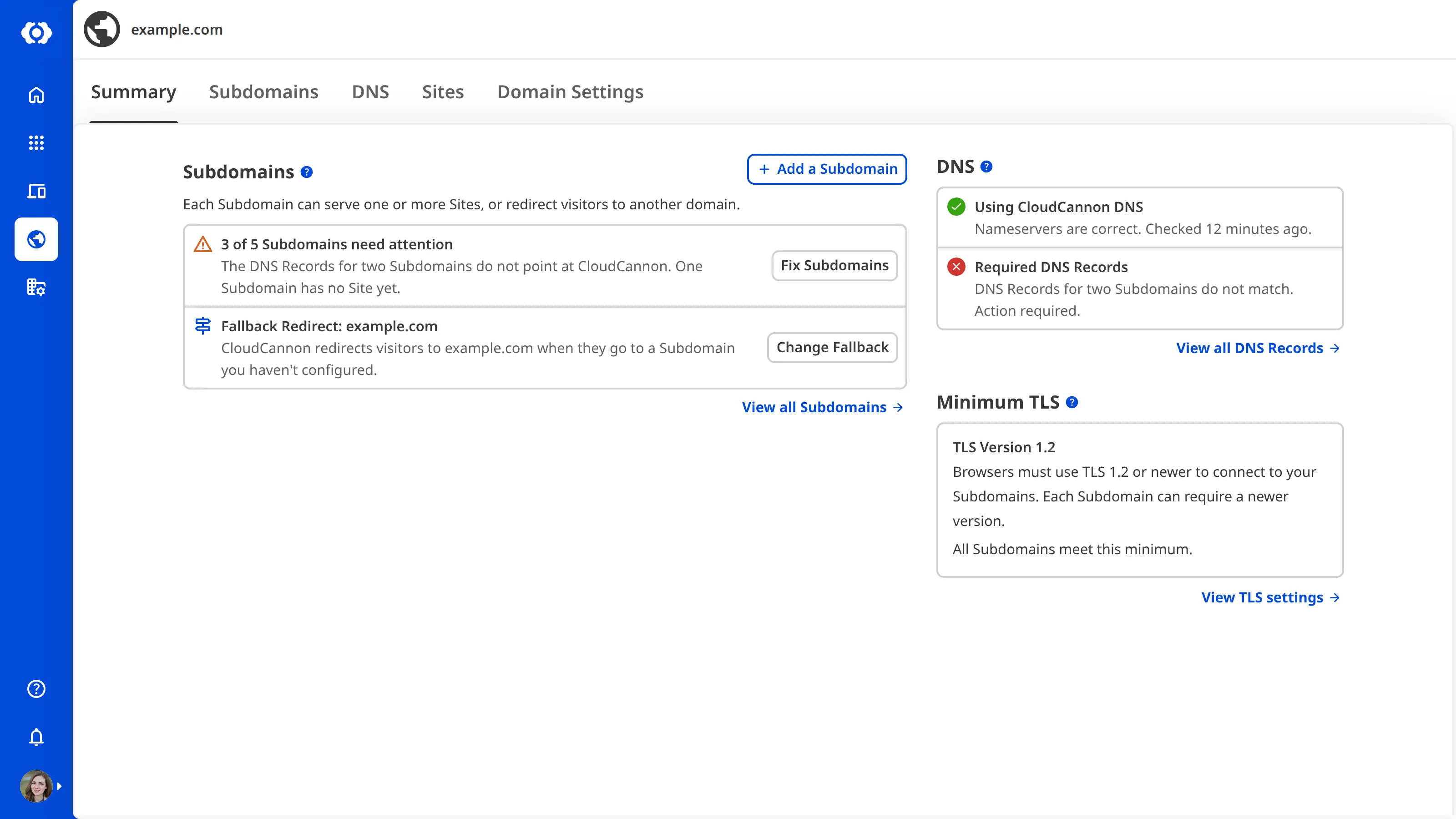
The Summary tab shows the state of your Custom Domain in three sections, each a heading above a Card: Subdomains on the left, and DNS and Minimum TLS on the right. Each section ends with a link to the tab or section where you can make changes.
The setup guide
While your Custom Domain or a new Subdomain isn't live yet, a setup guide appears at the top of the Summary tab, above the Subdomains section. It shows each step and what to do next, depending on whether your Custom Domain uses CloudCannon DNS or external DNS Domain Name System configuration managed by a third-party DNS Provider rather than CloudCannon DNS. External DNS allows you to host your Site on CloudCannon but manage your DNS records elsewhere, such as with Cloudflare or on your own servers. You add the DNS records CloudCannon lists for each Subdomain at your DNS Provider.External DNS
- CloudCannon DNS — The guide first prompts you to add your existing records, such as MX records for email and TXT records for site verification. It then shows the nameservers to set at your domain registrar. For more information, please read our documentation on configuring CloudCannon DNS.Glossary term
Domain Registrar
A third-party company that manages the registration and renewal of domain names. Domain registrars allow you to purchase and configure domain names, and they handle the administrative aspects of domain ownership. You must purchase a domain name from a domain registrar before you can connect it to your CloudCannon Organization as a Custom Domain.
- External DNS — The guide names each new Subdomain that still needs its records at your DNS Provider, with an Open the DNS tab button that opens the DNS tab, where the records are listed. The TXT records for the optional wildcard SSL Certificate of your domain are on the DNS tab. For more information, please read our documentation on configuring external DNS.
CloudCannon refreshes the guide every minute while the page is open. You don't need to keep it open, because CloudCannon emails everyone who can edit the settings of the Base Domain The primary domain name for a website, without any subdomains. For example, in "www.example.com", the Base Domain is "example.com". In CloudCannon, you connect your Base Domain to your Organization as a Custom Domain.Base Domain
The Custom Domain page under Site Settings shows the same guide for the Subdomain that hosts a Site.
Subdomains
The Subdomains Card shows:
- Add a Subdomain — The Add a Subdomain button beside the Subdomains heading adds a Subdomain that serves a Site or redirects visitors.
- Explainer — A sentence below the heading says that each Subdomain can serve one or more Sites, or redirect visitors to another domain.
- Attention — No Subdomains need attention, or [Number] of [Total] Subdomains need attention with a count of the Subdomains whose DNS Records don't point at CloudCannon, that have no Site yet, or that have an SSL Certificate problem. When any Subdomain needs attention, click the Fix Subdomains button to open the Subdomains tab with only those Subdomains listed. To list every Subdomain again, remove the Subdomain needs attention filter.
- Fallback Redirect — Fallback Redirect: [Subdomain], the Subdomain to which CloudCannon sends visitors when they open a subdomain you haven't configured, or No Fallback Redirect if visitors see a 404 page. Click the Change Fallback button to choose another Subdomain.
Click the View all Subdomains link below the Card to open the Subdomains tab. If your Custom Domain has no Subdomains yet, the Card shows No subdomains on [Base Domain] yet and an Add subdomain button in place of these rows.
Adding a Subdomain or changing the Fallback Redirect requires permission to edit the settings of the Base Domain. For more information, please read our documentation on adding a Subdomain to your Custom Domain and updating the Fallback Redirect for your Custom Domain.
DNS
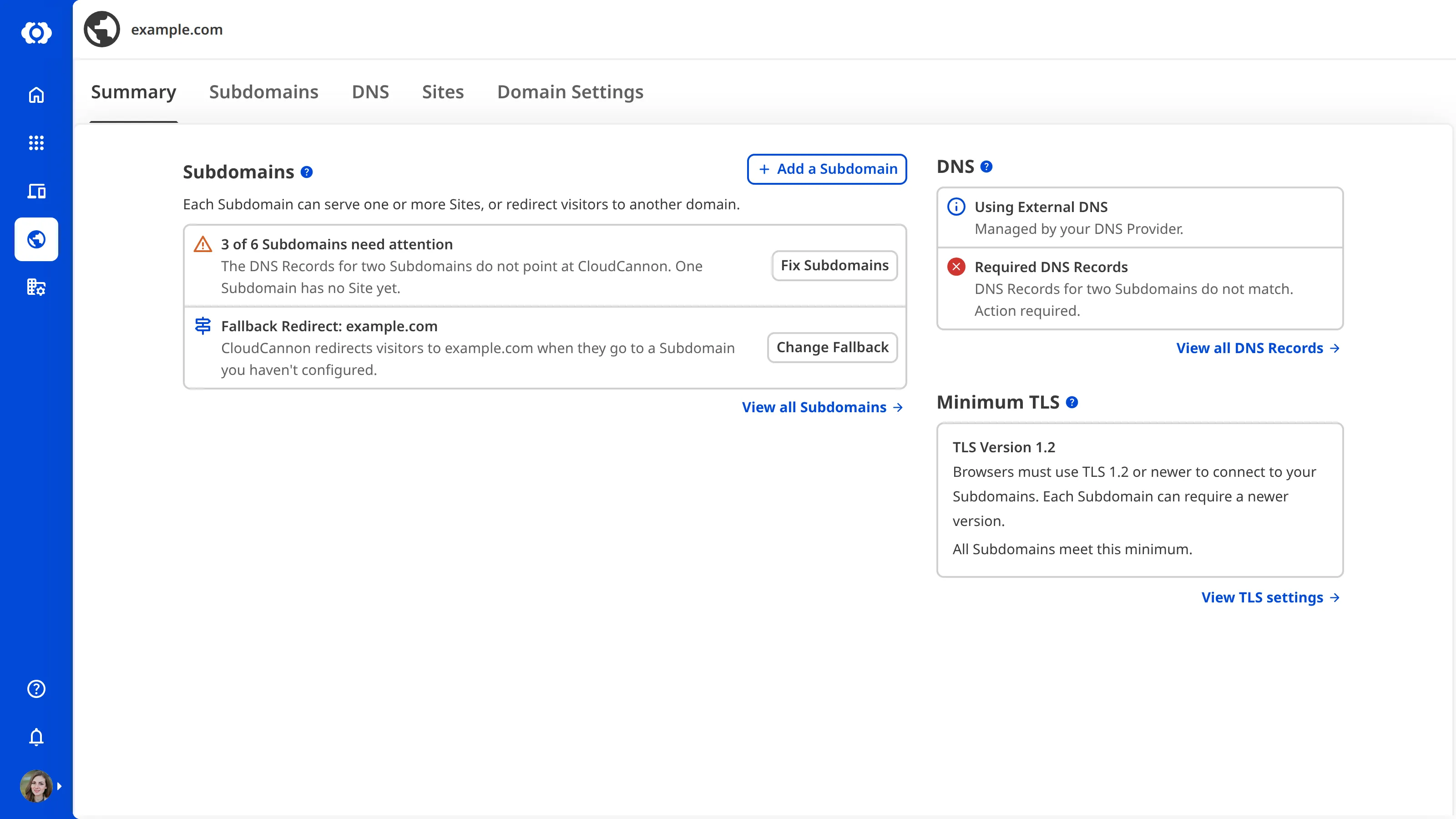
The DNS Card shows:
- DNS Provider — The row is titled with the DNS Provider, Using CloudCannon DNS, Using Legacy CloudCannon DNS, or Using External DNS, and shows the state of your nameservers underneath: Nameservers are correct with when CloudCannon last checked, Please update the nameservers at your Domain Registrar, Checking your nameservers, Nameservers do not match, Nameservers have changed, Creating the DNS zone, Could not create the DNS zone, Please migrate to the new CloudCannon DNS, or Managed by your DNS Provider. If CloudCannon couldn't complete the latest nameserver check, the row also shows Could not check with how long ago the check failed.
- Required DNS Records — Whether the DNS records of your Subdomains point at CloudCannon: DNS Records are correct., or DNS Records for [Number] Subdomains do not match. Action required. If only one Subdomain is affected, the row describes that Subdomain's record instead, such as The DNS Record does not match. Action required. or A DNS Record has changed. Action required. While CloudCannon checks records you marked as updated, the row shows Checking your DNS Records. This usually takes less than an hour. While your nameservers don't point at CloudCannon DNS yet, the row shows Waiting for the CloudCannon nameservers., and with no Subdomains, No DNS Records are required yet.
Click the View all DNS Records link below the Card to open the DNS tab, where you can check your nameservers and records again or change the DNS Provider.
The DNS Card only appears if you have permission to view the DNS settings of the Base Domain.
Minimum TLS
The Minimum TLS Card shows the minimum TLS version for your Custom Domain, the lowest version any Subdomain accepts, and whether every Subdomain meets it. A Subdomain can require a higher version. If any Subdomains are below the minimum, the Card names them. Click the View TLS settings link below the Card to open the TLS section under Domain Settings. The link only appears if you have the base-domain:settings:details:read permission. For more information, please read our documentation on increasing the minimum TLS version for your domains.
The Subdomains tab#
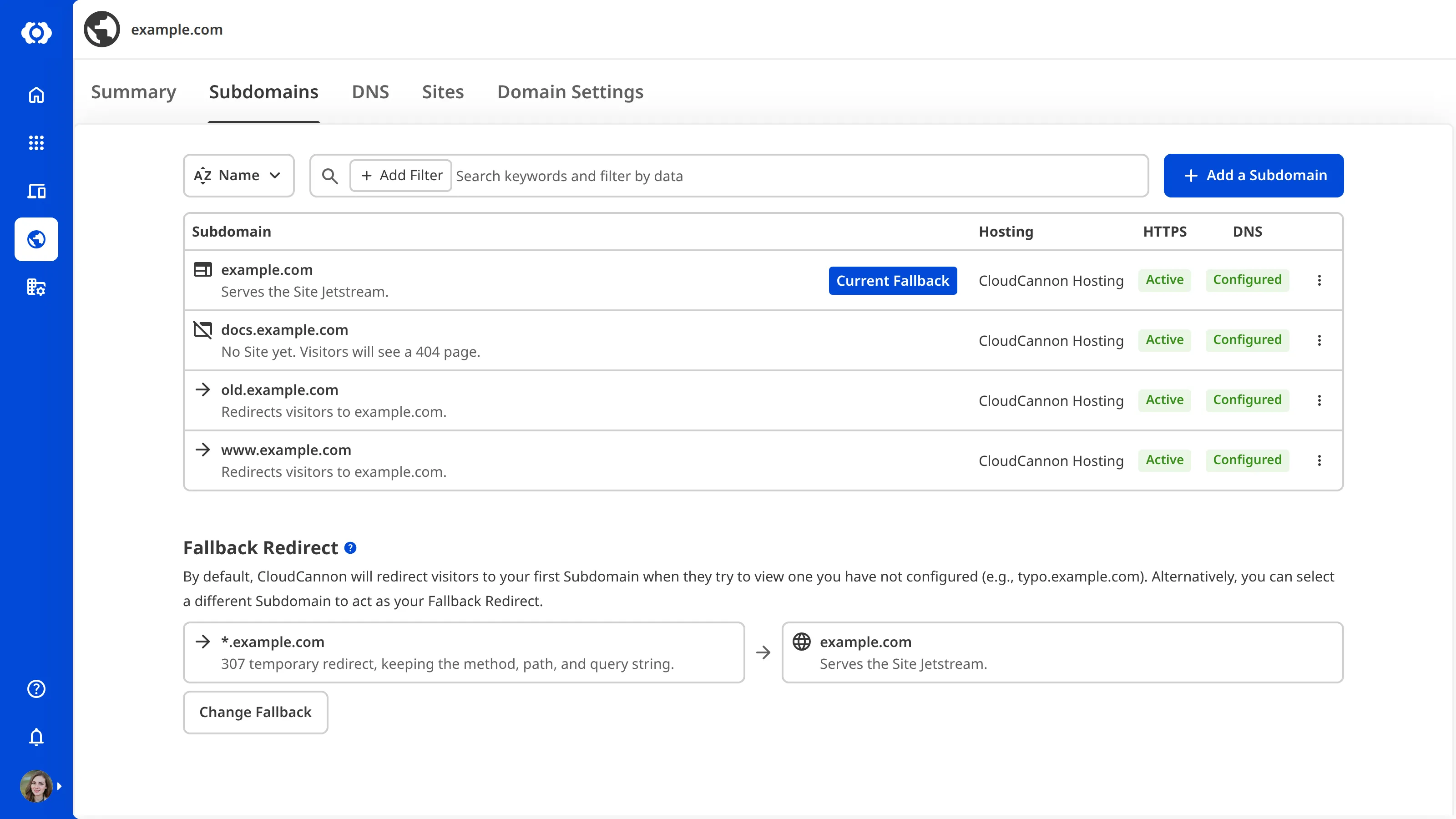
The Subdomains tab of the Domain page lists every Subdomain on your Custom Domain. For each Subdomain, the list shows:
- Subdomain — The address of the Subdomain, with what it serves below it: Serves the Site [Site Name]., Serves the Site [Site Name] at the path [Subpath]., Serves multiple Sites., Redirects visitors to [Target]., or No Site yet. Visitors will see a 404 page. If the Subdomain is your Fallback Redirect and has no Site, it shows No Site yet. Visitors to this Subdomain and to unconfigured Subdomains will see a 404 page. instead. CloudCannon labels the Subdomain that is your Fallback Redirect with Current Fallback.
- Hosting — How visitors reach the Subdomain: CloudCannon Hosting, Cloudflare Proxy, or Single Origin.
- HTTPS — The status of the Subdomain's certificate, such as Active, Issuing, Renewing, Expiring, Expired, Failed, DNS changed, or Missing. Hover over a status to see more detail, and open the Subdomain page for the full explanation.
- DNS — Whether the Subdomain's record points at CloudCannon: Configured, Not pointing at CloudCannon, No DNS Record, Not checked yet, or Checking while CloudCannon looks for the record of a Subdomain that, in the last 48 hours, you added, changed the hosting of, or marked as updated, or whose domain changed DNS Provider.
Click a Subdomain to open its page, where you can manage its Sites or its redirect, and its hosting, HTTPS, and DNS. Each Subdomain in the list also has a Context Menu A menu that appears when you click the six-dot icon in the top right of a File Card or three-dot icon in the top right of an Editing Interface. This menu provides quick access to file actions and options such as previewing a file live on your website, cloning or renaming a file, and more.Context Menu
Sort and filter the Subdomains
Click the sort dropdown to the left of the search field, which shows the current sort (e.g., Name), to sort the list by:
- Name — Subdomains with fewer levels first (e.g.,
example.combeforewww.example.com), then alphabetically. This is the default. - Name (Z-A) — The reverse of Name.
- Needs attention first — Subdomains that don't reach CloudCannon, have no Site yet, or have a certificate problem, first.
- Recently added — The newest Subdomains first.
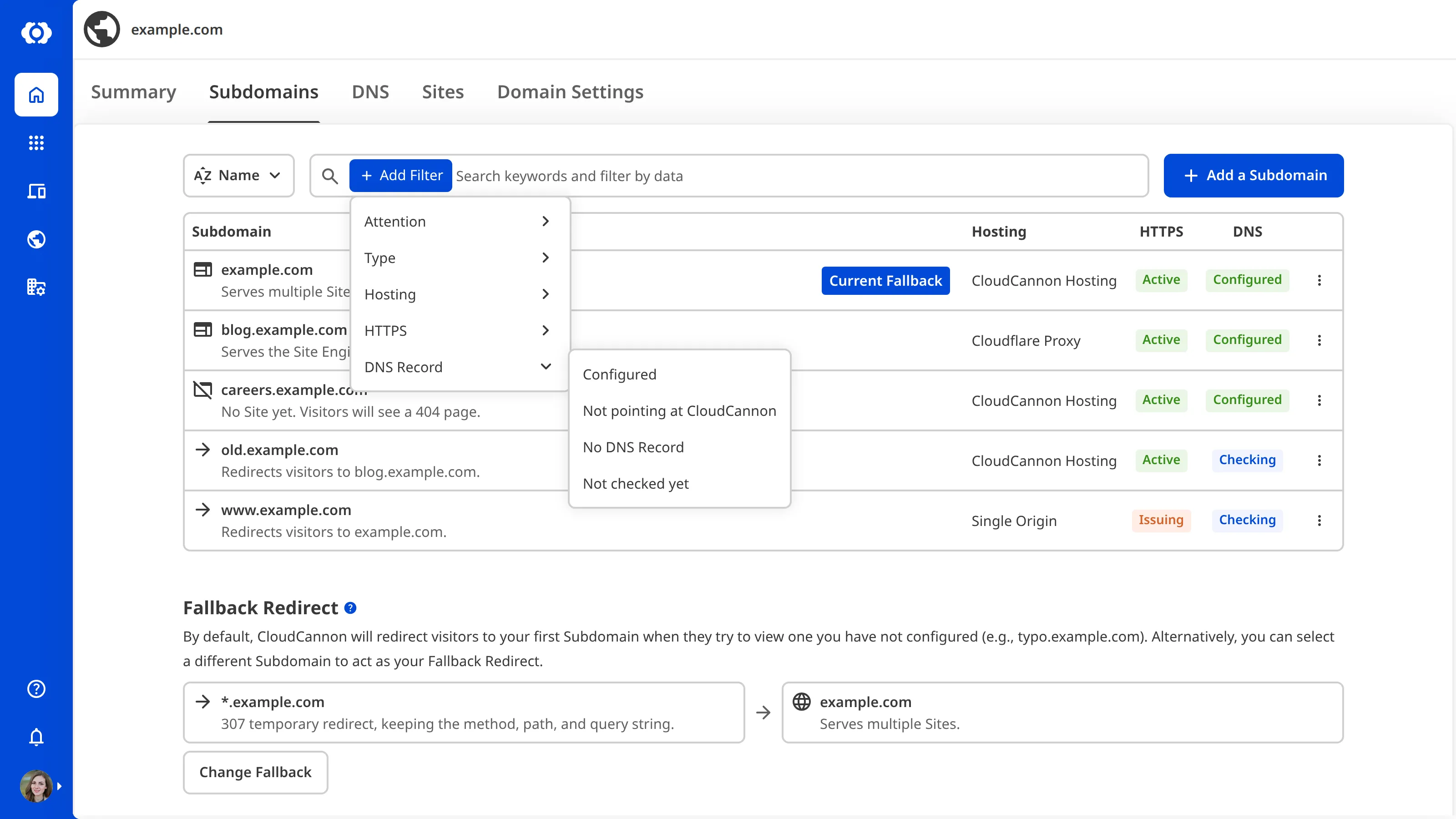
Click the Add Filter button to show only the Subdomains that match one or more values:
- Attention — Needs attention or Does not need attention.
- Type — Site or Redirect.
- Hosting — CloudCannon Hosting, Cloudflare Proxy, or Single Origin.
- HTTPS — Active, Issuing, Renewing, Expired, Failed, or Missing.
- DNS Record — Configured, Not pointing at CloudCannon, No DNS Record, or Not checked yet.
You can also type in the search field to find a Subdomain by name.
For more information, please read our documentation on adding a Subdomain to your Custom Domain, managing the Sites on a Subdomain, managing your Redirect Subdomains, and configuring a Subdomain's hosting, HTTPS, and DNS.
The DNS tab#
The DNS tab shows:
- Nameservers — On CloudCannon DNS, the CloudCannon DNS heading, a Configure CloudCannon DNS link, and a sentence ending in a change the DNS Provider link to the Details section. The link only appears if you have the
base-domain:settings:details:readpermission. Until your domain is live, the same setup guide as the Summary tab follows, with a table that lists each nameserver your domain needs under Required, the nameservers CloudCannon Found, and a Status for each nameserver. Once your domain is live, the guide stays on the DNS tab as [Base Domain] uses CloudCannon DNS, and the table collapses into a closed Nameservers row inside it that says the nameservers match. On the legacy CloudCannon DNS, the same heading has a Configure CloudCannon DNS link, then the Move [Base Domain] to the new CloudCannon DNS setup guide with the Move to the new CloudCannon DNS button. On external DNS, the External DNS nameservers table lists the nameservers CloudCannon found. - Required records — The Subdomains whose DNS record still needs a change, with the record each Needs, the records CloudCannon Found, and the Status. Each row also has the Fix button on CloudCannon DNS, or the I've updated it button on external DNS. When every record is connected, a notice says there is nothing to add. On CloudCannon DNS, this section is hidden until your nameservers point at CloudCannon DNS.
- DNS records — On CloudCannon DNS, a Configure CloudCannon DNS link and a table of every record CloudCannon DNS serves for your domain, with a Filter field and an Add record button. Click the Context Menu button for a record to edit or delete it.
Each table that CloudCannon checks has a footer that says how often CloudCannon checks and when it last checked, with a Check now button. For a minute after a check, the Check now button is disabled. Below the Required records table, the Check now button is also disabled if you don't have permission to check the records, and hovering over it shows which permission you need. The footer of the nameservers table also has a View nameserver check history icon. The Copy icon next to a nameserver or record value copies it, then turns into a tick and shows Copied!. If you don't have permission to use the Add record button, the Fix button, or a button in the nameservers table, the button is disabled, and hovering over it shows which permission you need.
On external DNS, the tab also shows one warning notice that lists each Subdomain that still isn't pointing at CloudCannon or whose DNS record changed, and the Wildcard record (optional) table, for a record that catches subdomains you haven't added. It also shows the status of the optional wildcard SSL Certificate An SSL Certificate that covers every subdomain of your Base Domain you haven't set up on CloudCannon (e.g., *.example.com). It lets visitors to those subdomains reach your Fallback Redirect over HTTPS. On external DNS, the wildcard SSL Certificate needs new TXT records at your DNS Provider each time it renews, unless you add a CNAME record that lets Cloudflare renew it on its own.Wildcard SSL Certificate
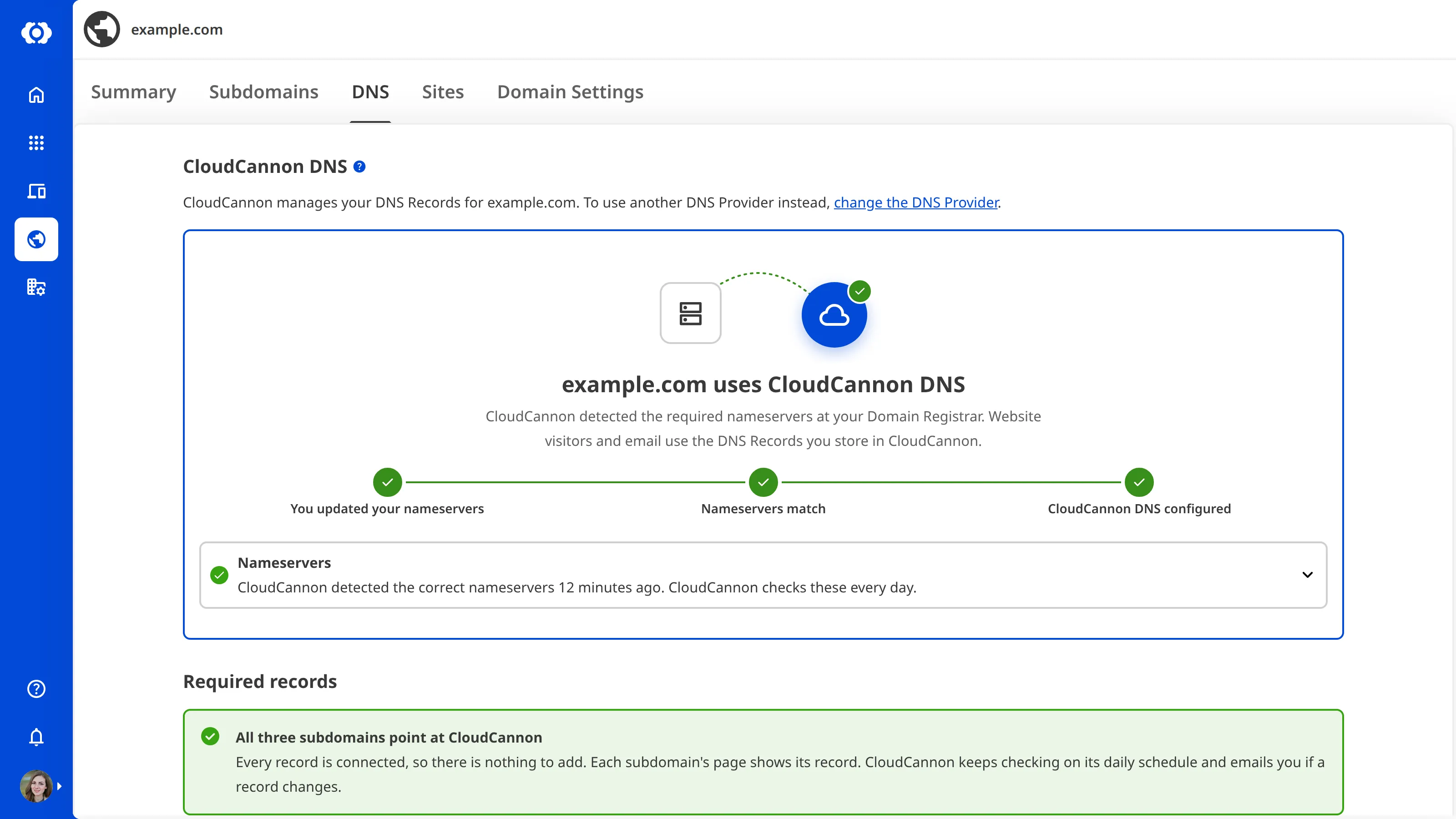
For more information, please read our documentation on configuring CloudCannon DNS and configuring external DNS.
The Sites tab#
The Sites tab lists the Sites in your Organization that are served on your Custom Domain. For more information, please read our documentation on adding a Custom Domain to your Site.
The Domain Settings tab#
The Domain Settings tab has three sections:
- Details — The Base Domain and its DNS Provider. Select the other DNS Provider to see what happens when you switch, then click the Switch to CloudCannon DNS or Switch to External DNS button. For more information, please read our documentation on configuring CloudCannon DNS and configuring external DNS.
- TLS — The minimum TLS version for your Custom Domain. For more information, please read our documentation on increasing the minimum TLS version for your domains.
- Danger — Disconnect the Custom Domain from your Organization. For more information, please read our documentation on disconnecting a Custom Domain from your Organization.
Domain emails#
CloudCannon emails people in your Organization when something about your Custom Domain changes or needs action. Unless noted, each email goes to everyone with the base-domain:settings:details:write permission for the Custom Domain. Each subject links to the section that describes the email and what to do next.
- [Name] added the Custom Domain [Base Domain] to [Organization]: Someone connects a Custom Domain to your Organization. Sent to everyone with
base-domain:settings:details:write, except the person who connected it. - [Base Domain] now uses CloudCannon DNS: The nameservers of your domain point at CloudCannon.
- [Base Domain]'s nameservers do not match the CloudCannon nameservers: On CloudCannon DNS, CloudCannon still can't see your new nameservers 48 hours after you marked them as updated, set up CloudCannon DNS, or connected the domain.
- Action required: [Base Domain]'s nameservers no longer point at CloudCannon DNS: The nameservers of a live domain change away from CloudCannon.
- [Subdomain] is live on CloudCannon: On external DNS, a Subdomain you marked as updated in the last seven days points at CloudCannon, and its certificate is active.
- [Subdomain]'s DNS Record does not point at CloudCannon: On external DNS, CloudCannon still can't find the DNS record for a Subdomain 48 hours after you marked it as updated, added the Subdomain, or changed its hosting or your DNS Provider.
- Action required: [Subdomain]'s DNS Record no longer points at CloudCannon: The DNS record of a live Subdomain stops pointing at CloudCannon.
- Action required: [Subdomain]'s SSL Certificate is failing to issue: An SSL Certificate keeps failing to issue for a Subdomain whose DNS is connected.
- [Subdomain]'s SSL Certificate is now active: An SSL Certificate issues after CloudCannon sent the failing email for it.
- Action required: [Base Domain]'s wildcard SSL Certificate needs renewing: The wildcard SSL Certificate for a Base Domain on external DNS needs TXT records to renew, and you haven't added the CNAME record that lets it renew by itself.
- Action required: [Base Domain]'s wildcard SSL Certificate needs renewing (second warning): The renewal still needs TXT records six days before the wildcard SSL Certificate expires, if the first email went out more than ten days before it expired.
- Action required: the Custom SSL Certificate [Certificate Name] expires on [Date]: A Custom SSL Certificate expires in 14 days, and again in three days, while a Subdomain still uses it. Sent to everyone with
base-domain:settings:details:writeon a Base Domain with a Subdomain that uses it. - [Name] added an extra Subdomain to [Organization]'s Subscription Plan: A Subdomain starts serving a Site and takes your Organization past the Custom Domains in your Subscription Plan. If no person added the Subdomain, the subject is An extra Subdomain was added to [Organization]'s Subscription Plan. Sent to everyone withGlossary term
Subscription Plan
A set of features available to your Organization, the monthly usage limits for resources, and the price you pay for access to those features and resources, monthly or annually. Each Organization in CloudCannon can have one Subscription Plan, and can update or cancel at any time.
org:billing:read, except the person who added the Subdomain. - [Name] removed an extra Subdomain from [Organization]'s Subscription Plan: A Subdomain stops serving a Site while your Organization is over the Custom Domains in your Subscription Plan. If no person removed the Subdomain, the subject is An extra Subdomain was removed from [Organization]'s Subscription Plan. Sent to everyone with
org:billing:read, except the person who removed the Subdomain.