Every address you host on a Custom Domain A domain you own and connect to your CloudCannon Organization, so visitors reach your Site at your own address instead of its Testing Domain. You buy the domain from a domain registrar, connect it to your Organization, then add it to your Sites. An additional name on the front of your URL, prefixing your Base Domain name (e.g., "docs" in docs.example.com or "blog" in blog.example.com). In CloudCannon, every address on your Custom Domain, including the Base Domain itself, is a Subdomain with its own hosting, HTTPS, and DNS settings. Each Subdomain serves Sites, each at its own path, or redirects visitors to another domain. A Subdomain with no Site yet shows its visitors a 404 page until you add a Site. The primary domain name for a website, without any subdomains. For example, in "www.example.com", the Base Domain is "example.com". In CloudCannon, you connect your Base Domain to your Organization as a Custom Domain.Custom Domain
Subdomain
Base Domain
example.com). When you add a Subdomain, you choose its Type:
- Site — The Subdomain serves one or more Sites, each at its own subpathGlossary term
Site
A website in CloudCannon that includes all the files, content, configuration, and settings needed to edit, build, and host a complete website.
. You can add a Subdomain with or without a Site.Glossary termSubpath
The path at which a Site is served on a Subdomain (e.g., /docs/ in example.com/docs/). On CloudCannon, several Sites can share a Subdomain, each at its own subpath, which you set in the Subpath field when you add a Custom Domain to a Site. Your build output must put the Site's files in a folder that matches the subpath (e.g., docs/).
- Redirect — The Subdomain sends every visitor to another domain, keeping the path and query string.
For more information, please read our documentation on what a Subdomain is.
This article covers adding a Subdomain from the Domain page. You can also add a Subdomain while you add a Custom Domain to your Site from Site Settings.
Before we begin, this article assumes you have connected a Custom Domain to your Organization.
Add a Subdomain that serves Sites#
To serve a Site on the Subdomain, the Site must be in Hosted Mode. A Site in Headless Mode can't have a Custom Domain. For more information, please read our documentation on what Site Building Mode is.
To add a Subdomain that serves Sites:
- Log in to CloudCannon.
- Select the Organizationyour Custom Domain is connected to.Glossary term
Organization
A workspace in CloudCannon that groups together Sites, Organization Members, and shared resources. It is also the unit CloudCannon bills for. You can define permissions for your Organization, controlling the access each Organization Member has to resources on CloudCannon. You can create and be a part of multiple Organizations.
- Click the Custom Domains link in the App Sidebar. CloudCannon will open the Domains BrowserGlossary term
App Sidebar
The left-most UI panel in the CloudCannon app. This panel contains links to your Organization Home, Sites, Projects, Domains, and Org Settings pages, as well as app Updates and your Avatar.
.Glossary termDomains Browser
The page where you manage the Custom Domains connected to your Organization. The Domains Browser allows you to connect new domains and open the Domain page for each one to manage its Subdomains, DNS records, SSL Certificates, and minimum TLS version. You can access the Domains Browser by clicking the Custom Domains link in the App Sidebar.
- Click the Cardfor the domain you want to add a Subdomain to. CloudCannon will open the Summary tab of the Domain pageGlossary term
Card
The repeated block CloudCannon uses to represent one item in a list, browser, or input, typically showing a preview image, title, subtitle, icon, and key metadata. Cards represent files and folders in the Collection Browser and File Browser, as well as Sites, Organizations, Organization Members, domains, Health Checks, and items inside Array and Object Inputs. You can configure how Cards look for your files, making it easier to browse and identify content at a glance.
.Glossary termDomain page
The page in CloudCannon where you manage a Custom Domain connected to your Organization. Its tabs show whether every Subdomain is working, list your Subdomains and Fallback Redirect, show your DNS Provider and records, and hold the settings of the domain. You can access this page by clicking the Card for a domain in the Domains Browser.
- Click the Subdomains tab. CloudCannon will open the list of Subdomains on your Custom Domain.
- Click the Add a Subdomain button. CloudCannon will open the Add a Subdomain modal.
- Enter the Subdomain name in the Subdomain field (e.g.,
docs). Leave this field empty to add the Base Domain itself. - Select the Site option from the Type dropdown. CloudCannon will show the Site dropdown and the Subpath field.
- (Optional.) Select the Site you want the Subdomain to serve from the Site dropdown.
- (Optional.) Enter a path in the Subpath field to serve the Site at that subpath (e.g.,
/docs/). Leave this field empty to serve the Site at the root of the Subdomain. - Click the Add Subdomain button.
CloudCannon will add the Subdomain to the list on the Subdomains tab.
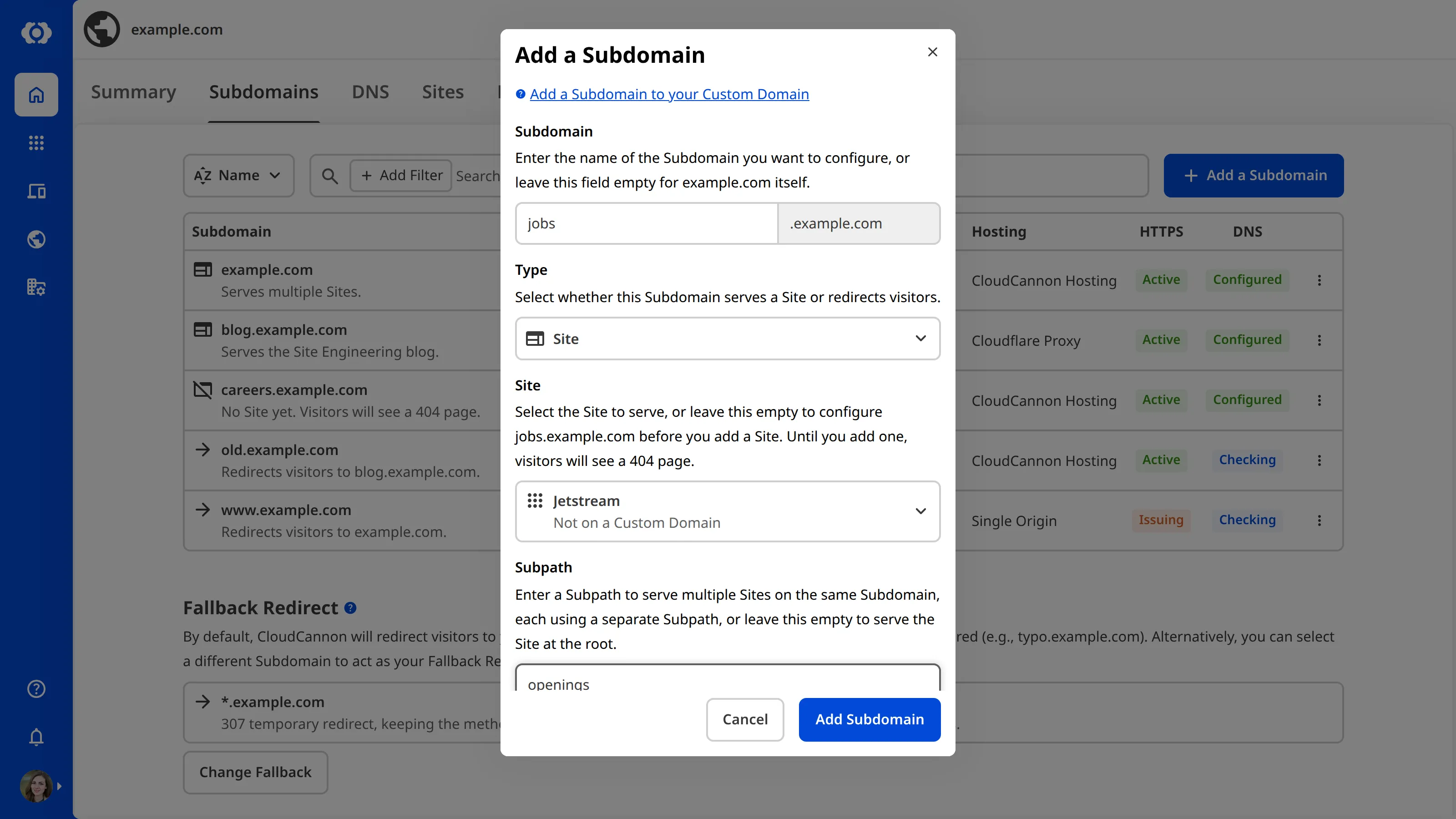
You can also click the Add a Subdomain button on the Summary tab of the Domain page.
If you leave the Site dropdown empty, CloudCannon configures the Subdomain with no Site yet, and its visitors see a 404 page until you add a Site.
When you add the Base Domain (e.g., example.com) as a Subdomain that serves Sites, CloudCannon also adds www.example.com as a redirect to it, unless www.example.com already exists. When you add www.example.com, CloudCannon adds example.com as a redirect to it in the same way. The Add a Subdomain modal shows this redirect below the Site dropdown (e.g., CloudCannon will also add www.example.com as a Redirect Subdomain to example.com.).
If the Site you select already has a Custom Domain, the Add a Subdomain modal shows where the Site moves from and to. For more information, please read our documentation on managing the Sites on a Subdomain.
If you select a Site and the new Subdomain takes your Organization over the number of Custom Domains in its Subscription Plan A set of features available to your Organization, the monthly usage limits for resources, and the price you pay for access to those features and resources, monthly or annually. Each Organization in CloudCannon can have one Subscription Plan, and can update or cancel at any time.Subscription Plan
In a Client Organization A separate Organization that a Partner Organization manages but that the client uses and pays for. Client Organizations are part of the CloudCannon Partner Program and give each client their own team, billing, and login. Unlike Guest Access, which shares a single Site with someone who doesn't have a CloudCannon account, a Client Organization is a full, independent Organization. A trial period that gives a new Organization access to Standard Plan features without requiring a payment method.Client Organization
Free Trial
Add a Redirect Subdomain#
To add a Redirect Subdomain:
- Log in to CloudCannon.
- Select the Organization your Custom Domain is connected to.
- Click the Custom Domains link in the App Sidebar. CloudCannon will open the Domains Browser.
- Click the Card for the domain you want to add a Subdomain to. CloudCannon will open the Summary tab of the Domain page.
- Click the Subdomains tab. CloudCannon will open the list of Subdomains on your Custom Domain.
- Click the Add a Subdomain button. CloudCannon will open the Add a Subdomain modal.
- Enter the Subdomain name in the Subdomain field (e.g.,
promo). Leave this field empty to add the Base Domain itself. - Select the Redirect option from the Type dropdown. CloudCannon will show the Redirect visitors to field and the Status code dropdown.
- Enter the domain to which you want to send visitors in the Redirect visitors to field.
- (Optional.) Select a status code from the Status code dropdown. Leave it on 301 permanent redirect for a permanent redirect.
- Click the Add Subdomain button.
CloudCannon will add the Redirect Subdomain to the list on the Subdomains tab.
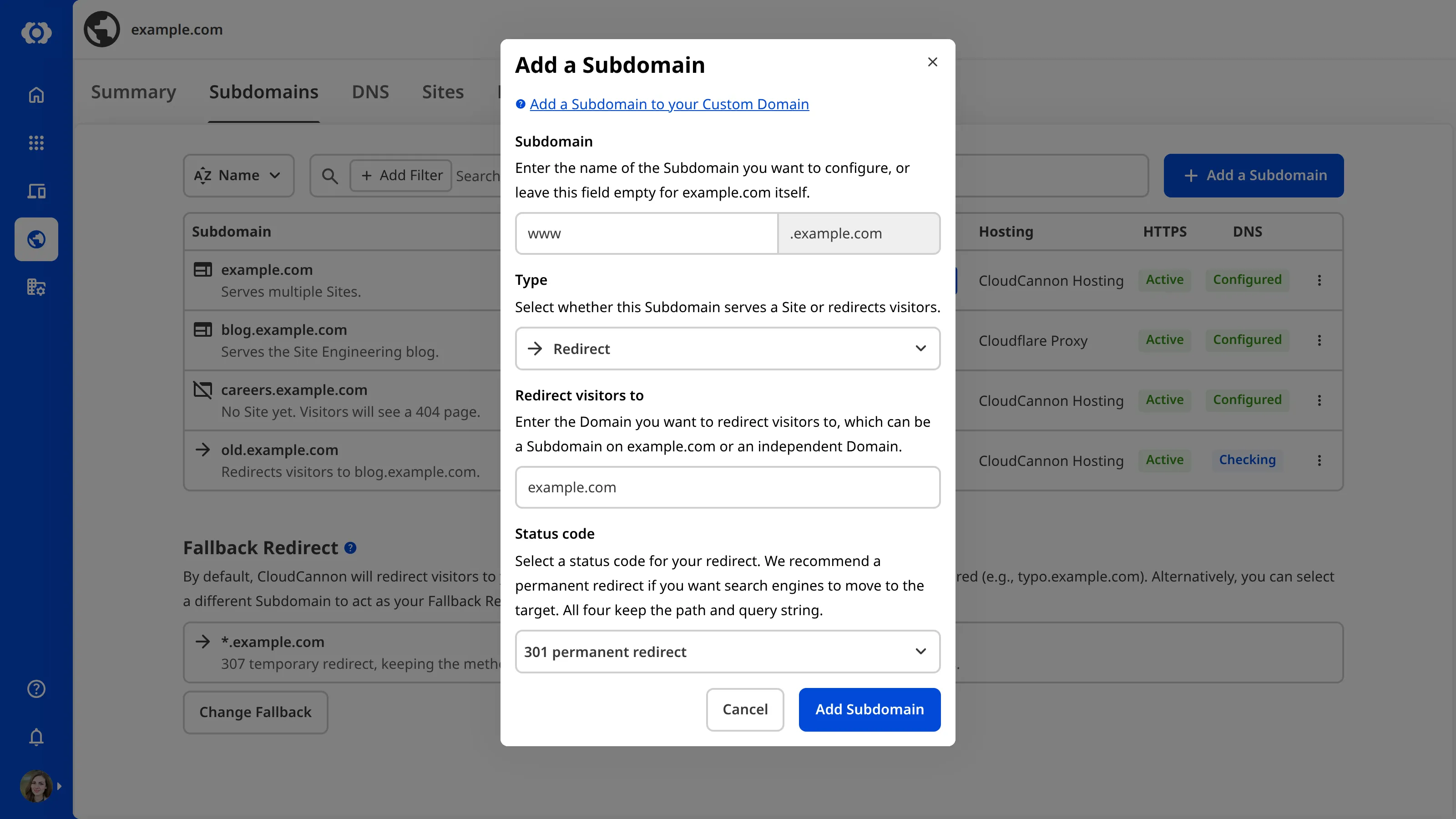
The destination can be a Subdomain on your Custom Domain or any other domain. If the destination is on a Custom Domain connected to your Organization, it must already be a Subdomain there. CloudCannon won't add a redirect to the Subdomain itself, or a redirect that sends visitors around in a loop, and shows why below the Redirect visitors to field. For how loops form and how to fix one, please read our documentation on fixing a redirect loop.
Redirect Subdomains do not count toward the number of Custom Domains in your Subscription Plan. For more information on status codes, and on redirecting a whole domain to another domain, please read our documentation on managing your Redirect Subdomains.
After you add a Subdomain#
Every new Subdomain starts on CloudCannon Hosting The default hosting option for a Subdomain on your Custom Domain. Visitors reach CloudCannon through Cloudflare's global network. Cloudflare stores copies of your Site's files in data centers around the world and serves each visitor from the one nearest them. The Subdomain's DNS record points at CloudCannon Hosting
sites.cloudcannon.com.
If your Custom Domain has no Fallback Redirect The Subdomain to which CloudCannon sends visitors when they try to visit a subdomain on your Custom Domain that isn't set up, including a Subdomain you have deleted. It prevents visitors from seeing an error when they mistype a subdomain (e.g., typo.example.com). Each Custom Domain has one Fallback Redirect.Fallback Redirect
On CloudCannon DNS A DNS Provider option where CloudCannon manages the DNS records of your Custom Domain. CloudCannon adds the records each Subdomain needs, and the TXT records for your SSL Certificates, for you. To use it, you replace the nameservers at your domain registrar with CloudCannon's nameservers. Domain Name System configuration managed by a third-party DNS Provider rather than CloudCannon DNS. External DNS allows you to host your Site on CloudCannon but manage your DNS records elsewhere, such as with Cloudflare or on your own servers. You add the DNS records CloudCannon lists for each Subdomain at your DNS Provider.CloudCannon DNS
docs.example.com) on CloudCannon Hosting. A Subdomain nested more than one level deep (e.g., api.docs.example.com) needs its own record. On external DNSExternal DNS
To change how visitors reach the Subdomain, or how it gets its certificate, please read our documentation on configuring a Subdomain's hosting, HTTPS, and DNS and adding an auto-generated SSL Certificate.