When a visitor enters a web address into their internet browser, such as https://docs.example.com/setup/, their browser uses DNS The Domain Name System (DNS), which allows your computer to translate a domain name, which visitors are most likely to remember, into a machine-friendly IP address, which is required to access a website. A digital certificate that proves your website's identity and lets visitors connect to it over HTTPS. On CloudCannon, each Subdomain of your Custom Domain has its own SSL Certificate, which covers every Site on that Subdomain. An SSL Certificate can be auto-generated by CloudCannon, or a Custom SSL Certificate you upload.DNS
SSL Certificate
Depending on how you configure hosting in CloudCannon, CloudCannon can return a built Site A website in CloudCannon that includes all the files, content, configuration, and settings needed to edit, build, and host a complete website. The Subdomain to which CloudCannon sends visitors when they try to visit a subdomain on your Custom Domain that isn't set up, including a Subdomain you have deleted. It prevents visitors from seeing an error when they mistype a subdomain (e.g., typo.example.com). Each Custom Domain has one Fallback Redirect.Site
Fallback Redirect
Your domain registrar, your DNS Provider, and your Custom Domain and Site settings in CloudCannon each control one part of this process.
graph LR
  V["Visitor's browser"] -->|nameservers| D["DNS Provider"]
  D -->|DNS record| C["CloudCannon"]
  C --> S["Site, redirect, or Fallback Redirect"]
Hosting your Sites on CloudCannon is optional, but some CloudCannon features are only available for Sites that CloudCannon hosts. For more information, please read our documentation on what external hosting is.
Your domain registrar and DNS Provider#
Website domains are purchased from a third-party domain registrar A third-party company that manages the registration and renewal of domain names. Domain registrars allow you to purchase and configure domain names, and they handle the administrative aspects of domain ownership. You must purchase a domain name from a domain registrar before you can connect it to your CloudCannon Organization as a Custom Domain. The primary domain name for a website, without any subdomains. For example, in "www.example.com", the Base Domain is "example.com". In CloudCannon, you connect your Base Domain to your Organization as a Custom Domain. An additional name on the front of your URL, prefixing your Base Domain name (e.g., "docs" in docs.example.com or "blog" in blog.example.com). In CloudCannon, every address on your Custom Domain, including the Base Domain itself, is a Subdomain with its own hosting, HTTPS, and DNS settings. Each Subdomain serves Sites, each at its own path, or redirects visitors to another domain. A Subdomain with no Site yet shows its visitors a 404 page until you add a Site. The path at which a Site is served on a Subdomain (e.g., /docs/ in example.com/docs/). On CloudCannon, several Sites can share a Subdomain, each at its own subpath, which you set in the Subpath field when you add a Custom Domain to a Site. Your build output must put the Site's files in a folder that matches the subpath (e.g., docs/).Domain Registrar
Base Domain
Subdomain
Subpath
Your registrar records who owns the domain, and which nameservers A server involved in the DNS lookup process. The word "nameserver" typically refers to the authoritative nameserver, which manages all the DNS records for a particular domain name. Almost all domains rely on multiple authoritative nameservers for redundancy. To use CloudCannon DNS, you set CloudCannon's nameservers at your domain registrar.Nameserver
- CloudCannon DNS — You set the nameservers in your domain registrar to CloudCannon, and CloudCannon manages the DNS records for each Subdomain.
- External DNS — Your nameservers point at a DNS Provider other than CloudCannon, such as your domain registrar or Cloudflare, and you add the DNS records there for each Subdomain you host through CloudCannon.
For more information, please read our documentation on what DNS is, configuring CloudCannon DNS and configuring external DNS.
Your Custom Domain in CloudCannon#
To serve your Sites on a domain you own, you must connect it to your Organization A workspace in CloudCannon that groups together Sites, Organization Members, and shared resources. It is also the unit CloudCannon bills for. You can define permissions for your Organization, controlling the access each Organization Member has to resources on CloudCannon. You can create and be a part of multiple Organizations. A domain you own and connect to your CloudCannon Organization, so visitors reach your Site at your own address instead of its Testing Domain. You buy the domain from a domain registrar, connect it to your Organization, then add it to your Sites. The page in CloudCannon where you manage a Custom Domain connected to your Organization. Its tabs show whether every Subdomain is working, list your Subdomains and Fallback Redirect, show your DNS Provider and records, and hold the settings of the domain. You can access this page by clicking the Card for a domain in the Domains Browser.Organization
Custom Domain
Domain page
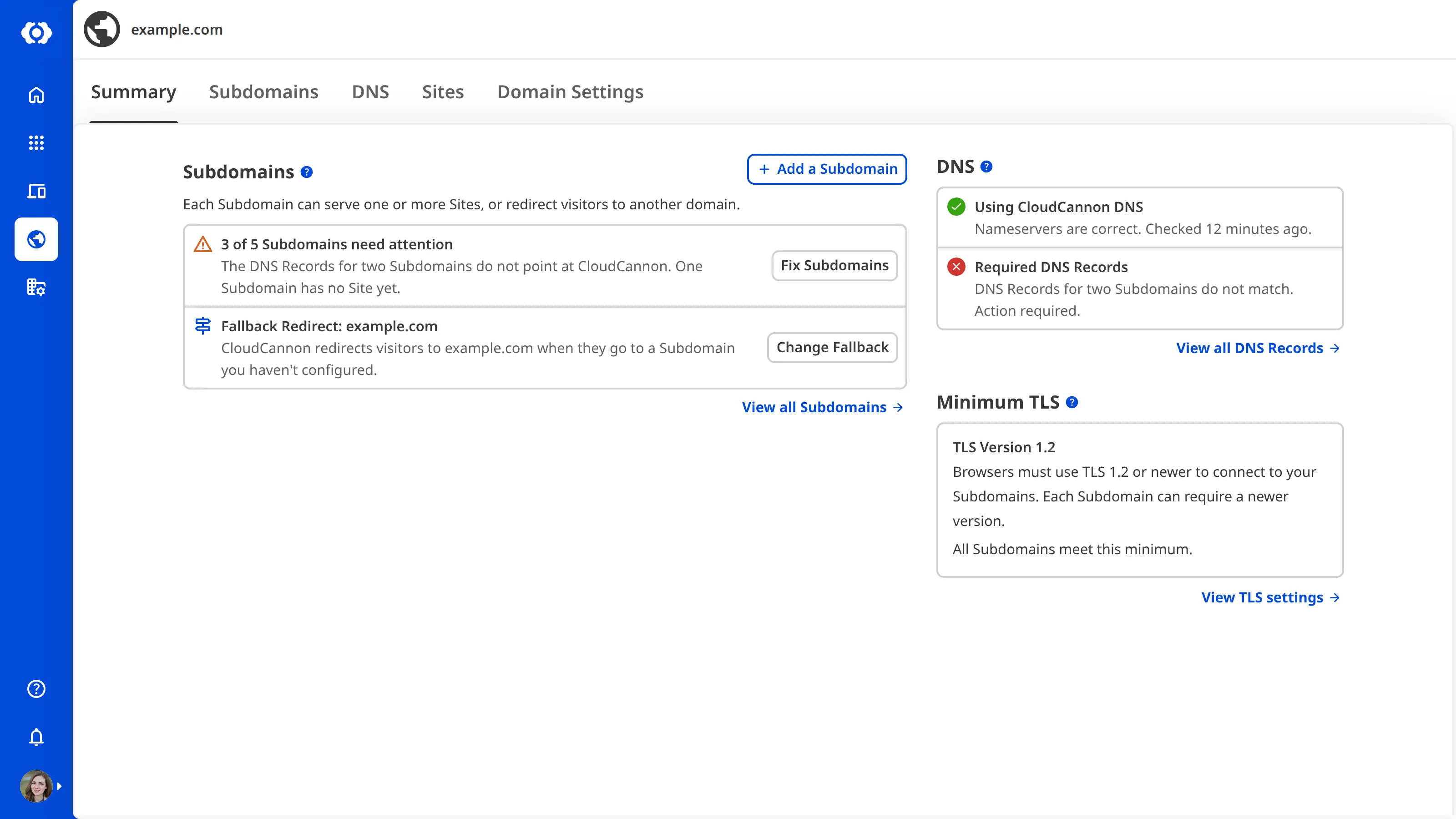
For more information, please read our documentation on connecting a Custom Domain to your Organization, what the Domain page is, and adding a Custom Domain to your Site.
Subdomains
In CloudCannon, every web address you host on is a Subdomain (e.g., www.example.com, docs.example.com), including the Base Domain itself (e.g., example.com). When you add a Subdomain, you choose its Type, which decides what visitors to the Subdomain get once they reach CloudCannon:
- Site — CloudCannon serves one or more Sites, each at its own subpath. A Site at a subpath needs to build its files into a folder that matches the subpath. For more information, please read our documentation on what a subdomain is and building your Site for a path.
- Redirect — CloudCannon sends the visitor to another domain. For more information, please read our documentation on managing your Redirect Subdomains.
Visitors to a subdomain you haven't added go to your Fallback Redirect. Visitors to a Site Subdomain with no Site yet see a 404 page. On external DNS Domain Name System configuration managed by a third-party DNS Provider rather than CloudCannon DNS. External DNS allows you to host your Site on CloudCannon but manage your DNS records elsewhere, such as with Cloudflare or on your own servers. You add the DNS records CloudCannon lists for each Subdomain at your DNS Provider.External DNS
How visitors reach CloudCannon
Once you've added a Subdomain, its hosting option decides the route visitors take from the DNS record to CloudCannon. Every new Subdomain starts on CloudCannon Hosting The default hosting option for a Subdomain on your Custom Domain. Visitors reach CloudCannon through Cloudflare's global network. Cloudflare stores copies of your Site's files in data centers around the world and serves each visitor from the one nearest them. The Subdomain's DNS record points at CloudCannon Hosting
sites.cloudcannon.com.
You can change the hosting option from the Hosting section of the Subdomain's page. On Cloudflare Proxy A hosting option for a Subdomain on your Custom Domain, where your own Cloudflare account proxies the Subdomain to CloudCannon. The Subdomain's record in your Cloudflare zone has the proxy turned on and points at A hosting option for a Subdomain on your Custom Domain, where DNS points straight at CloudCannon's origin servers, or your own proxy sits in front of them. Visitors skip CloudCannon's Cloudflare network and its cache. CloudCannon doesn't recommend it unless you have specific setup requirements.Cloudflare Proxy
orange-cloud.cloudcannon.com. Choose it if you manage your DNS in Cloudflare with the proxy turned on.Single Origin
For more information on each hosting option, please read our documentation on what a subdomain is. For the records each hosting option needs, please read our documentation on choosing how visitors reach a subdomain.
SSL Certificates
Once a Subdomain's DNS records point at CloudCannon, CloudCannon can issue its SSL Certificate and renew it for you, or you can upload your own. For a Subdomain that is already live elsewhere, you can get the certificate before you switch DNS, using TXT records. Each Subdomain has its own certificate, which covers every Site on that Subdomain.
For more information, please read our documentation on what an SSL Certificate is, issuing the SSL Certificate with TXT validation, and resolving SSL Certificate errors.
Your Site in CloudCannon#
Each Site on a Subdomain also has its own settings, which decide whether CloudCannon can build and host it, and what visitors see at each path within it.
Site Building Mode
Each Site has a Site Building Mode, which you can change on the Details page under Site Settings. In Hosted Mode, the default, CloudCannon builds and hosts your Site, and gives it a free Testing Domain A free .cloudvent.net URL that CloudCannon assigns to every Site for reviewing your live website content after a successful Site build. Each Testing Domain uses a randomly generated adjective and noun separated by a hyphen. By default, CloudCannon automatically de-indexes Testing Domains so that they do not appear in search engines.Testing Domain
Your Site must be in Hosted Mode to serve it on a Custom Domain. CloudCannon won't switch a Site that has a Custom Domain to Headless Mode. To switch it, first remove the Custom Domain from your Site. Switching to Headless Mode takes your Site offline and stops its builds.
For more information, please read our documentation on what Site Building Mode is, what Headless Mode is, and removing a Custom Domain from your Site.
Routing within your Site
Routing The process of forwarding a visitor to a different webpage. By default, visitors see content for the file with a file name that matches the URL. However, routing is useful when you want to redirect old page URLs, configure extra headers, send visitors to a 404 page, remove URL extensions, or use geolocation.Routing