A Syncing error occurs when CloudCannon cannot sync your Site A website in CloudCannon that includes all the files, content, configuration, and settings needed to edit, build, and host a complete website. A storage location for the code and files that make up your website. CloudCannon supports the repository providers GitHub, GitLab, and Bitbucket, and highly recommends using a repository to store your website's files for better version control and collaboration. A web-based service that hosts Git Repositories. CloudCannon supports GitHub, GitLab, and Bitbucket as Git Providers for syncing your website's code and content files.Site
Git Repository
Git Provider
When a Syncing error occurs, CloudCannon shows a Sync failed message on the Syncing page under Site Settings and on your Site Dashboard. The message explains the cause and lists the options that can resolve it.
If your Site shows a Syncing is paused message instead, incoming changes conflict with unsaved changes on your Site. For more information, please read our documentation on resuming Syncing.
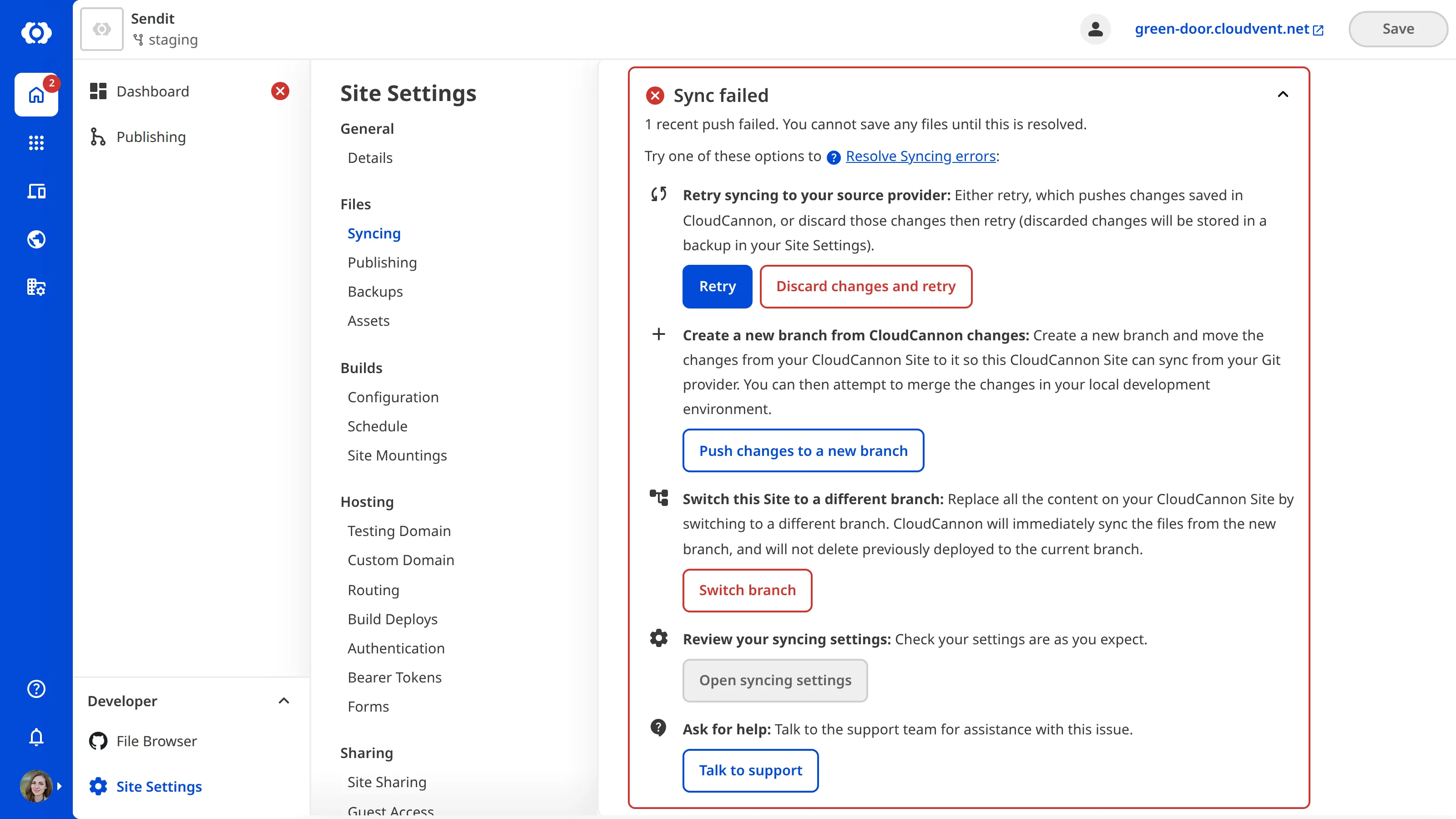
The resolution options depend on the cause of the Syncing error:
- Retry: Push the changes saved in CloudCannon and sync again. Use this option when the cause was temporary, such as downtime at your Git Provider.
- Discard changes and retry: Discard the changes saved in CloudCannon that have not synced, then sync your Site from your Git Repository.
- Push changes to a new branch: Move the changes from your Site to a new branch, and connect your Site to that branch. You can then merge the changes in your local development environment.
- Switch branch: Connect your Site to a different branch and sync the files from it.
The Push changes to a new branch and Switch branch options only appear when a recent push or pull failed.
The resolution buttons are disabled while your Site has unsaved changes, and if you do not have permission to change the Site's Git settings.
Reconnect your Git Provider first#
If the Sync failed message says CloudCannon could not authenticate with your Git Provider, retrying your Site will not resolve the Syncing error. CloudCannon's access to a Git Provider applies to your whole Organization, so you need to reconnect the Git Provider before any Site can sync with it. For more information, please read our documentation on reconnecting your Git Provider.
Once your Git Provider is reconnected, click the Retry button on the Syncing page under Site Settings.
Retry syncing#
To retry syncing your Site:
- Navigate to the Syncing page under Site Settings.
- Click the Retry button under the Retry syncing to your source provider heading in the Sync failed message.
CloudCannon will push the changes saved in CloudCannon to your Git Repository and sync your Site again.
Discard your changes and retry#
To discard your changes and retry syncing:
- Navigate to the Syncing page under Site Settings.
- Click the Discard changes and retry button under the Retry syncing to your source provider heading in the Sync failed message. CloudCannon will open the Clear and reconnect? modal.
- Click the Clear and reconnect button.
CloudCannon will save your unsynced changes as a backup, then sync your Site from your Git Repository. You can retrieve the discarded changes from the Backups page under Site Settings.
Push your changes to a new branch#
To push your changes to a new branch:
- Navigate to the Syncing page under Site Settings.
- Click the Push changes to a new branch button under the Create a new branch from CloudCannon changes heading in the Sync failed message. CloudCannon will open the Create a new branch modal.
- Enter a name for your new branch in the New branch name field.
- Click the Create branch button.
CloudCannon will create the new branch, push the changes from your Site to it, and connect your Site to the new branch. You can then merge the new branch into your original branch in your local development environment.
Switch to a different branch#
To switch your Site to a different branch:
- Navigate to the Syncing page under Site Settings.
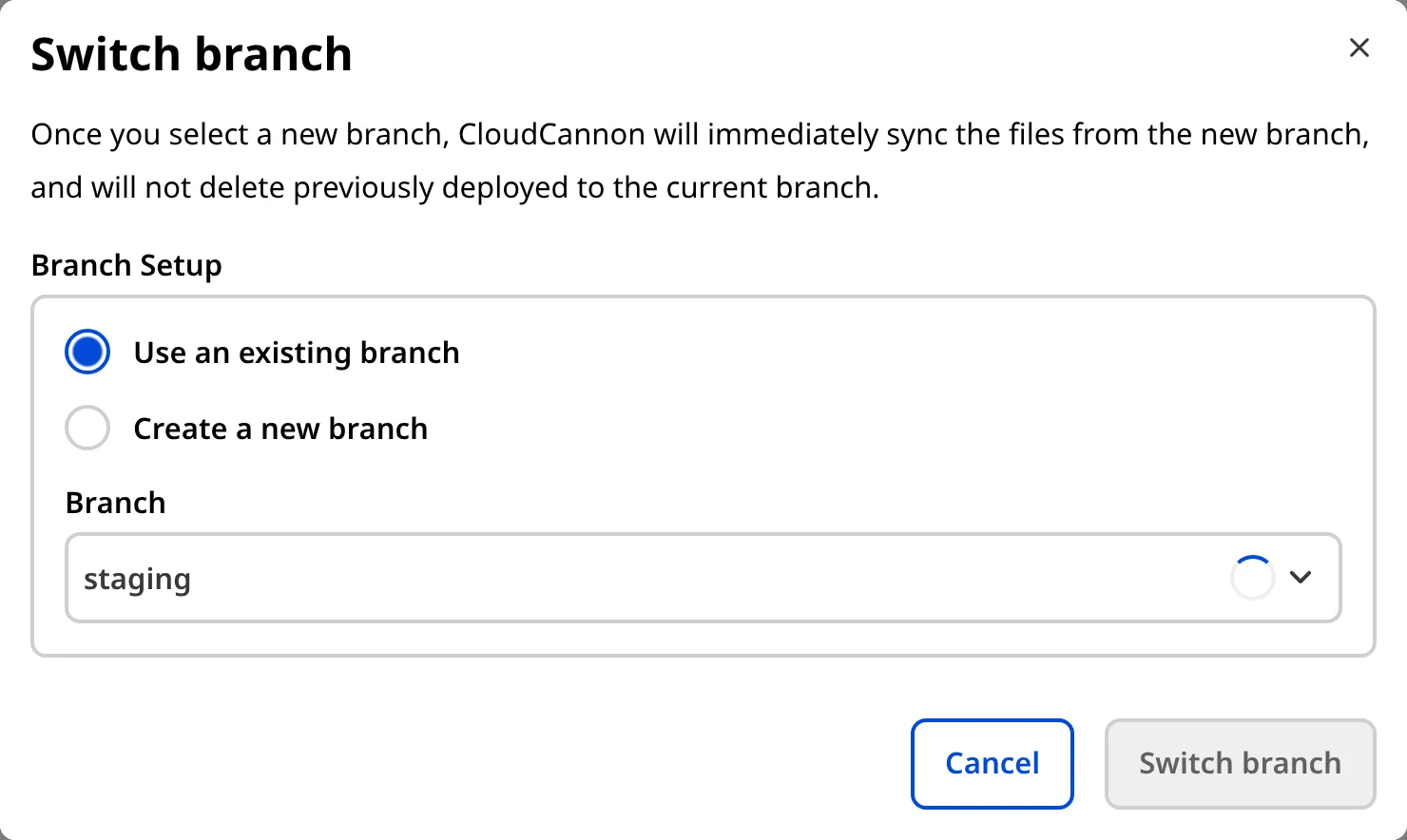
- Click the Switch branch button under the Switch this Site to a different branch heading in the Sync failed message. CloudCannon will open the Switch branch modal.
- Select the branch to which you want to switch your Site from the Branch dropdown.
- Click the Switch branch button.
CloudCannon will sync the files from your chosen branch, without deleting any files previously deployed from the old branch.