For CloudCannon to sync your files from a Git Repository A storage location for the code and files that make up your website. CloudCannon supports the repository providers GitHub, GitLab, and Bitbucket, and highly recommends using a repository to store your website's files for better version control and collaboration. A web-based service that hosts Git Repositories. CloudCannon supports GitHub, GitLab, and Bitbucket as Git Providers for syncing your website's code and content files. A workspace in CloudCannon that groups together Sites, Organization Members, and shared resources. It is also the unit CloudCannon bills for. You can define permissions for your Organization, controlling the access each Organization Member has to resources on CloudCannon. You can create and be a part of multiple Organizations.Git Repository
Git Provider
Organization
CloudCannon also supports GitHub Enterprise Server and Self-hosted GitLab. You must configure your server in your Org Settings The settings page for a CloudCannon Organization, where organization administrators can manage organization-wide settings, including billing, team permissions, integrations, branding, and security policies. You can access this page using the Organization Settings link in the App Sidebar.Org Settings
There are two ways to authenticate a Git Provider: when you create a new Site A website in CloudCannon that includes all the files, content, configuration, and settings needed to edit, build, and host a complete website.Site
Authenticate during Site creation#
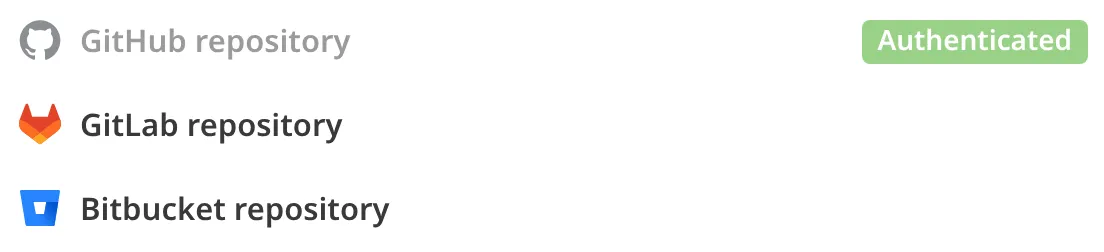
In the File source dropdown on the Create a Site page, authenticated Git Providers show a green Authenticated tag next to their option.
To authenticate a Git Provider during Site creation:
- Navigate to the Sites Browserby clicking the Sites button in the App SidebarGlossary term
Sites Browser
CloudCannon's interface for managing and organizing all the Sites within an Organization. The Sites Browser allows you to browse, search, and open Sites, displaying key information like name, icon, branch, Build status, and domain. You can access the Sites Browser from the App Sidebar.
.Glossary termApp Sidebar
The left-most UI panel in the CloudCannon app. This panel contains links to your Organization Home, Sites, Projects, Domains, and Org Settings pages, as well as app Updates and your Avatar.
- Click the Create a Site button. CloudCannon will open the Create a Site page.
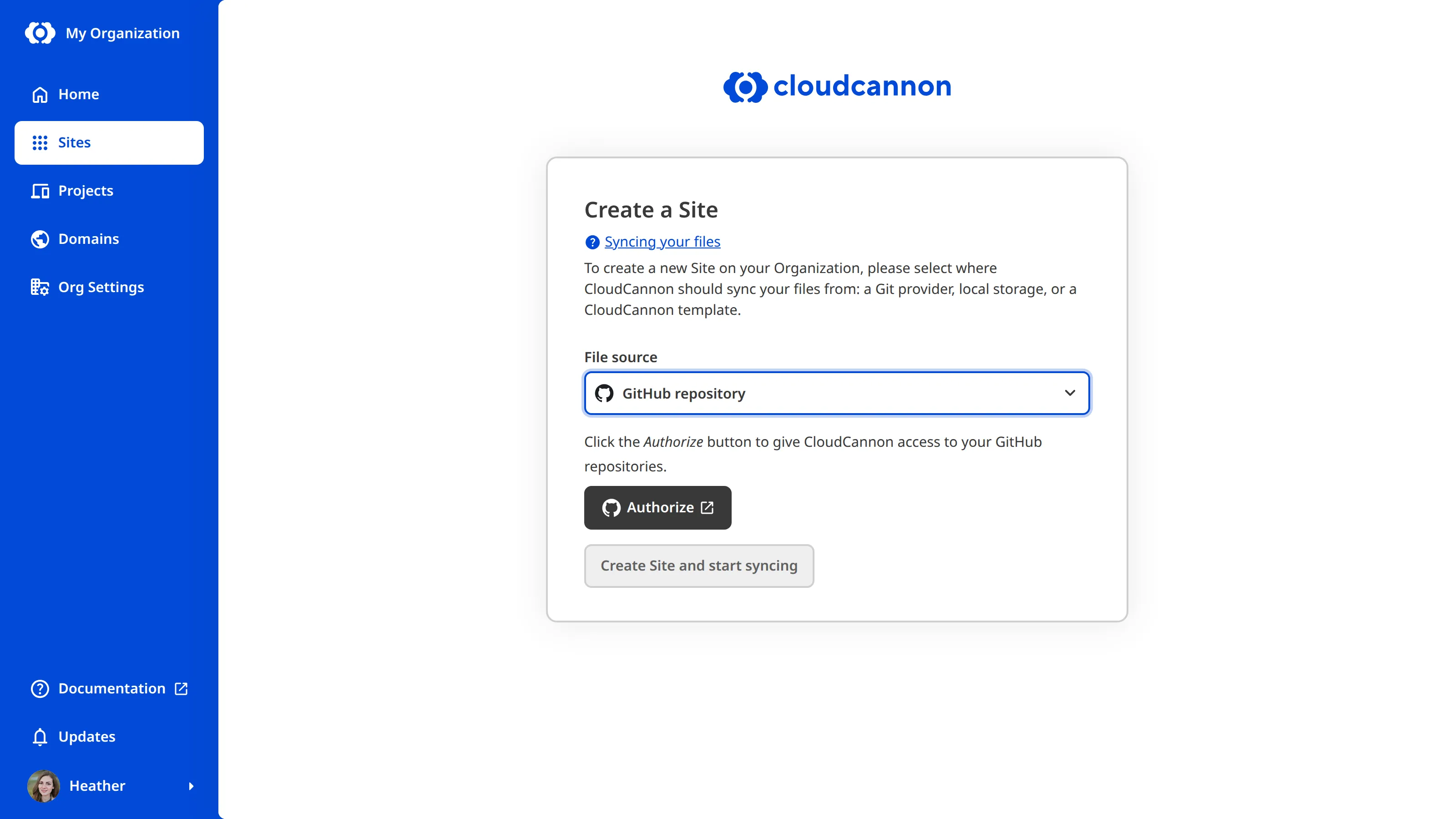
- Select the [Provider Name] repository option for an unauthenticated Git Provider in the File source dropdown. CloudCannon will show you the Authorize button.
- Click the Authorize button.
- Follow your Git Provider's instructions to authenticate access.
- Return to the Create a Site page on CloudCannon and continue following the prompts to create a Site.
Your Git Provider is now authenticated, and CloudCannon will display all Git Repositories available through that Git Provider in the Repository dropdown.
Authenticate in your Org Settings#
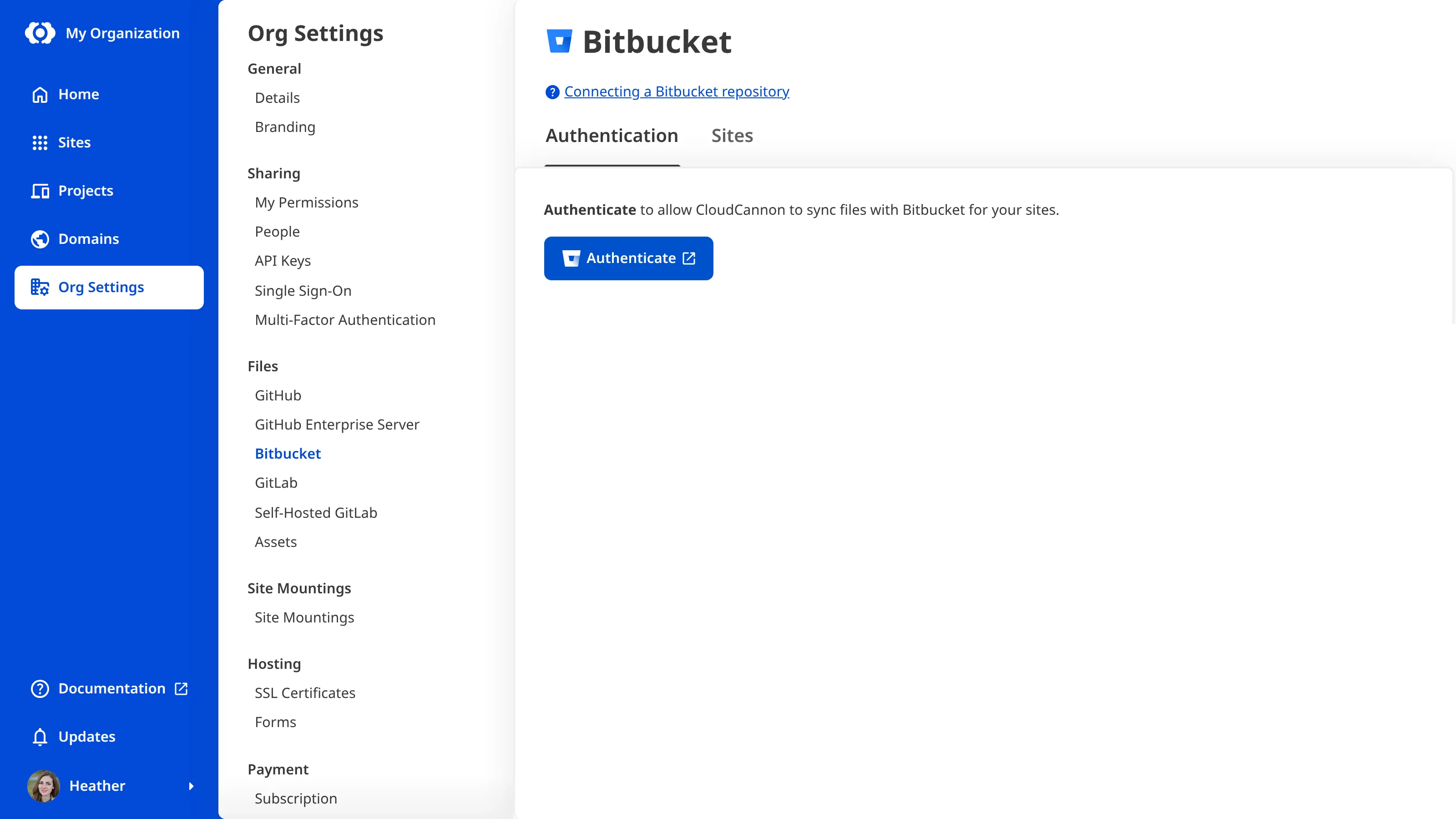
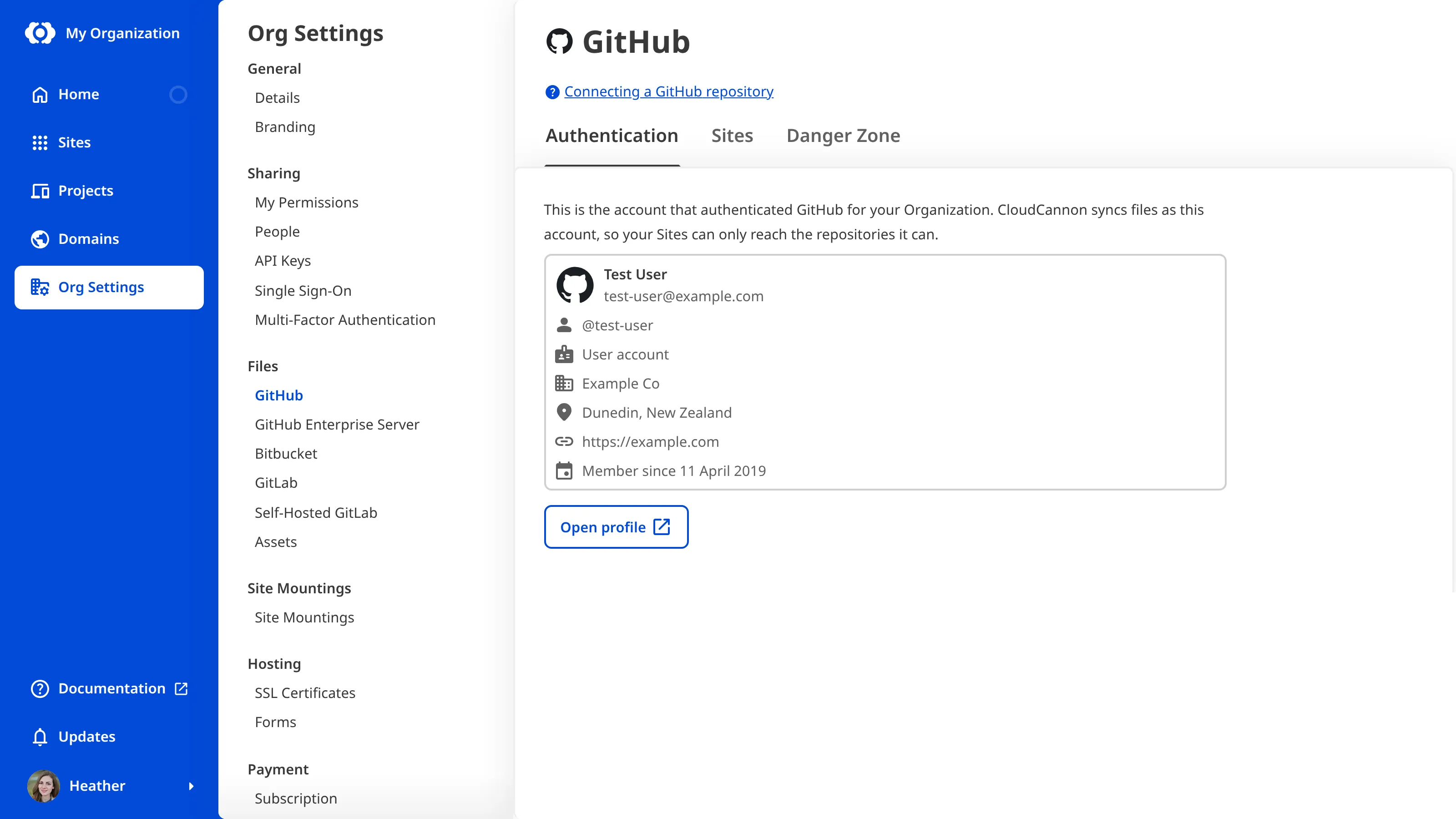
Each Git Provider has its own page under the Files heading in your Org Settings, with an Authentication tab and a Sites tab. The GitHub Enterprise Server and Self-Hosted GitLab pages also have a Settings tab for your server details. Members who can manage Git Providers also see a Danger Zone tab once the Git Provider is authenticated, or once the server is configured.
GitLab works differently: the GitLab page asks you to choose an authentication method first, then shows either the Authenticate with GitLab button or a form for a group access token. For more information, please read our documentation on connecting a GitLab repository as your source.
To authenticate GitHub, Bitbucket, GitHub Enterprise Server, or self-hosted GitLab through your Org Settings:
- Click the Org Settings button in the App Sidebar. CloudCannon will open the Details page.
- Navigate to the page for your Git Provider under the Files heading. CloudCannon will open the Authentication tab.
- Click the Authenticate button.
- Follow your Git Provider's instructions to authenticate access.
Your Git Provider is now authenticated. The Authentication tab will show the account that authenticated your Git Provider, with an Open profile button that links to the account's profile. CloudCannon syncs files as this account, so your Sites can only access the Git Repositories that this account can access.
View Sites that sync with a Git Provider#
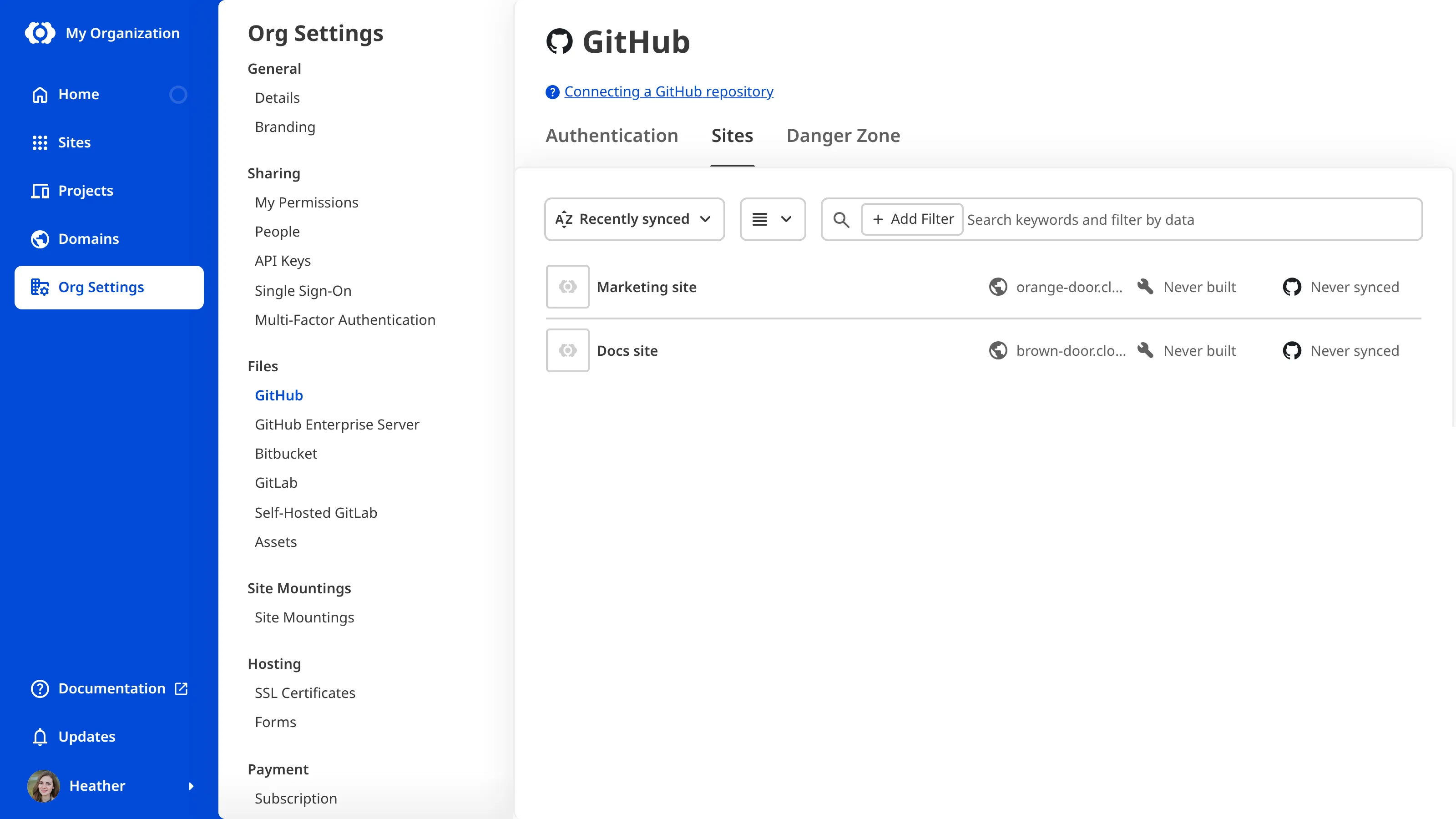
The Sites tab on each Git Provider page lists every Site in your Organization that syncs its files from that Git Provider. You can use the Sites tab to check which Sites will be affected before you reconnect or unauthenticate a Git Provider.
To view the Sites that sync with a Git Provider:
- Click the Org Settings button in the App Sidebar. CloudCannon will open the Details page.
- Navigate to the page for your Git Provider under the Files heading.
- Select the Sites tab.
CloudCannon will list each Site that syncs with that Git Provider.
Reconnect your Git Provider#
If your Git Provider revokes CloudCannon's access, or CloudCannon cannot fetch information about your connected account, the Authentication tab shows an error message and a Reconnect button. For more information, please read our documentation on reconnecting your Git Provider.
Unauthenticate your Git Provider#
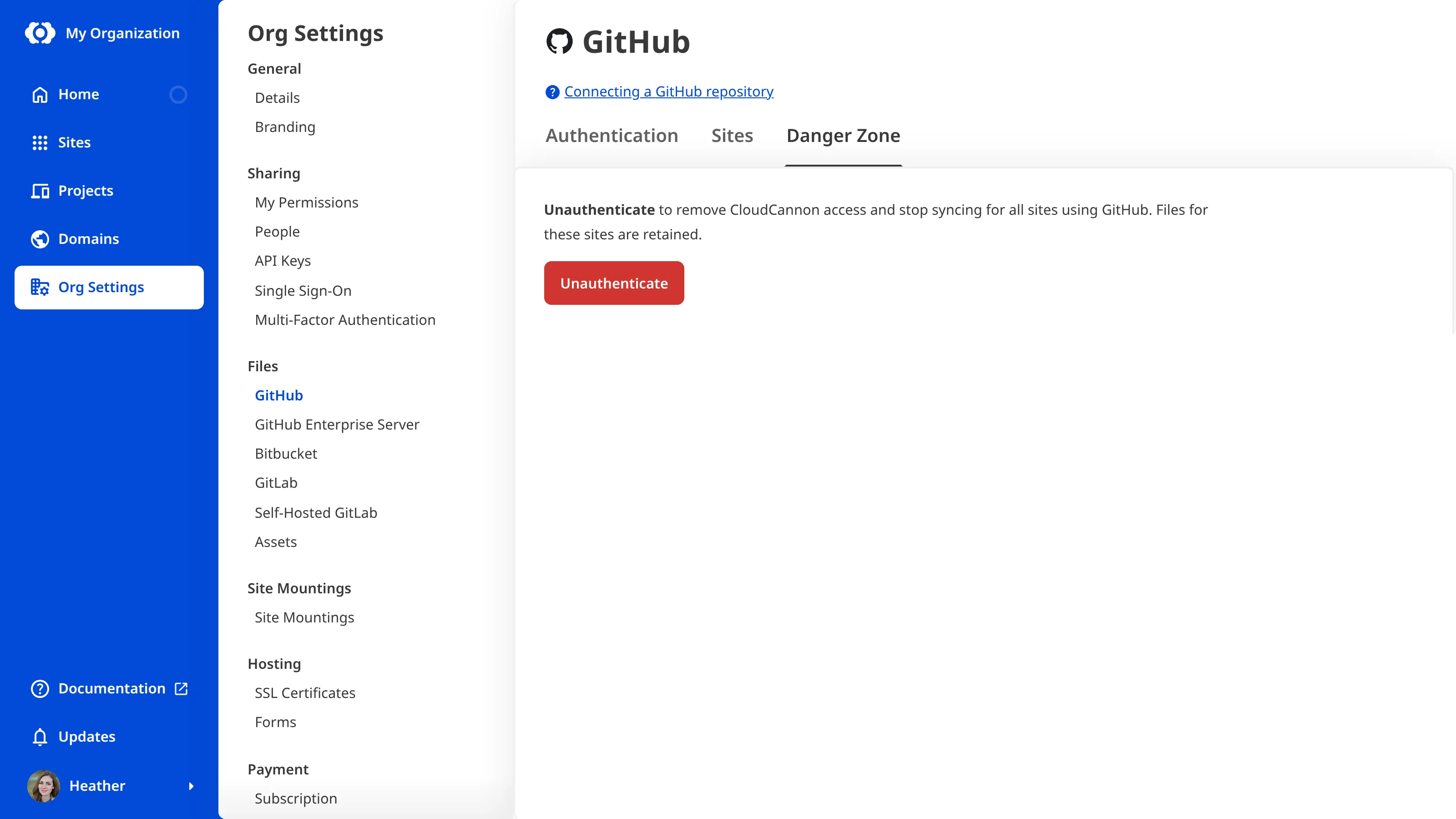
Unauthenticating a Git Provider removes CloudCannon's access to that Git Provider and stops syncing for every Site that uses it. CloudCannon keeps the files for those Sites.
To unauthenticate your Git Provider:
- Click the Org Settings button in the App Sidebar. CloudCannon will open the Details page.
- Navigate to the page for your Git Provider under the Files heading.
- Select the Danger Zone tab.
- Click the Unauthenticate button.
- Click the Confirm button.
CloudCannon will remove its access to your Git Provider. For GitHub, GitLab, and Bitbucket, CloudCannon will return you to the Authentication tab. For GitHub Enterprise Server and self-hosted GitLab, the Danger Zone tab stays open so you can disconnect your server.