A Redirect Subdomain A Subdomain on your Custom Domain that sends every visitor to another domain instead of serving a Site, preserving the visitor's path and query string. Each Redirect Subdomain has its own certificate and status code. Redirect Subdomains don't count toward the number of Custom Domains in your Subscription Plan.Redirect Subdomain
www.example.com/pricing?ref=ad arrives at example.com/pricing?ref=ad. Redirects send visitors to the target over HTTPS when the target has an SSL Certificate.
You can redirect to another Subdomain An additional name on the front of your URL, prefixing your Base Domain name (e.g., "docs" in docs.example.com or "blog" in blog.example.com). In CloudCannon, every address on your Custom Domain, including the Base Domain itself, is a Subdomain with its own hosting, HTTPS, and DNS settings. Each Subdomain serves Sites, each at its own path, or redirects visitors to another domain. A Subdomain with no Site yet shows its visitors a 404 page until you add a Site. A domain you own and connect to your CloudCannon Organization, so visitors reach your Site at your own address instead of its Testing Domain. You buy the domain from a domain registrar, connect it to your Organization, then add it to your Sites. A workspace in CloudCannon that groups together Sites, Organization Members, and shared resources. It is also the unit CloudCannon bills for. You can define permissions for your Organization, controlling the access each Organization Member has to resources on CloudCannon. You can create and be a part of multiple Organizations. A set of features available to your Organization, the monthly usage limits for resources, and the price you pay for access to those features and resources, monthly or annually. Each Organization in CloudCannon can have one Subscription Plan, and can update or cancel at any time.Subdomain
Custom Domain
Organization
shop.example.com when example.com is connected to your Organization, add shop.example.com as a Subdomain first. Destinations on domains that aren't connected to your Organization have no such requirement. Redirect Subdomains do not count toward the number of Custom Domains in your Subscription PlanSubscription Plan
You can redirect to a Subdomain that is itself a redirect, everywhere you enter a destination. Visitors are then redirected twice, so CloudCannon shows the final destination below the Redirect visitors to field (e.g., Avoid a double redirect by entering example.com instead.), but still lets you save. CloudCannon refuses three kinds of destination, and shows why below the Redirect visitors to field. It refuses the Subdomain itself (Cannot select this Subdomain as it would redirect to itself.). It refuses a subdomain that isn't set up yet on one of the Custom Domains connected to your Organization, for example Cannot select this Subdomain until you configure it on example.com. And it refuses any change that would send visitors in a loop (Cannot select this Subdomain as it would create a redirect loop.). For how loops form and how to fix one, see fixing a redirect loop below.
When you add the Base Domain The primary domain name for a website, without any subdomains. For example, in "www.example.com", the Base Domain is "example.com". In CloudCannon, you connect your Base Domain to your Organization as a Custom Domain.Base Domain
example.com) as a Site Subdomain, or change it from a redirect to serve Sites, CloudCannon also adds www.example.com as a redirect to it, unless www.example.com already exists. Adding www.example.com as a Site Subdomain adds example.com as a redirect in the same way. For more information, please read our documentation on adding a Subdomain to your Custom Domain.
For more information on how Subdomains work, please read our documentation on what a Subdomain is.
Each Subdomain has its own page, which you open by clicking the Card The repeated block CloudCannon uses to represent one item in a list, browser, or input, typically showing a preview image, title, subtitle, icon, and key metadata. Cards represent files and folders in the Collection Browser and File Browser, as well as Sites, Organizations, Organization Members, domains, Health Checks, and items inside Array and Object Inputs. You can configure how Cards look for your files, making it easier to browse and identify content at a glance. The page in CloudCannon where you manage a Custom Domain connected to your Organization. Its tabs show whether every Subdomain is working, list your Subdomains and Fallback Redirect, show your DNS Provider and records, and hold the settings of the domain. You can access this page by clicking the Card for a domain in the Domains Browser. A menu that appears when you click the six-dot icon in the top right of a File Card or three-dot icon in the top right of an Editing Interface. This menu provides quick access to file actions and options such as previewing a file live on your website, cloning or renaming a file, and more.Card
Domain page
Context Menu
Before we begin, this article assumes you have connected a Custom Domain to your Organization.
Redirect status codes#
Each Redirect Subdomain has its own status code, which you choose in the Status code dropdown when you add or change the redirect. New Redirect Subdomains use 301 permanent redirect, including the redirect CloudCannon adds for www.example.com when you add example.com.
- 301 permanent redirect — Search engines move to the target. Browsers can change a form POST to a GET.
- 302 temporary redirect — Search engines keep the original address. Browsers can change a form POST to a GET.
- 307 temporary redirect, keeping the method — Search engines keep the original address. Browsers repeat the same method, such as a form POST.
- 308 permanent redirect, keeping the method — Search engines move to the target. Browsers repeat the same method, such as a form POST.
Search engines treat a permanent redirect (301 or 308) as a permanent move. If you might later serve a Site on the Subdomain, or swap which of example.com and www.example.com redirects to the other, choose a temporary redirect (302 or 307) until you are sure.
The status code of your Fallback Redirect The Subdomain to which CloudCannon sends visitors when they try to visit a subdomain on your Custom Domain that isn't set up, including a Subdomain you have deleted. It prevents visitors from seeing an error when they mistype a subdomain (e.g., typo.example.com). Each Custom Domain has one Fallback Redirect.Fallback Redirect
Add a Redirect Subdomain#
To add a Redirect Subdomain, please read our documentation on adding a Subdomain to your Custom Domain.
Redirect a whole domain to another domain#
To send every visitor on one domain to another domain (e.g., from an old brand name, old-example.com, to example.com), you don't need a second Site. Add Redirect Subdomains on the old domain instead. Before you begin, connect the old domain to your Organization. If the new domain is also connected to your Organization, the destination you redirect to (e.g., example.com) must already be a Subdomain on it, or CloudCannon refuses the redirect with Cannot select this Subdomain until you configure it on example.com.
Each of the first two steps below adds a Redirect Subdomain. For the full steps, please read our documentation on adding a Redirect Subdomain.
To redirect a whole domain to another domain:
- Add a Redirect Subdomain on the old domain with the Subdomain field left empty.
- Enter the new domain (e.g.,
example.com) in the Redirect visitors to field. - Add a second Redirect Subdomain on the old domain for
www, with the same destination. - Point the DNS for both Subdomains at CloudCannon. On external DNS, add the records listed on the DNS tab of the old domain's Domain page.
CloudCannon will redirect visitors to old-example.com and www.old-example.com to the same path on example.com. On CloudCannon DNS, CloudCannon adds the DNS records for you. CloudCannon only adds www automatically when you add the Base Domain as a Site Subdomain or change it to serve Sites, not when you add it as a redirect, so add the www redirect yourself.
To redirect only some paths to another domain, or to send each old path to a different new path, use a routing.json file on the Site that serves the old domain instead. For more information, please read our documentation on configuring custom routing.
Change where a redirect goes#
You can change the destination of a Redirect Subdomain, its status code, or both. Browsers that have already followed a redirect may keep using the old target for up to an hour after you change it.
To change where a Redirect Subdomain sends visitors:
- Navigate to the page for the Redirect Subdomain.
- Click the Change Target button in the Redirect section. CloudCannon will open the Change [Subdomain]'s Target modal.
- Enter the new domain in the Redirect visitors to field.
- (Optional.) Select a different status code from the Status code dropdown.
- Click the Save Redirect button.
CloudCannon will redirect visitors to the new domain with the status code you selected.
The Redirect section of the Subdomain page shows the redirect as a tree: the Subdomain with a description of its status code (e.g., 301 permanent redirect, keeping the path and query string.), then the destination and, if the destination is on the same Custom Domain, the Sites it serves or the domain to which it redirects.
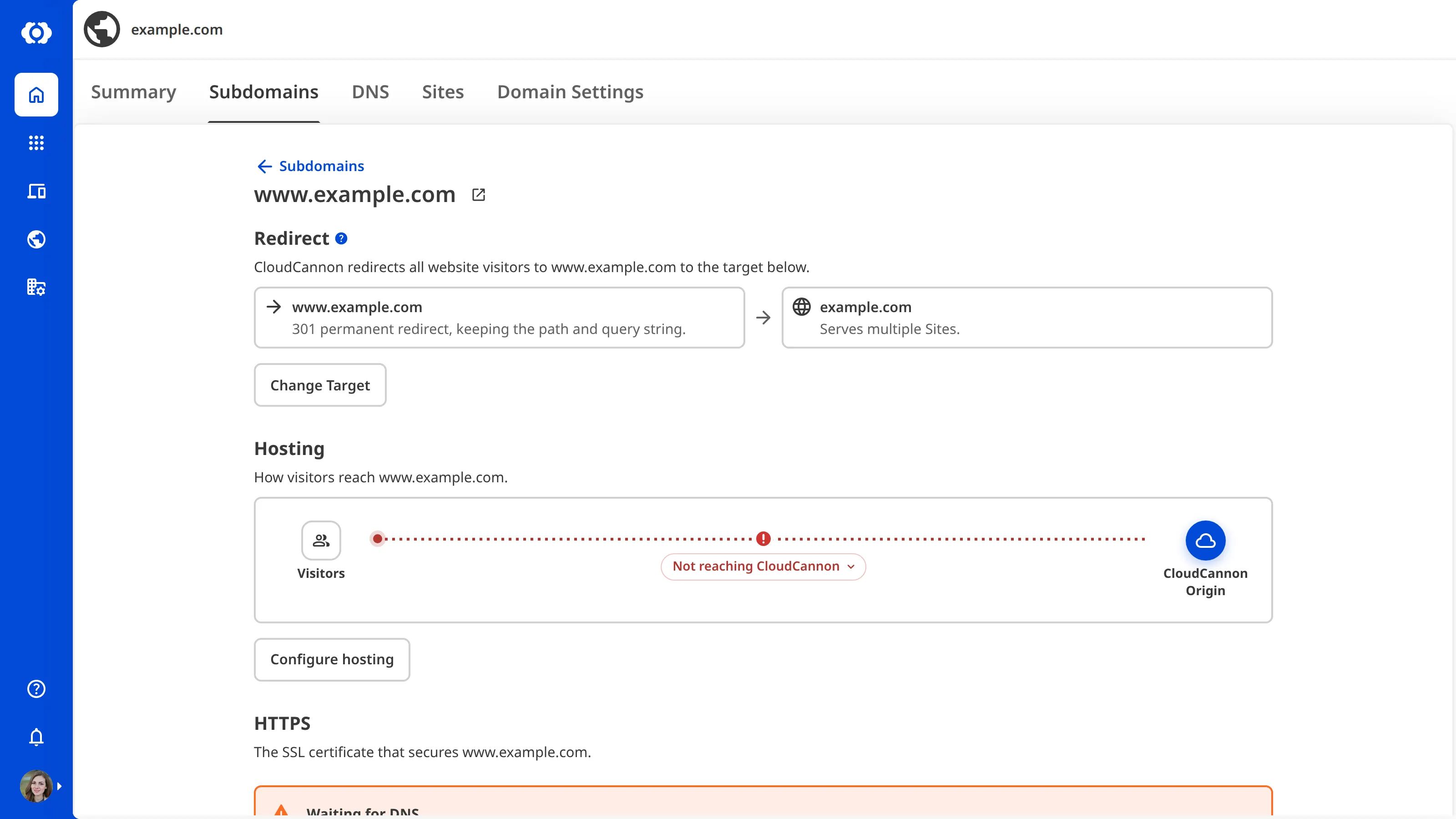
Change a Subdomain that serves Sites to a redirect#
Changing a Subdomain that serves Sites to a redirect also requires the site:settings:hosting:write permission for each of those Sites.
When you change a Subdomain that serves Sites into a redirect:
- The Sites on the Subdomain lose their Custom Domain. Each Site keeps its Testing Domain.
- Any redirects on the same Custom Domain that pointed at the Subdomain now point at the new target.
If you redirect a Subdomain to another Subdomain that already redirects back to it, the two Subdomains swap. For example, if www.example.com redirects to example.com and you redirect example.com to www.example.com, www.example.com takes the Sites from example.com at the same paths. If example.com was your Fallback Redirect, www.example.com also becomes the fallback.
To change a Subdomain that serves Sites to a redirect:
- Navigate to the page for the Subdomain.
- Click the Change Subdomain Type button next to Change Subdomain type to Redirect in the Danger zone section. CloudCannon will open the Change [Subdomain] to a Redirect Subdomain modal.
- Enter the domain to which you want to send visitors in the Redirect visitors to field.
- (Optional.) Select a status code from the Status code dropdown.
- Click the Change type to Redirect button.
CloudCannon will redirect every visitor on the Subdomain to the domain you entered.
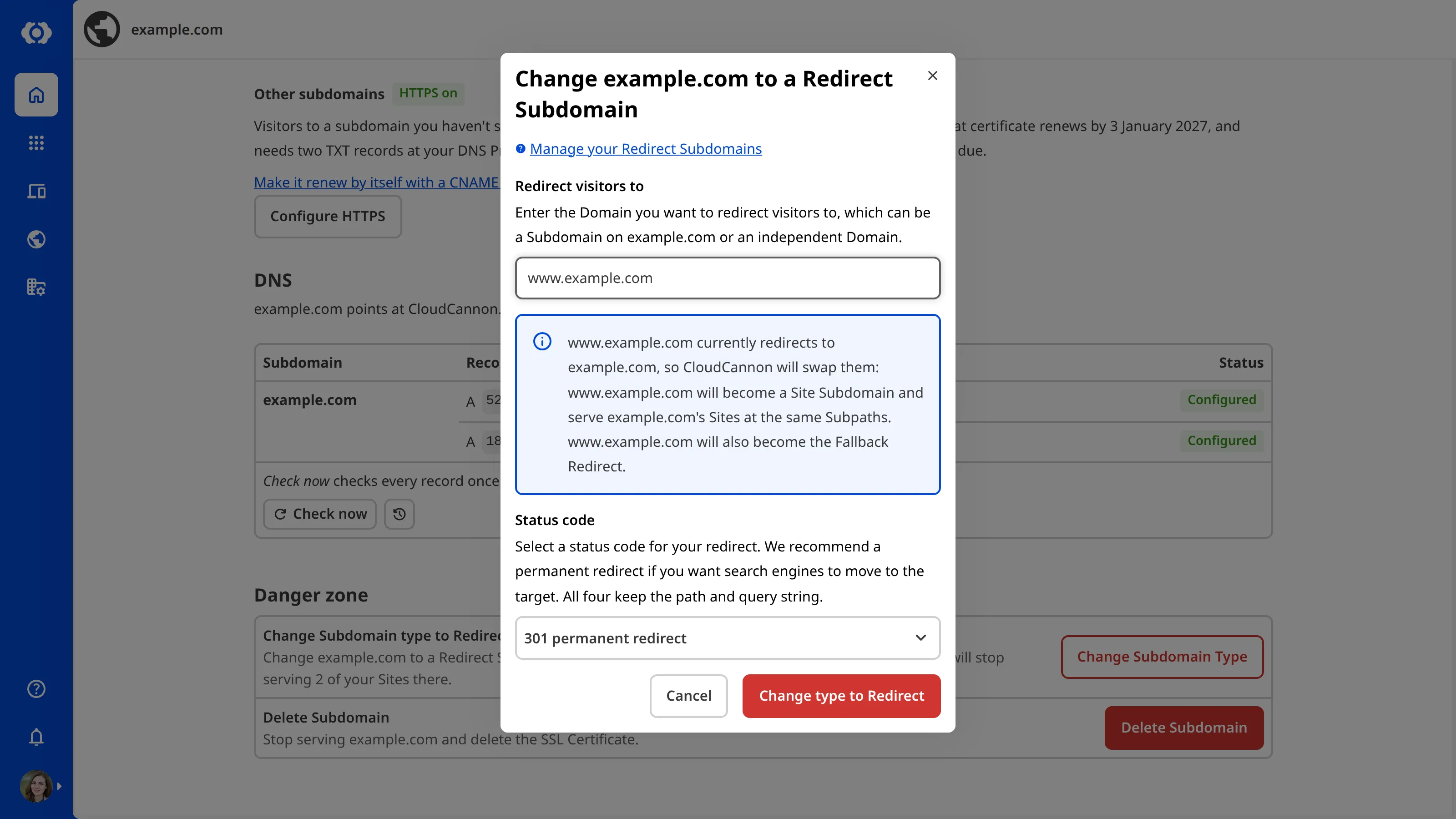
You can also change your Site's Subdomain to a redirect from the Custom Domain page under Site Settings, using the Change Subdomain Type button next to Change Subdomain type to Redirect in the Danger zone section under Subdomain settings. Your Site then leaves the Subdomain, and CloudCannon opens the [Site Name] is no longer on [Subdomain] modal, with the Stay here and Go to [Subdomain] settings buttons.
Change a redirect to serve a Site#
Changing a Redirect Subdomain to serve a Site also requires the site:settings:hosting:write permission for that Site.
When you change a Redirect Subdomain to serve a Site, the Subdomain stops redirecting. Its hosting and certificate stay as they are.
Once the Subdomain serves a Site, it counts toward the number of Custom Domains in your Subscription Plan. If serving a Site takes your Organization over that number, CloudCannon will ask you to confirm the extra cost first. For more information, please read our documentation on what Add-Ons and Overages are.
In a Client Organization on its extended six-month Free Trial, serving a Site on a Subdomain that had no Sites shortens the trial so that it ends five days later, whether or not the Client Organization is still within the limits of its Subscription Plan. CloudCannon asks you to confirm before it shortens the trial. For more information, please read our documentation on how billing works in the Partner Program.
To change a Redirect Subdomain to serve a Site:
- Navigate to the page for the Redirect Subdomain.
- Click the Change Subdomain Type button next to Change Subdomain type to Site in the Danger zone section. CloudCannon will open the Change [Subdomain] to a Site Subdomain modal.
- (Optional.) Select the Site you want to serve from the Site dropdown. Leave this field empty to set up the Subdomain with no Site yet.
- (Optional.) Enter a path in the Subpath field to serve the Site under that path, so other Sites can share the Subdomain.
- Click the Change type to Site button.
CloudCannon will stop redirecting the Subdomain and serve the Site you selected. If you did not select a Site, visitors will see a 404 page until you add one.
If the Site you select is the last Site on another Subdomain, the modal also asks what happens to that Subdomain. For more information, please read our documentation on moving a Site from another Subdomain.
Delete a Redirect Subdomain#
When you delete a Redirect Subdomain, CloudCannon stops redirecting it and removes its certificate. Visitors to the deleted Subdomain go to your Fallback Redirect.
To delete a Redirect Subdomain:
- Navigate to the page for the Redirect Subdomain.
- Click the Delete Subdomain button in the Danger zone section. CloudCannon will open the Delete [Subdomain]? modal.
- (Optional.) If other Subdomains redirect to this one, uncheck the Delete this other Redirect Subdomain or Delete these other Redirect Subdomains checkbox to keep them.
- Type the Subdomain in the Type [Subdomain] to confirm field.
- Click the Delete Subdomain button.
CloudCannon will delete the Redirect Subdomain.
For more information on deleting Subdomains that serve Sites, please read our documentation on managing the Sites on a Subdomain.
Fix a redirect loop#
A redirect loop sends visitors from one Subdomain through a chain of redirects and back to where they started, so their browser never reaches a page. CloudCannon checks for loops whenever you add, change, or delete a Subdomain, and refuses any change that would create one.
To work out where visitors end up, CloudCannon follows each step of the chain:
- Redirect Subdomain — Visitors go to its destination.
- Site Subdomain — The chain ends, whether or not the Site Subdomain has a Site yet.
- Unconfigured subdomain — A subdomain you haven't configured on one of the Custom Domains connected to your Organization. Visitors go to the Fallback Redirect for that Custom Domain.
- Any other domain — The chain ends, because CloudCannon doesn't follow redirects on domains that aren't connected to your Organization.
A loop forms in one of two ways:
- A redirect points back — A Redirect Subdomain sends visitors to another Redirect Subdomain that leads back to it, directly or through other redirects. For example,
a.example.comredirects tob.example.com, andb.example.comredirects toa.example.com. - The Fallback Redirect points back — The chain reaches an unconfigured subdomain, which sends visitors to your Fallback Redirect, and the Fallback Redirect leads back. For example, your Fallback Redirect is
blog.example.com, which redirects tonews.example.com. If you deletenews.example.comand keepblog.example.com, visitors tonews.example.comwould go toblog.example.com, which sends them back tonews.example.com.
When a destination you enter in the Redirect visitors to field would create a loop, CloudCannon shows Cannot select this Subdomain as it would create a redirect loop. below the field. If you enter the Subdomain itself, CloudCannon shows Cannot select this Subdomain as it would redirect to itself. instead. The Redirect visitors to field appears in:
- The Add a Subdomain modal, when you select the Redirect type.
- The Change [Subdomain]'s Target modal.
- The Change [Subdomain] to a Redirect Subdomain modal. If the destination already redirects back to the Subdomain, this modal doesn't show the error, because CloudCannon swaps the two Subdomains instead. For more information, see changing a Subdomain that serves Sites to a redirect above.
- The Redirect visitors option, when you remove or move the last Site on a Subdomain.
When you change your Fallback Redirect to a Subdomain that would lead back to itself, the Change Fallback modal and the Use as Fallback Redirect option show You cannot select [Subdomain] as your Fallback Redirect, because website visitors would go around in a loop ([Subdomain] → [Subdomain] → [Subdomain]). Select a different Subdomain. The message lists the Subdomains in the loop.
To fix a loop, find the redirect in the chain that points back. On the Subdomains tab of the Domain page, each Redirect Subdomain shows its destination (e.g., Redirects visitors to news.example.com.). Start from the destination you entered, and follow each redirect until you reach the Subdomain you were changing. Then do one of the following before you try your change again:
- Change where the redirect goes.
- Change the redirect to serve a Site.
- Delete the redirect.
- For a loop through your Fallback Redirect, make a different Subdomain your Fallback Redirect, or, when you delete a Subdomain, leave the Delete this other Redirect Subdomain or Delete these other Redirect Subdomains checkbox checked so the redirects that point at it are deleted too.