A Subdomain on your Custom Domain A domain you own and connect to your CloudCannon Organization, so visitors reach your Site at your own address instead of its Testing Domain. You buy the domain from a domain registrar, connect it to your Organization, then add it to your Sites. A website in CloudCannon that includes all the files, content, configuration, and settings needed to edit, build, and host a complete website.Custom Domain
Site
For Subdomains that redirect, please read our documentation on managing your Redirect Subdomains. To change a Subdomain's hosting option or certificate, or check its DNS, please read our documentation on configuring a Subdomain's hosting, HTTPS, and DNS.
Each Subdomain has its own page, which you open by clicking the Card The repeated block CloudCannon uses to represent one item in a list, browser, or input, typically showing a preview image, title, subtitle, icon, and key metadata. Cards represent files and folders in the Collection Browser and File Browser, as well as Sites, Organizations, Organization Members, domains, Health Checks, and items inside Array and Object Inputs. You can configure how Cards look for your files, making it easier to browse and identify content at a glance. The page in CloudCannon where you manage a Custom Domain connected to your Organization. Its tabs show whether every Subdomain is working, list your Subdomains and Fallback Redirect, show your DNS Provider and records, and hold the settings of the domain. You can access this page by clicking the Card for a domain in the Domains Browser. A menu that appears when you click the six-dot icon in the top right of a File Card or three-dot icon in the top right of an Editing Interface. This menu provides quick access to file actions and options such as previewing a file live on your website, cloning or renaming a file, and more.Card
Domain page
Context Menu
Before we begin, this article assumes you have added a Subdomain to your Custom Domain.
Add a Site to a Subdomain#
A Subdomain can serve several Sites, each at its own path. For example, example.com can serve your marketing Site at the root (/) and your documentation Site at /docs/. Every Site on a Subdomain shares the Subdomain's hosting, HTTPS, and DNS settings.
If the Site you add already has a Custom Domain, CloudCannon moves the Site to the new address. For more information, please read the section on moving a Site from another Subdomain.
You can also add a Custom Domain from the Custom Domain page under Site Settings. For more information, please read our documentation on adding a Custom Domain to your Site.
To add a Site to a Subdomain:
- Navigate to the page for the Subdomain.
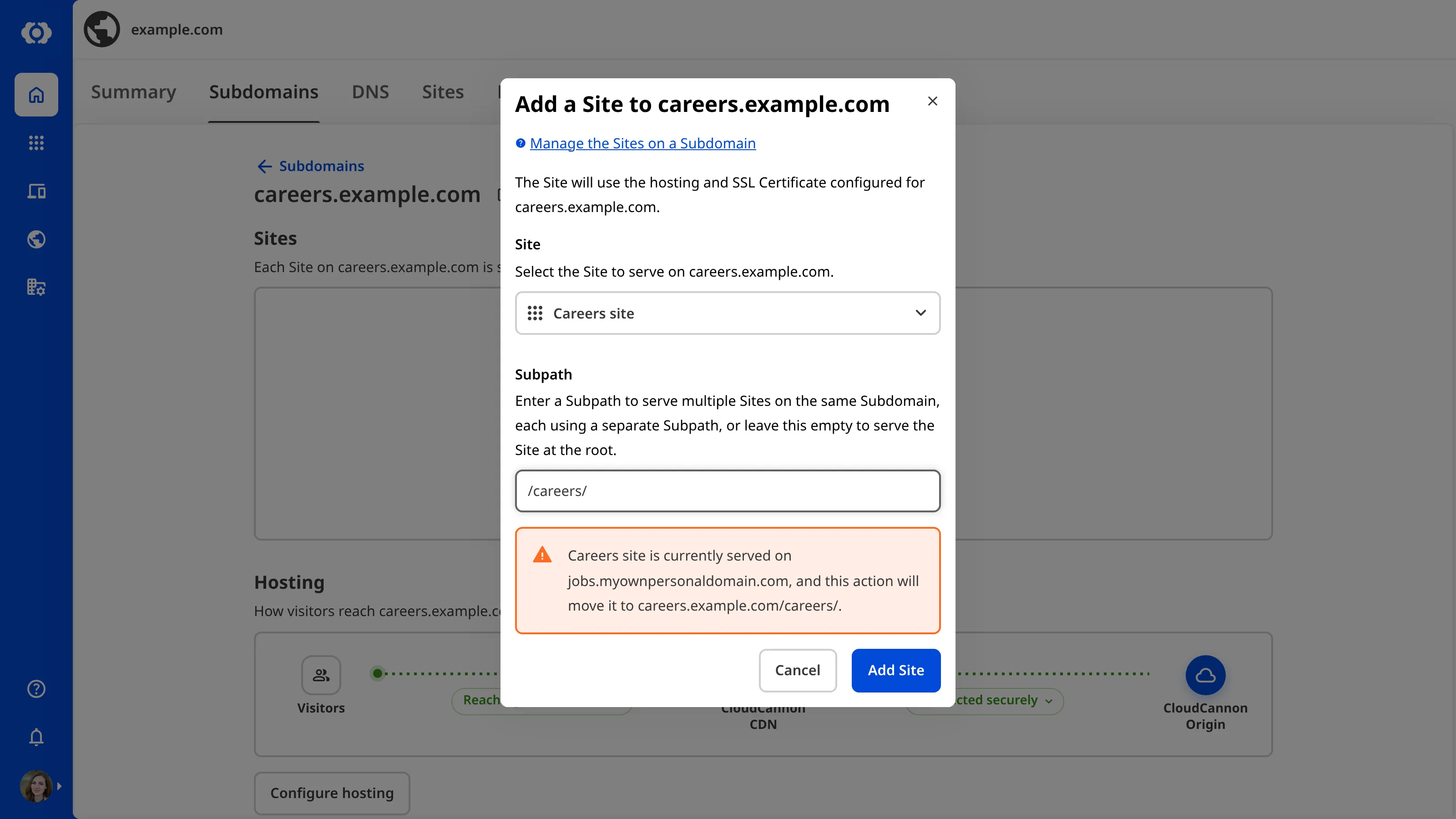
- Click the Add a Site button in the Sites section. CloudCannon will open the Add a Site to [Subdomain] modal.
- Select the Site you want to add from the Site dropdown.
- (Optional.) Enter a path in the Subpath field. Leave this field blank to serve the Site at the root of the Subdomain.
- Click the Add Site button.
CloudCannon will serve the Site on the Subdomain at the path you entered.
Swap the Site at a path#
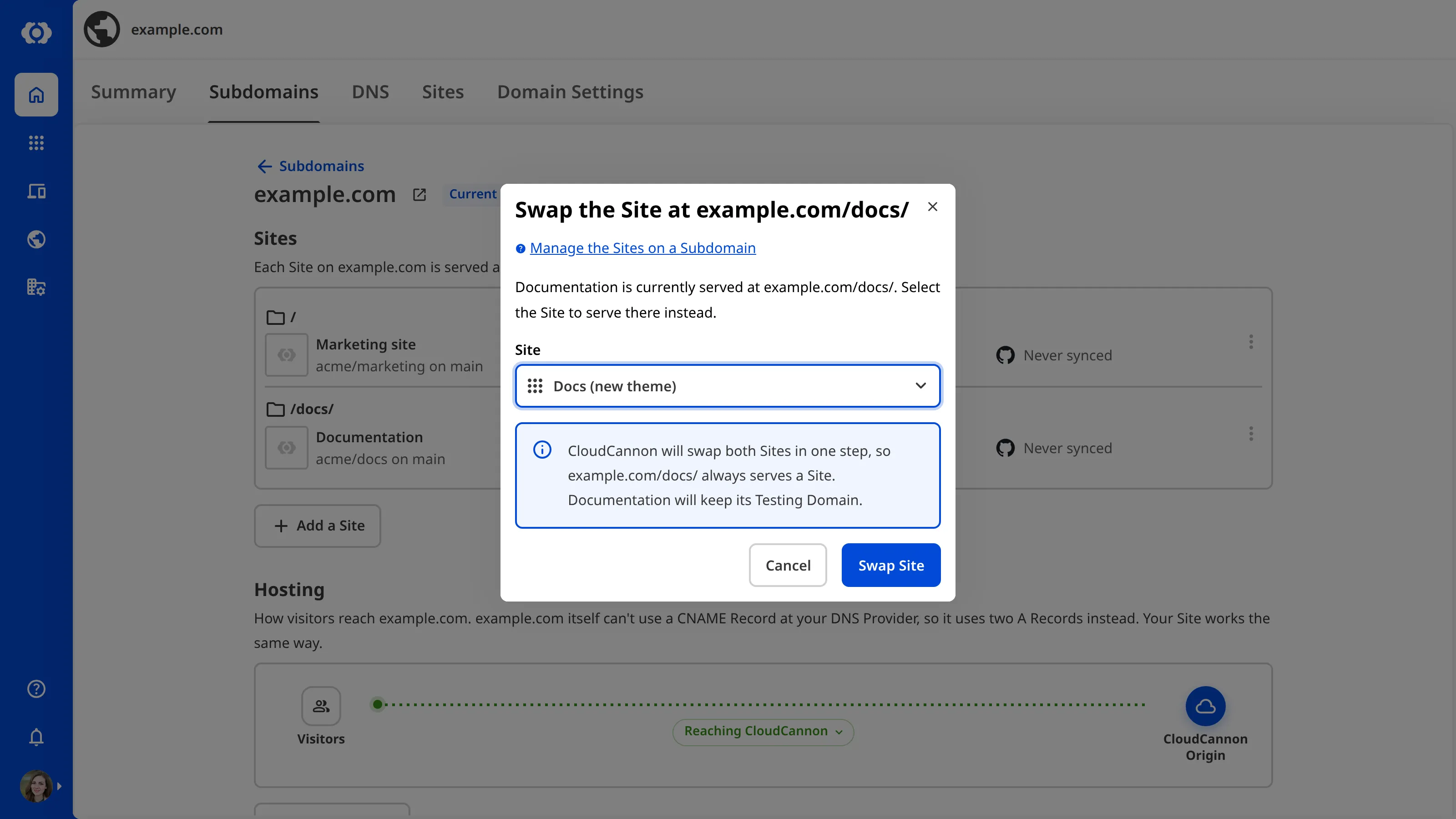
You can replace the Site at a path with another Site in one step, so the path is never left without a Site. The Site you replace keeps its Testing Domain.
The Swap for another Site option is disabled unless you can both change the hosting of the Site and edit the settings of the Base Domain The primary domain name for a website, without any subdomains. For example, in "www.example.com", the Base Domain is "example.com". In CloudCannon, you connect your Base Domain to your Organization as a Custom Domain.Base Domain
To swap the Site at a path:
- Navigate to the page for the Subdomain.
- Click the Context Menu for the Site you want to replace.
- Select the Swap for another Site option. CloudCannon will open the Swap the Site at [Subdomain and path] modal.
- Select the Site that takes over from the Site dropdown.
- Click the Swap Site button.
CloudCannon will serve the new Site at that path. Sites whose hosting you can't change are disabled in the Site dropdown.
Change the path of a Site#
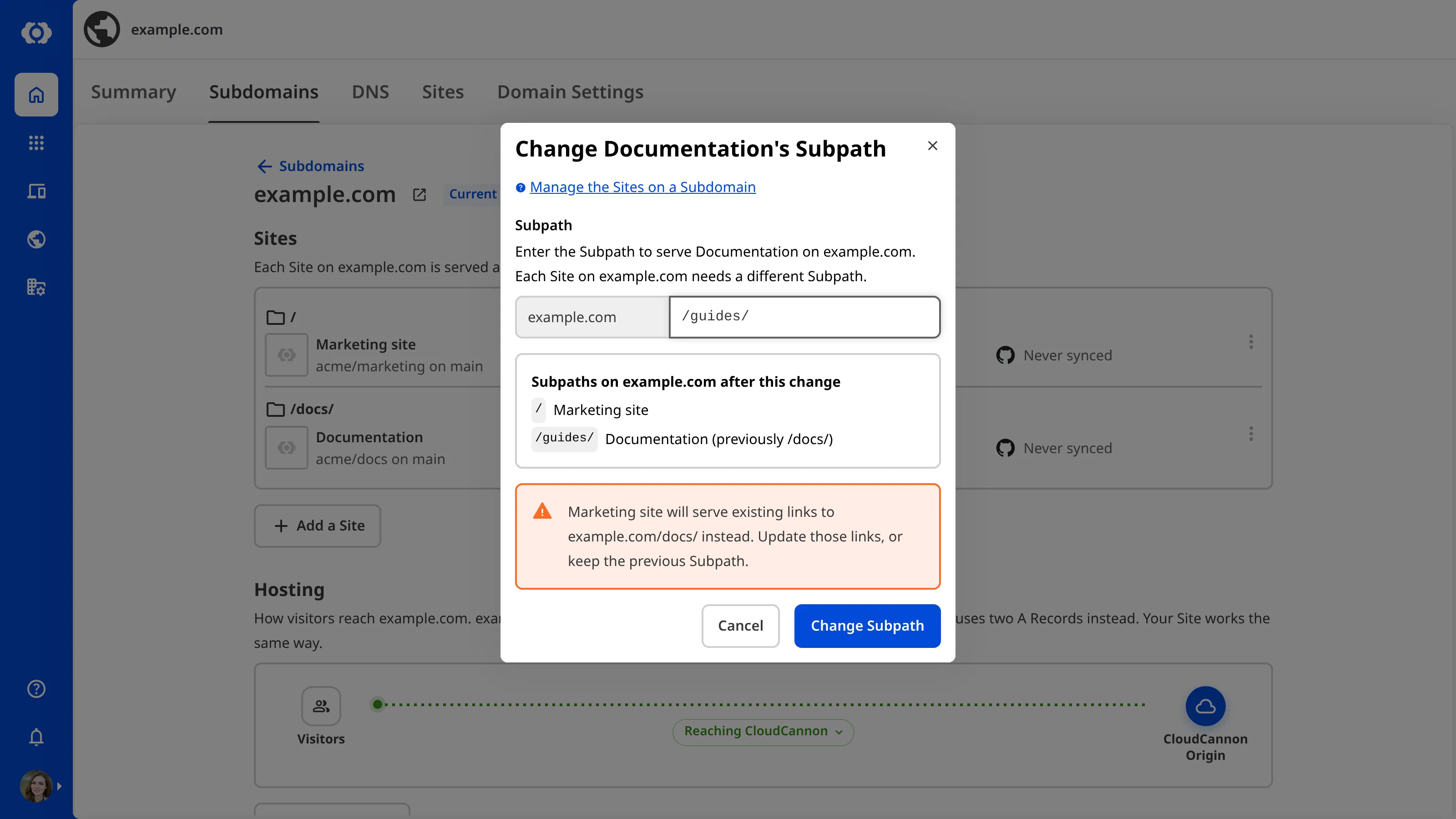
You can change the path at which a Subdomain serves a Site. Each path on a Subdomain is served by one Site, so the new path can't be a path another Site already serves. Before you save, CloudCannon shows the Subpaths on [Subdomain] after this change. If links to the old path would show a 404 page or another Site, CloudCannon warns you so you can update those links or keep the old path.
The Change Subpath option is disabled unless you can both change the hosting of the Site and edit the settings of the Base Domain. Hover over the option to see which permission you're missing, then ask someone in your Organization who has it.
To change the path of a Site:
- Navigate to the page for the Subdomain.
- Click the Context Menu for the Site you want to move.
- Select the Change Subpath option. CloudCannon will open the Change [Site Name]'s Subpath modal.
- Enter the new path in the Subpath field (e.g.,
/guides/). - Review the paths on the Subdomain after the change.
- Click the Change Subpath button.
CloudCannon will serve the Site at the new path.
Your Site's build output needs a folder that matches the new path. For more information, please read our documentation on building your Site for a path.
You can also change the path of a Site from the Custom Domain page under Site Settings. For more information, please read our documentation on reviewing your Site's Custom Domain.
Remove a Site from a Subdomain#
When you remove a Site from a Subdomain, CloudCannon stops serving that Site on the Subdomain. The Site keeps its Testing Domain.
The Remove from [Subdomain] option is disabled unless you can both change the hosting of the Site and edit the settings of the Base Domain. Hover over the option to see which permission you're missing, then ask someone in your Organization who has it.
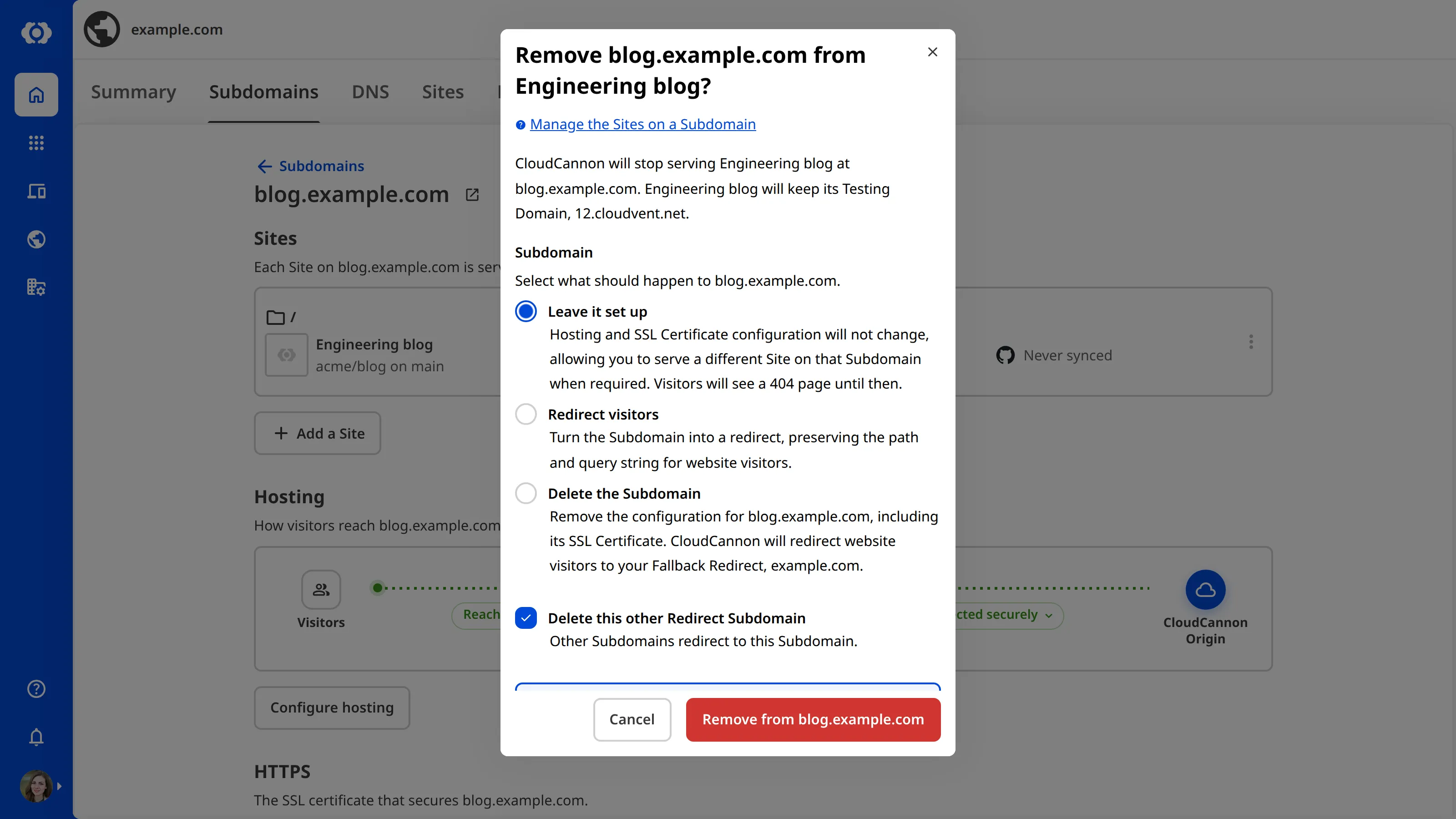
If you remove the last Site on a Subdomain, CloudCannon asks what happens to the Subdomain:
- Leave it set up — The Subdomain stays set up with no Site. Its hosting and certificate stay connected, so you can add a Site back without waiting for DNS or a new certificate. Until then, visitors see a 404 page. This is the default. Choose this option to take your website down temporarily.
- Redirect visitors — The Subdomain becomes a redirect that sends every visitor to another domain, keeping the path and query string.
- Delete the Subdomain — CloudCannon deletes the Subdomain and its certificate, and sends its visitors to your Fallback Redirect.Glossary term
Fallback Redirect
The Subdomain to which CloudCannon sends visitors when they try to visit a subdomain on your Custom Domain that isn't set up, including a Subdomain you have deleted. It prevents visitors from seeing an error when they mistype a subdomain (e.g., typo.example.com). Each Custom Domain has one Fallback Redirect.
If other Subdomains redirect to the Subdomain you are emptying, CloudCannon lists them in the Other Redirect Subdomains notice and deletes them too, unless you uncheck the Delete this other Redirect Subdomain or Delete these other Redirect Subdomains checkbox. The checkbox appears when you leave the Subdomain set up or delete it, and only covers redirects on domains whose settings you can edit.
If you redirect the Subdomain, enter its new destination in the Redirect visitors to field. If the destination itself redirects, CloudCannon shows Avoid a double redirect by entering [Destination] instead. below the field, which doesn't stop you from saving. If other Redirect Subdomains on the same Custom Domain point at the Subdomain, the Other Redirect Subdomains notice lists them, because CloudCannon will update them to redirect to the new destination. CloudCannon refuses a destination that would send visitors in a loop (Cannot select this Subdomain as it would create a redirect loop.), a destination that is the Subdomain itself (Cannot select this Subdomain as it would redirect to itself.), and a destination on one of your Custom Domains that isn't a Subdomain yet (Cannot select this Subdomain until you configure it on [Custom Domain].). For how loops form and how to fix one, please read our documentation on fixing a redirect loop.
To remove a Site from a Subdomain:
- Navigate to the page for the Subdomain.
- Click the Context Menu for the Site you want to remove.
- Select the Remove from [Subdomain] option. CloudCannon will open the Remove [Subdomain] from [Site Name]? modal.
- If this is the last Site on the Subdomain, select the Leave it set up, Redirect visitors, or Delete the Subdomain option. If you select Redirect visitors, enter the domain to which you want to send visitors in the Redirect visitors to field.
- (Optional.) Uncheck the Delete this other Redirect Subdomain or Delete these other Redirect Subdomains checkbox to keep the Subdomains that redirect to this one.
- Click the Remove from [Subdomain] button. If you selected Redirect visitors or Delete the Subdomain, click the Remove and redirect or Remove and delete button instead.
CloudCannon will stop serving the Site on the Subdomain.
Move a Site from another Subdomain#
If the Site you add to a Subdomain already has a Custom Domain, CloudCannon moves the Site from its old Subdomain to the new one. This applies when you add a Subdomain with a Site, add a Site to a Subdomain, swap the Site at a path, or change a Redirect Subdomain to serve a Site. The modal shows where the Site is now and where it moves to.
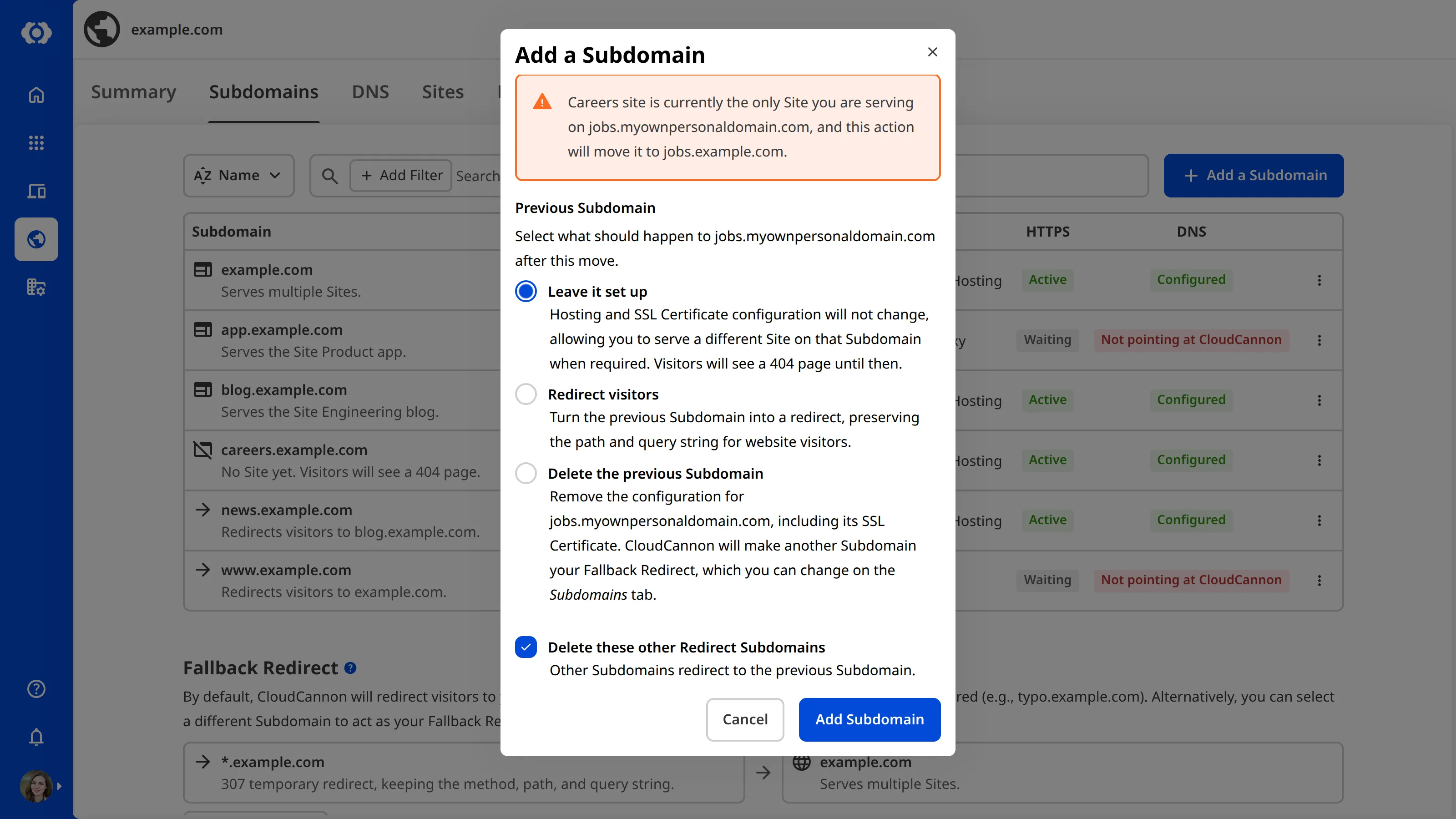
If the Site is the last Site on its old Subdomain, the modal also asks what happens to the old Subdomain, under the Previous Subdomain heading, with similar choices to when you remove a Site from a Subdomain:
- Leave it set up — The old Subdomain stays set up with no Site, and its visitors see a 404 page. This is the default.
- Redirect visitors — The old Subdomain becomes a redirect. Enter its destination in the Redirect visitors to field. Other redirects that pointed at the old Subdomain redirect to the new destination instead.
- Delete the previous Subdomain — CloudCannon deletes the old Subdomain and its certificate.
If you leave the old Subdomain set up or delete it, CloudCannon also deletes the Subdomains that redirect to it, unless you uncheck the Delete this other Redirect Subdomain or Delete these other Redirect Subdomains checkbox.
Choosing what happens to the old Subdomain requires permission to edit the settings of its Base Domain. Without that permission, the modal shows what happens to the old Subdomain, and CloudCannon leaves it set up.
Delete a Subdomain#
When you delete a Subdomain, CloudCannon stops serving it and removes its certificate. Any Sites on the Subdomain keep their Testing Domains. If the Subdomain was your Fallback Redirect, CloudCannon will make another Subdomain your Fallback Redirect, which you can change on the Subdomains tab. Visitors to the deleted Subdomain go to your Fallback Redirect.
To delete a Subdomain:
- Navigate to the page for the Subdomain.
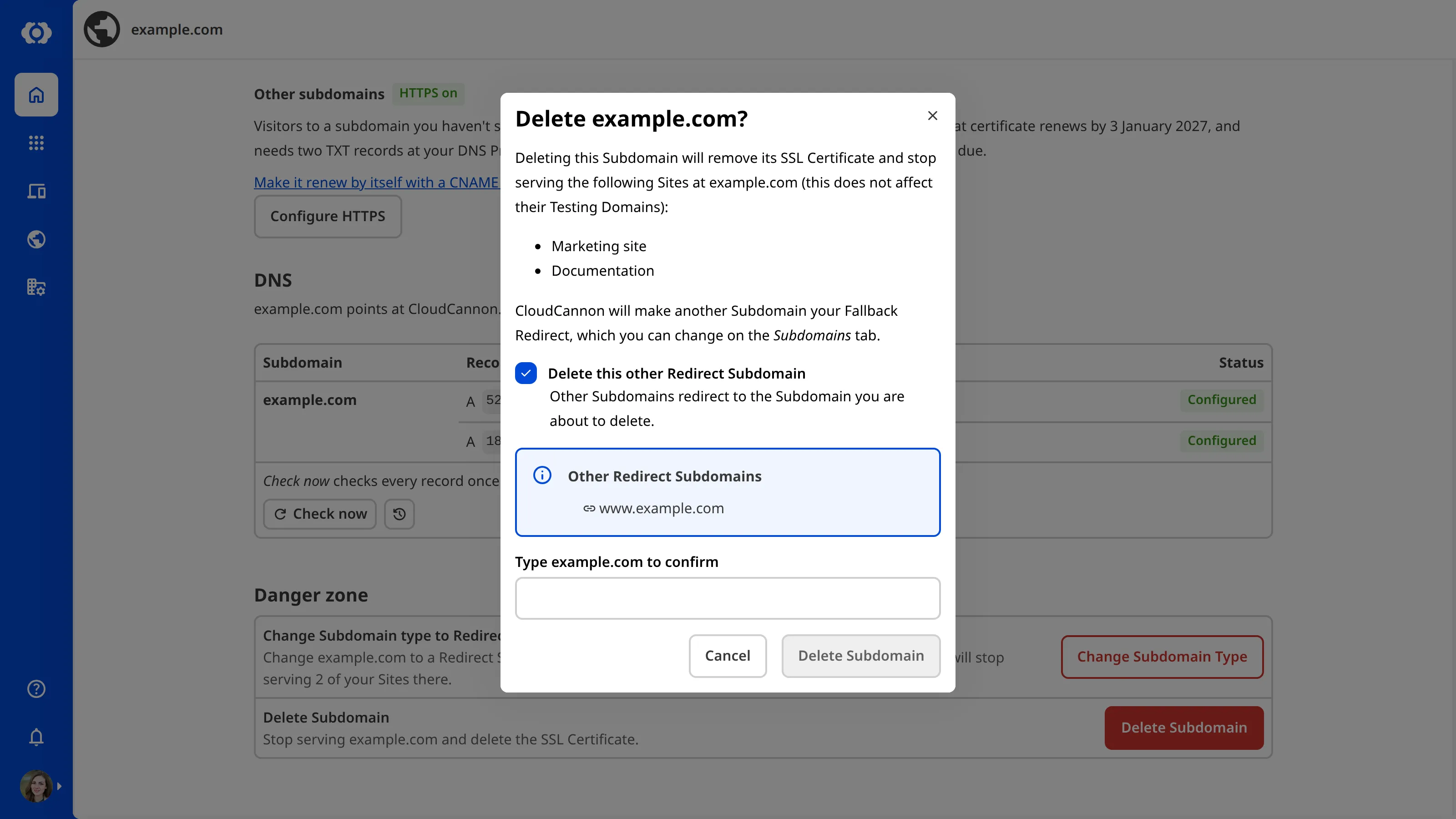
- Click the Delete Subdomain button in the Danger zone section. CloudCannon will open the Delete [Subdomain]? modal.
- (Optional.) Uncheck the Delete this other Redirect Subdomain or Delete these other Redirect Subdomains checkbox to keep the Subdomains that redirect to this one.
- Type the Subdomain in the Type [Subdomain] to confirm field.
- Click the Delete Subdomain button.
CloudCannon will delete the Subdomain.
You can also delete a Subdomain from the Subdomains tab of the Domain page, using the Delete Subdomain option in the Context Menu for the Subdomain.