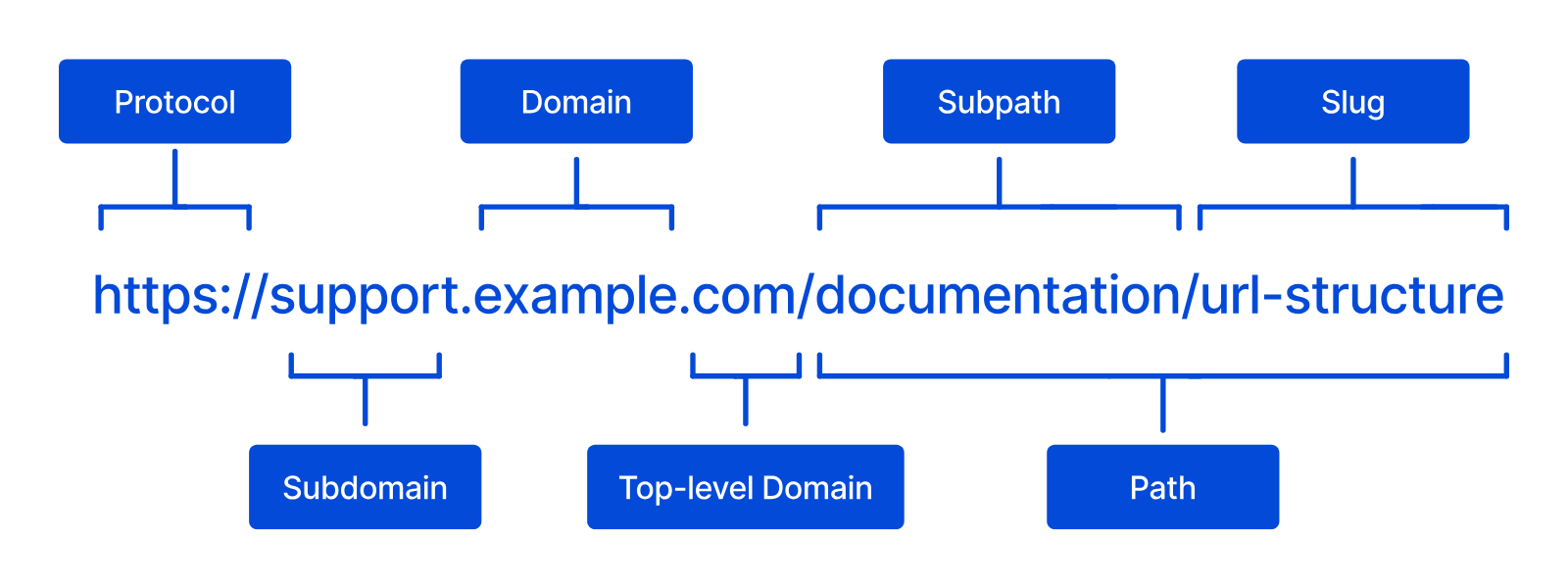
A Subdomain An additional name on the front of your URL, prefixing your Base Domain name (e.g., "docs" in docs.example.com or "blog" in blog.example.com). In CloudCannon, every address on your Custom Domain, including the Base Domain itself, is a Subdomain with its own hosting, HTTPS, and DNS settings. Each Subdomain serves Sites, each at its own path, or redirects visitors to another domain. A Subdomain with no Site yet shows its visitors a 404 page until you add a Site. The primary domain name for a website, without any subdomains. For example, in "www.example.com", the Base Domain is "example.com". In CloudCannon, you connect your Base Domain to your Organization as a Custom Domain. A domain you own and connect to your CloudCannon Organization, so visitors reach your Site at your own address instead of its Testing Domain. You buy the domain from a domain registrar, connect it to your Organization, then add it to your Sites.Subdomain
Base Domain
www in www.example.com or docs in docs.example.com. In CloudCannon, every address you host on a Custom DomainCustom Domain
example.com is an empty Subdomain).
After you connect a Custom Domain to your Organization, you can add a Subdomain to your Custom Domain and choose whether each one serves one or more Sites A website in CloudCannon that includes all the files, content, configuration, and settings needed to edit, build, and host a complete website. The Subdomain to which CloudCannon sends visitors when they try to visit a subdomain on your Custom Domain that isn't set up, including a Subdomain you have deleted. It prevents visitors from seeing an error when they mistype a subdomain (e.g., typo.example.com). Each Custom Domain has one Fallback Redirect.Site
Fallback Redirect
typo.example.com).
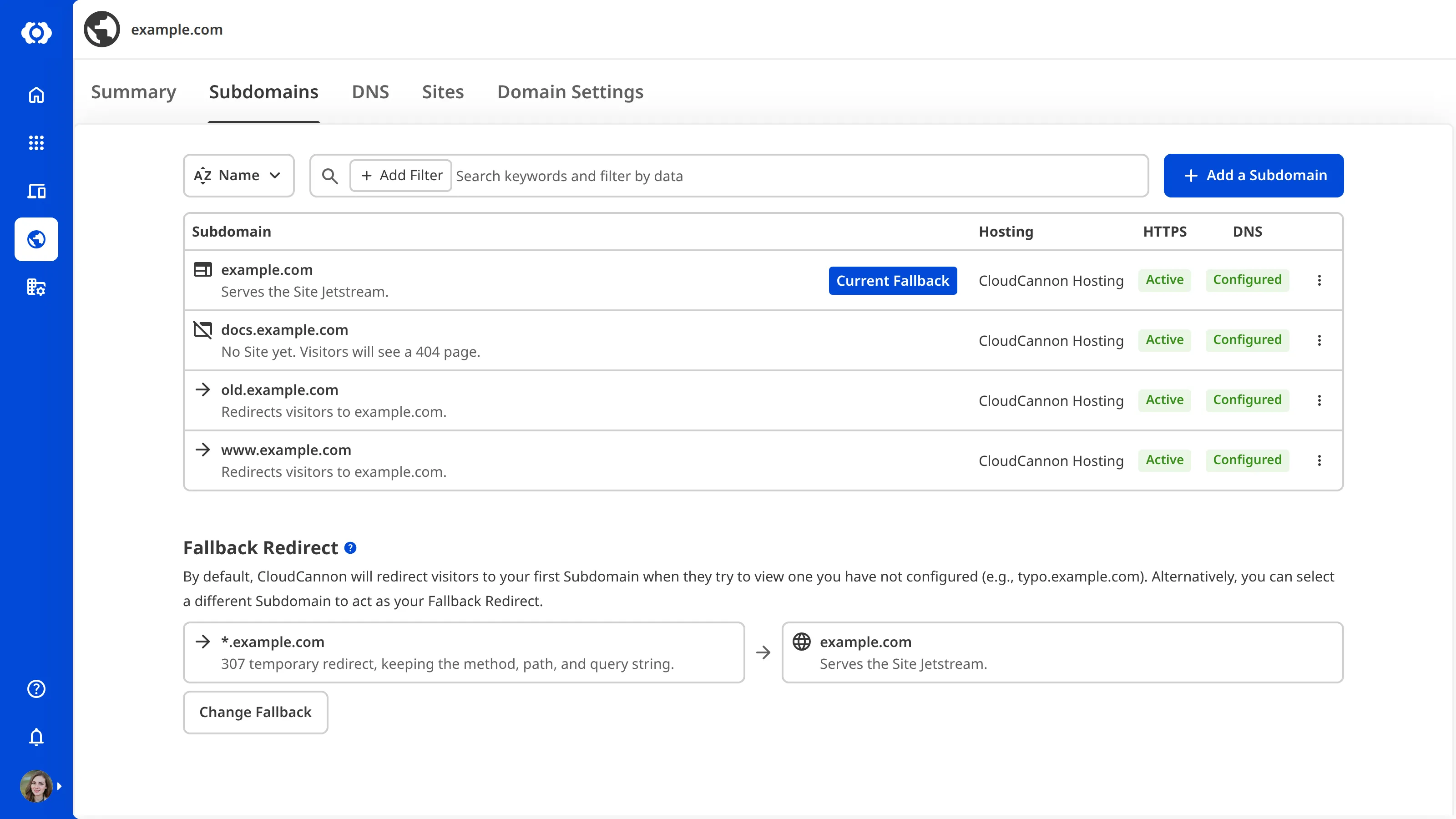
CloudCannon lists all the Subdomains on your Custom Domain on the Subdomains tab of its Domain page The page in CloudCannon where you manage a Custom Domain connected to your Organization. Its tabs show whether every Subdomain is working, list your Subdomains and Fallback Redirect, show your DNS Provider and records, and hold the settings of the domain. You can access this page by clicking the Card for a domain in the Domains Browser.Domain page
This article covers the Subdomains on a Custom Domain. For the Custom Domain itself, including who owns it and its DNS Provider, please read our documentation on what a Custom Domain is.
Why use a Subdomain?#
Subdomains let you give each area of your website its own address on one Custom Domain. You might use a Subdomain to:
- Serve a separate Site for each area. Each Site can use its own Git Repository, or several Sites can share one Git Repository, each with its own build settings and configured to show different content.Glossary term
Git Repository
A storage location for the code and files that make up your website. CloudCannon supports the repository providers GitHub, GitLab, and Bitbucket, and highly recommends using a repository to store your website's files for better version control and collaboration.
- Give an area its own hosting option or SSL Certificate, such as putting one Subdomain behind your own Cloudflare account.Glossary term
SSL Certificate
A digital certificate that proves your website's identity and lets visitors connect to it over HTTPS. On CloudCannon, each Subdomain of your Custom Domain has its own SSL Certificate, which covers every Site on that Subdomain. An SSL Certificate can be auto-generated by CloudCannon, or a Custom SSL Certificate you upload.
- Send an old or alternative address, such as
www.example.com, to your main Site with a redirect.
You can also serve several Sites on one Subdomain, each at its own subpath The path at which a Site is served on a Subdomain (e.g., /docs/ in example.com/docs/). On CloudCannon, several Sites can share a Subdomain, each at its own subpath, which you set in the Subpath field when you add a Custom Domain to a Site. Your build output must put the Site's files in a folder that matches the subpath (e.g., docs/).Subpath
/docs/ in example.com/docs/). To choose between them:
- Subdomain — Has its own hosting, HTTPS, and DNS settings. On external DNS, it needs its own DNS record. Each Subdomain that serves Sites counts toward the number of Custom Domains in your Subscription PlanGlossary term
External DNS
Domain Name System configuration managed by a third-party DNS Provider rather than CloudCannon DNS. External DNS allows you to host your Site on CloudCannon but manage your DNS records elsewhere, such as with Cloudflare or on your own servers. You add the DNS records CloudCannon lists for each Subdomain at your DNS Provider.
.Glossary termSubscription Plan
A set of features available to your Organization, the monthly usage limits for resources, and the price you pay for access to those features and resources, monthly or annually. Each Organization in CloudCannon can have one Subscription Plan, and can update or cancel at any time.
- Subpath — Shares the hosting, HTTPS, and DNS settings of its Subdomain, and doesn't count as another Custom Domain.
For more information, please read our documentation on managing the Sites on a Subdomain and adding a Custom Domain to your Site.
Subdomain types#
When you add a Subdomain to your Custom Domain, you must select its Type. The Type decides what the Subdomain does:
- Site — The Subdomain serves one or more Sites, each at its own subpath.
- Redirect — The Subdomain sends every visitor to another domain.
You can switch your Subdomain Type at any time. For more information, please read our documentation on adding a Subdomain to your Custom Domain and managing your Redirect Subdomains.
Site Subdomains
A Site Subdomain serves built files to website visitors from one or more CloudCannon Sites. CloudCannon builds The process of converting all your Site files into a single, functional website using the method specified by your SSG. Building on CloudCannon is optional, but is required for specific features, such as the Visual Editor, preview screenshots for output files in your Collection Browser, and the Testing Domain and Custom Domain. The process of keeping data, files, or content synchronized between different systems or locations, such as between CloudCannon and your Git Repository, ensuring that changes made in either location are reflected in both places.Build
Syncing
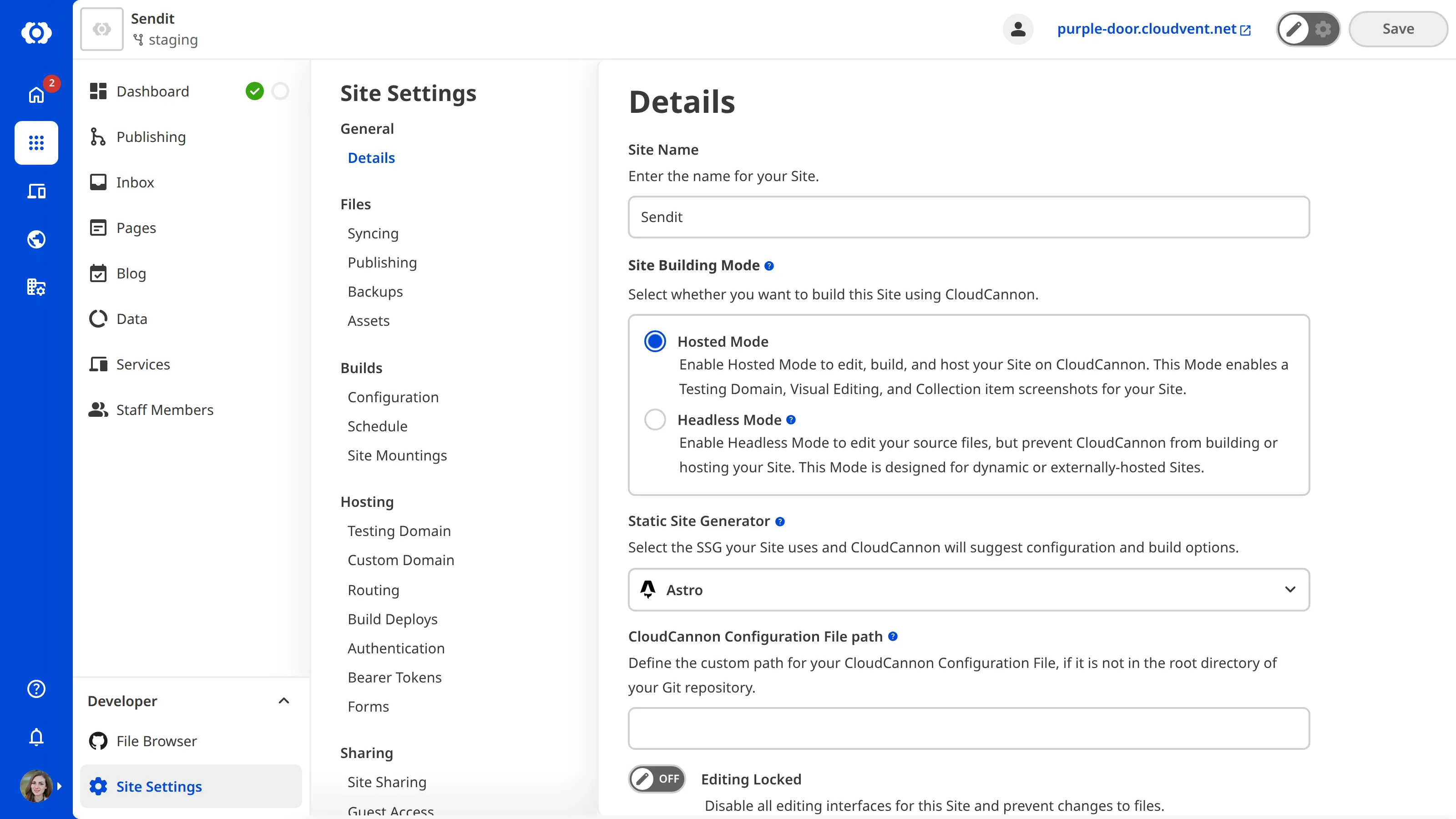
To build and serve Site files on a Subdomain, that Site must be in Hosted Mode. This is the default setting for Sites in CloudCannon, but you can configure the Site Building Mode on the Details page under Site Settings. For more information, please read our documentation on what Site Building Mode is and enabling Headless Mode.
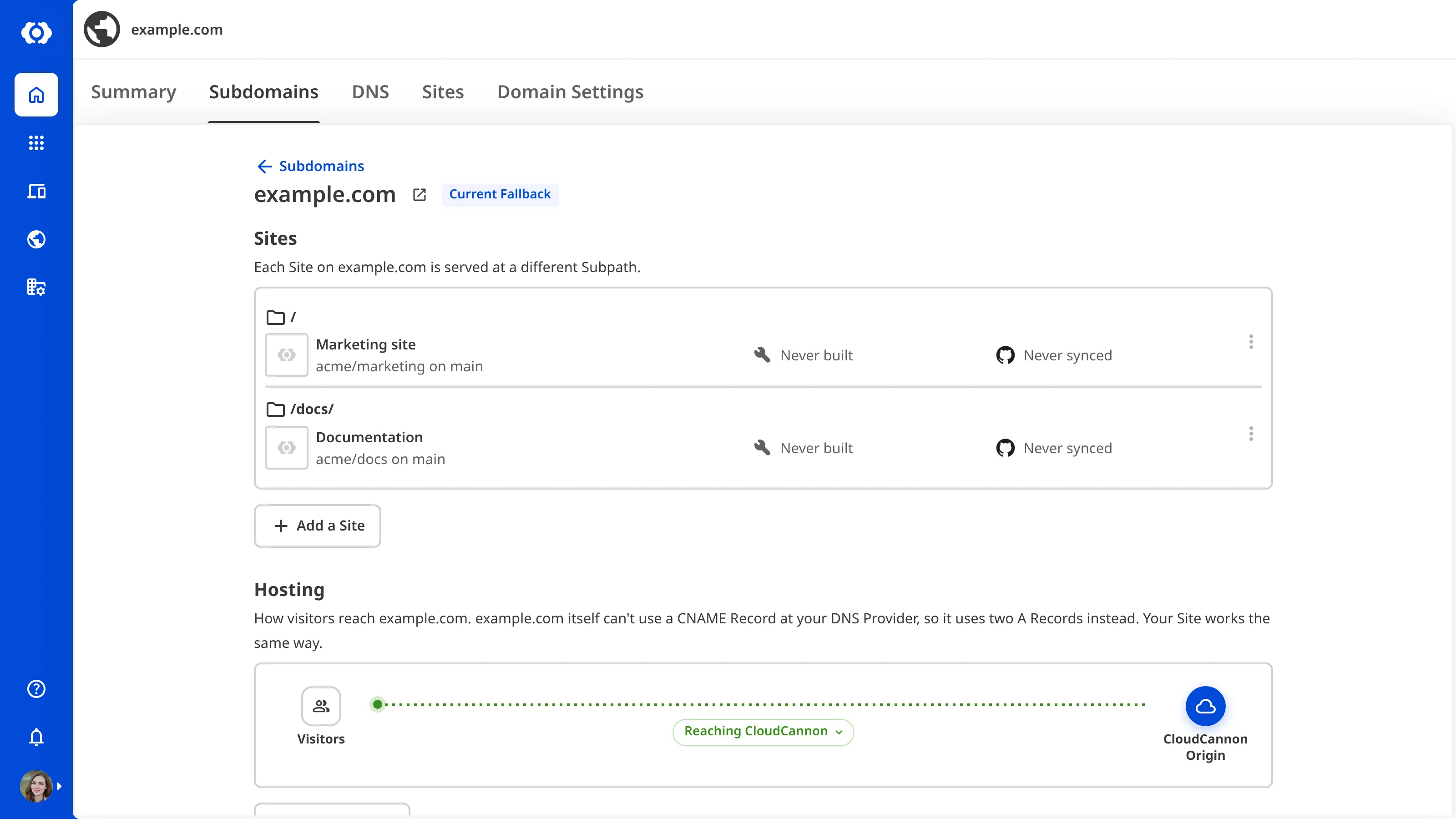
You can serve several Sites on one Subdomain, each at its own subpath. For example, example.com can serve a marketing Site at / and a documentation Site at /docs/:
- A visit to
example.com/docs/setup/goes to the documentation Site, because CloudCannon serves the Site with the longest subpath that matches the request. - A visit to
example.com/about/goes to the marketing Site, the only Site whose subpath matches. - If
example.comhad no Site at/, a visit to a path that doesn't match any Site, such asexample.com/about/, would show a 404 page.
A Site at a subpath needs to build its files into a folder that matches the subpath (e.g., a docs folder for /docs/). For more information, please read our documentation on adding a Custom Domain to your Site and managing the Sites on a Subdomain.
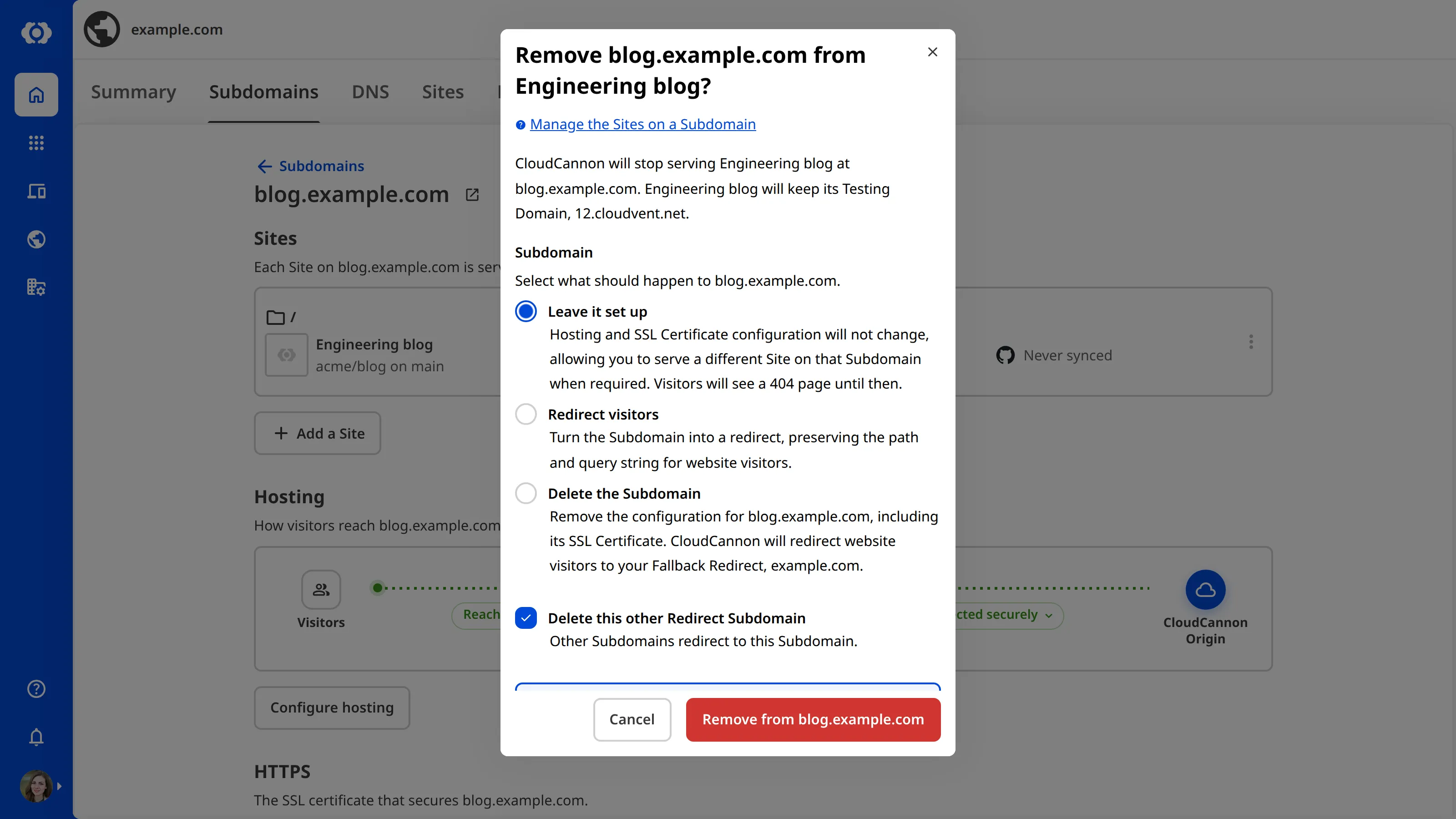
A Subdomain belongs to your Custom Domain, not to any Site, so removing a Site doesn't remove its Subdomain. When you remove the last Site from a Subdomain, CloudCannon asks whether to leave the Subdomain set up with no Site, turn it into a redirect, or delete it. A Subdomain with no Site keeps its hosting and certificate, and its visitors see a 404 page until you add a Site. For more information, please read our documentation on managing the Sites on a Subdomain and removing a Custom Domain from your Site.
Redirect Subdomains
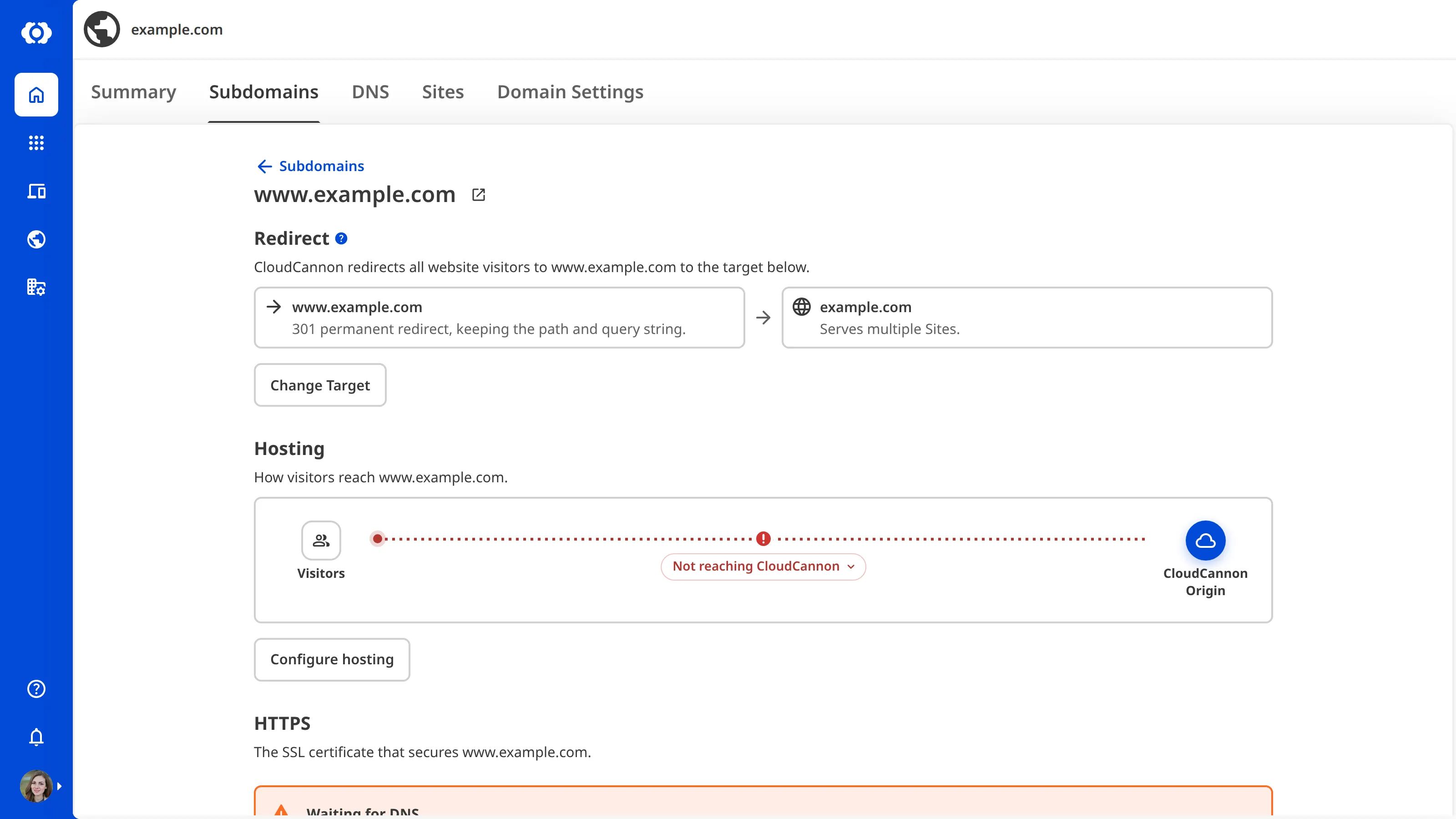
A Redirect Subdomain A Subdomain on your Custom Domain that sends every visitor to another domain instead of serving a Site, preserving the visitor's path and query string. Each Redirect Subdomain has its own certificate and status code. Redirect Subdomains don't count toward the number of Custom Domains in your Subscription Plan.Redirect Subdomain
www.example.com redirects to example.com, a visit to www.example.com/about/ goes to example.com/about/. The destination can be a Subdomain on your Custom Domain or any other domain. Each Redirect Subdomain also has its own status code, which is 301 permanent redirect unless you choose another.
Redirects send visitors to the destination over HTTPS when the destination has an SSL Certificate. A Redirect Subdomain still needs DNS records that point at CloudCannon, and its own SSL Certificate, but it doesn't count toward the number of Custom Domains in your Subscription Plan. CloudCannon won't save a redirect that points at its own Subdomain or sends visitors around in a loop.
You change the destination and status code with the Change Target button in the Redirect section of the Subdomain page. For more information, please read our documentation on managing your Redirect Subdomains.
When you add a plain Base Domain (e.g., example.com) as a Site Subdomain, CloudCannon also adds www.example.com as a redirect to it, unless www.example.com already exists. Adding www.example.com as a Site Subdomain adds example.com as a redirect in the same way. This happens whether or not you choose a Site yet, whether you add the Subdomain from the Domain page or from Site Settings, and when you change a Redirect Subdomain to serve Sites. CloudCannon doesn't add the pair when you add a Redirect Subdomain.
The Fallback Redirect#
Subdomains you haven't set up (e.g., a misspelled subdomain), including Subdomains you have deleted, send visitors to your Fallback Redirect. A Site Subdomain with no Site yet shows its visitors a 404 page instead. On external DNS, visitors only reach a subdomain that isn't set up if you add a wildcard DNS record at your DNS Provider. Your Fallback Redirect can be any Subdomain on your Custom Domain, including a Redirect Subdomain. If your Fallback Redirect is a Site Subdomain with no Site yet, its visitors see a 404 page until you add one.
For example, suppose you have one Site on example.com and another Site on docs.example.com, and example.com is your Fallback Redirect. CloudCannon sends anyone trying to access an unconfigured subdomain (e.g., app.example.com) to example.com.
The Fallback Redirect uses a 307 temporary redirect, keeping the method status code by default, because a temporary redirect stops search engines from treating an unconfigured subdomain as moved. You can choose any of the status codes that Redirect Subdomains use, which are described in our documentation on managing your Redirect Subdomains. You change the Fallback Redirect and its status code with the Change Fallback button in the Fallback Redirect section of the Subdomains tab.

For more information, please read our documentation on updating the Fallback Redirect for your Custom Domain. For the wildcard DNS record, please read our documentation on configuring external DNS.
Hosting, HTTPS, and DNS#
Hosting, HTTPS, and DNS belong to the Subdomain, not to each Site, so they apply to every Site on the Subdomain. Each has its own section on the Subdomain page. The Custom Domain page under Site Settings shows the same sections under the Subdomain settings heading, for the Subdomain that serves that Site. For more information, please read our documentation on configuring a Subdomain's hosting, HTTPS, and DNS.
Hosting
You can choose one of three hosting options for each Subdomain: CloudCannon Hosting The default hosting option for a Subdomain on your Custom Domain. Visitors reach CloudCannon through Cloudflare's global network. Cloudflare stores copies of your Site's files in data centers around the world and serves each visitor from the one nearest them. The Subdomain's DNS record points at A hosting option for a Subdomain on your Custom Domain, where your own Cloudflare account proxies the Subdomain to CloudCannon. The Subdomain's record in your Cloudflare zone has the proxy turned on and points at A hosting option for a Subdomain on your Custom Domain, where DNS points straight at CloudCannon's origin servers, or your own proxy sits in front of them. Visitors skip CloudCannon's Cloudflare network and its cache. CloudCannon doesn't recommend it unless you have specific setup requirements.CloudCannon Hosting
sites.cloudcannon.com.Cloudflare Proxy
orange-cloud.cloudcannon.com. Choose it if you manage your DNS in Cloudflare with the proxy turned on.Single Origin
- CloudCannon Hosting — CloudCannon serves your Site from its global network, so pages load quickly everywhere. This is the default and recommended option, and suits most Subdomains. If your Custom Domain uses external DNS, your Base Domain (e.g.,
example.com) can't use a CNAME record, so it uses two A records instead. Visitors to your Base Domain reach CloudCannon's origin servers directly rather than through the global network, and your Site works the same way. - Cloudflare Proxy — Your own Cloudflare account proxies the Subdomain to CloudCannon. Choose this if your DNS is on Cloudflare and you want to keep Cloudflare in front of your Site. Cloudflare Proxy isn't available while your Custom Domain uses CloudCannon DNS. Cloudflare may serve cached pages, so your Site won't show updates until you clear your Cloudflare cache.Glossary term
CloudCannon DNS
A DNS Provider option where CloudCannon manages the DNS records of your Custom Domain. CloudCannon adds the records each Subdomain needs, and the TXT records for your SSL Certificates, for you. To use it, you replace the nameservers at your domain registrar with CloudCannon's nameservers.
- Single Origin — Visitors reach CloudCannon's origin servers directly, without going through CloudCannon's global network. Choose this if you run your own proxy or firewall in front of CloudCannon. Your Base Domain uses two A records, and other Subdomains use a CNAME record. CloudCannon can only validate the certificate once DNS points at CloudCannon.
The hosting option decides which DNS records the Subdomain needs, so changing it can mean updating your records. For more information, please read our documentation on how hosting works on CloudCannon and configuring external DNS.
HTTPS
Each Subdomain gets its own SSL Certificate, which covers every Site on that Subdomain. Subdomains you haven't set up yet are covered by the domain's wildcard SSL Certificate An SSL Certificate that covers every subdomain of your Base Domain you haven't set up on CloudCannon (e.g., *.example.com). It lets visitors to those subdomains reach your Fallback Redirect over HTTPS. On external DNS, the wildcard SSL Certificate needs new TXT records at your DNS Provider each time it renews, unless you add a CNAME record that lets Cloudflare renew it on its own.Wildcard SSL Certificate
typo.example.com, but not a.typo.example.com). On external DNS, the wildcard SSL Certificate needs records at your DNS Provider to be issued and renewed, and without them HTTPS stops working for subdomains you haven't set up.
Each Subdomain also has its own minimum TLS version, which can't be lower than the minimum for your Custom Domain. The minimum you set on your Base Domain's own Subdomain also applies to subdomains you haven't set up. For more information, please read our documentation on increasing the minimum TLS version for your domains, what an SSL Certificate is, adding an auto-generated SSL Certificate, renewing the wildcard SSL Certificate on external DNS, and adding a Custom SSL Certificate.
DNS
Each Subdomain needs a DNS record that points at CloudCannon. On CloudCannon DNS, the wildcard record CloudCannon adds for your Base Domain covers every Subdomain one level below it (e.g., docs.example.com) on CloudCannon Hosting, unless you add a record for a Subdomain that points somewhere else. A Subdomain on Single Origin, or one nested more than one level deep (e.g., api.docs.example.com), needs its own record. On external DNS, you add a record for each Subdomain at your DNS Provider. For more information, please read our documentation on configuring CloudCannon DNS and configuring external DNS.
Who can change a Subdomain#
Changing a Subdomain's hosting, HTTPS, or redirect, or your Fallback Redirect, requires permission to edit the settings of the Base Domain (the base-domain:settings:details:write permission). Adding, swapping, or removing a Site on a Subdomain, or changing the subpath at which it is served, requires that permission and the site:settings:hosting:write permission for the Site, from the Subdomain page and the Custom Domain page under Site Settings alike. Deleting a Subdomain that serves Sites, or changing it to a redirect, also requires the site:settings:hosting:write permission for each of those Sites.
Members of the Owners and Developers Default Permission Groups, and of the Partner group in a Client Organization A separate Organization that a Partner Organization manages but that the client uses and pays for. Client Organizations are part of the CloudCannon Partner Program and give each client their own team, billing, and login. Unlike Guest Access, which shares a single Site with someone who doesn't have a CloudCannon account, a Client Organization is a full, independent Organization. One of CloudCannon's pricing plans designed for advanced teams. The Team Plan includes features like increased hosting bandwidth, Site Mounting, and Custom Permission Groups. CloudCannon's premium plan designed for large Organizations, including enhanced security features, priority support, custom integrations, and enterprise-level user management capabilities. A workspace in CloudCannon that groups together Sites, Organization Members, and shared resources. It is also the unit CloudCannon bills for. You can define permissions for your Organization, controlling the access each Organization Member has to resources on CloudCannon. You can create and be a part of multiple Organizations.Client Organization
Team Plan
Enterprise Plan
Organization