Component Editable Regions A designated area within a webpage that wraps a component, include, or partial so Organization Members can change its values in CloudCannon's Visual Editor and see it re-render in place. Unlike the other Editable Region types, Component Editable Regions need an integration installed for your static site generator. A designated area within a webpage where Organization Members can modify text content directly through CloudCannon's visual editing interface. These regions allow inline text editing without requiring knowledge of HTML or Markdown. A designated area within a webpage where Organization Members can change an image in CloudCannon's Visual Editor. Image Editable Regions allow you to upload images from your local storage, select existing images from your repository or DAM, and manage image details like title or alt text.Component Editable Region
Text Editable Region
Image Editable Region
Unlike other types of Editable Region, Component Editable Regions need an integration for your SSG, because CloudCannon runs your template code in the browser to re-render your components in the Visual Editor.
To avoid misconfiguration issues where CloudCannon cannot find the data property you want to edit, always add Editable Regions to values closest to the root of the file first (i.e., work from parent elements towards child elements).
These instructions assume you have configured your build settings and are comfortable editing HTML layouts, either in CloudCannon's Source Editor or your local development environment.
Install the integration for your SSG#
CloudCannon provides an integration for Astro, Eleventy, and Hugo, and a root component for sites built with React, Vue, or Svelte, including Next.js, Nuxt, and SvelteKit. You only need to install this once per Site.
Component Editable Regions are not yet available for other SSGs. If you use another SSG, you can still use every other type of Editable Region. To request support for your SSG, please get in touch with our friendly support team and include the name and version of the SSG you use.
The @cloudcannon/editable-regions NPM package, used by Astro, Eleventy, and JavaScript frameworks, requires Node 20.19 or later.
Astro
In Astro, you register each component you want to edit, then load your registration script when the page opens in the Visual Editor.
To install the integration in Astro:
- Open your website project in your local development environment and run the
npm install @cloudcannon/editable-regionscommand in your terminal. - Import the Editable Regions integration in your Astro configuration file,
astro.config.mjs. - Create a registration file for your components (e.g.,
src/scripts/register-components.js) and register each component you want to edit. - Import your registration file from your layout, inside the
<body>element. - Save your changes and rebuild your Site.
import editableRegions from "@cloudcannon/editable-regions/astro-integration";
import { defineConfig } from "astro/config";

export default defineConfig({
  integrations: [editableRegions()],
});import { registerAstroComponent } from '@cloudcannon/editable-regions/astro';
import CTA from '../components/CTA.astro';
registerAstroComponent('cta', CTA);<script>
if (window.inEditorMode) {
import("../scripts/register-components.js").catch((error) => {
console.warn("Failed to load CloudCannon component registration:", error);
});
}
</script>The window.inEditorMode check means your registration script only loads when your webpage is open in CloudCannon's Visual Editor, so it never runs for your website visitors. For more information, please read our documentation on detecting the Visual Editor.
If your Astro components contain React, Svelte, or Vue components, add the matching renderer to your registration file.
import '@cloudcannon/editable-regions/astro-react-renderer';
import '@cloudcannon/editable-regions/astro-svelte-renderer';
import '@cloudcannon/editable-regions/astro-vue-renderer';If your components are .jsx or .tsx files rather than .astro files, register them with registerReactComponent instead.
import { registerReactComponent } from '@cloudcannon/editable-regions/react';
import CTA from '../components/CTA.jsx';
registerReactComponent('cta', CTA);Eleventy
In Eleventy, there is no registration step. CloudCannon resolves component names the same way your templates resolve includes, so {% include "author-card" %} matches data-component="author-card".
To install the plugin in Eleventy:
- Open your website project in your local development environment and run the
npm install @cloudcannon/editable-regionscommand in your terminal. - Add the Editable Regions plugin to your Eleventy configuration file.
- Import the generated registration script from your layout, inside the
<body>element. - Save your changes and rebuild your Site.
import editableRegions from "@cloudcannon/editable-regions/eleventy";
export default function (eleventyConfig) {
eleventyConfig.addPlugin(editableRegions);
return {
dir: { input: "src", includes: "_includes", output: "_site" },
};
}After every build, the plugin writes a register-components.js file into your output directory. This file contains a browser version of the Liquid engine, your include templates, and your filters, shortcodes, and tags, copied from your Eleventy configuration file.
<script>
if (window.inEditorMode) {
import("/register-components.js").catch((error) => {
console.warn("Failed to load CloudCannon component registration:", error);
});
}
</script>The plugin also adds an includeWith tag, which passes an object to an include as separate values. Use this when your component data is a single structured data key.
<div data-editable="component" data-component="post-meta" data-prop="postMeta">
{% includeWith "post-meta", postMeta %}
</div>Hugo
Hugo uses a Hugo module rather than an NPM package. There is no registration step: CloudCannon resolves component names as partial names, so data-component="card" and data-component="card.html" both render layouts/partials/card.html.
To install the module in Hugo:
- Open your website project in your local development environment and run the
hugo mod get github.com/CloudCannon/editable-regions@<version>command in your terminal. - Add the module to your Hugo configuration file, pinned to a version.
- Include the Editable Regions partial in the
<head>element of your base layout. - Save your changes and rebuild your Site.
[module]
[[module.imports]]
path = "github.com/CloudCannon/editable-regions"
version = "<version>"{{ partial "editable-regions" . }}Pinning your module to a version requires Hugo 0.150.0 or later.
CloudCannon rebuilds your templates in the browser from the files bundled at build time, so module imports only resolve against files inside your project. Themes in your themes folder are included automatically. If you use Hugo modules from the module cache, run hugo mod vendor so CloudCannon can resolve them.
JavaScript frameworks
Sites built with React, Vue, or Svelte hydrate in the browser, which can conflict with the way CloudCannon connects Editable Regions. To avoid this, wrap your page content in the EditableRegions component, which waits for your framework to finish hydrating first.
This applies to Next.js, Nuxt, and SvelteKit, as well as single-page applications built directly with React, Vue, or Svelte.
Unlike other SSGs, sites that hydrate in the browser need this component for every type of Editable Region, not just Component Editable Regions.
To install the root component in a JavaScript framework:
- Open your website project in your local development environment and run the
npm install @cloudcannon/editable-regionscommand in your terminal. - Wrap your routed page content in the
EditableRegionscomponent, in your root layout. - Register your components from a client-side file, checking for Editor Mode first.
- Save your changes and rebuild your Site.
import { EditableRegions } from "@cloudcannon/editable-regions/react";
export default function RootLayout({ children }) {
return (
<html lang="en">
<body>
<EditableRegions tag="main">{children}</EditableRegions>
</body>
</html>
);
}Import EditableRegions from @cloudcannon/editable-regions/react, /vue, or /svelte, depending on your framework. The tag attribute sets which HTML element the component renders, and defaults to div.
Register your components from a file that only runs in the browser, such as a client component in Next.js or a client plugin in Nuxt. Use registerReactComponent, registerVueComponent, or registerSvelteComponent, imported from the same path as EditableRegions.
import { registerVueComponent } from "@cloudcannon/editable-regions/vue";
import CTA from "../components/CTA.vue";
export default defineNuxtPlugin(() => {
if (window.inEditorMode) {
registerVueComponent('cta', CTA);
}
});If you use Nuxt, you also need to tell Vue to treat the Editable Regions web components as standard HTML elements.
export default defineNuxtConfig({
vue: {
compilerOptions: {
isCustomElement: (tag) => tag.startsWith("editable-"),
},
},
});Your Site must output static HTML files for CloudCannon to build a preview. In Next.js, set output: "export" in your Next configuration file. In SvelteKit, use the static adapter and prerender every route. In Nuxt, configure Nitro to prerender your site, then build with nuxt generate.
Configure a Component Editable Region#
To configure Component Editable Regions in the Visual Editor:
- Identify the file to which you want to add a Component Editable Region. We recommend any layout file that references a component and outputs to an HTML page at build time.
- Open the file in CloudCannon's Source Editor or your local development environment.
- Identify the component HTML element and add the HTML attribute
data-editable="component". If no DOM element is available, you can wrap the templating in the<editable-component>web component. - Add the
data-prop=""HTML attribute to the same DOM element, or to the<editable-component>web component. The value ofdata-propshould be the path to the data property you want to edit. - Add the
data-component=""HTML attribute to the same DOM element, or to the<editable-component>web component. The value ofdata-componentshould be the name of your component. In Astro, React, Svelte, and Vue, this is the name you registered it under. In Eleventy, this is the name of your include. In Hugo, this is the name of your partial, with or without the file extension. - Optional. If you also want to edit the text or image contents of your component in the Visual Editor, add other types of Editable Regions to the component layout file.
- Save your changes and rebuild your Site.
When you open the file in the Visual Editor, CloudCannon will show a yellow Editable Region box around the component. If you added Text or Image Editable Regions to your component file, yellow Editable Region boxes will also appear around the content.
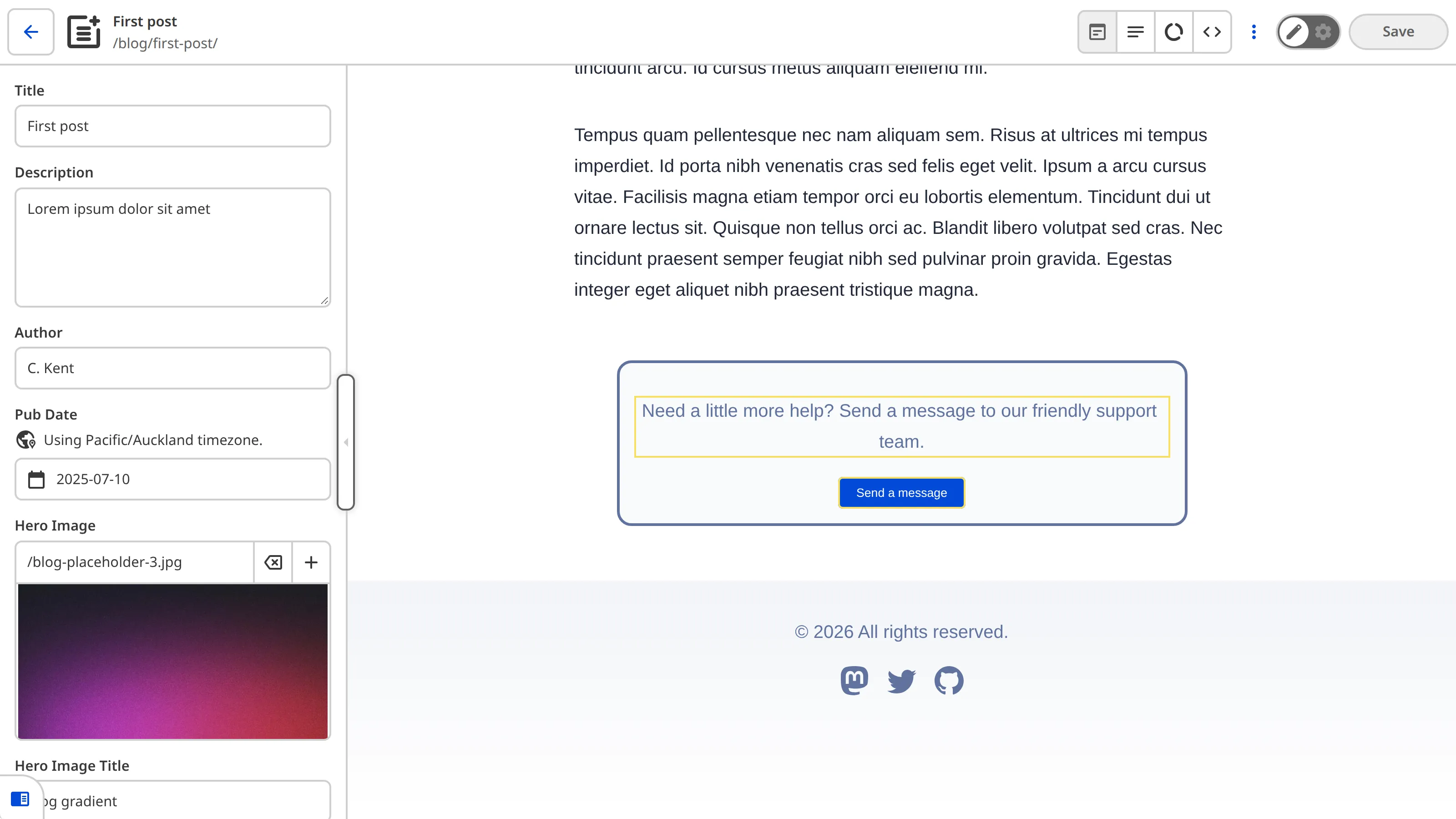
CloudCannon will show an edit icon in the top right of the Component Editable Region. Clicking the edit icon opens a Data Panel with inputs for the structured data keys in the component. The edit icon only appears if your Component Editable Region has a data-prop or data-prop-* HTML attribute.
Examples#
Here is an example of files required for a Component Editable Region:
import { registerAstroComponent } from '@cloudcannon/editable-regions/astro';
import CTA from '../components/CTA.astro';
// Register your components
registerAstroComponent('cta', CTA);---
title: 'First post'
author: 'C. Kent'
heroImage: '../../assets/blog-banner.jpg'
heroImageTitle: 'Blog gradient'
heroImageAlt: 'An eye-catching color gradient banner.'
cta:
description: "Need a little more help? Send a message to our friendly support team."
link: "https://cloudcannon.com/support/"
buttonText: "Send a message"
buttonColor: "#034AD8"
---
Lorem ipsum dolor sit amet, consectetur adipiscing elit, sed do eiusmod tempor incididunt ut labore et dolore magna aliqua. Vitae ultricies leo integer malesuada nunc vel risus commodo viverra.---
import CTA from '../components/CTA.astro';
---
<html lang="en">
<body>
<script>
  if (window.inEditorMode) {
    import("../scripts/register-components.js").catch((error) => {
      console.warn("Failed to load CloudCannon component registration:", error);
    });
  }
</script>
<main>
<article>
<!-- Blog HTML here -->
</article>
<editable-component data-prop="cta" data-component="cta">
<CTA {...Astro.props.cta} />
</editable-component>
</main>
</body>
</html>The <script> element imports your registration file when your webpage is open in the Visual Editor.
The <editable-component> web component defines a Component Editable Region around the <CTA> component. The data-prop attribute points to the cta structured data key in the front matter of each blog post, and the data-component attribute names the registered cta component.
---
const { description, link, buttonText, buttonColor } = Astro.props;
---

<p data-editable="text" data-prop="description">{description}</p>
<a href={link}>
    <button data-editable="text" data-prop="buttonText" style={`background-color: ${buttonColor}`}>{buttonText}</button>
</a>This <p> element contains data-editable="text" and data-prop="description" to define a Text Editable Region.
This <button> element contains data-editable="text" and data-prop="buttonText" to define a Text Editable Region.
Misconfigured Component Editable Regions#
If you accidentally misconfigure your Editable Regions, CloudCannon will replace them in the Visual Editor with a red Error Card headed Failed to render component, or Failed to render component: [Component Name] if your component fails to render, followed by a message describing the problem.

Component Editable Regions are misconfigured if:
- You did not define the
data-componentHTML attribute. - You reference a component that does not exist, or has not been registered.
- Your component throws an error while rendering, or does not return HTML.