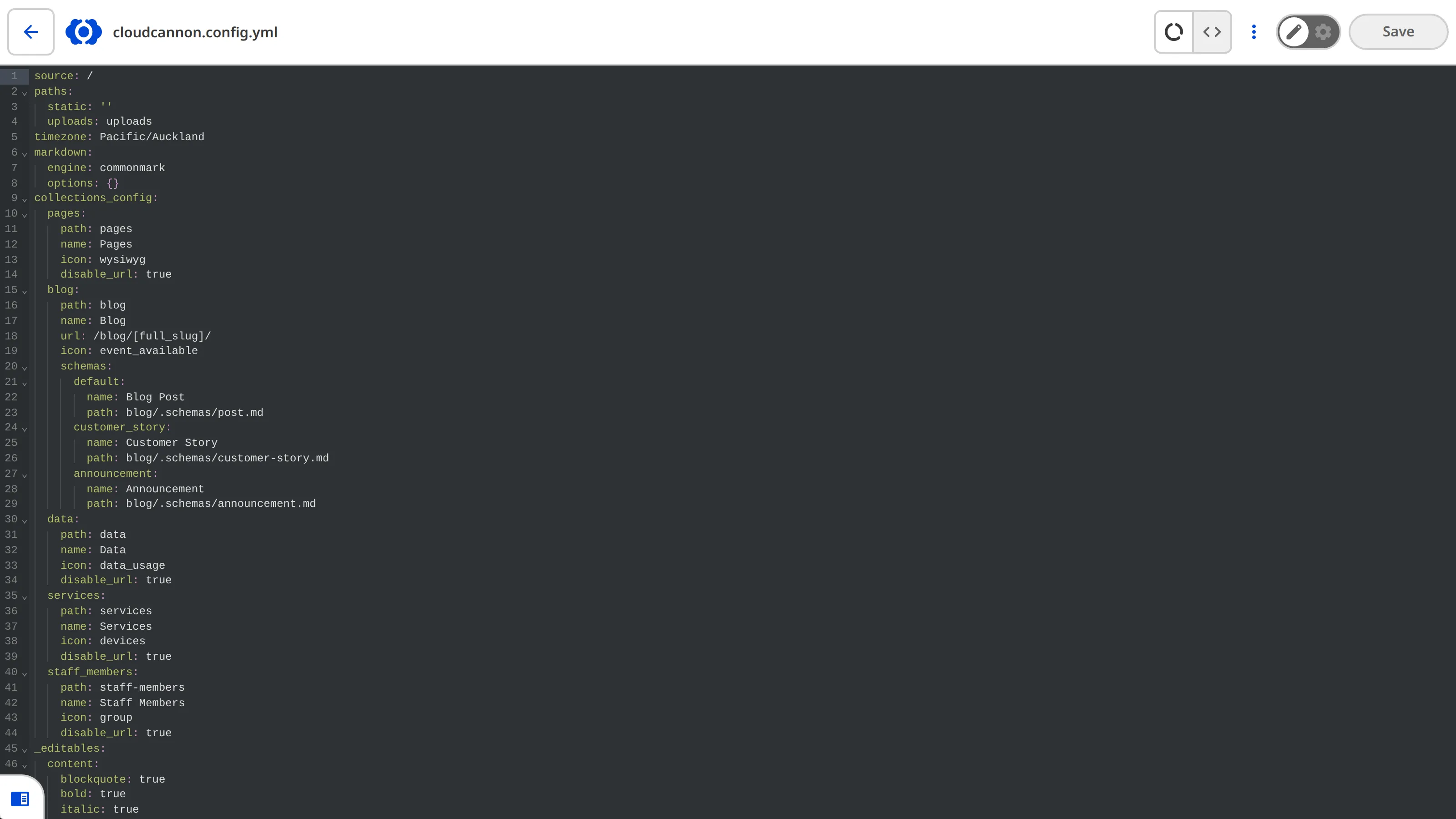
The Source Editor is an in-browser code editor that is great for making minor changes to the source code of your files. This editing interface is useful for all text-based files.
Depending on your site configuration, you may not have access to the Source Editor for all files. An editing interface may not be available because:
- Some Permission Groups cannot access the Source Editor (e.g., unavailable to the Editors Default Permission Group or to Clients).
Source Editor features#
The Source Editor displays the raw content of text-based files. Syntax highlighting in the Source Editor is automatically detected based on the file extension.
For more information about the Editing interface navigation and the Context Menu at the top of the Source Editor, read our documentation on editing your files.
Appearance and behavior
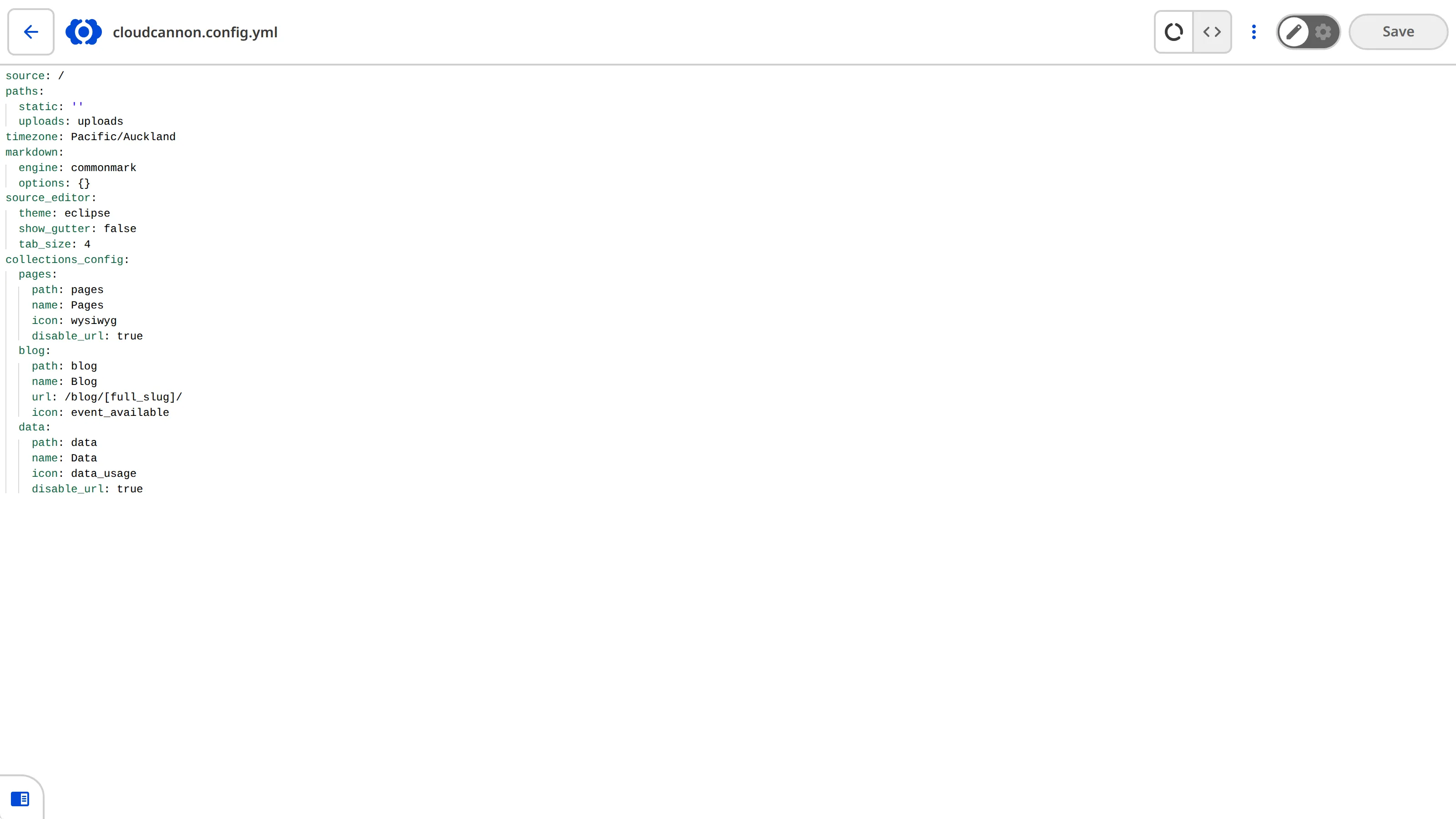
You can configure the appearance and behavior of the Source Editor using the source_editor key in your CloudCannon configuration file.
source_editor:
  tab_size: 2
  show_gutter: false
  theme: eclipse
{
"source_editor": {
"tab_size": 2,
"show_gutter": false,
"theme": "eclipse"
}
}The Source Editor has the following configuration options available:
This key defines the appearance and behavior of the Source Editor.
For more information, please read our documentation on the Source Editor.
Show examplesHide examples
In this example, we have configured the Source Editor with custom theme, tab size, and gutter settings.
source_editor:
  theme: basic_dark
  tab_size: 2
  show_gutter: true
{
"source_editor": {
"theme": "basic_dark",
"tab_size": 2,
"show_gutter": true
}
}This key toggles the gutter on the left of the editing interface, displaying line numbers and code folding controls.
Defaults to: true
Appears in: source_editor.
Show examplesHide examples
In this example, CloudCannon will show the gutter with line numbers in the Source Editor.
source_editor:
  show_gutter: true
{
"source_editor": {
"show_gutter": true
}
}This key toggles whether CloudCannon will enable soft wrapping of code in the Source Editor.
Setting this key to true will enable soft wrapping of code, allowing long lines to wrap to the next line without horizontal scrolling.
Defaults to: false
Appears in: source_editor.
Show examplesHide examples
In this example, CloudCannon will enable soft wrapping of code in the Source Editor.
source_editor:
  soft_wrap: true
{
"source_editor": {
"soft_wrap": true
}
}This key defines the auto-indentation of each line and how many spaces a tab indentation counts as.
Defaults to: 2
Appears in: source_editor.
Show examplesHide examples
In this example, we have configured the Source Editor to use 2 spaces for tab indentation.
source_editor:
  tab_size: 2
{
"source_editor": {
"tab_size": 2
}
}This key defines the color theme for syntax highlighting.
Defaults to: basic_dark
Allowed values: atomone basic_dark basic_light darcula dracula duotone_dark duotone_light eclipse github_dark github_light and 15 more.
Appears in: source_editor.
Show examplesHide examples
In this example, we have configured the Source Editor to use the basic_dark theme for syntax highlighting.
source_editor:
  theme: basic_dark
{
"source_editor": {
"theme": "basic_dark"
}
}