To access the features in a CloudCannon Subscription Plan A set of features available to your Organization, the monthly usage limits for resources, and the price you pay for access to those features and resources, monthly or annually. Each Organization in CloudCannon can have one Subscription Plan, and can update or cancel at any time. The settings page for a CloudCannon Organization, where organization administrators can manage organization-wide settings, including billing, team permissions, integrations, branding, and security policies. You can access this page using the Organization Settings link in the App Sidebar.Subscription Plan
Org Settings
If a payment is declined, CloudCannon retries the credit card several times over the following weeks. If every retry fails, CloudCannon puts your Subscription on hold before canceling it. For more information, please read our documentation on what happens when a payment fails.
Organizations on the Enterprise Plan may have different billing arrangements organized directly with the CloudCannon team. If you have questions about your billing, please contact us via support, Slack, or email.
Add a credit card#
To add a credit card to your Organization:
- Navigate to the Subscription page under Org Settings.
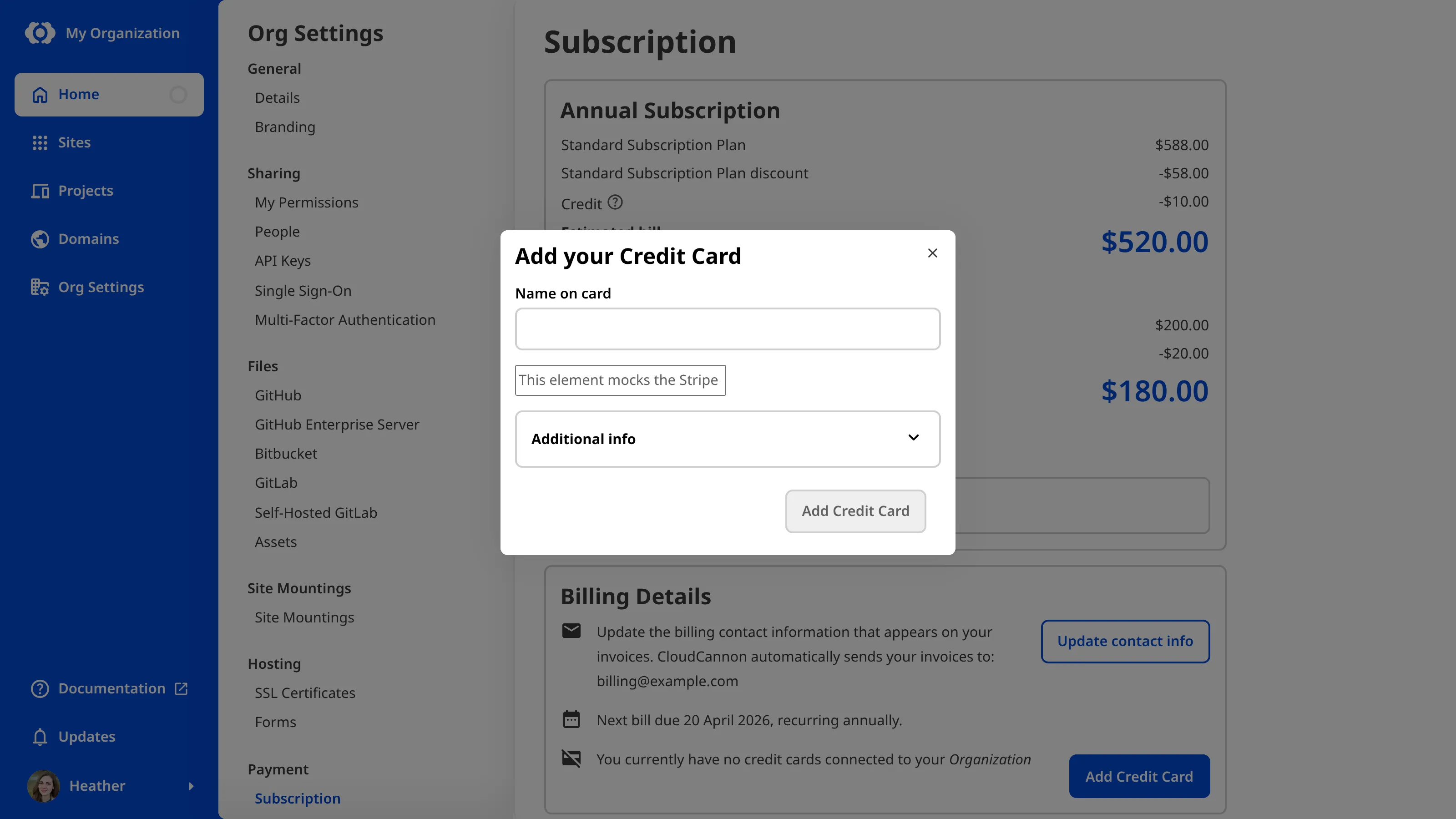
- Under Billing Details, click the Add Credit Card button to open the Add your Credit Card modal. If you already have a saved card, this button reads Manage Credit Cards instead. Click it, then click the + Add Credit Card button.
- Enter your card details and verify they are correct.
- If your bank requires it, enter any Additional info needed to process payments.
- Click the Add Credit Card button.
CloudCannon will verify your card and use it for your Organization's payments by default.
Switch which credit card CloudCannon charges#
To change which card CloudCannon charges:
- Navigate to the Subscription page under Org Settings.
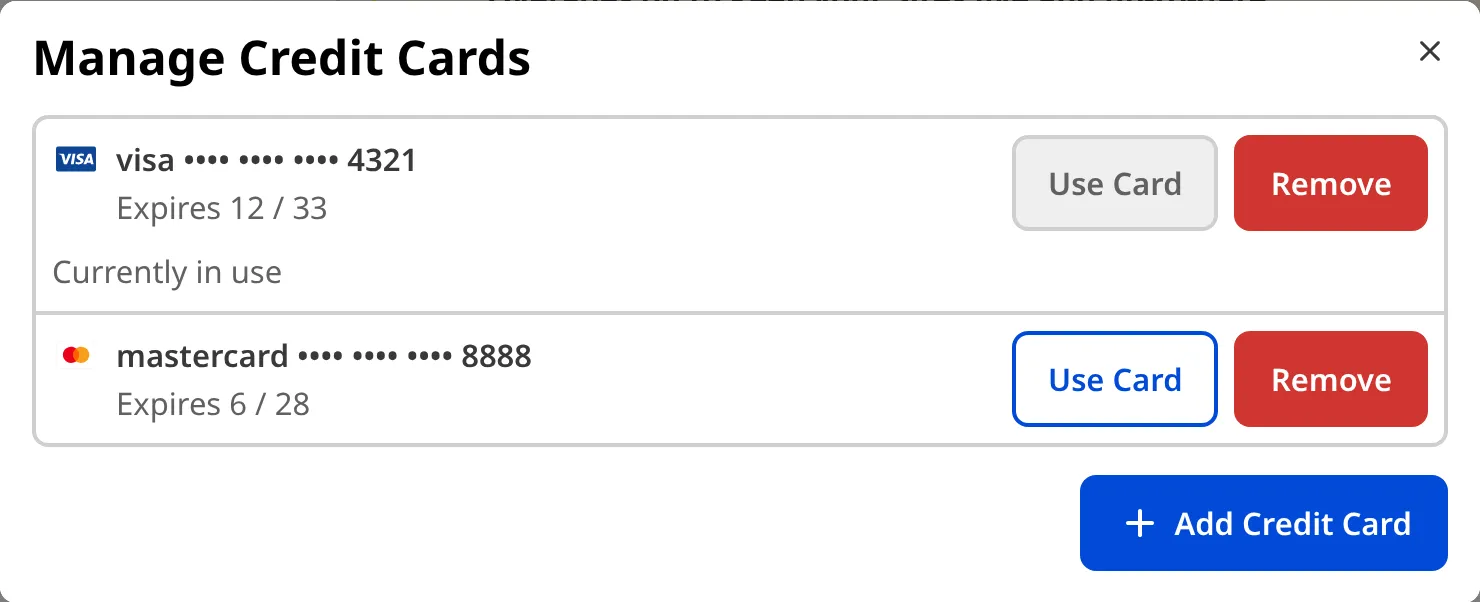
- Click the Manage Credit Cards button under Billing Details. CloudCannon will open the Manage Credit Cards modal.
- Click the Use Card button next to the card you want CloudCannon to charge.
CloudCannon will mark the selected card as Currently in use and charge it for your Organization's payments going forward.
Remove a credit card#
Keep at least one card on file. If you remove your only card, your Organization has no payment method and your next payment will fail. CloudCannon does not warn you before you remove your last card.
To remove a credit card from your Organization:
- Navigate to the Subscription page under Org Settings.
- Click the Manage Credit Cards button under Billing Details. CloudCannon will open the Manage Credit Cards modal.
- Click the Remove button next to the card you want to delete.
CloudCannon will remove the card straight away. If you remove the card currently in use, CloudCannon will automatically charge another saved card for your Organization's payments.