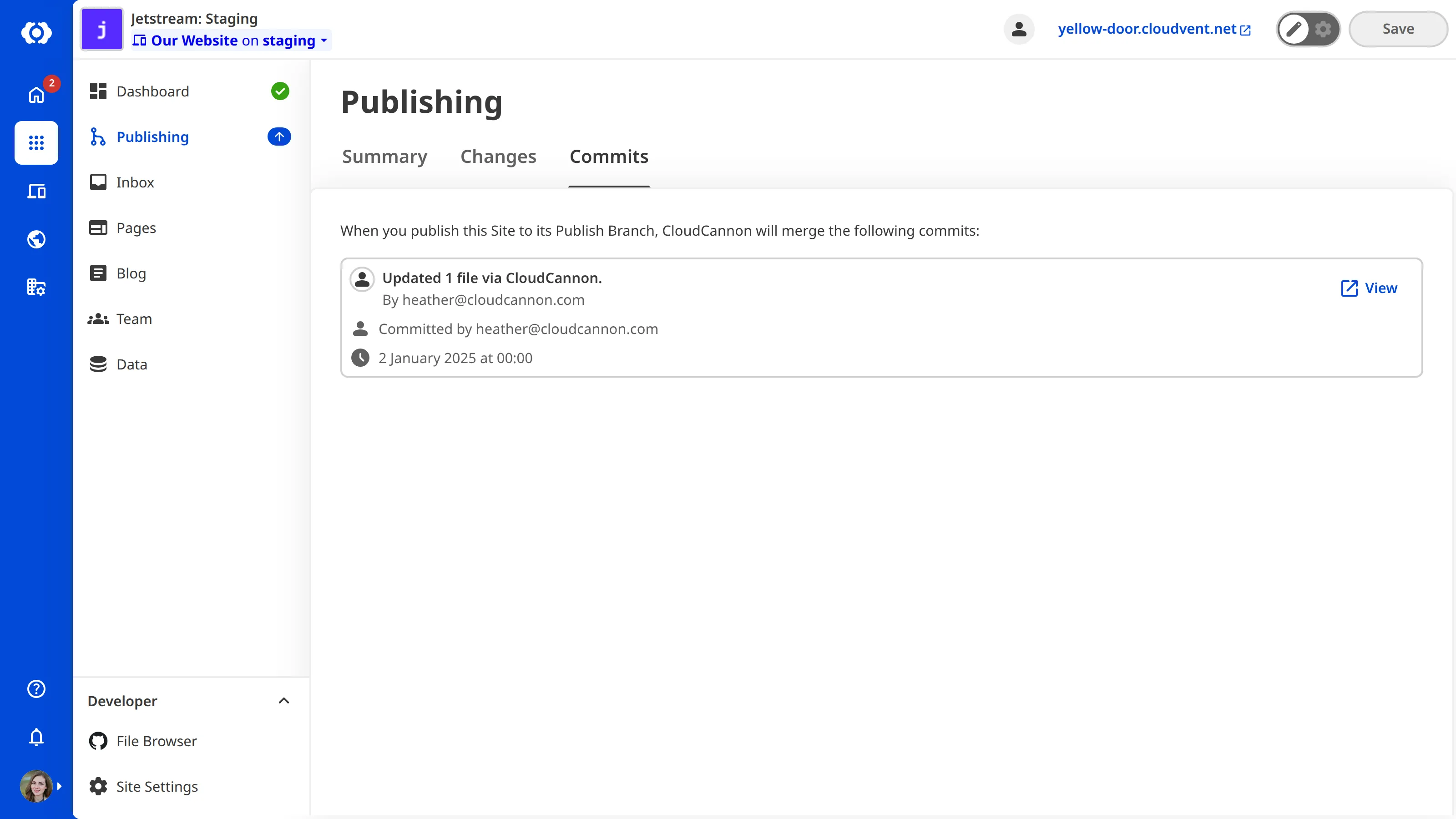
The Publishing page is where you publish your changes from a Site A website in CloudCannon that includes all the files, content, configuration, and settings needed to edit, build, and host a complete website. The branch containing the copy of your website to which you want to publish your changes (sometimes called the "upstream" branch). Defining a Publish Branch allows Organization Members to work on separate branches in parallel before publishing their changes to a shared branch.Site
Publish Branch
You can open the Publishing page by clicking Publishing in the Site Navigation. If your Site does not have a Publish Branch, the Publishing page will not appear in the Site Navigation.
The Summary tab#
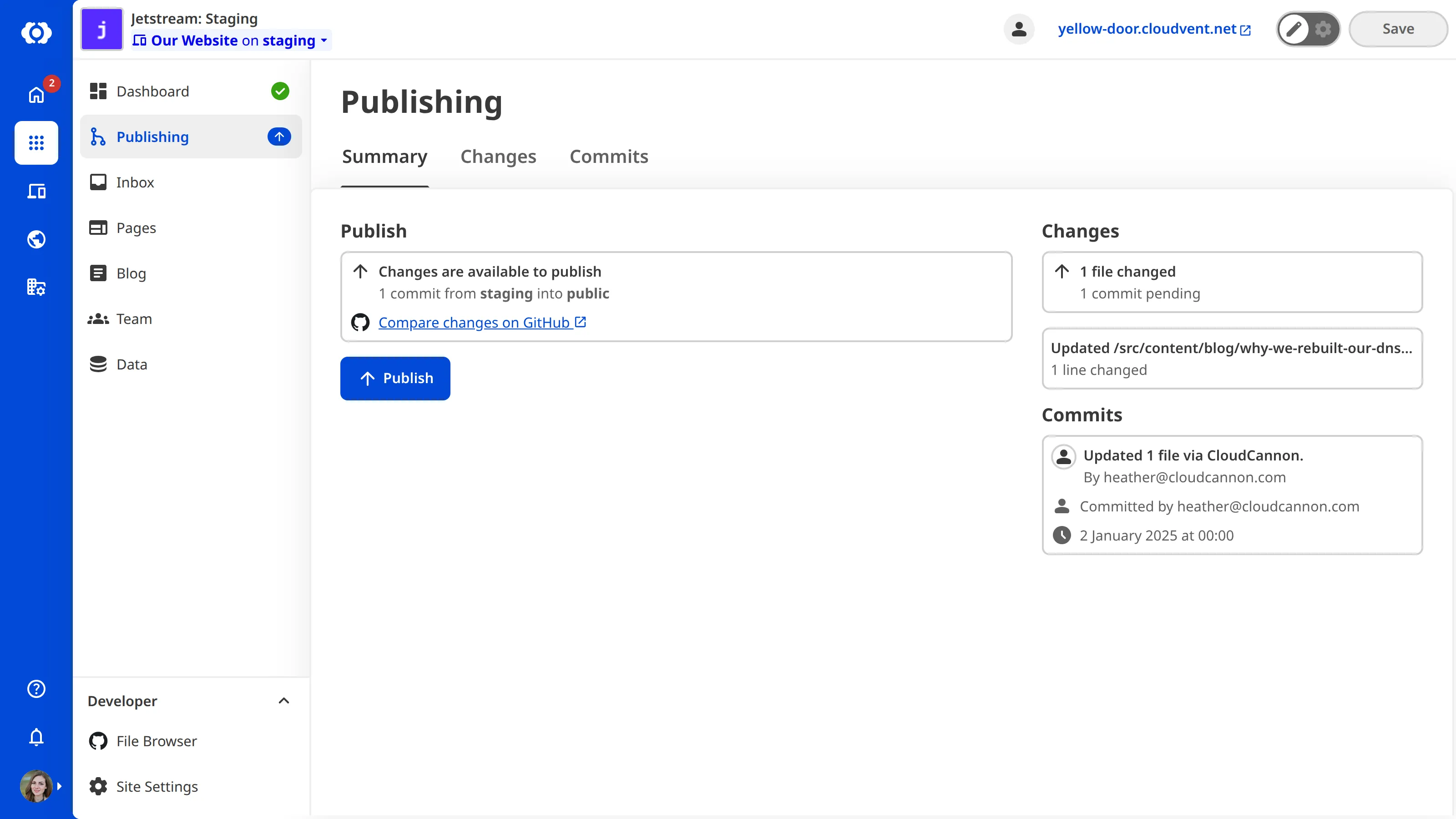
The Summary tab is the default view when you open the Publishing page. This tab provides the tools for publishing your changes to the Site's Publish Branch and summarizes those changes, including how many files on your Site have saved changes, the three most recent files changed, and the two most recent commits.
At the top of the tab is the Publishing State Card, which shows:
- The name of your Site's Publish Branch.
- The number of changes ready to publish (e.g., "1 commit from staging into public").
If your Site uses the Merge Immediately Publishing Method, the Publishing State Card will also show:
- The Publish button to send your changes to the Publish Branch.
- A Compare changes link to your Git Provider to review the changes.
If your Site uses the Pull Request Publishing Method, the Publishing State Card will also show:
- Fields for entering a Pull Request title and body.
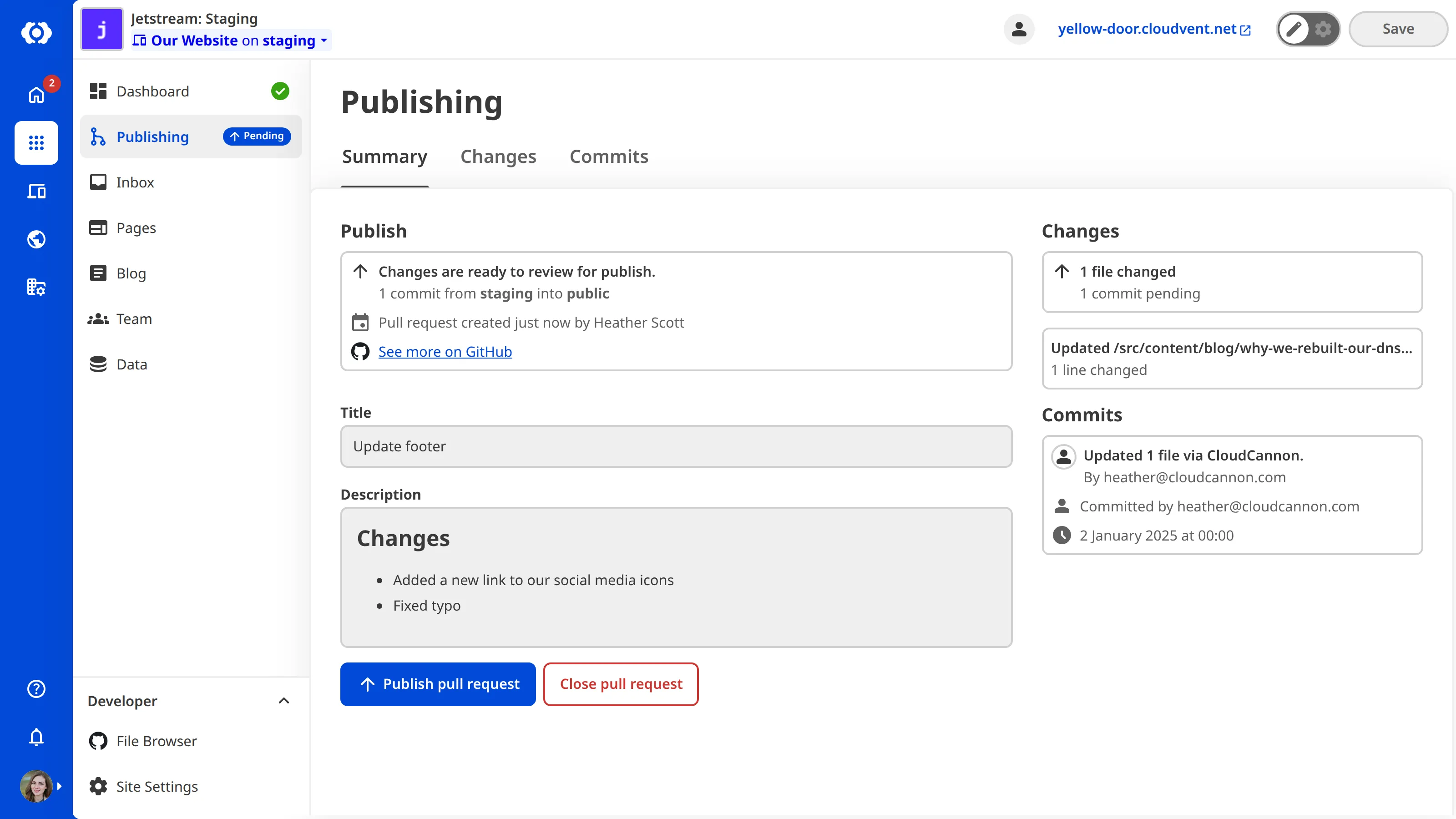
- The Create Pull Request button to submit a request through your Git Provider to move changes to your Publish Branch. If a Pull Request is already open, you will see the Publish pull request and Close pull request buttons instead.
- A link to your Git Provider to review the changes, labeled Compare changes when no Pull Request is open, or See more once one is.
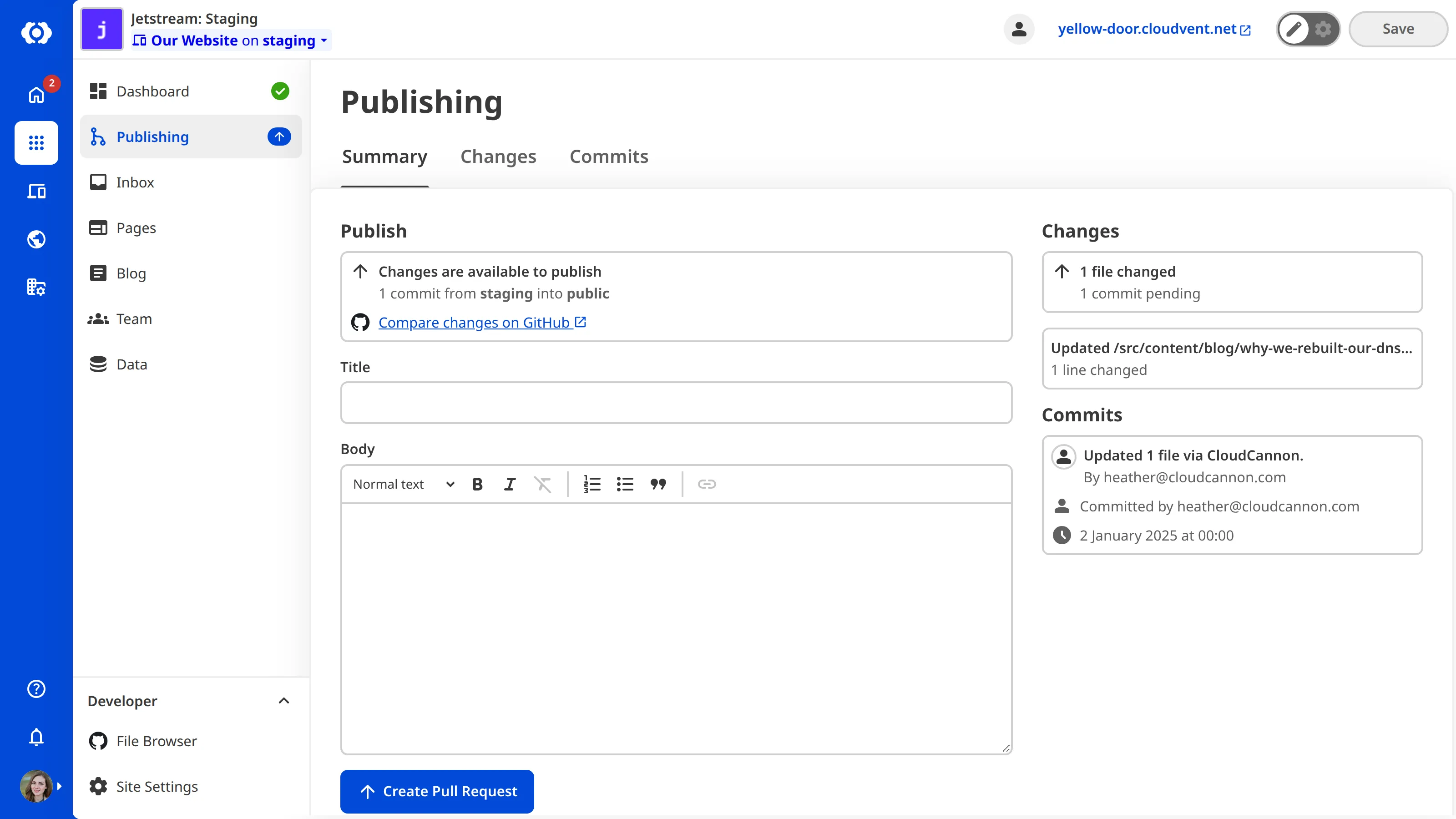
Once a Pull Request is open, the Publishing State Card shows the Publish pull request and Close pull request buttons instead:
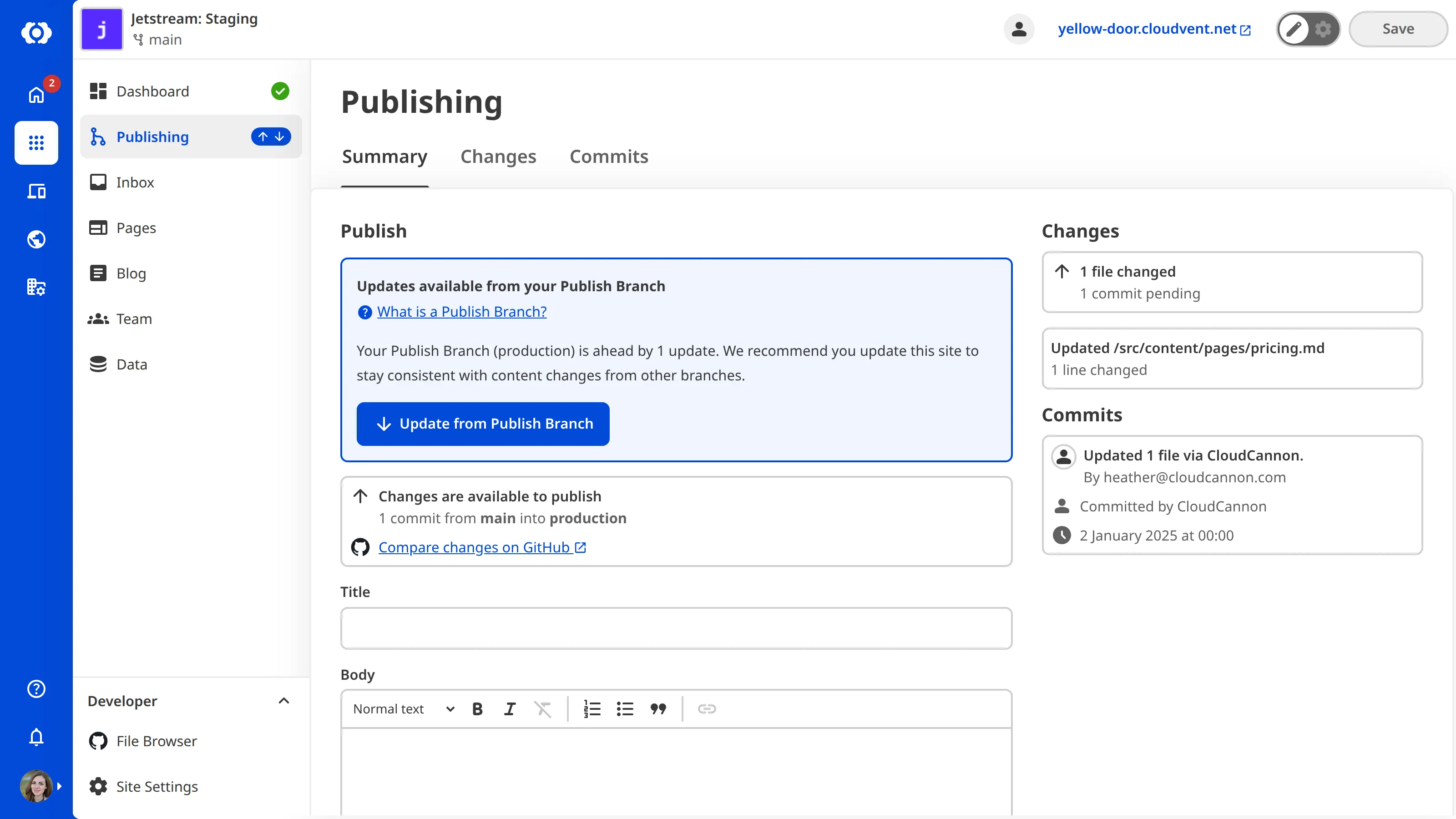
Update from Publish Branch
When new changes have arrived on your Publish Branch since you last updated, the Summary tab shows an Updates available from your Publish Branch notice with an Update from Publish Branch button. Updating pulls those changes into your Site so it stays in sync with your Organization Members' work on other branched Sites. For more information, please read our documentation on updating from a Publish Branch.
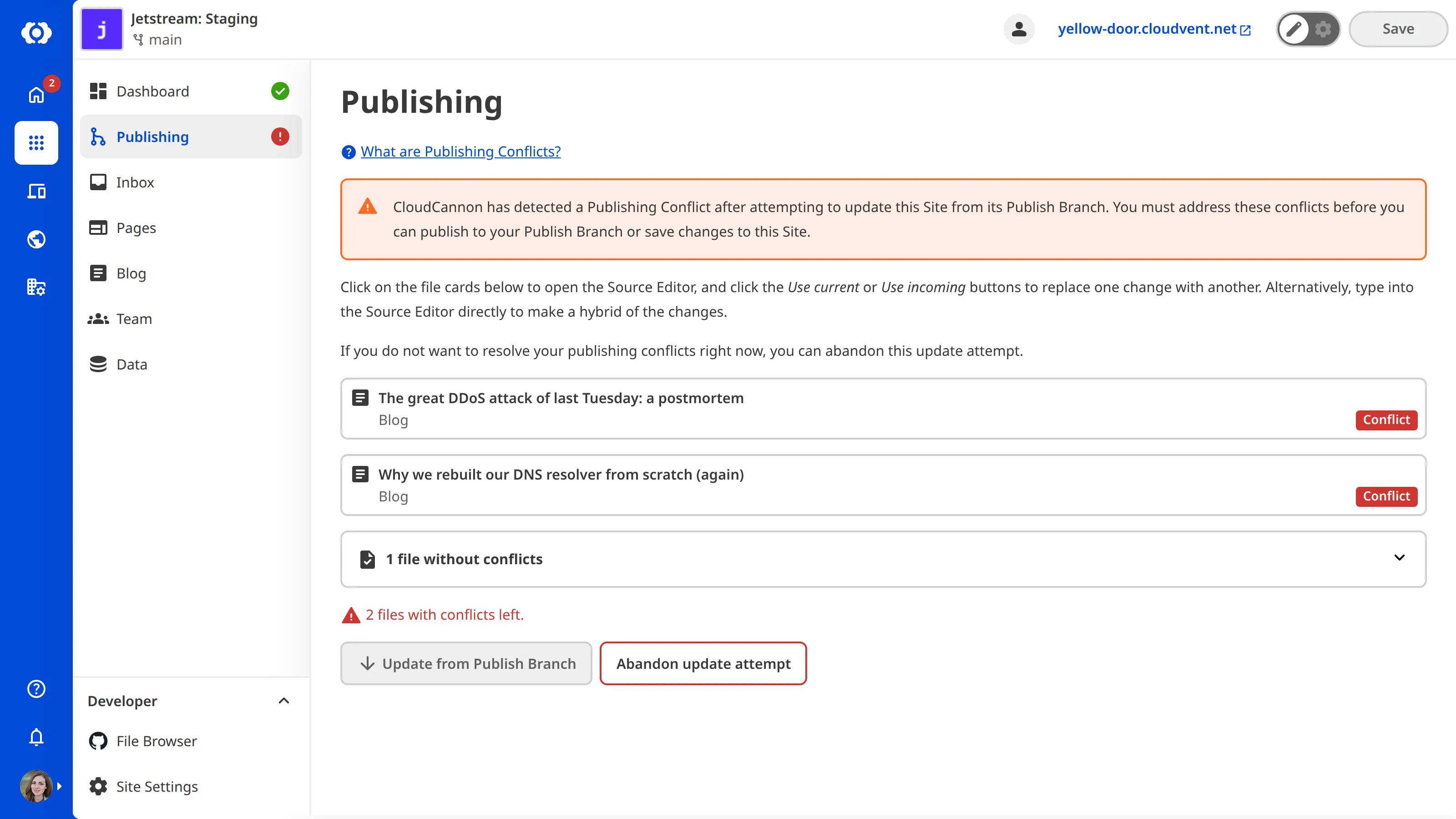
Publishing Conflicts
If your Site and your Publish Branch have different changes to the same file, the Summary tab shows a Publishing Conflict A situation that occurs when multiple users make conflicting changes to the same content or when there are issues merging changes during the publishing process. CloudCannon provides tools to resolve these conflicts.Publishing Conflict
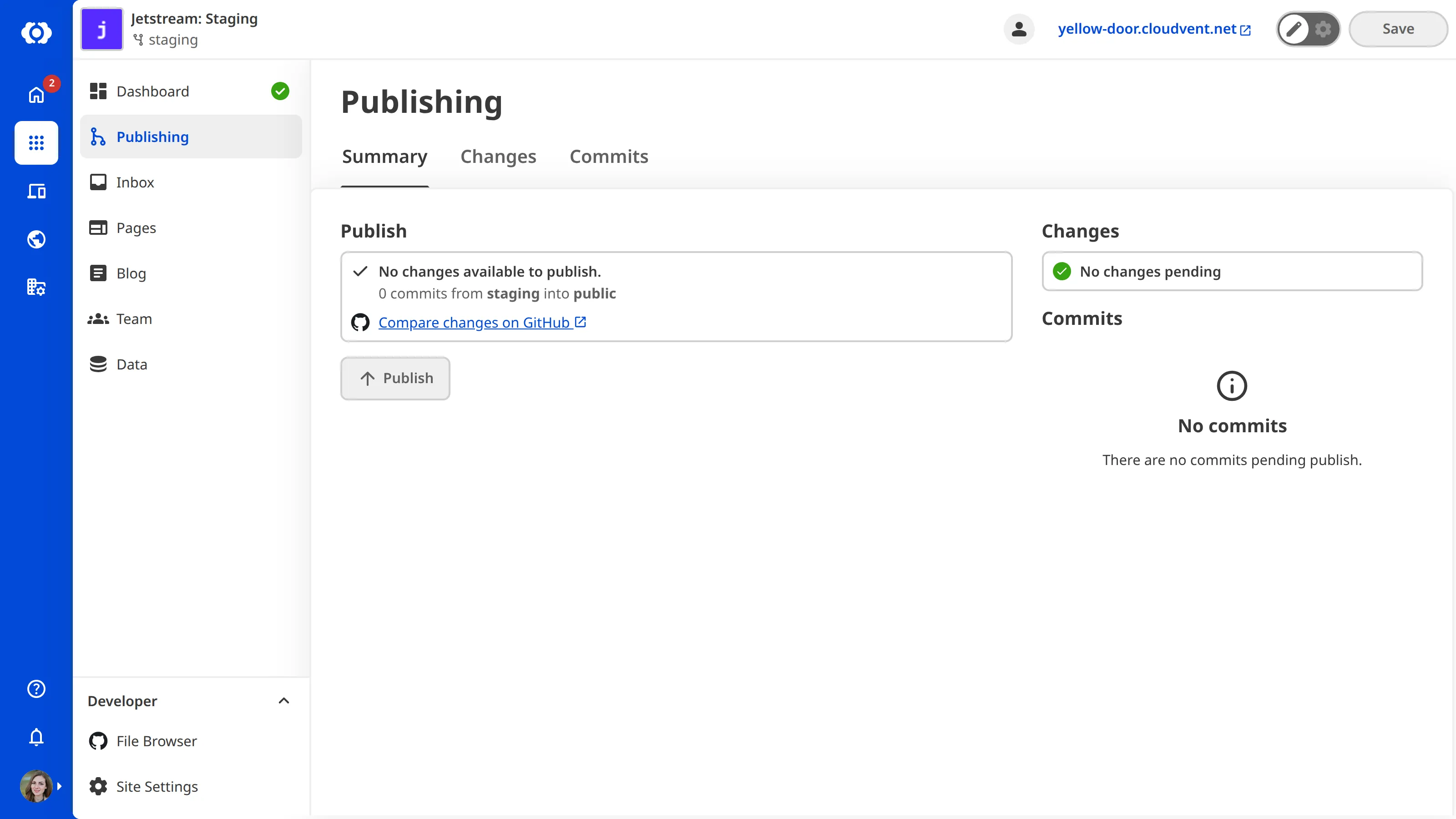
When your Site is in sync with its Publish Branch, the Summary tab shows no changes to publish:
The Changes tab#
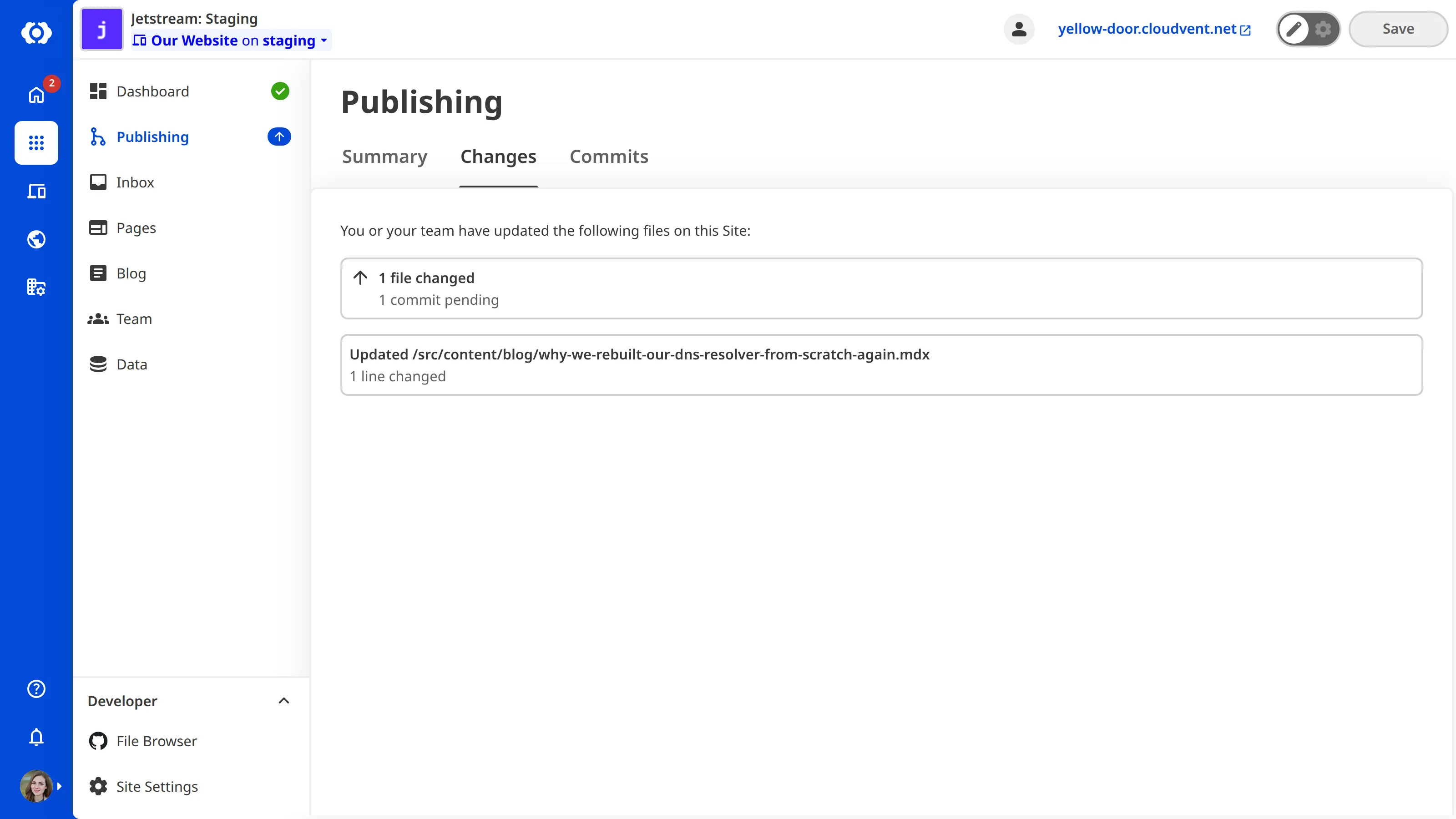
The Changes tab lists all the files with saved changes on your Site. At the top, you can see how many total files have changes. Each Card in the list represents a file with saved changes, showing the name of the file, the number of lines changed, and the edit, add, delete, or file_copy icon, depending on the type of change. For more information on making changes, please read our documentation on adding a file, editing a file, and deleting a file.
The Commits tab#
The Commits tab lists all the commits made on your Site since the last publish. CloudCannon creates a commit every time you click the Save button. Each Card in the list represents a single save, showing the commit message (if applicable), the author, and a timestamp. For more information, please read our documentation on saving your changes.