An Organization A workspace in CloudCannon that groups together Sites, Organization Members, and shared resources. It is also the unit CloudCannon bills for. You can define permissions for your Organization, controlling the access each Organization Member has to resources on CloudCannon. You can create and be a part of multiple Organizations. A website in CloudCannon that includes all the files, content, configuration, and settings needed to edit, build, and host a complete website. A person who belongs to the same Organization as you. Organization Members are other CloudCannon users who have been invited to your Organization to collaborate on Sites, edit content, or manage settings. Each Organization Member has their own CloudCannon account with individual permissions assigned through Permission Groups, and uses one Seat in your Subscription Plan. Organization Members were previously called Team Members.Organization
Site
Organization Member
Join an Organization#
To join an Organization in CloudCannon, an existing member must invite you. When someone invites you, CloudCannon will send you an email invitation with the name of the Organization.
When you accept the invitation, CloudCannon will add you to the Organization as an Organization Member, automatically assigning you to the Permission Groups selected by the person who invited you. You can also decline an invitation, but a current member of the Organization must re-invite you if you want to join at a later date.
How you accept your invitation will depend on whether you already have a CloudCannon account.
If you don't have a CloudCannon account yet
To create your account and accept an invitation:
- In your email invitation, click the Sign up for CloudCannon button. CloudCannon will open in your internet browser.
- Complete the account creation setup. CloudCannon will open the Organizations page.
- Click the Accept button next to the Organization you want to join.
CloudCannon will add you to the Organization.
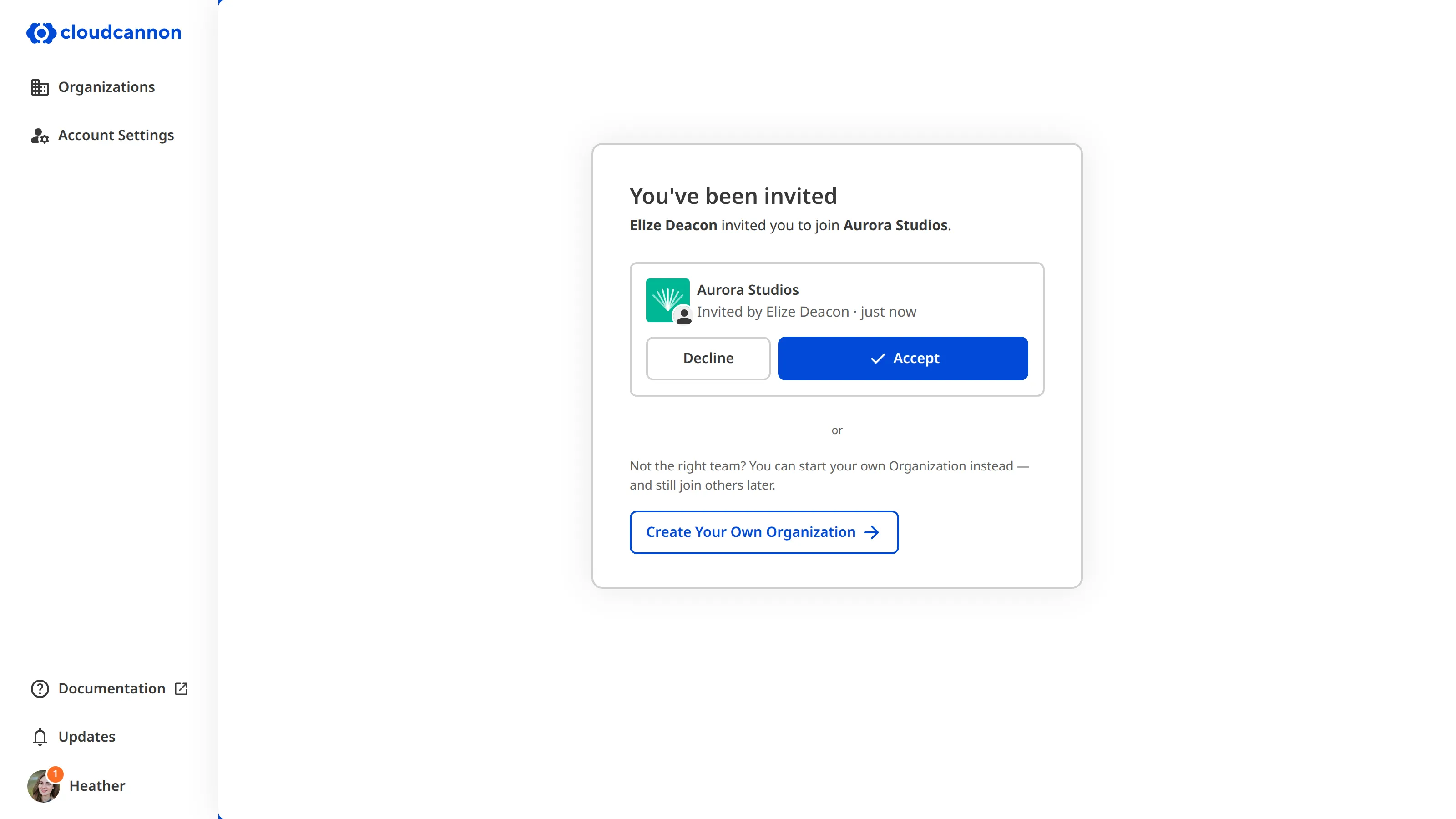
CloudCannon shows any Organization that has invited you under the You've been invited heading on the Organizations page. Each invitation shows the Organization's name, who invited you, and when, along with Accept and Decline buttons.
If you don't recognize any of the invitations, you can click the Create Your Own Organization button to start your own Organization instead.
If you already have a CloudCannon account
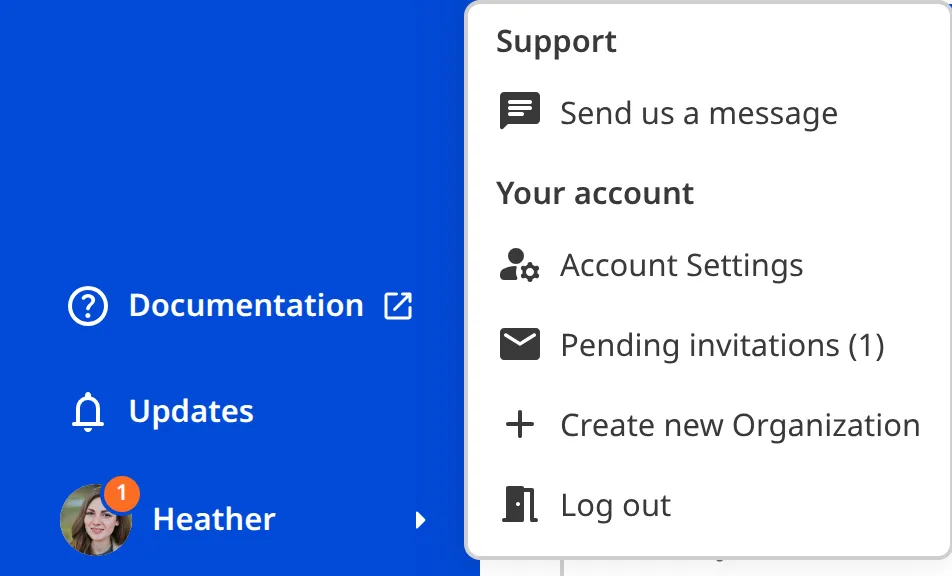
When you have pending invitations, CloudCannon shows a number badge on your Avatar in the bottom left of the App Sidebar The left-most UI panel in the CloudCannon app. This panel contains links to your Organization Home, Sites, Projects, Domains, and Org Settings pages, as well as app Updates and your Avatar.App Sidebar

To accept an invitation from another Organization while you're logged in:
- Click on your Avatar in the App Sidebar to open the Account Menu.
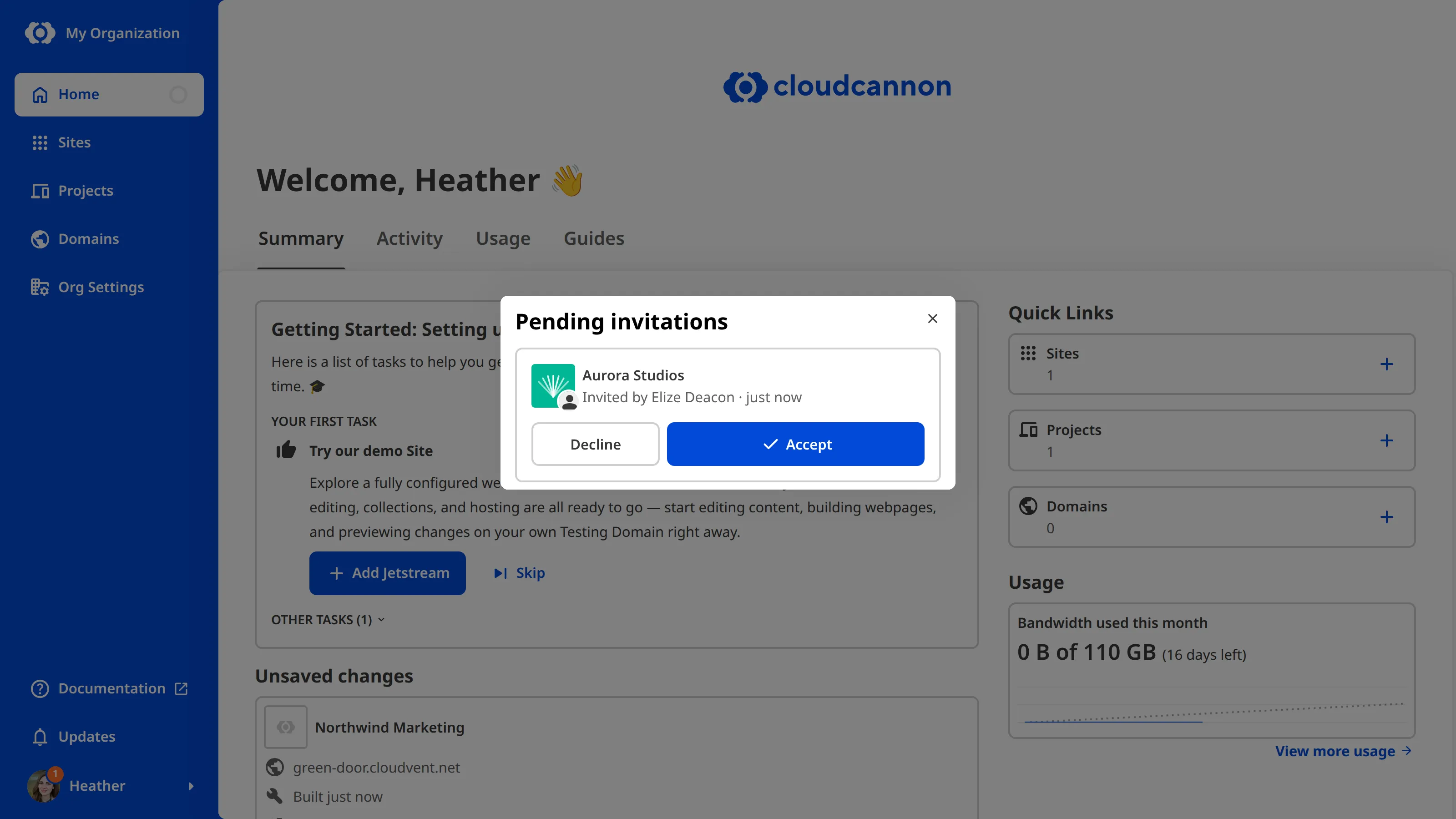
- Select Pending invitations. CloudCannon will open the Pending invitations modal.
- Click the Accept button next to the Organization you want to join.
CloudCannon will add you to the Organization.
Leave an Organization#
If you are the only Owner One of CloudCannon's Default Permission Groups. Owners have complete control over everything in your Organization, including managing billing settings, deleting Organizations, and creating Custom Permission Groups.Owners
To leave an Organization in CloudCannon:
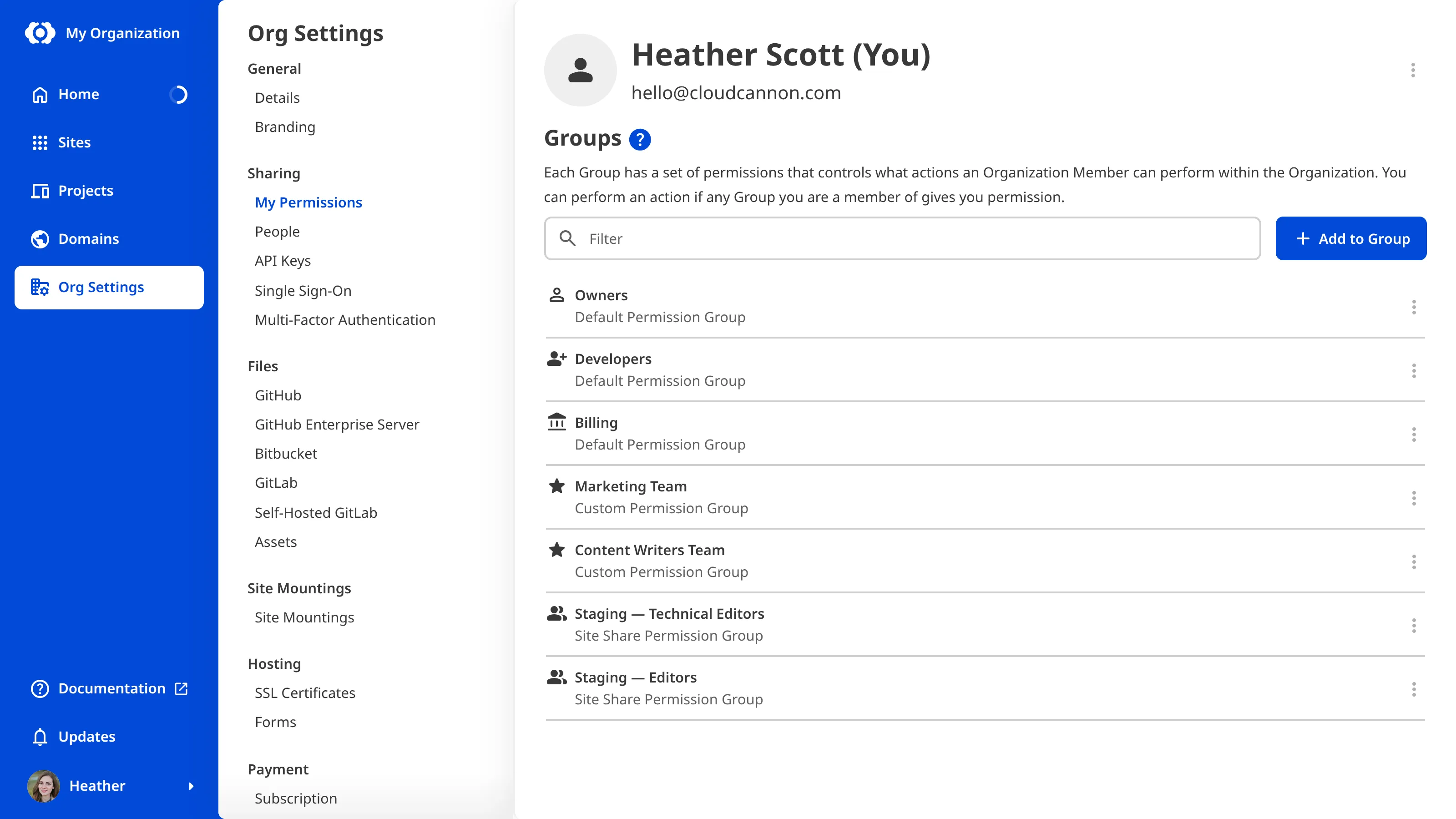
- Navigate to the My Permissions page under Org Settings.
- Click the Leave Organization button in the top right.
- Click the Leave Organization button in the confirmation modal to confirm.
CloudCannon will remove you from this Organization.