Your Permissions Permissions define what you can see and do in a given CloudCannon Organization. Each permission has a scope (Global, Project, Site, Permission Group, or Domain), a resource (e.g., Site, Project, or Organization), and an action (Read, Write, or Create). You can review your permissions through your Org Settings.Permissions
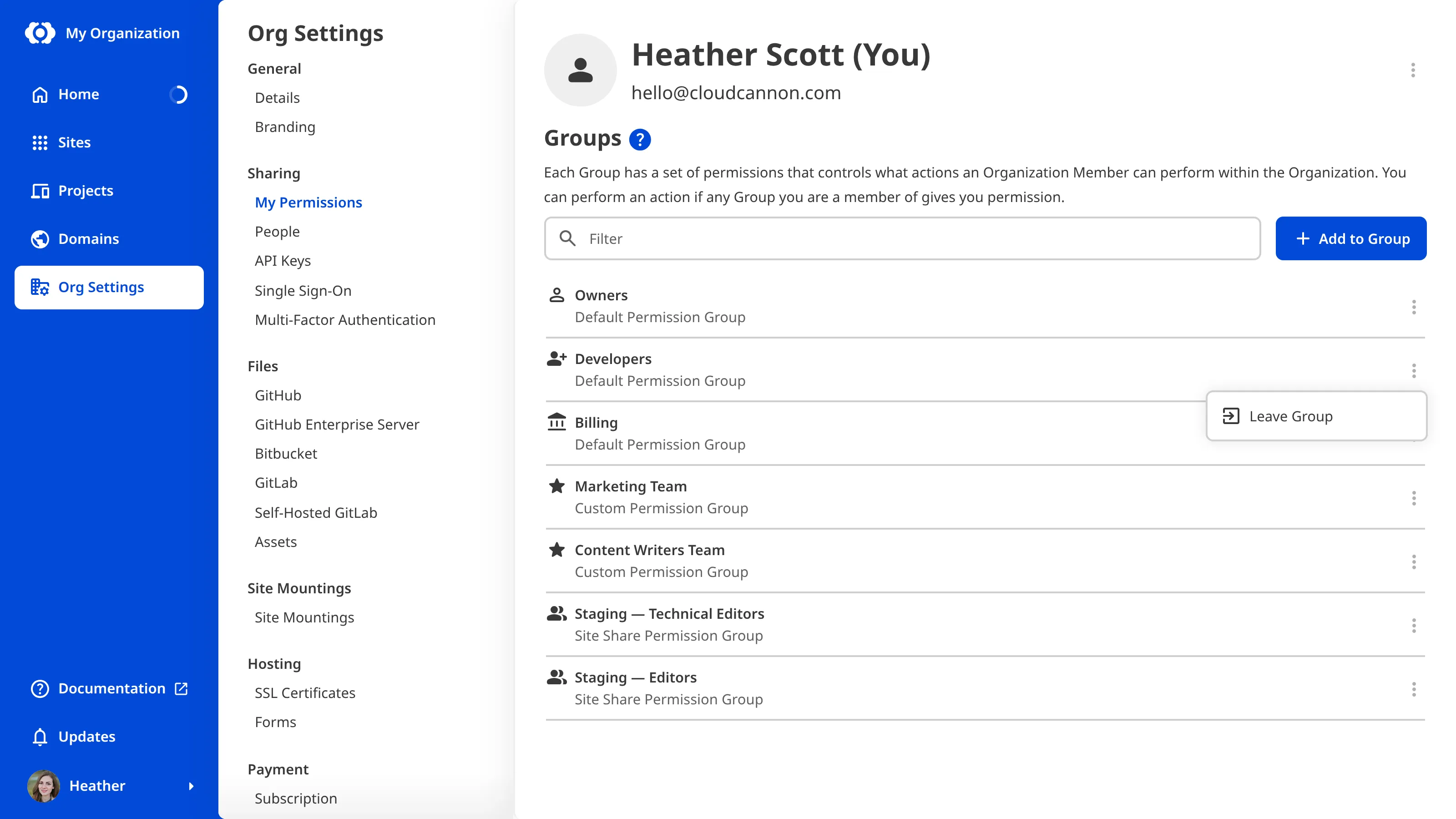
Review my current Permission Groups#
To view your current Permissions:
- Navigate to the My Permissions page under Org Settings.
CloudCannon will show the Permission Groups you belong to.
Leave a Permission Group#
You can leave a Permission Group at any time. However, you may not have permission to add yourself to a Group. If you accidentally remove yourself from a Permission Group, please contact the appropriate member of your team or read our documentation on adding an Organization Member to a Permission Group.
To leave your Organization entirely, please read our documentation on joining or leaving an Organization.
You must be a member of at least one Permission Group in each Organization. If you leave your last Permission Group, this action will also remove you from the Organization. If you are the only Owner of your Organization, you cannot leave the Owners Permission Group until you add another Organization Member to it.
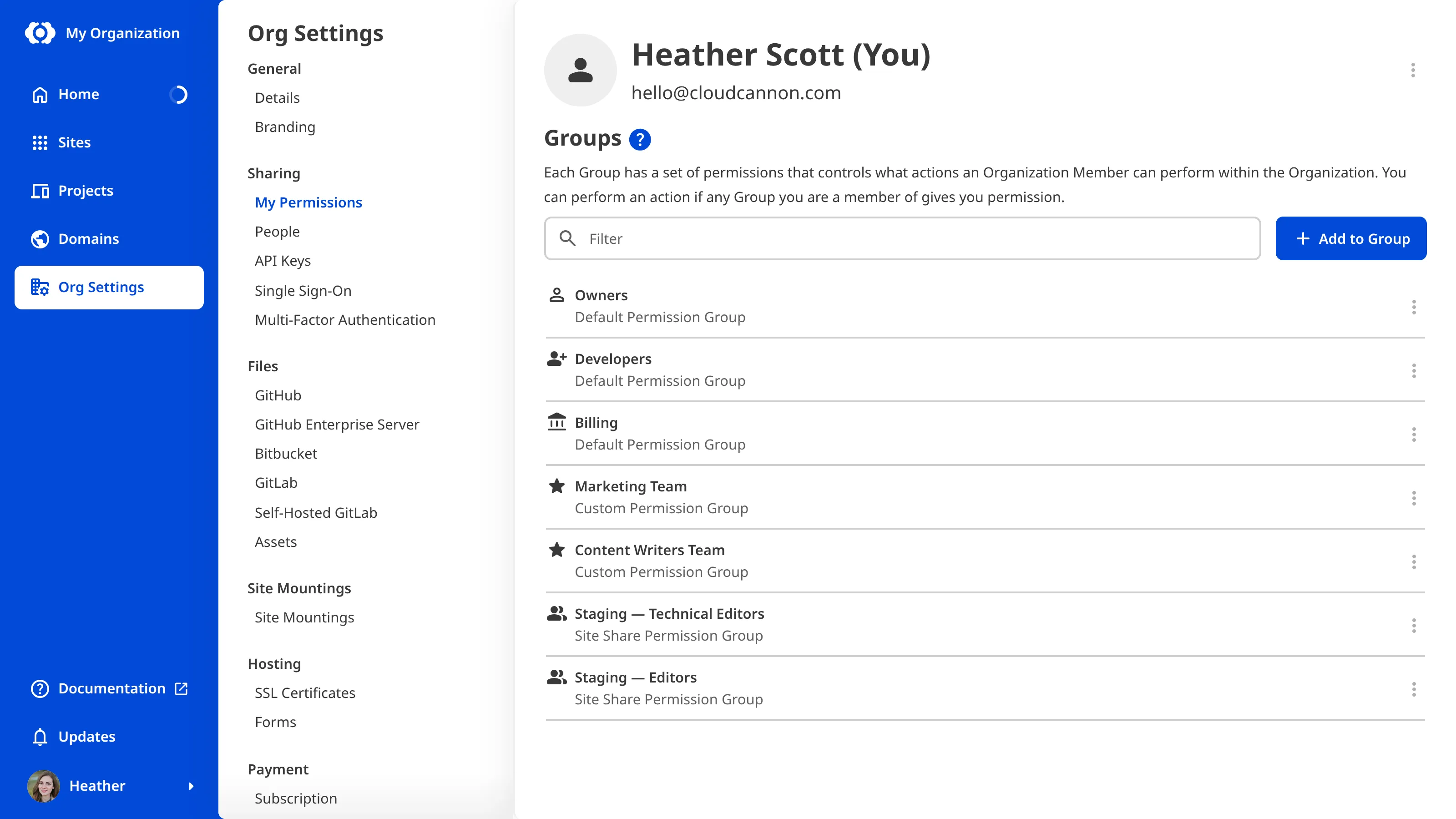
To leave a Permission Group:
- Navigate to the My Permissions page under Org Settings.
- Click the Context Menu on the Permission Group you want to leave.
- Select the Leave Group option from the Context Menu dropdown.
- Confirm that you want to leave this Group by clicking the Leave Group button in the confirmation modal.
CloudCannon will remove you from this Permission Group.