An Organization A workspace in CloudCannon that groups together Sites, Organization Members, and shared resources. It is also the unit CloudCannon bills for. You can define permissions for your Organization, controlling the access each Organization Member has to resources on CloudCannon. You can create and be a part of multiple Organizations.Organization
To switch Organizations:
- Click your current Organization at the top of the App Sidebar. CloudCannon will open the Switch Organization menu.
- Select the Organization you want to open.
- If the Organization you want isn't listed, click View more. CloudCannon will open the Organizations modal.
- Choose the Organization you want to open from the Organizations modal.
CloudCannon will open the Organization you selected.
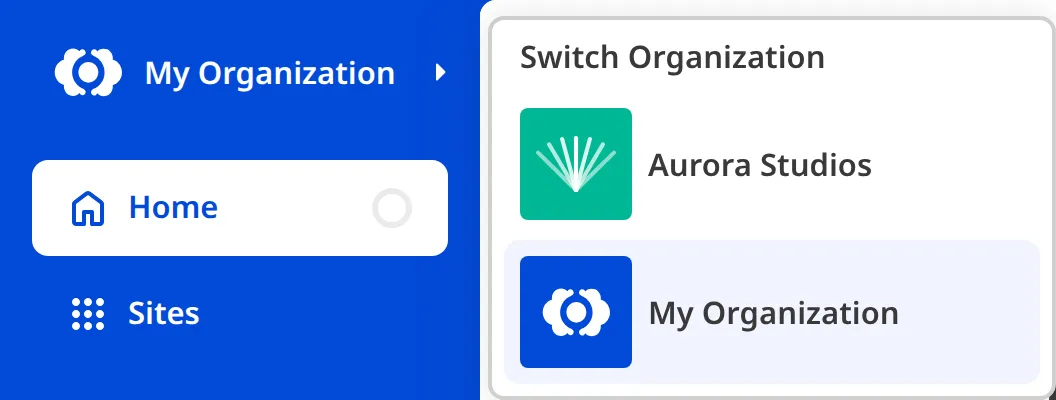
If you only belong to one Organization, clicking on your Organization at the top of the App Sidebar won't open the Switch Organization menu (there is no visible arrow on the right of your Organization name), because there's nowhere else to switch to. To create another Organization, please read our documentation on creating a new Organization.

Switching to a Site shared with you#
If another CloudCannon user shares one of their Sites A website in CloudCannon that includes all the files, content, configuration, and settings needed to edit, build, and host a complete website.Site
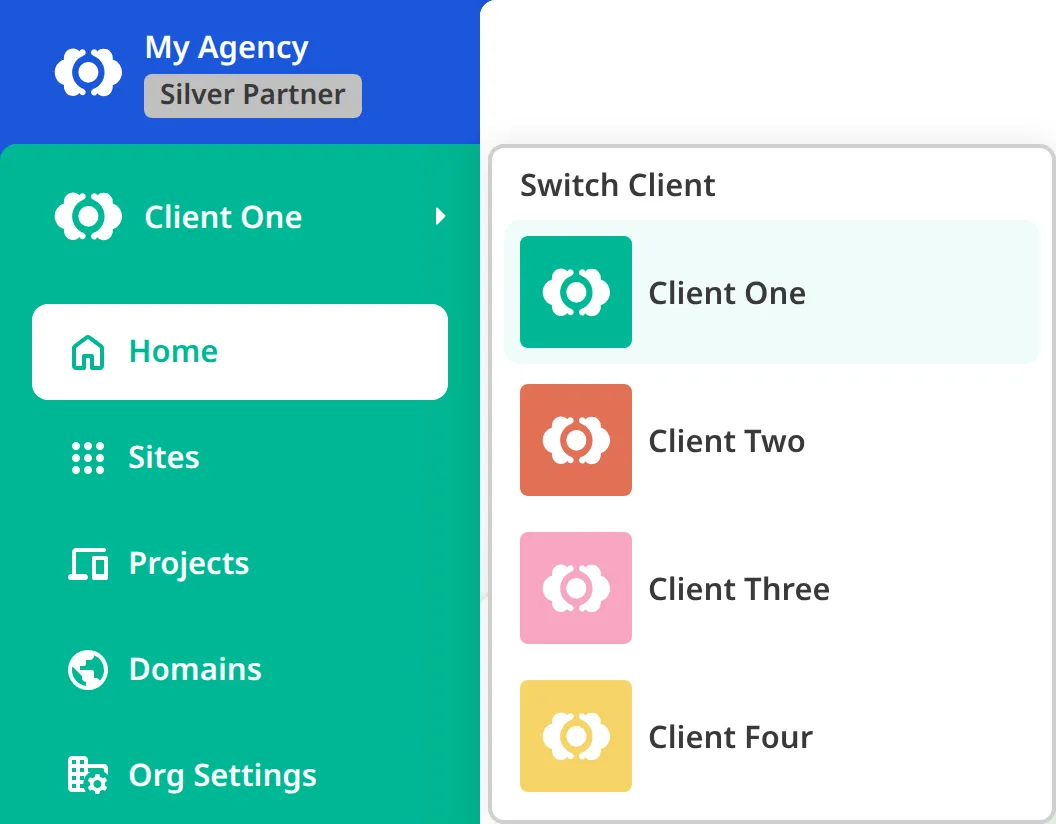
Switching between Partner and Client Organizations#
If you are in CloudCannon's Partner Program and working inside a Client Organization A separate Organization that a Partner Organization manages but that the client uses and pays for. Client Organizations are part of the CloudCannon Partner Program and give each client their own team, billing, and login. Unlike Guest Access, which shares a single Site with someone who doesn't have a CloudCannon account, a Client Organization is a full, independent Organization.Client Organization
Clicking on your Partner Organization name in the App Sidebar takes you to its Organization Home page. If you belong to more than one Organization, separate from any Client Organizations you manage, clicking your Partner Organization name instead opens a menu where you can choose which one to open.