Publishing sends your saved changes from a Site A website in CloudCannon that includes all the files, content, configuration, and settings needed to edit, build, and host a complete website. The branch containing the copy of your website to which you want to publish your changes (sometimes called the "upstream" branch). Defining a Publish Branch allows Organization Members to work on separate branches in parallel before publishing their changes to a shared branch.Site
Publish Branch
These instructions assume your Site has a connected Publish Branch, saved changes ready to publish, and you have updated your Site from its Publish Branch.
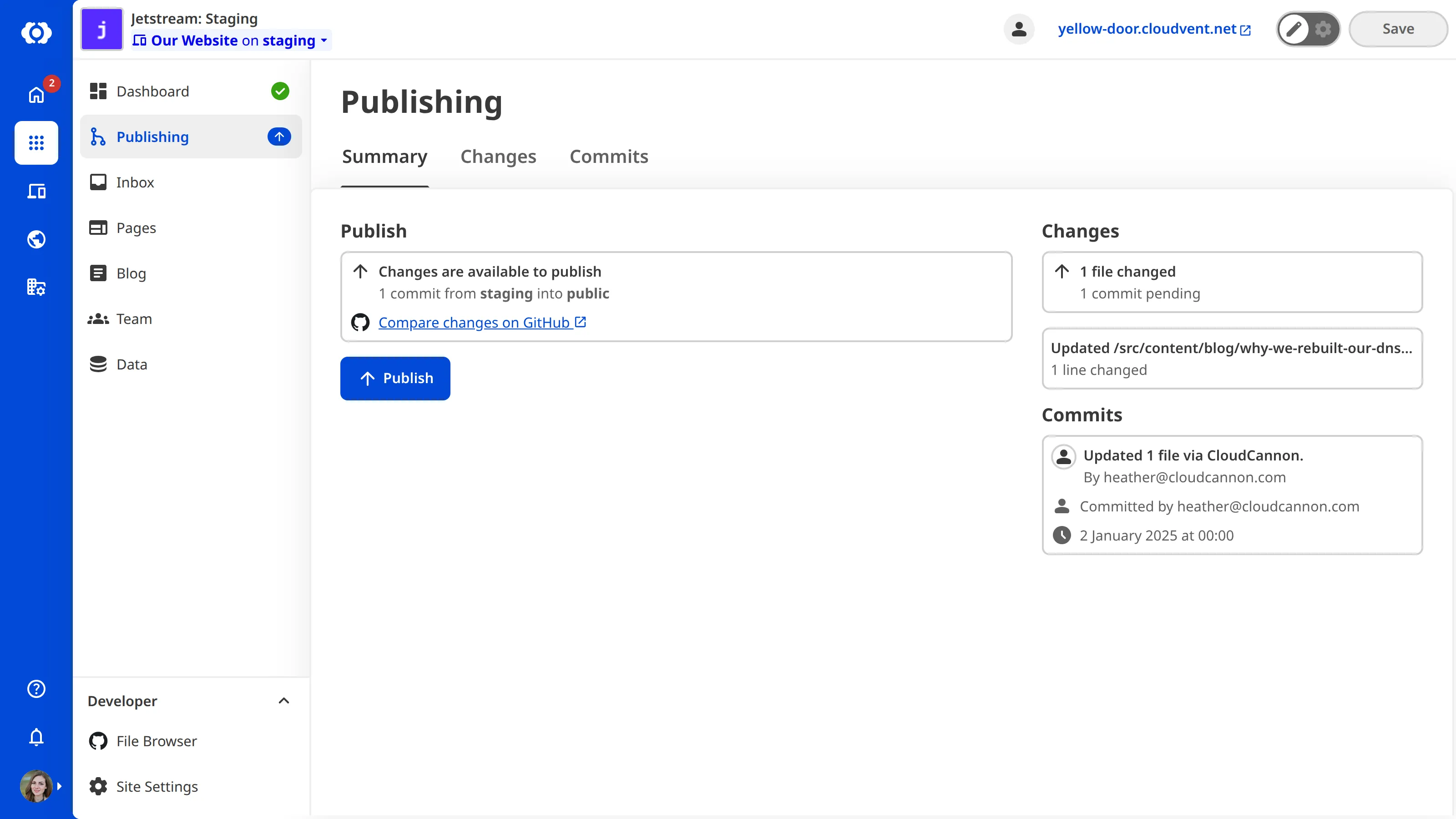
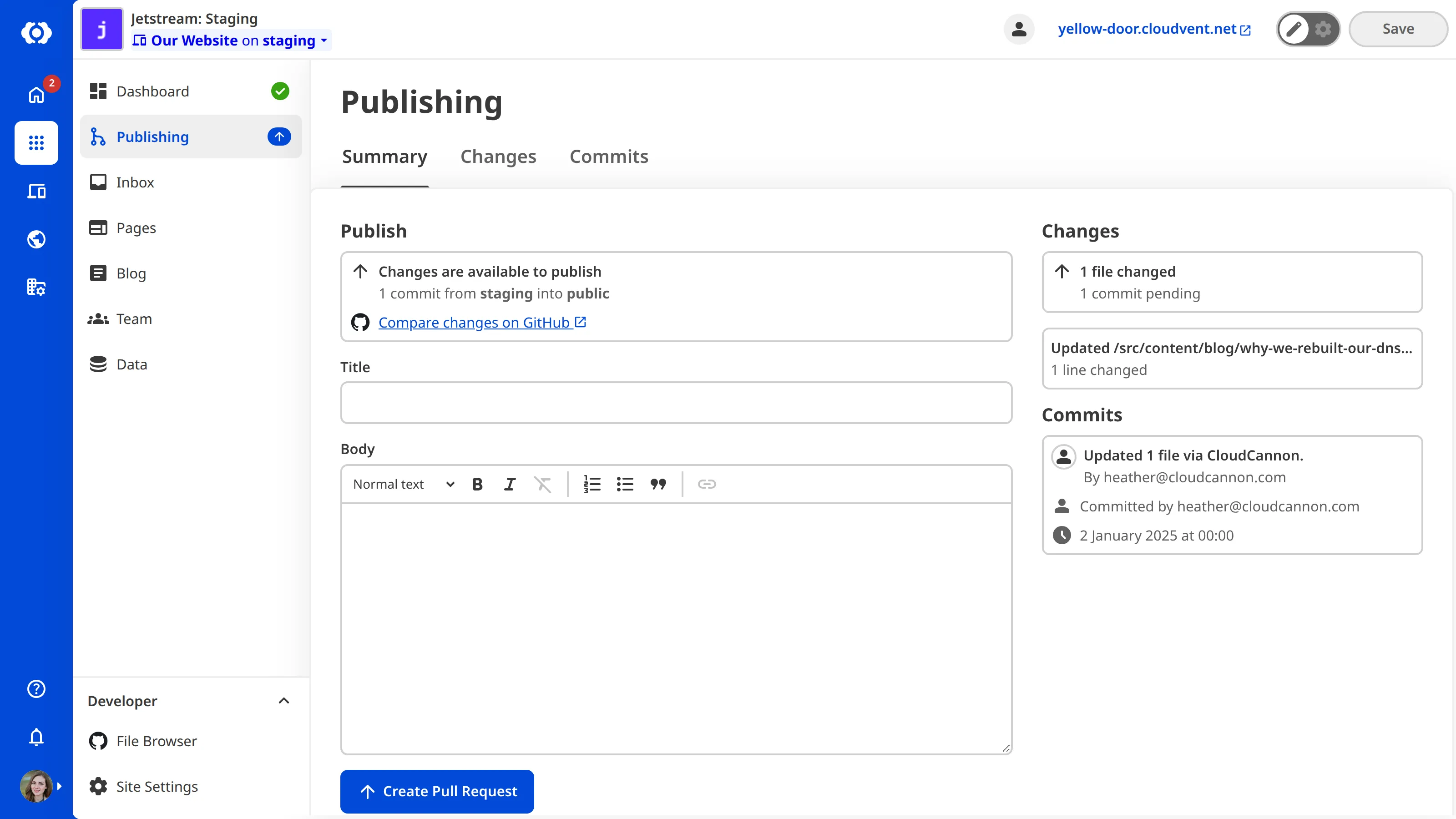
The steps below cover both Publishing Methods. The button on the Publishing State Card is Publish on Sites using Merge Immediately, or Create Pull Request on Sites using Pull Request. Steps 2 and 4 only apply to Sites using the Pull Request Publishing Method.
To publish your changes:
- Click the Publishing link in the Site Navigation. CloudCannon will open the Publishing page.
- (Optional, Pull Request only.) Fill out the Title and Body text fields to describe the changes on this Site.
- Click the Publish or Create Pull Request button on the Publishing State Card.
- (Optional, Pull Request only.) Once your Pull Request is approved on your Git Provider, click the Publish pull request button to merge it.
CloudCannon will move your saved changes from your current Site to its Publish Branch.
How your changes move from one Site to another will depend on which Publishing Method your Site uses. For more information, please read our documentation on what Publishing Methods are.