A coupon applies a discount to your Subscription The ongoing payment to CloudCannon for your Organization's Subscription Plan. A Subscription can be active, paused, or canceled. Canceling a Subscription will prevent you from paying for further use of features and resources without deleting the Organization, its Sites, or files. A set of features available to your Organization, the monthly usage limits for resources, and the price you pay for access to those features and resources, monthly or annually. Each Organization in CloudCannon can have one Subscription Plan, and can update or cancel at any time.Subscription
Subscription Plan
Each Organization can have one active coupon at a time. CloudCannon has no option to remove a coupon on its own. To change your coupon, apply a different one, which replaces the existing coupon on your Subscription.
To add a coupon to your Subscription:
- Navigate to the Subscription page under Org Settings.Glossary term
Org Settings
The settings page for a CloudCannon Organization, where organization administrators can manage organization-wide settings, including billing, team permissions, integrations, branding, and security policies. You can access this page using the Organization Settings link in the App Sidebar.
- Click the Review your Subscription Plan button in the billing summary. CloudCannon will open the Your Subscription Plan page.
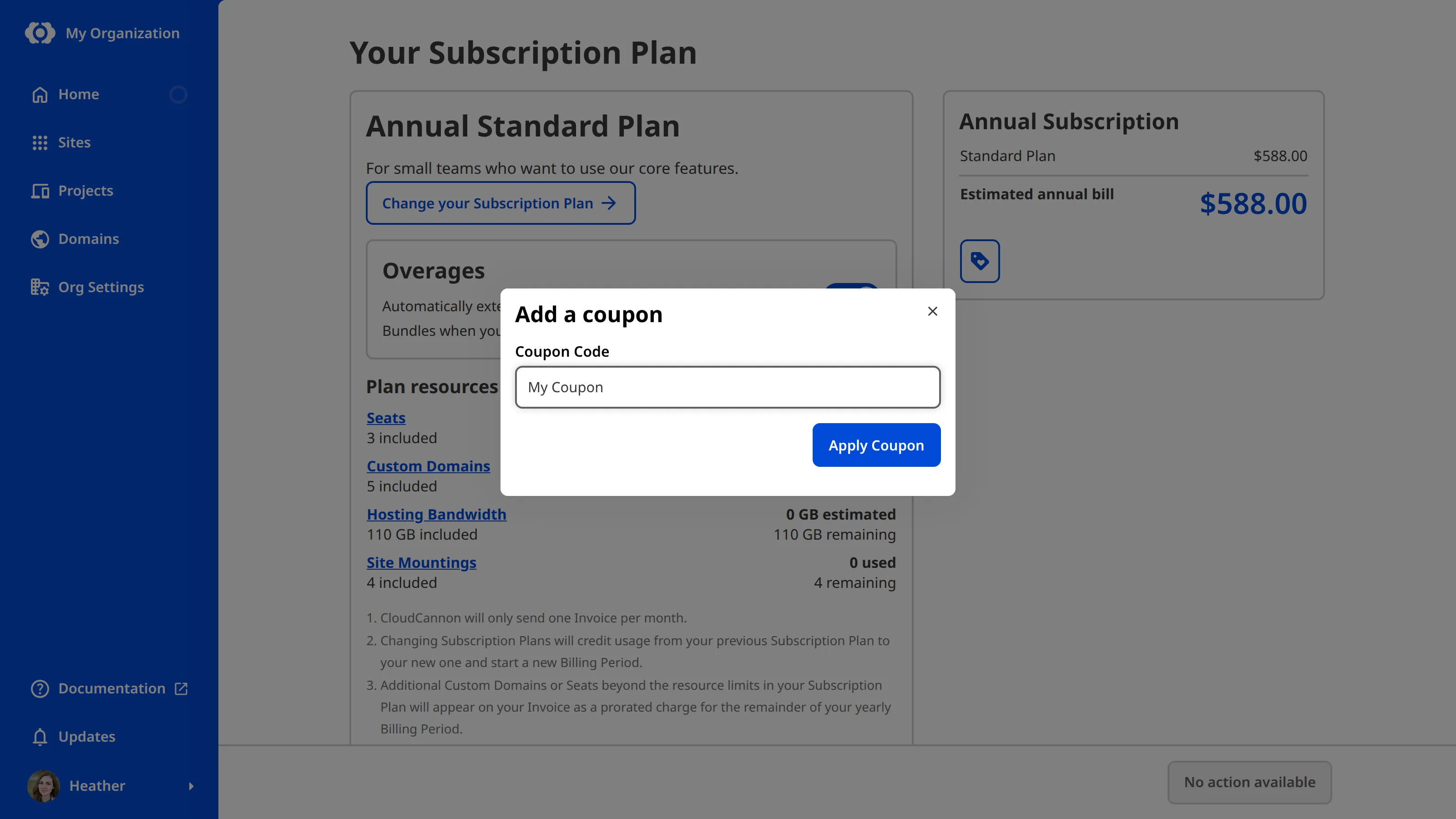
- Click the Add a coupon icon in the billing summary. CloudCannon will open the Add a coupon modal.
- Enter your coupon code in the Coupon Code field.
- Click the Apply Coupon button. If your Organization already has a coupon, this button reads Replace Coupon instead.
CloudCannon will validate your coupon and apply the discount to your Subscription. The discount will appear as a line item on your billing summary.
If your coupon code is not valid, CloudCannon shows an error message. Verify the code and try again. If the problem continues, contact our support team with your coupon code and the name of your Organization.
Enterprise Organizations have custom billing arrangements organized directly with the CloudCannon team. If your Organization is on the Enterprise Plan, contact us via support, Slack, or email.