When someone no longer needs access to your Organization A workspace in CloudCannon that groups together Sites, Organization Members, and shared resources. It is also the unit CloudCannon bills for. You can define permissions for your Organization, controlling the access each Organization Member has to resources on CloudCannon. You can create and be a part of multiple Organizations. A person who belongs to the same Organization as you. Organization Members are other CloudCannon users who have been invited to your Organization to collaborate on Sites, edit content, or manage settings. Each Organization Member has their own CloudCannon account with individual permissions assigned through Permission Groups, and uses one Seat in your Subscription Plan. Organization Members were previously called Team Members.Organization
Organization Member
To leave an Organization yourself rather than remove someone else, please read our documentation on joining or leaving an Organization.
To remove an Organization Member from your Organization:
- Navigate to the People page under Org Settings.
- Under the Members tab, click the Organization Member you want to remove from this Organization.
- Click the Remove from Organization button in the top right of the Organization Member page.
- Click the Remove from Organization button in the confirmation modal to confirm.
CloudCannon will remove the Organization Member from your Organization.
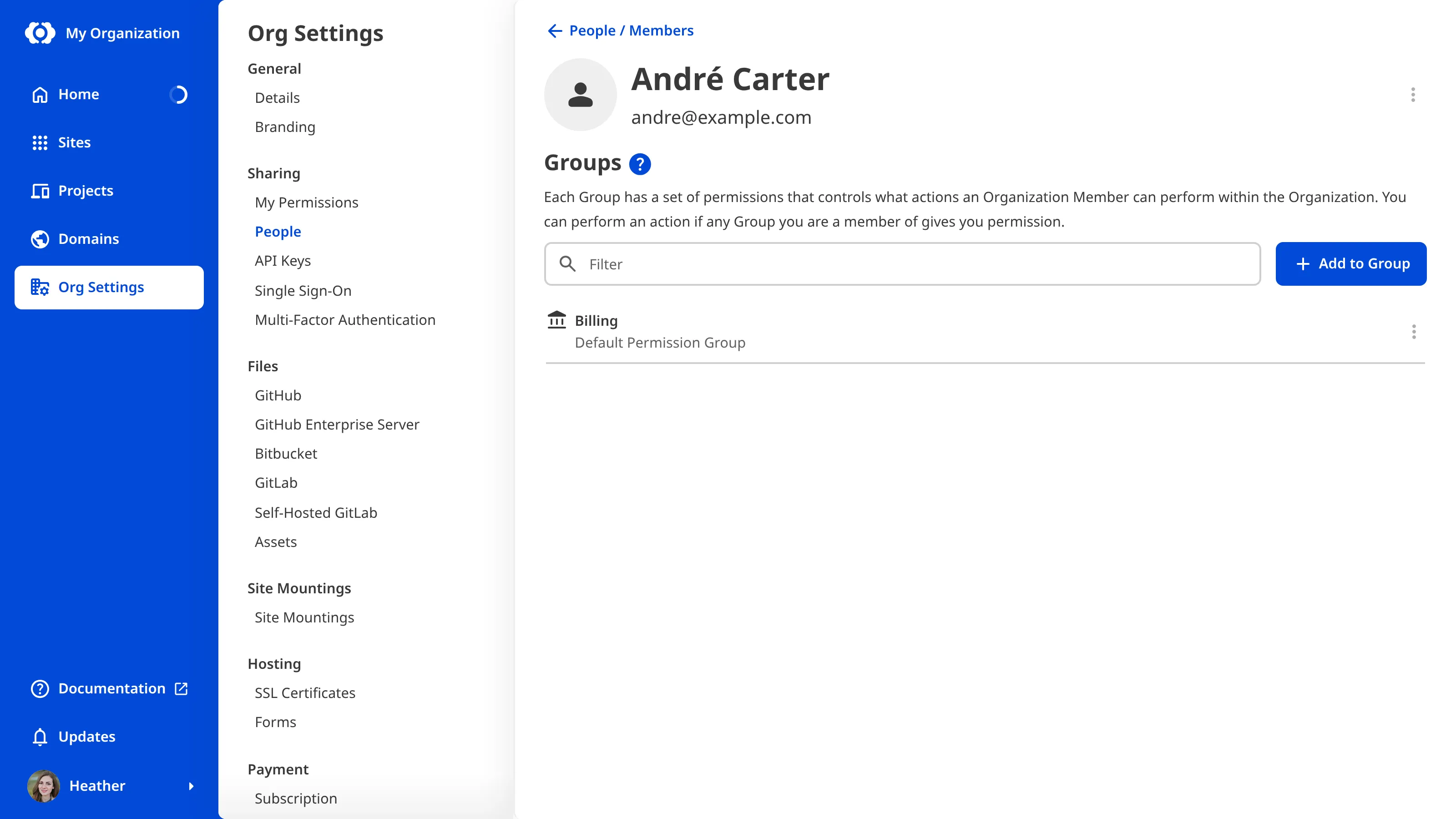
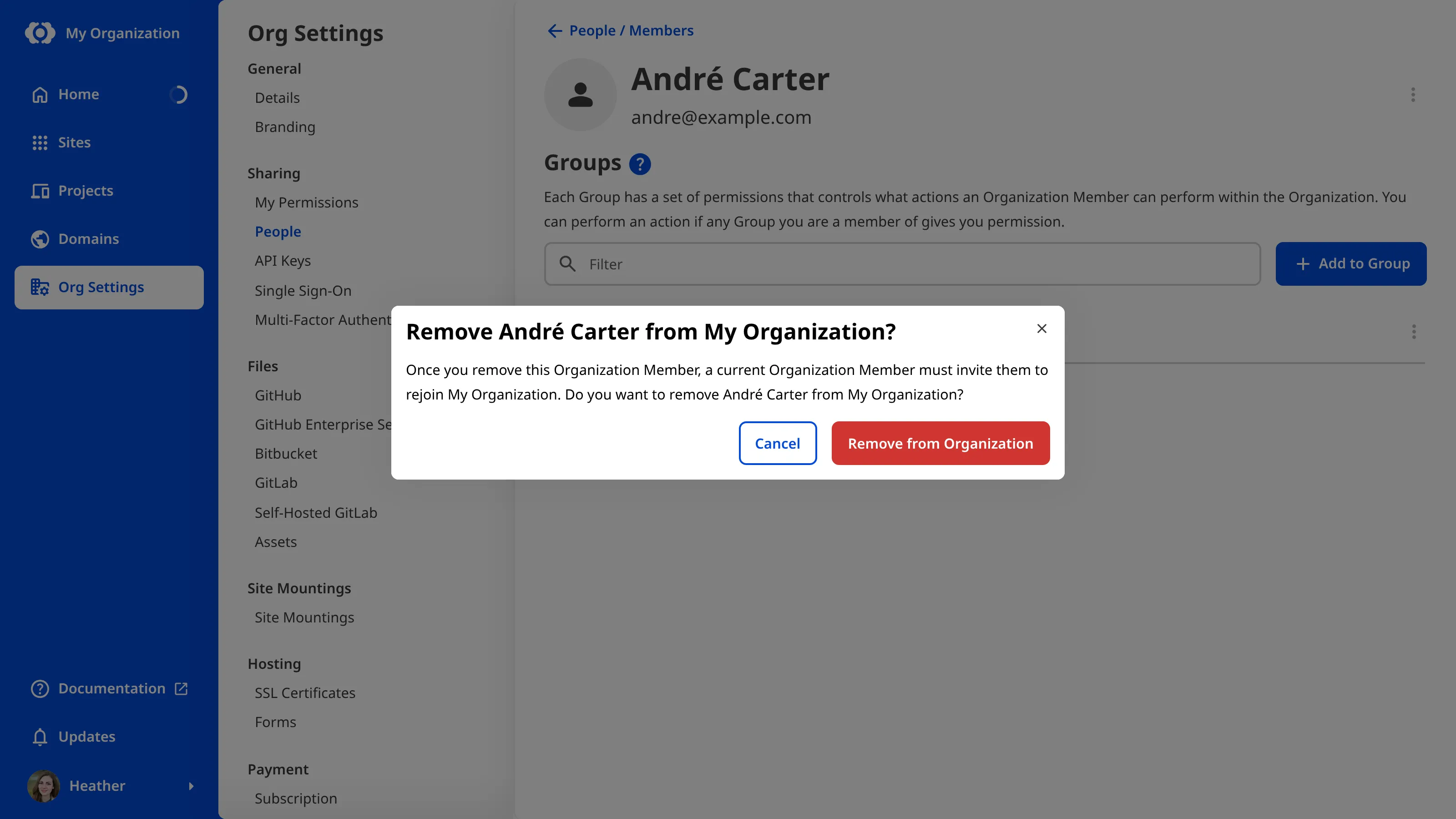
Alternatively, you can remove an Organization Member from the People page by clicking the Context Menu in the top right of a member card and selecting Remove from Organization.
Your Subscription Plan A set of features available to your Organization, the monthly usage limits for resources, and the price you pay for access to those features and resources, monthly or annually. Each Organization in CloudCannon can have one Subscription Plan, and can update or cancel at any time.Subscription Plan
You can remove multiple people from your Organization at once by deleting a Permission Group. This only works if:
- You have Custom Permission Groups, AND
- All the Organization Members you want to remove from your Organization are only members of a single Permission Group.
For more information, please read our documentation on what Custom Permission Groups are.
To check that a removal worked, you can export an Access Review and look for the person's email address. For more information, please read our documentation on exporting your Access Review.