CloudCannon doesn't have a single "transfer ownership" button. Instead, you transfer ownership by adding the new person to the Owners Permission Group One of CloudCannon's Default Permission Groups. Owners have complete control over everything in your Organization, including managing billing settings, deleting Organizations, and creating Custom Permission Groups.Owners
The new Owner must already be a member of your Organization A workspace in CloudCannon that groups together Sites, Organization Members, and shared resources. It is also the unit CloudCannon bills for. You can define permissions for your Organization, controlling the access each Organization Member has to resources on CloudCannon. You can create and be a part of multiple Organizations.Organization
To make someone an Owner from their Member page:
- Navigate to the People page under Org Settings.
- Select the person you want to make an Owner to open their Member page.
- Click the Add to Group button. CloudCannon will open the Add to Groups modal.
- Select the Owners group, then click Add to Group button.
CloudCannon will add that Organization Member to the Owners Permission Group.
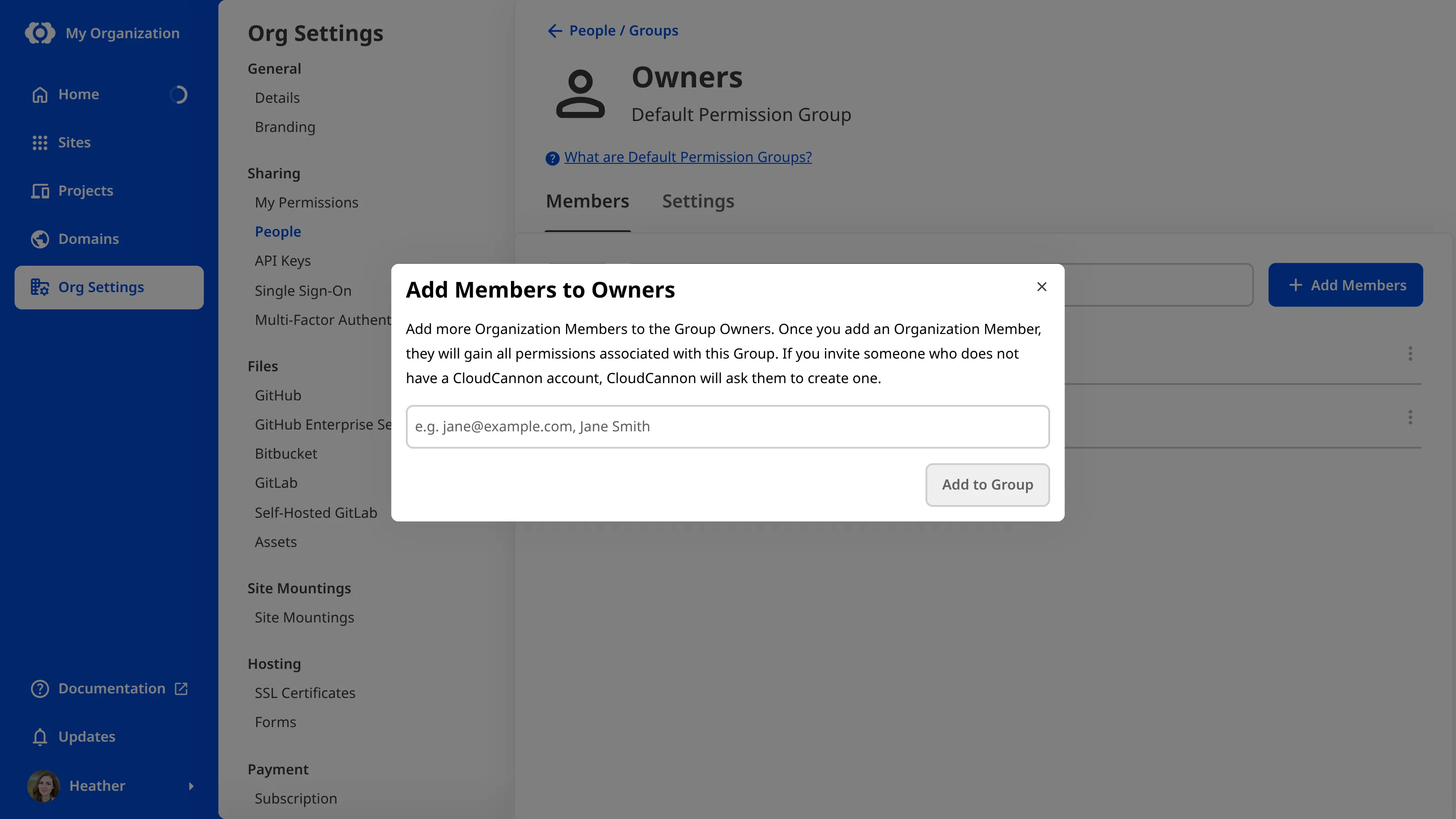
To add one or more people from the Owners Group page instead:
- Navigate to the People page under Org Settings.
- Open the Groups tab.
- Select the Owners group.
- Click Add members.
- Select the people you want to make Owners, then click Add to Group.
CloudCannon will add tose Organization Members to the Owners Permission Group.
Anyone you add to the Owners group now has full control of the Organization.
An Organization must always have at least one Owner. While you're the only Owner, CloudCannon won't let you give up ownership or leave the Organization, so you must add another Owner first. After that, stepping down is still hard to reverse: to regain access, the new Owner would need to invite you back. If you're locked out, please read our documentation on recovering access to your Organization.
Once the new Owner is in place, you can step down in one of two ways:
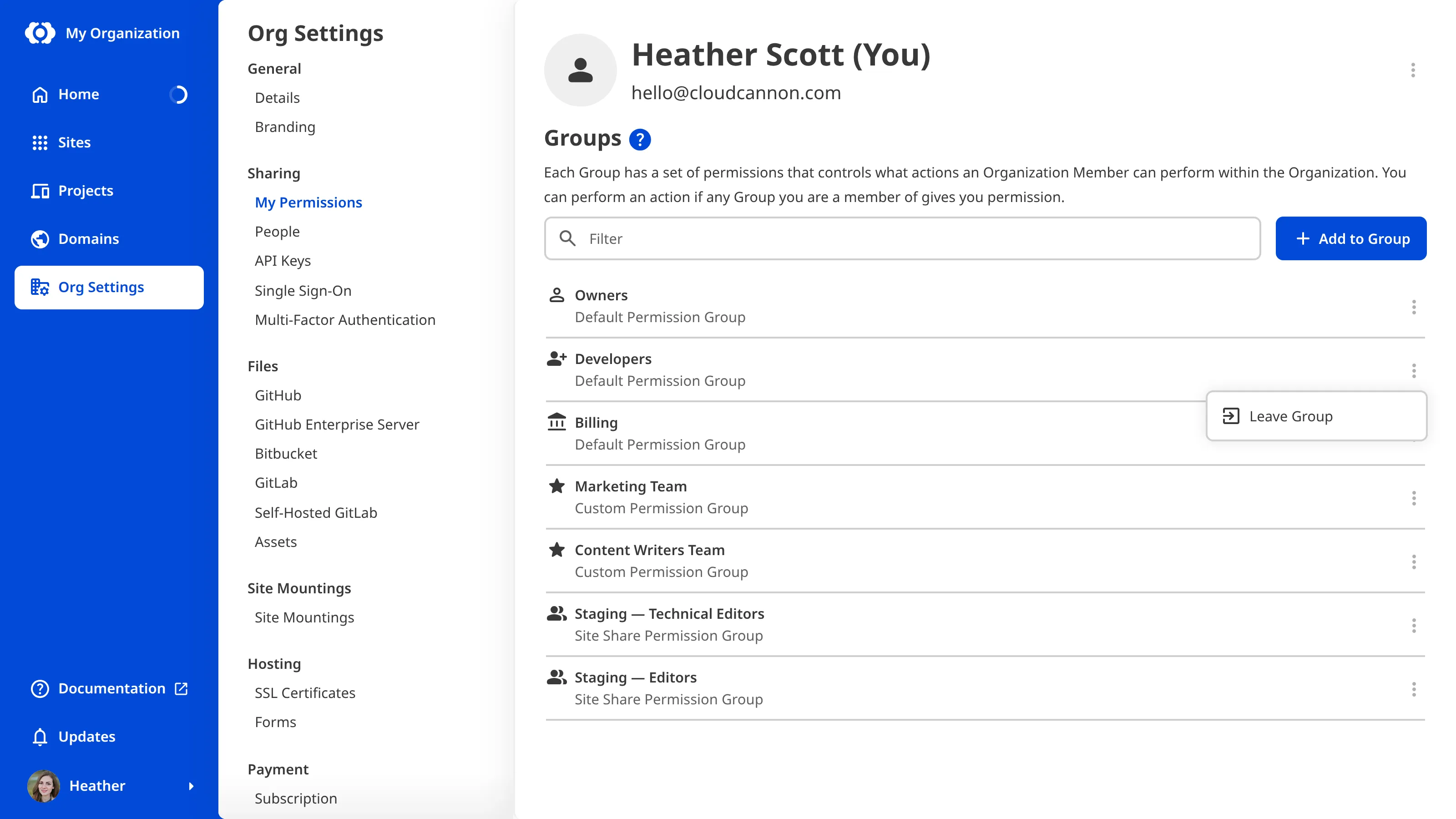
- To give up Owner access but stay in the Organization, remove yourself from the Owners Permission Group. On the My Permissions page under Org Settings, find the Owners group in the Groups section and click Leave Group. You keep any other Permission Groups you belong to.
- To leave the Organization entirely, open the My Permissions page under Org Settings and click Leave Organization.
You don't have to step down at all. To share ownership, stay in the Owners group alongside the new Owner, so the Organization has more than one Owner.