Site branching from within a Project is available on our Team or Enterprise plan. On our Standard plan, your developer can set up additional Sites on different branches manually.
Want to chat about whether this feature is right for you? Our support team is always happy to hear from you.
Branching is the process of copying information (e.g., content, code, and CloudCannon settings) from an existing Site A website in CloudCannon that includes all the files, content, configuration, and settings needed to edit, build, and host a complete website.Site
What is a Main Branch?#
The Main Branch is the branch in your Git Repository A storage location for the code and files that make up your website. CloudCannon supports the repository providers GitHub, GitLab, and Bitbucket, and highly recommends using a repository to store your website's files for better version control and collaboration.Git Repository
If your developer has turned on Allow all branching, you can also branch from any other Site in your Project. This means you can start your work from a Site with unreleased changes on it, such as an Organization Member's in-progress branched Site.
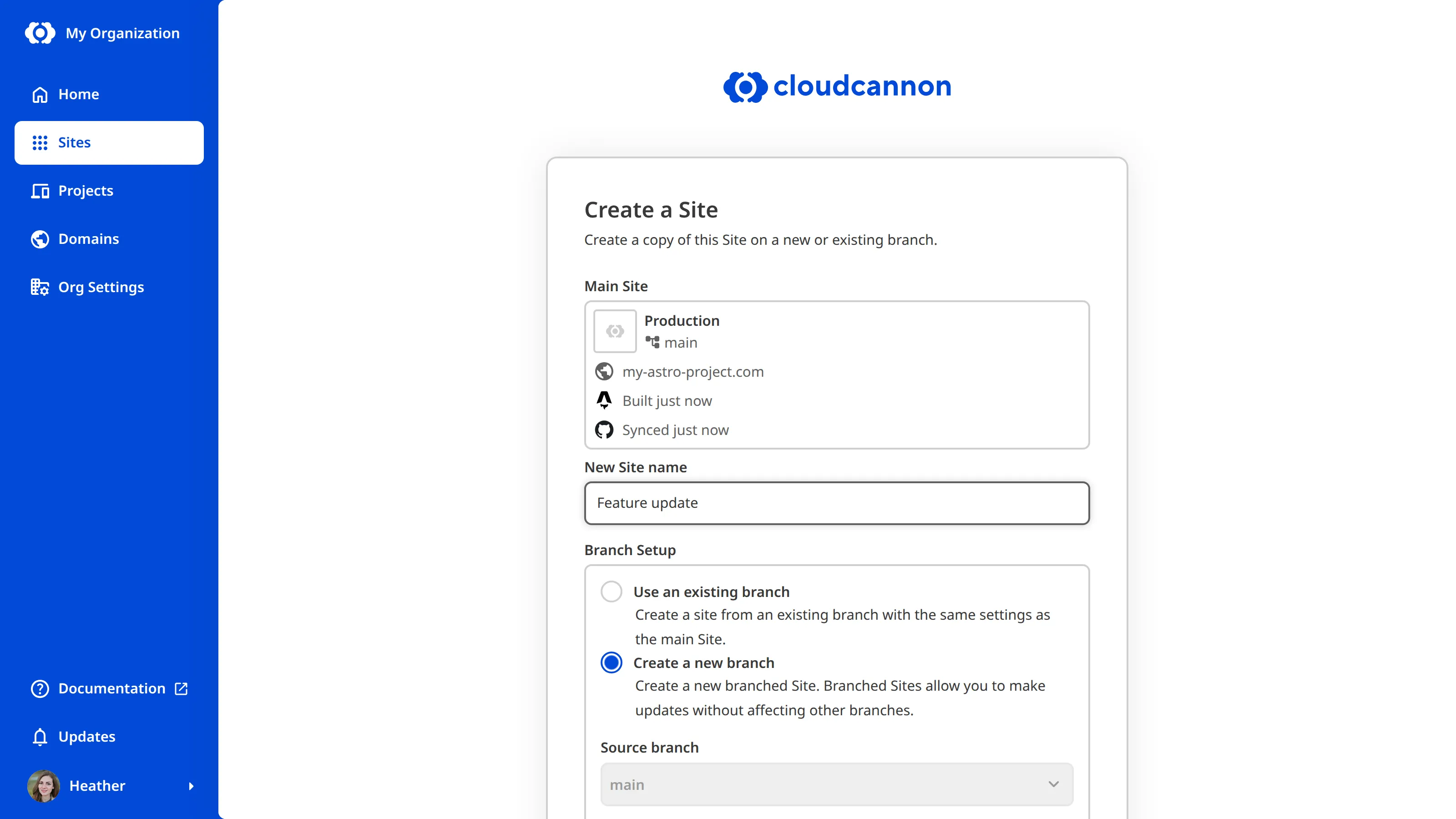
You can see the name of your Project's Main Branch in the Source branch field when you create a new branched Site. For more information, please read our documentation on creating a branched Site.
What happens when you branch a Site#
A branched Site starts as an exact copy of the Site it was branched from, stored in the Git Repository managed by your developer, alongside the source Site. CloudCannon handles communicating with the repository for you; you don't need access to your Git Provider A web-based service that hosts Git Repositories. CloudCannon supports GitHub, GitLab, and Bitbucket as Git Providers for syncing your website's code and content files.Git Provider
You can create a copy of your website at any time, without help from your developer, by branching a Site in your Project. Any changes you make on the branched Site stay separate from any other Site until you are ready to publish them. As you work, only the parts you and your Organization Members have intentionally changed will diverge from the source Site. You can view your changes on the branched Site's dedicated Testing Domain and, when you are ready, publish them back to the branched Site's Publish Branch The branch containing the copy of your website to which you want to publish your changes (sometimes called the "upstream" branch). Defining a Publish Branch allows Organization Members to work on separate branches in parallel before publishing their changes to a shared branch.Publish Branch
Who can branch?#
Once a developer has set up the Publishing Workflow for your Project, anyone in Default Permission Groups (except Billing) can create a branched Site from the Project Sites Browser. However, if your Organization uses Custom Permission Groups, you will need permission to branch. For more information, please read our documentation on creating a branched Site.
An example of branching#
graph TD
  P["Site 1:<br/>Production"] -->|Branched to| S["Site 2:<br/>Staging"]
  S -->|Branched to| A["Site 3:<br/>Write a new blog"]
  S -->|Branched to| B["Site 4:<br/>Remove a product page"]
  S -->|Branched to| C["Site 5:<br/>Update Site navigation"]
In the diagram above, there are five Sites. "Production" is the live version of your website; the other four are branched Sites.
"Staging" is a branched copy of "Production". The three Sites below — "Write a new blog", "Remove a product page", and "Update Site navigation" — are each branched from "Staging". Different Organization Members can work on each one independently without affecting the others or the live website.
For more information, please read our documentation on creating a branched Site.