Every Project A way to group multiple Sites from the same Git Repository, allowing you to define a main branch, as well as branching and publishing rules. You can access the Projects Browser using the Projects link in the App Sidebar.Project
The Publishing tab#
The Publishing tab shows a graph of how the Sites A website in CloudCannon that includes all the files, content, configuration, and settings needed to edit, build, and host a complete website. The repeated block CloudCannon uses to represent one item in a list, browser, or input, typically showing a preview image, title, subtitle, icon, and key metadata. Cards represent files and folders in the Collection Browser and File Browser, as well as Sites, Organizations, Organization Members, domains, health checks, and items inside Array and Object Inputs. You can configure how Cards look for your files, making it easier to browse and identify content at a glance. The branch containing the copy of your website to which you want to publish your changes (sometimes called the "upstream" branch). Defining a Publish Branch allows Organization Members to work on separate branches in parallel before publishing their changes to a shared branch.Site
Card
Publish Branch
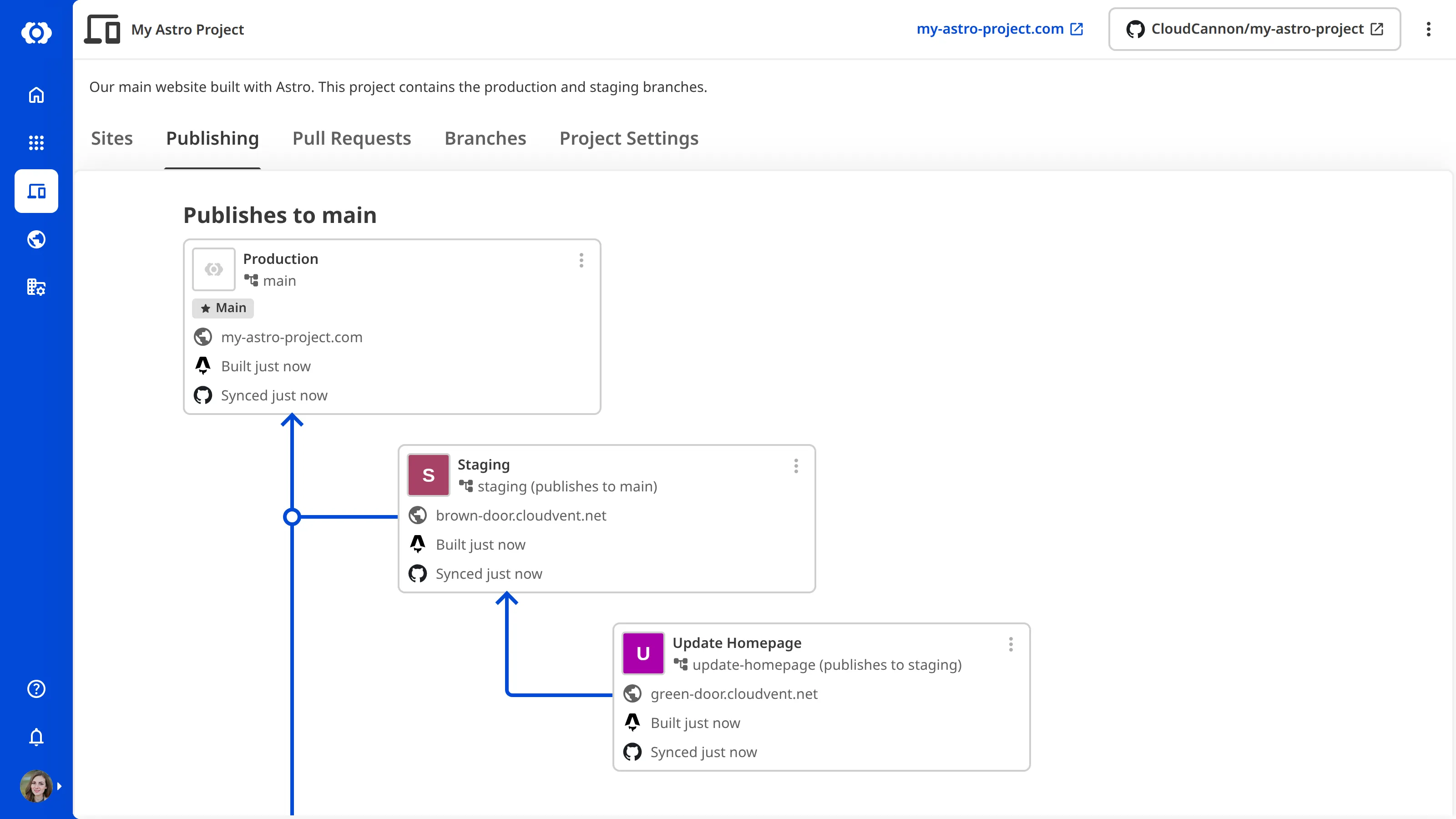
This tab illustrates where content moves to after you publish it, whether you have a single Site publishing to your Main Branch The branch in your Git Repository that represents your live or production content within a Project. The Main Branch determines where new branch Sites are created from and where changes are published to by default.Main Branch
Clicking a Card opens that Site in CloudCannon. Clicking the Context Menu A menu that appears when you click the six-dot icon in the top right of a File Card or three-dot icon in the top right of an Editing Interface. This menu provides quick access to file actions and options such as previewing a file live on your website, cloning or renaming a file, and more.Context Menu
- Live site preview — opens the Site's Testing Domainin a new browser tab.Glossary term
Testing Domain
A free .cloudvent.net URL that CloudCannon assigns to every Site for reviewing your live website content after a successful Site build. Each Testing Domain uses a randomly generated adjective and noun separated by a hyphen. By default, CloudCannon automatically de-indexes Testing Domains so that they do not appear in search engines.
- Branch site — opens the Create a Site page so you can start a new branched Site from this Site. This action only appears when Allow all branching is turned on for your Project.
- Begin publish — opens the Publishing page for this Site, where you can review and publish changes. This action only appears when the Site has a connected Publish Branch.
For more information, please read our documentation on what publishing is and what Publishing Methods are.
The Pull Requests tab#
The Pull Requests tab is available on our Team or Enterprise plan.
Want to chat about whether this feature is right for you? Our support team is always happy to hear from you.
The Pull Requests tab lists open and draft Pull Requests A Git feature that proposes changes to a repository and allows for review before merging. In CloudCannon, Pull Requests are one method of publishing changes from a Site to its Publish Branch. Unlike direct merging, Pull Requests require approval before changes are combined. A storage location for the code and files that make up your website. CloudCannon supports the repository providers GitHub, GitLab, and Bitbucket, and highly recommends using a repository to store your website's files for better version control and collaboration.Pull Request
Git Repository
To see the Pull Requests tab, an Organization Member needs the project:pull-requests:read permission on the Project. Organization Members without the permission will not see the tab even when it is turned on. If you cannot see the Pull Requests tab in a Project where it should be visible, ask your administrator to check your permissions.
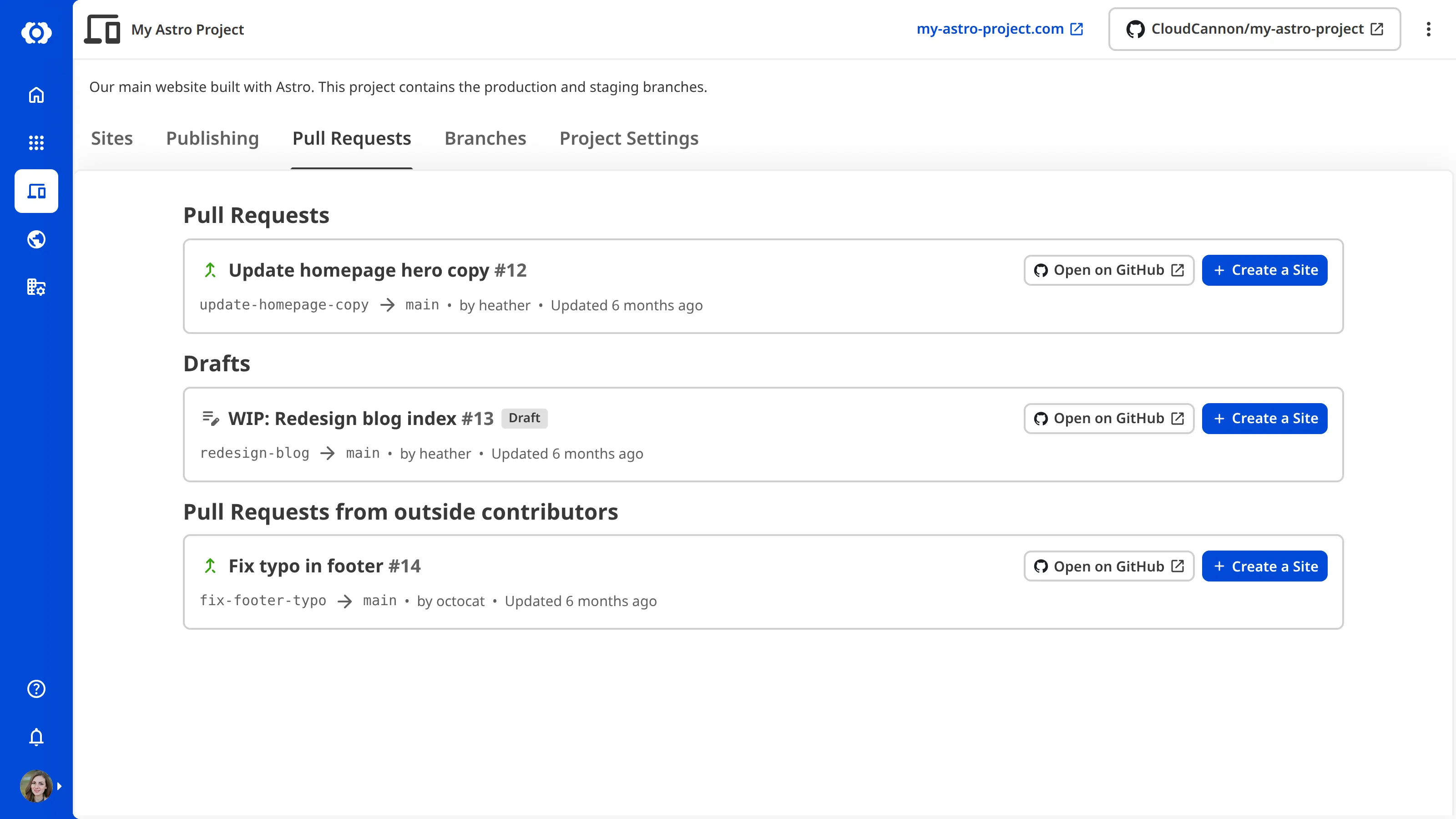
Each Pull Request appears as its own Card, showing its title, number, state icon, head branch, base branch, author, and the time it was last updated. Draft Pull Requests are marked with a Draft tag. Each Card has two buttons:
- Open on [Git Provider] — opens the Pull Request in your Git Provider in a new browser tab.
- Create a Site — opens the Create a Site page so you can connect the Pull Request's head branch as a new Site in your Project.
If a Site is already connected to the Pull Request's head branch, it appears inside the Pull Request Card, showing its name, Testing Domain, and build and sync status.
Pull Requests from outside contributors
The Pull Requests tab groups Pull Requests opened by contributors outside your Git Provider A web-based service that hosts Git Repositories. CloudCannon supports GitHub, GitLab, and Bitbucket as Git Providers for syncing your website's code and content files.Git Provider
If you have Deploy Previews enabled for your Project, CloudCannon can automatically create Sites whenever someone opens a Pull Request in the connected Git Repository. However, CloudCannon does not automatically create Sites for Pull Requests from outside contributors. For more information, please read our documentation on using Deploy Previews to trigger Site creation and deletion.
The Branches tab#
The Branches tab lists every branch in the Git Repository connected to your Project, grouped into four sections: your Main Branch, Connected Branches (branches that have a Site connected), Orphaned Branches (branches that have a Site connected but no longer exist in the Git Repository), and Other Branches (branches without a connected Site).
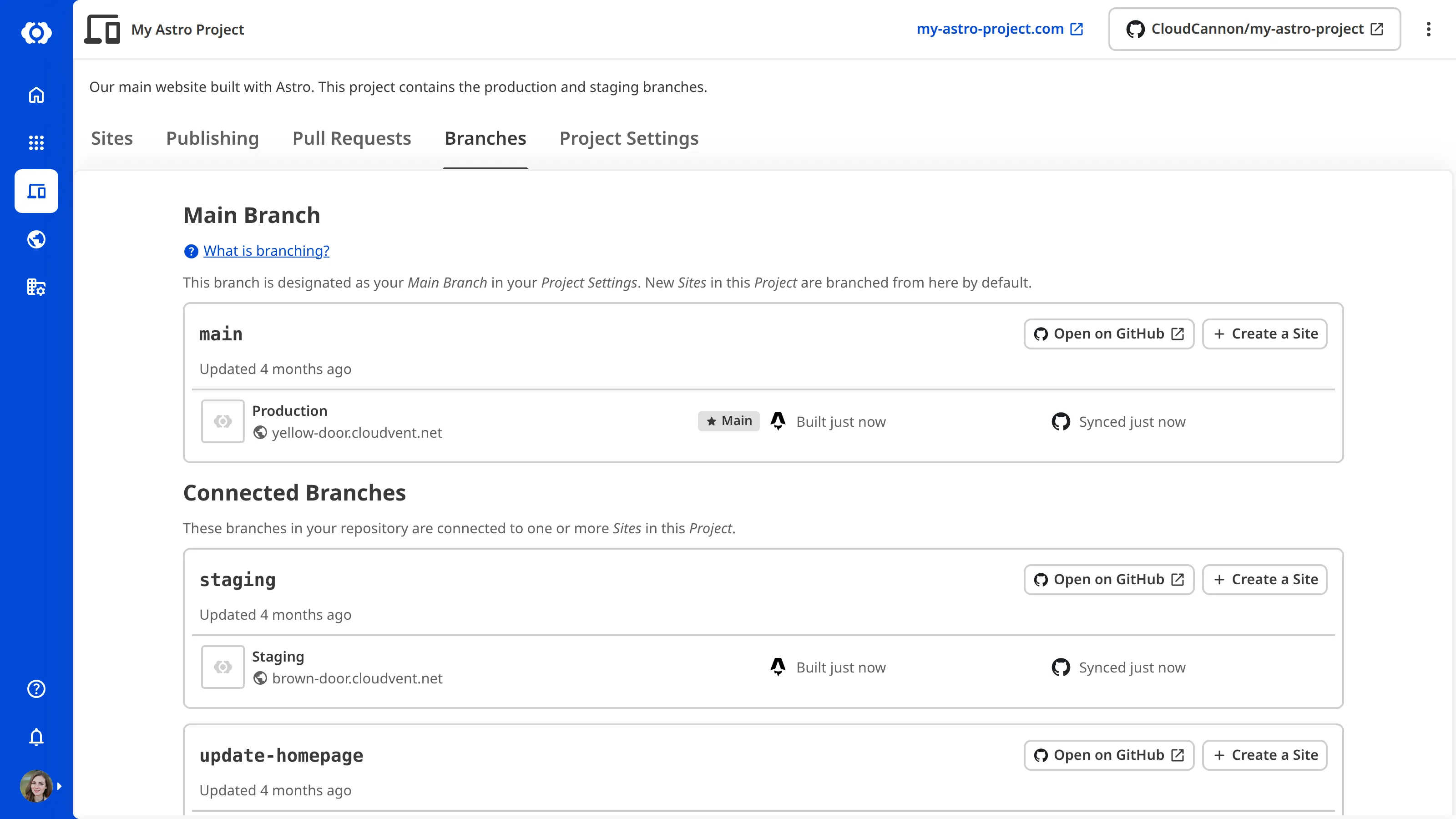
This tab gives you a single place to see what is in your Project's Git Repository alongside what your team has built in CloudCannon.
Each branch appears as its own Card, showing the branch name and the time it was last updated. If a Pull Request is open against the branch, the Card also shows a link to that Pull Request on your Git Provider. Each Card has two buttons:
- Open on [Git Provider] — opens the branch in your Git Provider in a new browser tab.
- Create a Site — opens the Create a Site page so you can connect this branch as a new Site in your Project.
If the branch already has Sites connected to it, those Sites appear inside the branch Card, each showing its name, Testing Domain, and build and sync status.
The Orphaned Branches section lists branches that Sites in your Project are connected to but which no longer exist in the Git Repository — for example, if someone deleted or renamed the branch in your Git Provider. Reconnect each Site in this section to an existing branch, or delete the Site.