To collaborate with someone in CloudCannon, invite them to your Organization A workspace in CloudCannon that groups together Sites, Organization Members, and shared resources. It is also the unit CloudCannon bills for. You can define permissions for your Organization, controlling the access each Organization Member has to resources on CloudCannon. You can create and be a part of multiple Organizations. A person who belongs to the same Organization as you. Organization Members are other CloudCannon users who have been invited to your Organization to collaborate on Sites, edit content, or manage settings. Each Organization Member has their own CloudCannon account with individual permissions assigned through Permission Groups, and uses one Seat in your Subscription Plan. Organization Members were previously called Team Members.Organization
Organization Member
To add an Organization Member to your Organization:
- Navigate to the People page under Org Settings.
- Under the Members tab, click the Add members button on the right. CloudCannon will open the Invite Organization Members to your Organization modal.
- Enter the email address of the person you want to add to your Organization.
- Select the Permission Group(s) to which you want to add this Organization Member. You must select at least one.
- Click the Add member(s) button.
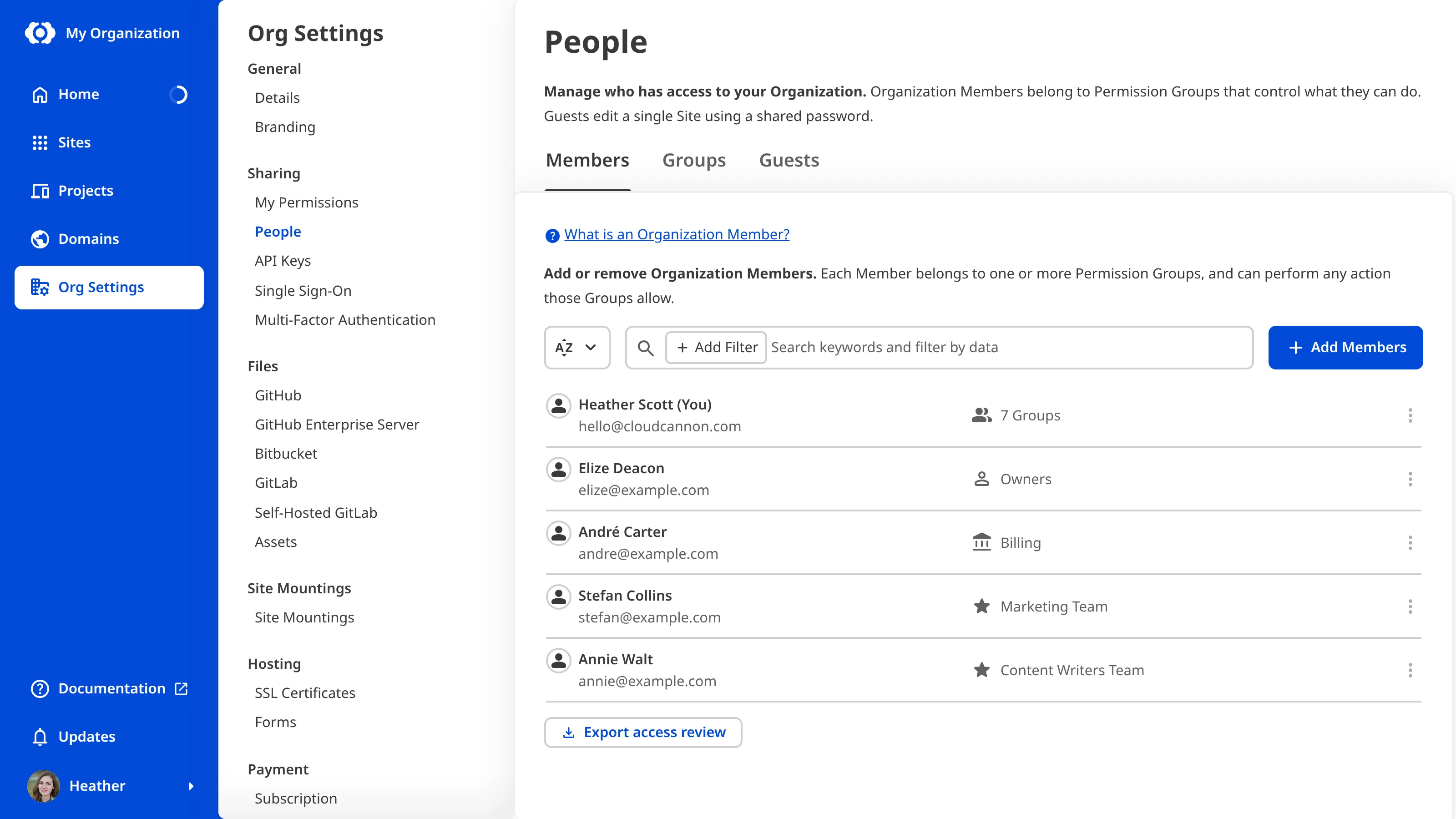
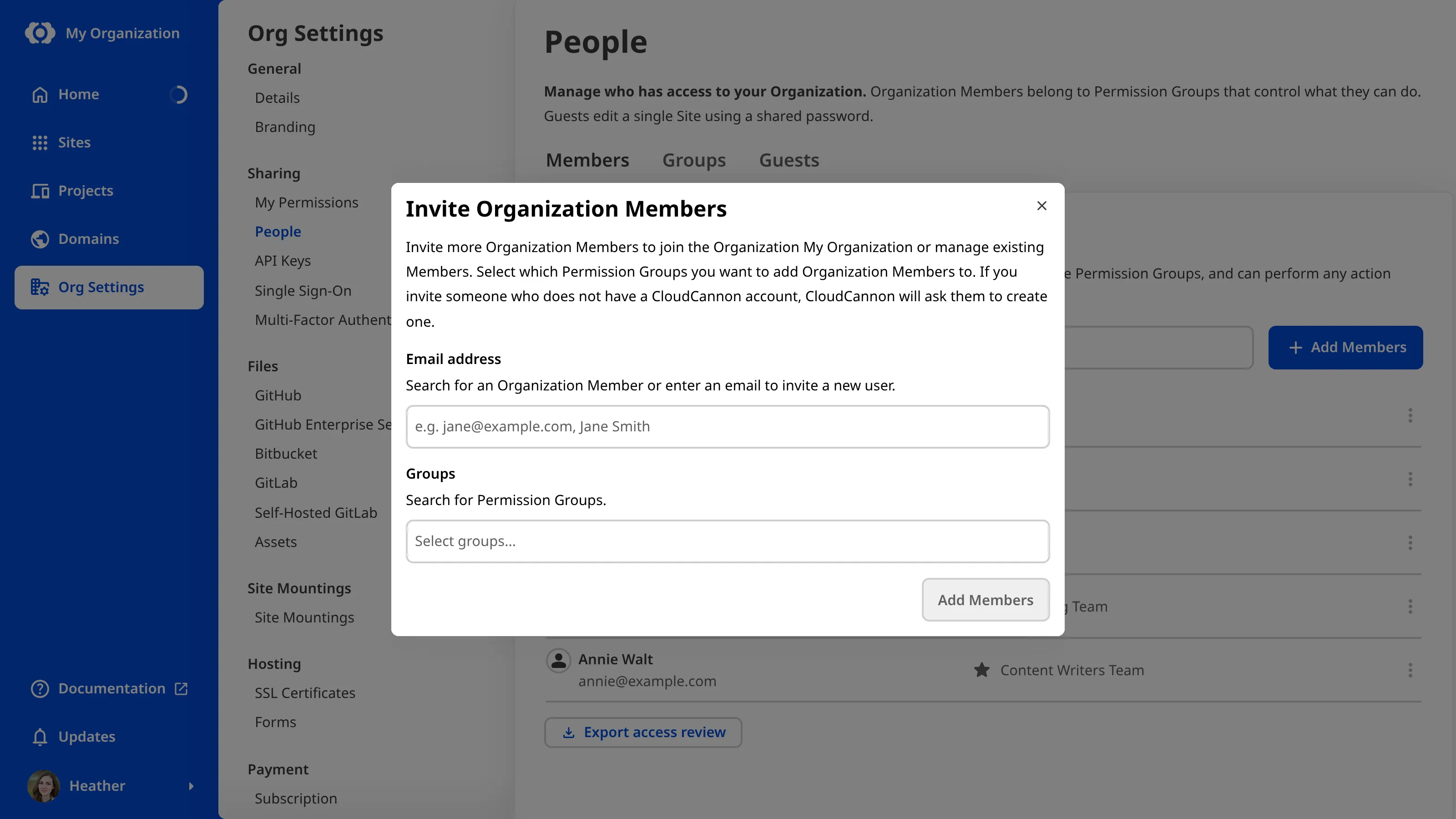
CloudCannon will send an email to your pending Organization Members, inviting them to your Organization. If someone does not have a CloudCannon account, this email will prompt them to create one. While you wait for them to accept the invitation, their name will appear in the list of Pending Members under the Members tab of the People page.
Adding a new Organization Member may cause your Organization to exceed the number of Organization Members included in your Subscription Plan. If adding an Organization Member takes your Organization over that number, CloudCannon shows a Confirm Billing Change modal before the invite goes out.
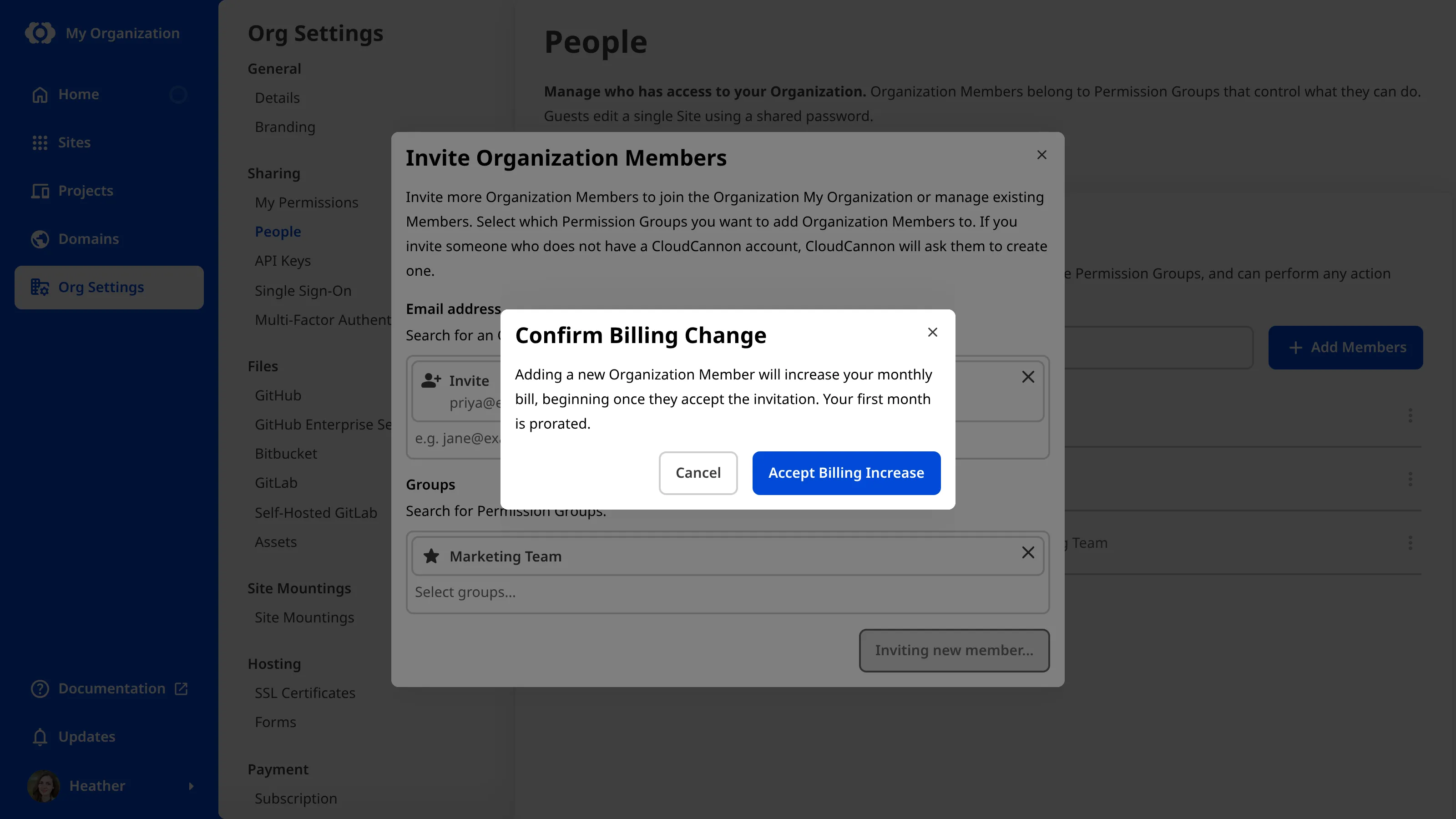
Accepting that modal adds a seat to your Subscription Plan. Your bill increases once the new Organization Member accepts their invite, with the first month prorated. Guest Access invites count as a user in the same way. Anyone who can add Organization Members can accept this change, so it does not require separate billing permissions.
If you need to re-send or cancel an invitation to a pending member, select the Re-send invitation or Cancel invitation options from the Context Menu at the top right of the member card.
You can paste a list of email addresses into the Invite Organization Members to your Organization modal to quickly add multiple members to your Organization. When you enter multiple Organization Members and multiple Permission Groups, CloudCannon will add all members to all Groups.
If your Organization is a Client Organization on an extended Free Trial through the CloudCannon Partner Program, adding an Organization Member shortens that Free Trial to five days once they accept.