You can transfer a Site A website in CloudCannon that includes all the files, content, configuration, and settings needed to edit, build, and host a complete website. A workspace in CloudCannon that groups together Sites, Organization Members, and shared resources. It is also the unit CloudCannon bills for. You can define permissions for your Organization, controlling the access each Organization Member has to resources on CloudCannon. You can create and be a part of multiple Organizations. A unique address used to identify a website, such as cloudcannon.com. You can purchase a domain from a Domain Registrar and add it as a Custom Domain to your CloudCannon Organization before connecting it to any number of Sites hosted on CloudCannon. The page on your Site where CloudCannon collects and displays form submissions, allowing you to view, manage, and export form data submitted by website visitors. You can access each Inbox from the Inboxes link in your Site Navigation. Each Inbox is limited to 2250 submissions per month, however you can have multiple Inboxes on your Site. An abbreviation of Digital Asset Management, a DAM is a system for organizing, storing, and retrieving digital assets like images, videos, and documents. A CloudCannon feature that makes one Site dependent on one or more other Sites. Files from a remote Site will be accessible to the local Site at build time, and any updates to the remote Site will trigger a build of the local Site. Site Mounting is an alternative to relying on Git submodules, build hooks, or custom APIs to manage your site dependencies. A group that defines what permissions Organization Members have in CloudCannon. Permission Groups allow you to make Resources available to your Organization Members and define what actions are allowed (Read, Write, or Create) for each resource. CloudCannon provides several Default Permission Groups (including Owners, Developers, Technical Editors, Editors, and Billing) and you can create Custom Permission Groups for more granular control.Site
Organization
Custom Domain
Inbox
DAM
Site Mounting
Permission Group
You can only transfer a Site to an Organization you already belong to.
Transferring happens in two steps: you send a transfer request from the Site, and someone in the receiving Organization accepts it.
Send a transfer request#
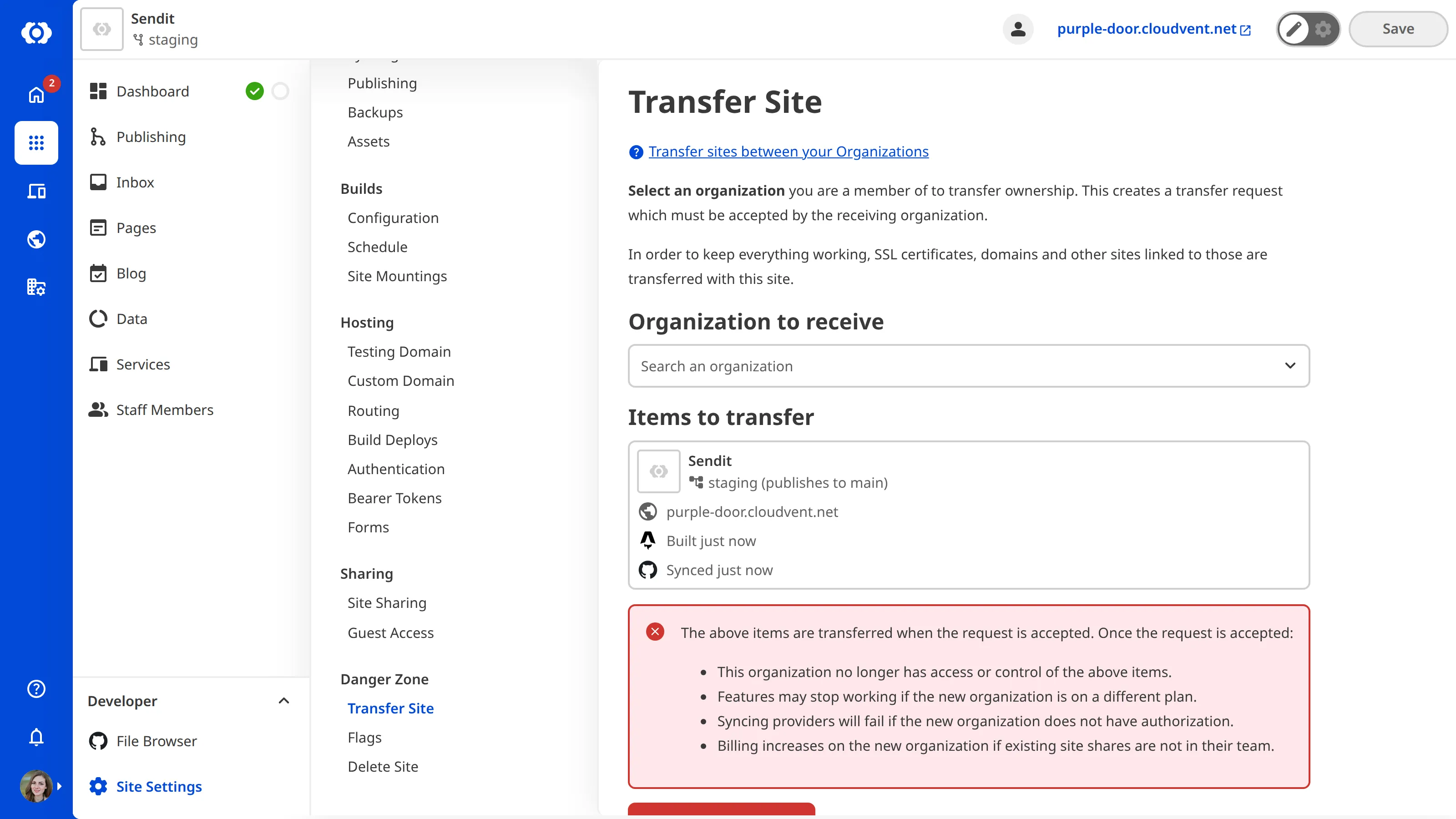
To send a transfer request:
- Navigate to the Transfer Site page under Site Settings.
- Select the Organization you want to transfer the Site to.
- Click Send Transfer Request.
- Confirm the transfer request.
CloudCannon will send the request to the receiving Organization. The transfer completes once someone there accepts it.
Accept a transfer request#
Accepting a transfer moves billing for the Site to your Organization, and it can require a plan change before you can accept:
- Your Organization starts paying for the transferred Site and its resources, so your bill may go up.
- If the Site brings more Custom Domains than your Subscription Plan includes, you must confirm the extra cost and add a payment method first.
- If the Site uses a DAM your Subscription Plan doesn't include, you must upgrade first.
- If your Organization is a Client Organizationon its extended six-month Free TrialGlossary term
Client Organization
A separate Organization that a Partner Organization manages but that the client uses and pays for. Client Organizations are part of the CloudCannon Partner Program and give each client their own team, billing, and login. Unlike Guest Access, which shares a single Site with someone who doesn't have a CloudCannon account, a Client Organization is a full, independent Organization.
, accepting a transfer that brings a Custom Domain, a Site with Guest Access turned on, or a new Site Sharing member shortens the trial so that it ends five days later.Glossary termFree Trial
A trial period that gives a new Organization access to Standard Plan features without requiring a payment method.
Adding a payment method or upgrading your Subscription Plan needs billing access, so you may need a member of the Owners, Billing, or Partner Permission Group to make these changes first.
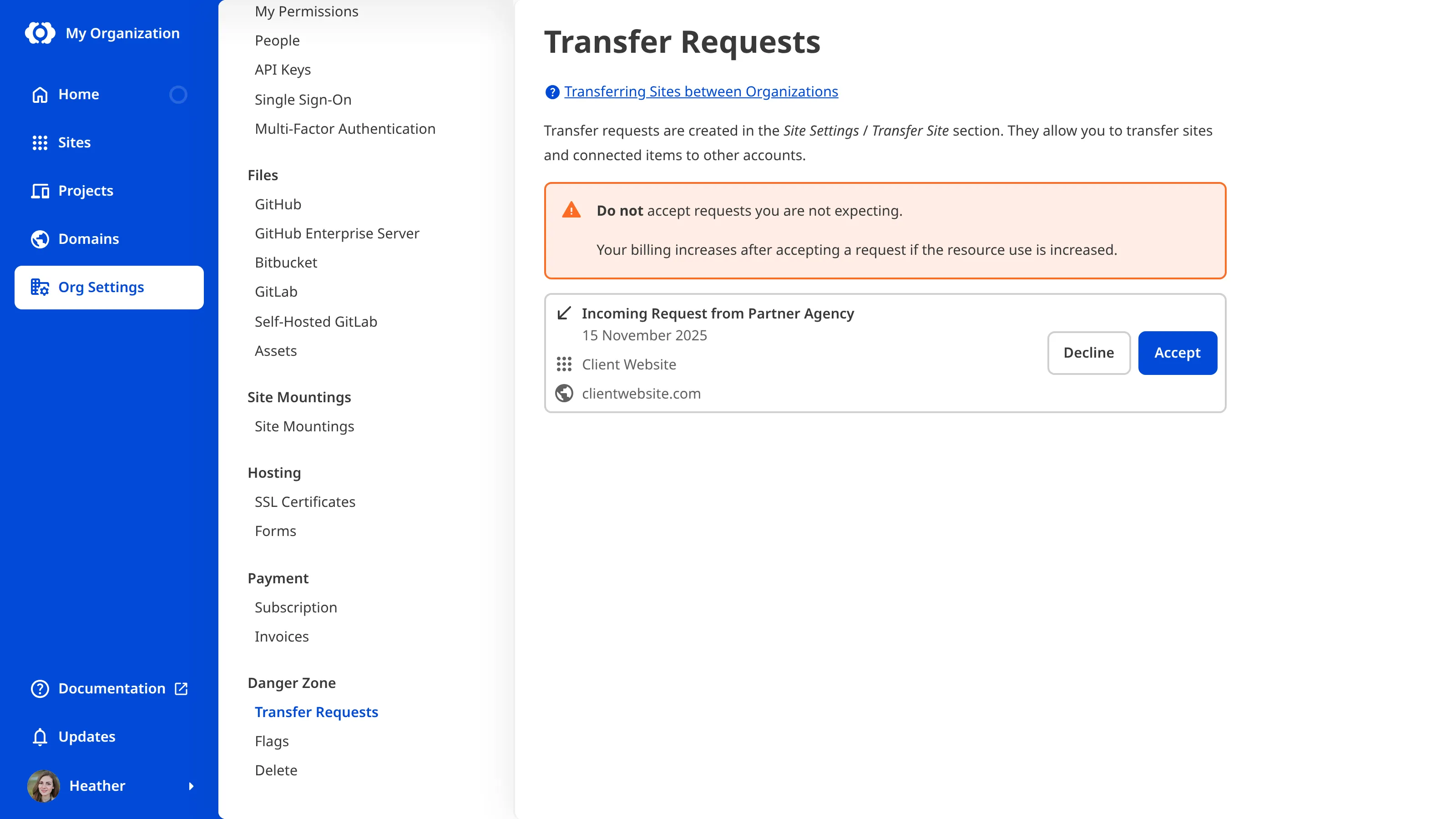
To accept a Site into your Organization:
- Navigate to the Transfer Requests page under Org Settings.
- Find the incoming request.
- Click Accept.
- If accepting the transfer increases your bill, CloudCannon asks you to confirm the billing change. Confirm it to continue.
CloudCannon will move the Site and its resources into your Organization.
Once the receiving Organization accepts a transfer, you can't undo it. To move the Site back, someone in that Organization has to transfer it to you.
Decline a transfer request#
If you don't want to accept an incoming request, you can decline it. To decline a transfer request:
- Navigate to the Transfer Requests page under Org Settings.
- Find the incoming request.
- Click Decline.
- Confirm you want to decline the request.
CloudCannon will decline the request, and the Site stays in the sending Organization.
Cancel a transfer request#
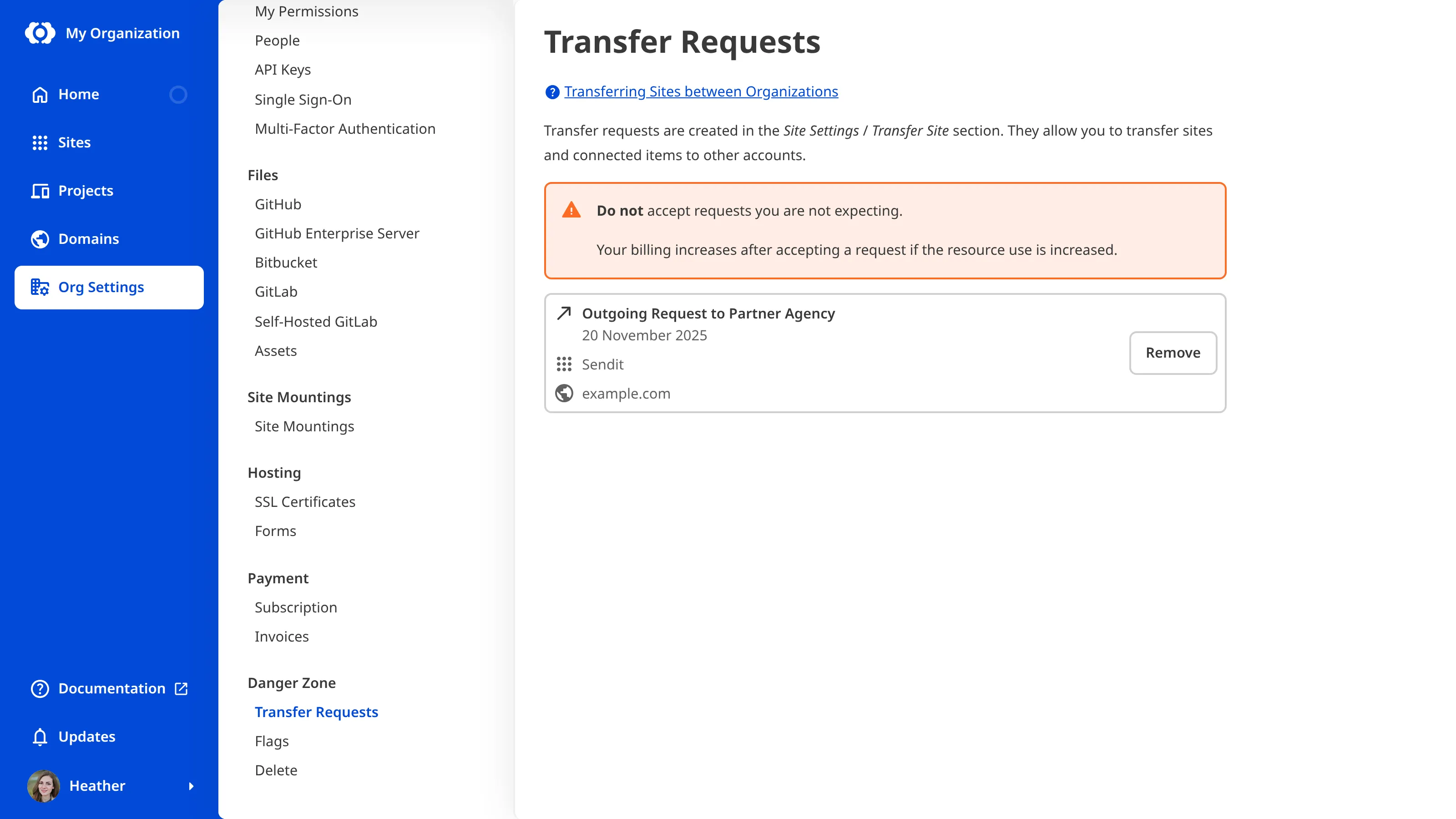
You can cancel a request you sent, but only before the receiving Organization accepts it. To cancel a transfer request:
- Navigate to the Transfer Requests page under Org Settings.
- Find the outgoing request.
- Click Remove.
CloudCannon will withdraw the request.