An Access Review A CSV file listing everyone with access to your Organization, including how each Organization Member signs in and when they were last active. Members of the Owners Permission Group, or the Partner Permission Group in a Client Organization, can export one from the Members tab on the People page under Org Settings. An abbreviation of Comma-Separated Values, CSV is a file format used to store tabular data in plain text. CloudCannon supports the CSV format for configuration and data files. A workspace in CloudCannon that groups together Sites, Organization Members, and shared resources. It is also the unit CloudCannon bills for. You can define permissions for your Organization, controlling the access each Organization Member has to resources on CloudCannon. You can create and be a part of multiple Organizations. One of CloudCannon's Default Permission Groups. Owners have complete control over everything in your Organization, including managing billing settings, deleting Organizations, and creating Custom Permission Groups.Access Review
CSV
Organization
Owners
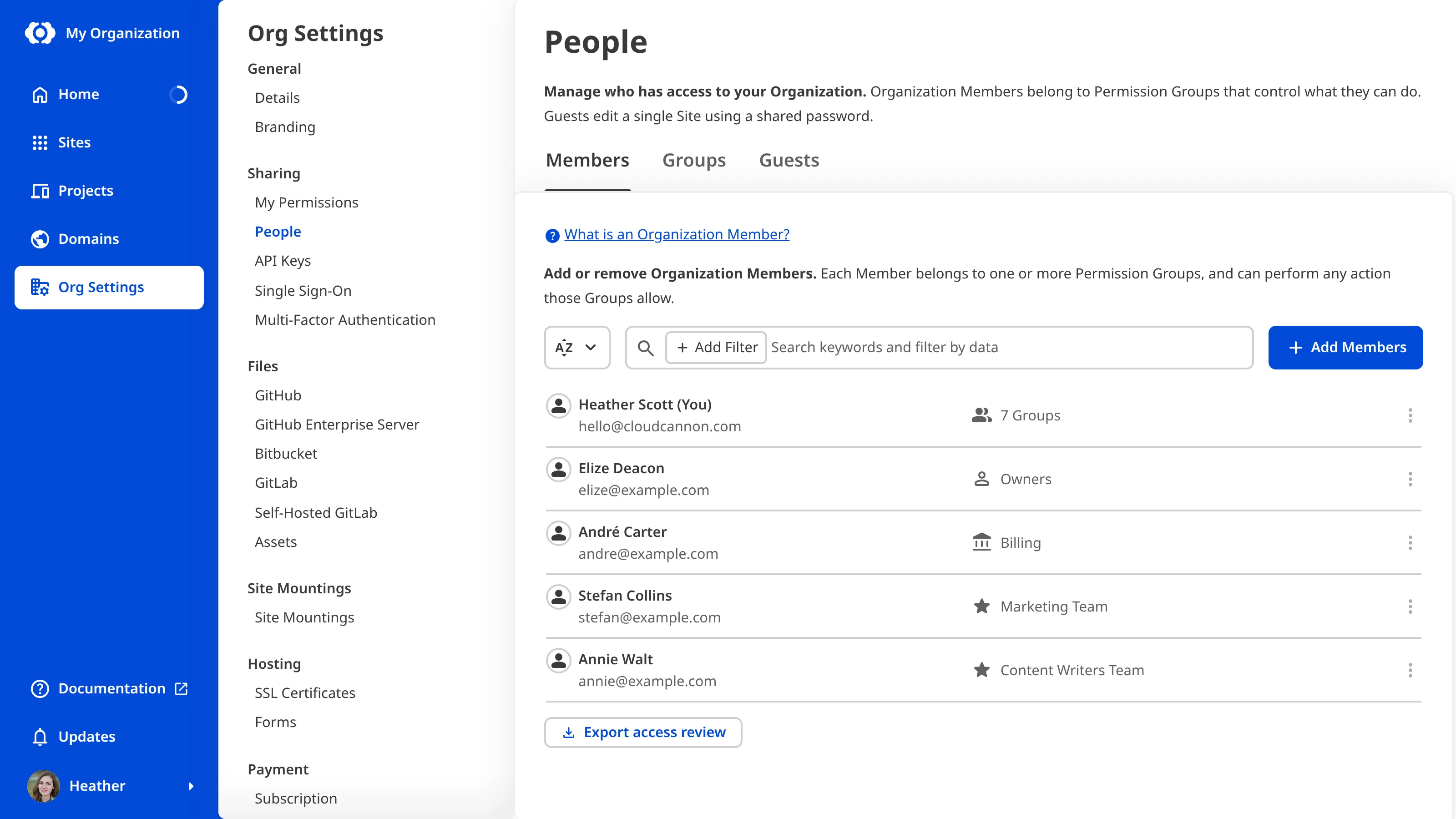
What the Access Review covers#
An Access Review covers everyone with a Permission Group A group that defines what permissions Organization Members have in CloudCannon. Permission Groups allow you to make Resources available to your Organization Members and define what actions are allowed (Read, Write, or Create) for each resource. CloudCannon provides several Default Permission Groups (including Owners, Developers, Technical Editors, Editors, and Billing) and you can create Custom Permission Groups for more granular control. A person who belongs to the same Organization as you. Organization Members are other CloudCannon users who have been invited to your Organization to collaborate on Sites, edit content, or manage settings. Each Organization Member has their own CloudCannon account with individual permissions assigned through Permission Groups, and uses one Seat in your Subscription Plan. Organization Members were previously called Team Members. A CloudCannon feature that allows you to invite an existing Organization Member from within your Organization to view, edit, and publish content for a specific Site. With Site Sharing, you can control what an Organization Member can interact with by limiting access to individual Sites rather than all Sites in your Organization. This is distinct from Guest Access, which is used to invite external clients who don't have CloudCannon accounts. A website in CloudCannon that includes all the files, content, configuration, and settings needed to edit, build, and host a complete website. A CloudCannon feature that allows you to invite someone from outside your Organization to view, edit, and publish content for a specific Site. Unlike Site Sharing, Guests invited through Guest Access do not need a CloudCannon account. Instead, they log in using a Guest Password through a dedicated Guest Login Page. Each Site with Guest Access enabled uses one Seat, regardless of how many Guests use its password. The Guest Access feature was previously called Client Sharing. A credential that lets programs act on behalf of your Organization through the CloudCannon API, such as a program built with the CloudCannon SDK. An API Key is scoped to the permissions you choose when you create it and belongs to a single Organization. CloudCannon shows the key only once, and you manage your keys on the API Keys page in your Organization Settings.Permission Group
Organization Member
Site Sharing
Site
Guest Access
API Key
An Access Review contains one row for each Permission Group membership, not one row for each person. An Organization Member who belongs to five Permission Groups appears on five rows, one per Group, with the same email address each time. Rows for pending Organization Members are listed after current ones, and contain less information.
The email address on the Organization Member's CloudCannon account or, for a pending member, the address you sent the invitation to.
The name on the Organization Member's CloudCannon account. A name is optional, so this is empty for pending members, who have no account yet, and for anyone who has not set one.
Organization for someone with access to your whole Organization, or Site for someone with access to a single Site through Site Sharing.
The numeric ID of the shared Site, the same ID that appears in that Site's CloudCannon URL. Empty on every row where Access Type is Organization.
The name of the shared Site. Empty on every row where Access Type is Organization.
The Permission Group whose membership this row records. For more information, please read our documentation on what Permission Groups are.
When you sent the invitation. Empty on every current member row, where the equivalent date is in the Date Accepted column.
When the person accepted their invitation and joined this Permission Group. Empty on every pending member row, where the invitation date is in the Date Invited column.
An abbreviation of Single Sign-On/Security Assertion Markup Language, SSO/SAML is an authentication method that allows users to access multiple applications with a single set of credentials. CloudCannon supports SSO/SAML for Enterprise Plan customers. With SSO/SAML, rather than logging in to CloudCannon directly, CloudCannon authenticates the user's identity using their Identity Provider software.true when the Organization Member signs in to CloudCannon with SSOSSO/SAML
MFA is a security method that requires users to provide two or more verification factors to access an account. CloudCannon supports MFA to enhance account security beyond just passwords. Organization administrators can enforce multi-factor authentication for all Organization Members.true when the Organization Member has turned on multi-factor authenticationMulti-Factor Authentication
The most recent date CloudCannon recorded activity for the Organization Member in this Organization. Empty when there is no recorded activity, and on every pending member row.
Read the SSO Login and MFA Enabled columns on current member rows only. Both columns describe a CloudCannon account, and a pending member has not created one yet, so both columns read false on every pending member row, whichever way that person signs in once they join.
The SSO Login and MFA Enabled columns describe the account as it stands when you run the export, not any particular sign-in. A true value in MFA Enabled means the Organization Member has multi-factor authentication turned on now, not that they used it the last time they signed in. To see the method and date of individual sign-ins, please read our documentation on what Login Sessions are.
If the Last Active column is empty#
An empty Last Active cell means CloudCannon has no recorded activity for that Organization Member in this Organization. Pending members have no activity to record, so their cells are always empty.
If Last Active is empty on every row, including rows for Organization Members you know are active, treat the column as unavailable rather than as evidence that nobody has used your Organization. Contact our support team with your Organization name and the date and time you ran the export.