The Permission Groups a Team Member belongs to determine what they can see and do in your Organization. View As A CloudCannon feature that lets an Organization Owner load CloudCannon with the exact permission set of another Team Member, to preview what that person can see and do. View as only changes which resources you can open and edit; it does not sign you in as that Team Member, and any changes you make are still logged under your name. It applies to one Organization at a time and ends when you leave the Organization or log out.View as
View As mode only changes which resources you can open and edit in CloudCannon. It does not sign you in as that Team Member. Any changes you make while viewing CloudCannon as some one else are still logged under your name. Switching Organizations or logging out of CloudCannon will end View As mode.
Start viewing as a Team Member#
To view your Organization as another Team Member:
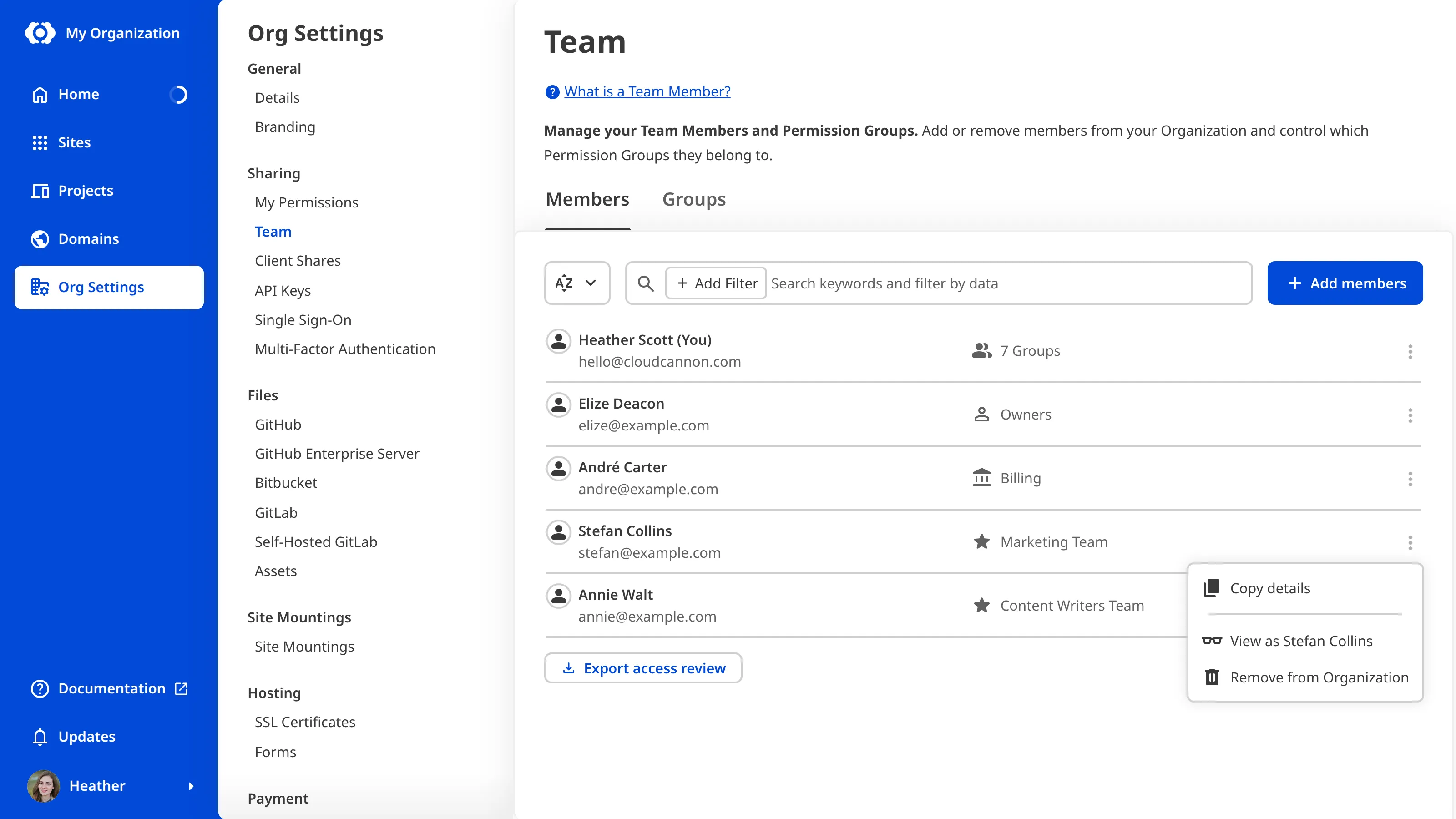
- Navigate to the Team page under Org Settings.
- Under the Members tab, click the Context Menu on the card for the Team Member you want to view as.
- Select the View as [Team Member Name] option. CloudCannon will open the View as [Team Member Name] modal.
- Click the View as [Team Member Name] button to confirm.
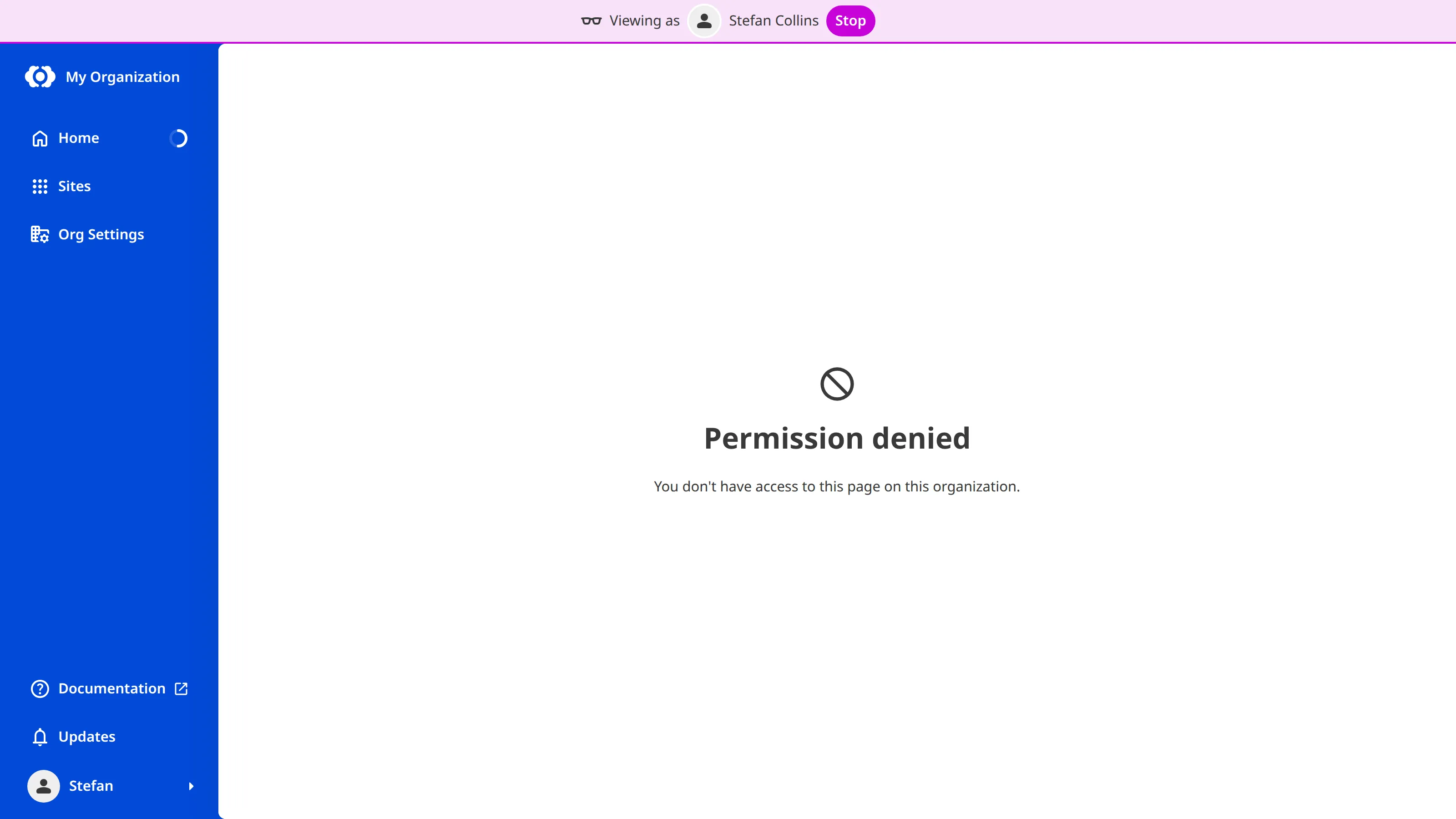
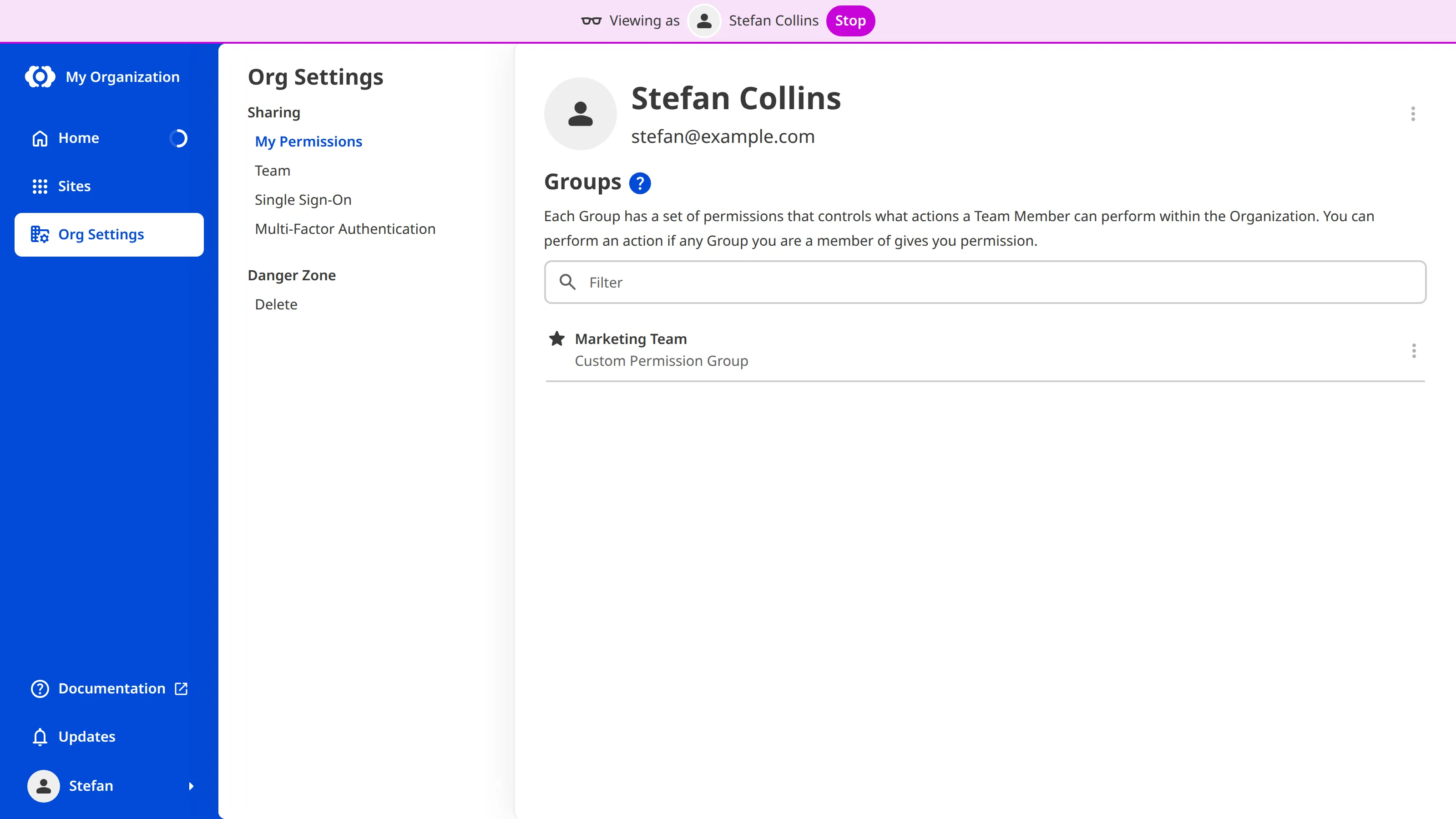
CloudCannon will reload and display your Organization with that Team Member's permissions, with a Viewing as banner pinned to the top of the page.
While viewing as a Team Member, you can only reach the areas of CloudCannon their Permissions allow. Options that need Permissions they do not have are hidden, and opening a page they cannot access shows a Permission denied message.
Stop viewing as a Team Member#
To stop viewing as a Team Member:
- Click the Stop button in the Viewing as banner at the top of the page.
CloudCannon will reload and return you to your regular view.
You can also stop viewing as a Team Member from the account menu in the App Sidebar by selecting the Stop viewing as [Team Member Name] option.