Guest Access allows you to invite someone from outside your Organization (called a Guest) to view, edit, and publish content for a specific Site. Guests do not need to have a CloudCannon account. Instead, they log into CloudCannon using a site-specific password.
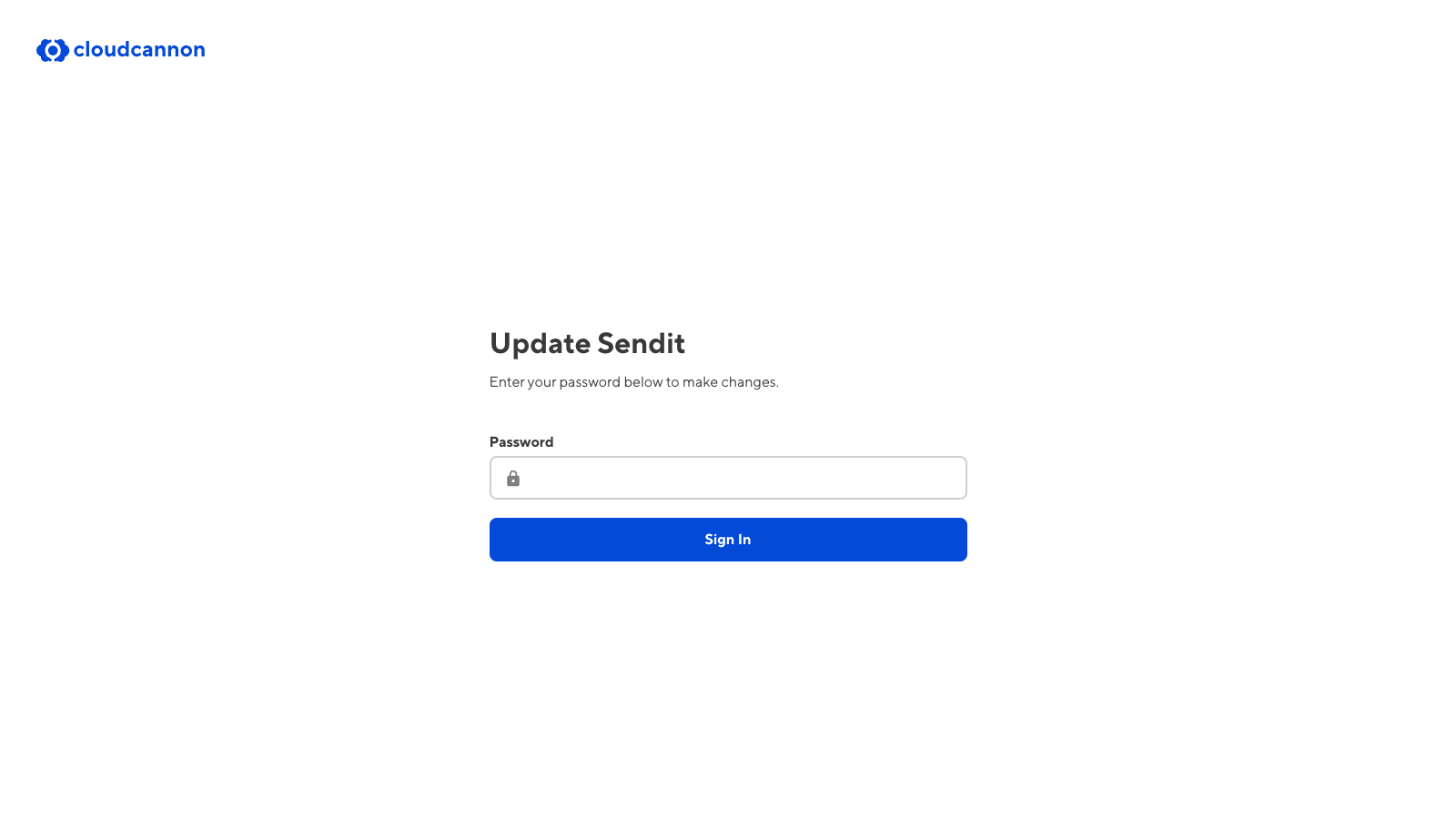
Guests will log in using a password you set for your Site and a dedicated Guest Login Page. By default, the URL for the Login Page is the Site domain with the suffix "/update" (e.g., www.example.com/update). CloudCannon will use your .cloudvent.net test domain if your Site does not have a custom domain. If you want to change the URL subpath, you can configure the URL for the Login Page.
Guest Access and Headless Mode
Headless Mode disables building and hosting for your Site, so Testing Domains are not available. CloudCannon will forward Guests trying to login to a headless Site using the .cloudvent.net link to the appropriate app.cloudcannon.com/update link.
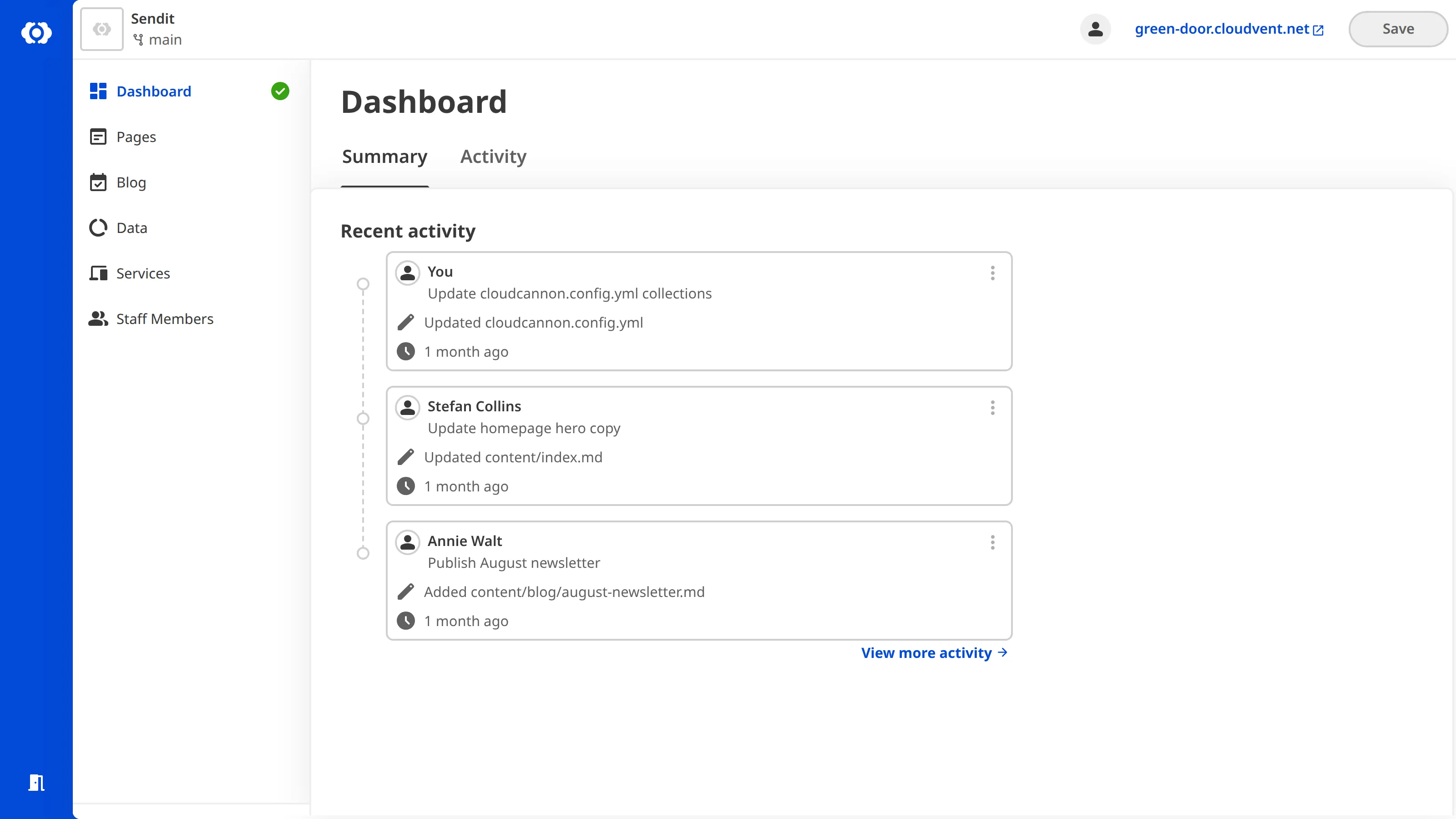
Once a Guest has logged in to your Site, they can access a simple version of the CloudCannon Site Dashboard. You can configure the links in the Site Navigation of the Guest Dashboard to support your Guests.
Each Site with Guest Access enabled uses one Seat in your Organization, no matter how many people use the Site's password. Each Subscription Plan includes a number of Organization Members, and you can extend that limit with paid Add-Ons at any time.
Although an unlimited number of people can use a Guest Access password to log in to a Site, we do not recommend giving a Guest Access password to multiple people. If multiple people share a password, you cannot determine which Guest was responsible for which changes.
There is one Permission Group per Site for Guest Access, scoped to the Site you want to share.
Customizing the permissions in the Guest Permission Group is available on our Team or Enterprise Plan. Guest Access itself is available on all Subscription Plans.
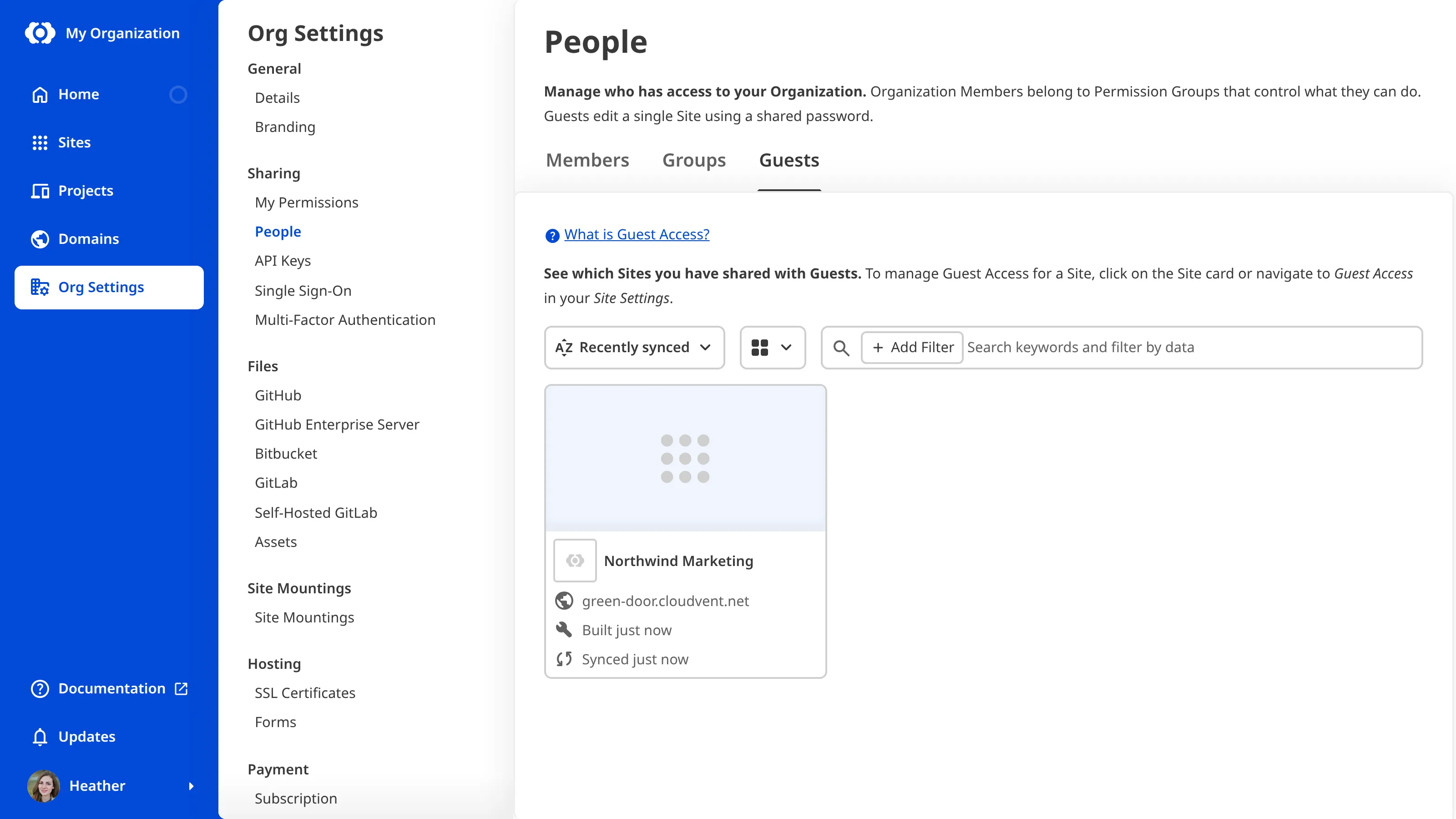
You can see all Sites with Guest Access enabled on the Guests tab of the People page under Org Settings. To manage the Guest Access settings for a specific Site, click its Card or navigate to the Guest Access page in your Site Settings.
The Guests tab is visible to members of the Owners, Partner, and Developers Default Permission Groups, or Custom Permission Groups with the org:settings:details:read permission. The Members and Groups tabs are visible to everyone in your Organization, so some Organization Members see two tabs on this page and others see three.