Publishing Workflows and Site branching are available on our Team or Enterprise plan. Build Deploys are available on our Standard, Team, and Enterprise plans.
Want to chat about whether these features are right for you? Our support team is always happy to hear from you.
A Site A website in CloudCannon that includes all the files, content, configuration, and settings needed to edit, build, and host a complete website.Site
Every Site belongs to an Organization A workspace in CloudCannon that groups together Sites, Organization Members, and shared resources. It is also the unit CloudCannon bills for. You can define permissions for your Organization, controlling the access each Organization Member has to resources on CloudCannon. You can create and be a part of multiple Organizations. A set of features available to your Organization, the monthly usage limits for resources, and the price you pay for access to those features and resources, monthly or annually. Each Organization in CloudCannon can have one Subscription Plan, and can update or cancel at any time.Organization
Subscription Plan
Each Site has its own:
- Files and content — The files that make up the website, such as pages, posts, images, code, and data. Related files are grouped into Collectionsin the Site Navigation, such as all your blog posts or all your staff profiles.Glossary term
Collection
A group of related files with a similar format (e.g., a folder of pages, blog posts, or data files). Once you group your files into Collections, they appear in the Site Navigation for easy access.
- Connection to your Git Repository — Sites sync with a branch of the Git Repositoryyou use to safely store your website. Because all the content is synced from this location, your Site and your Git Repository stay in sync no matter where a change was made, so everyone on your team is working from the same files.Glossary term
Git Repository
A storage location for the code and files that make up your website. CloudCannon supports the repository providers GitHub, GitLab, and Bitbucket, and highly recommends using a repository to store your website's files for better version control and collaboration.
- Editing Interfaces — The Visual Editor, Content EditorGlossary term
Visual Editor
CloudCannon's visual editing interface provides a user-friendly way of updating your website files on an interactive preview of your webpage. You can navigate around your website preview using links/buttons, as you would on the live version, and edit your content inline on the page, or with the data panel or sidebar. What you see in the Visual Editor is what your website visitors will see on your live webpages.
, Data EditorGlossary termContent Editor
CloudCannon's rich text editor for clean, distraction-free editing of content-heavy files. This editing interface is most useful for Markdown and MDX files, with or without Front Matter.
, and Source EditorGlossary termData Editor
CloudCannon's editing interface for managing structured data files and the Front Matter of markup files. The Data Editor is most useful for YAML, TOML, JSON, CSV, and TSV file types, and Markdown or MDX files with Front Matter. This editing interface also doubles as the sidebar and data panels in the Visual Editor and Content Editor.
for editing files in your Collections.Glossary termSource Editor
CloudCannon's in-browser code editor for making changes to the source code of your files. The Source Editor displays the raw content of text-based files with syntax highlighting automatically detected based on the file extension.
- Settings — Everything specific to this version of the website, including its build configuration, domains, and who can reach it.
The relationship between websites and CloudCannon Sites#
One website can have multiple Sites on CloudCannon, with each Site representing one version of that website. This way you can keep multiple copies for different purposes, such as your live Site, a staging Site for reviewing changes before they go public, or draft Sites for individual members of your team or projects that your team is working on.
Smaller teams may only need one Site. Keeping several copies of the same website becomes useful when your team wants to draft and review changes before your visitors see them. Moving changes from one Site to another like this is called a Publishing Workflow A workflow that controls how changes move between multiple Sites in a Project. Branching an existing Site allows Organization Members to draft changes on an independent, identical copy, then publish those changes back when they are ready. Common workflows move changes from draft Sites to a Staging Site to a Production Site, protecting each upstream Site from changes until they are ready. The branch containing the copy of your website to which you want to publish your changes (sometimes called the "upstream" branch). Defining a Publish Branch allows Organization Members to work on separate branches in parallel before publishing their changes to a shared branch.Publishing Workflow
Publish Branch
graph BT
  subgraph WEBSITE["One website: Jetstream"]
    S["Staging Site"] -->|Publishes to| L["Live Site"]
    D1["Draft Site:<br/>New blog post"] -->|Publishes to| S
    D2["Draft Site:<br/>Homepage redesign"] -->|Publishes to| S
endSites for the same website are independent of each other. Each one keeps its own files, settings, and connection to your Git Repository, so changing a setting on your staging Site leaves your live Site as it was.
Each Site connects to one branch of a Git Repository, and normally that relationship is one-to-one: one branch is one Site. Several Sites can also connect to the same branch. For more information, please read our documentation on how Sites connect to Git branches.
Where one website has several Sites, you can group them into a Project A way to group multiple Sites from the same Git Repository, allowing you to define a main branch, as well as branching and publishing rules. You can access the Projects Browser using the Projects link in the App Sidebar.Project
Where to find your Sites#
You can find all the Sites in your Organization in the Sites Browser, which you open from the Sites link in the App Sidebar The left-most UI panel in the CloudCannon app. This panel contains links to your Organization Home, Sites, Projects, Domains, and Org Settings pages, as well as app Updates and your Avatar.App Sidebar
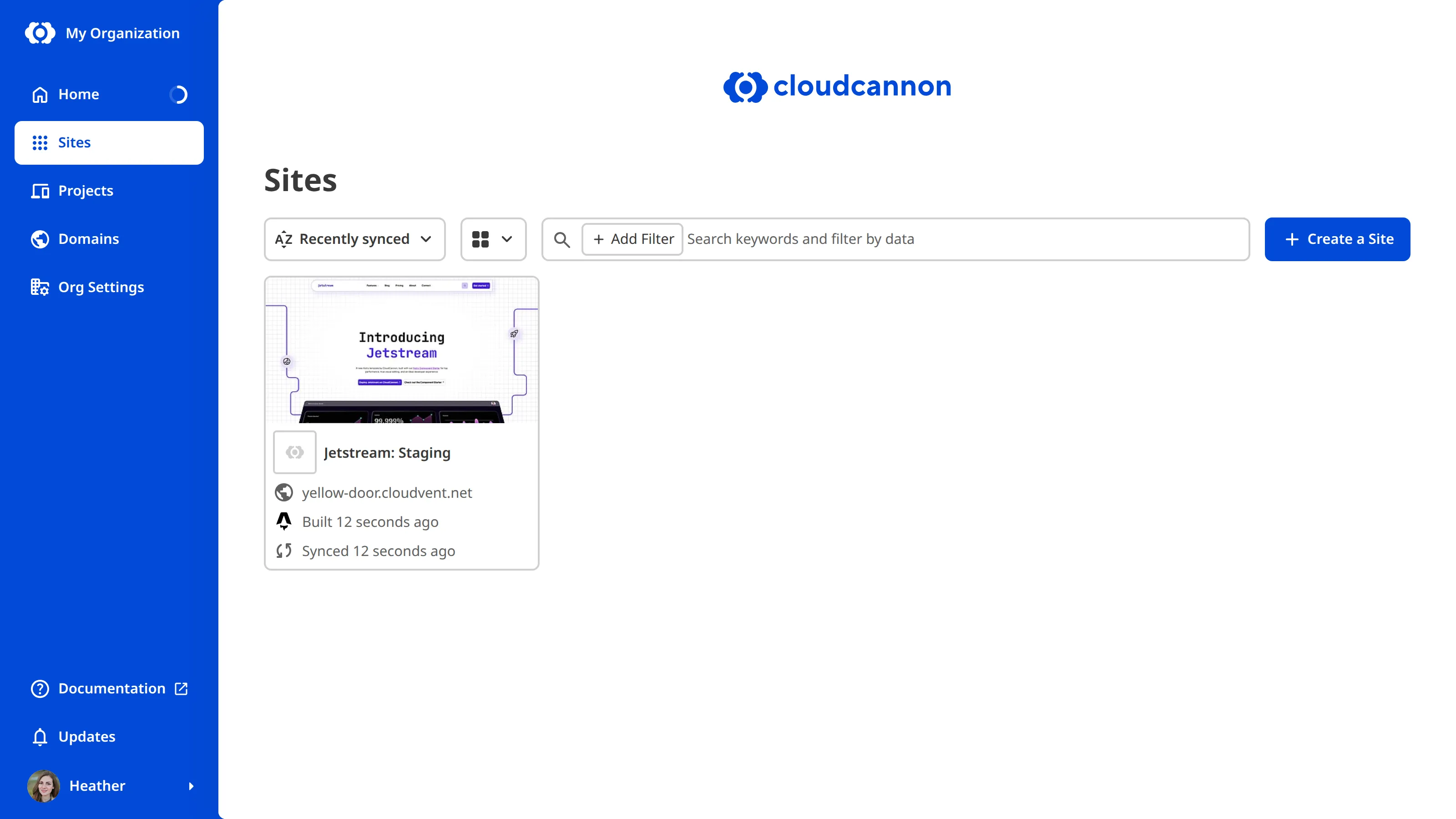
Each Site in the Sites Browser is represented by a Card The repeated block CloudCannon uses to represent one item in a list, browser, or input, typically showing a preview image, title, subtitle, icon, and key metadata. Cards represent files and folders in the Collection Browser and File Browser, as well as Sites, Organizations, Organization Members, domains, Health Checks, and items inside Array and Object Inputs. You can configure how Cards look for your files, making it easier to browse and identify content at a glance.Card
A Card also shows a badge for anything that sets the Site apart: Branched for a Site branched from another, Main for the main Site in a Project, Edited when someone has unsaved changes open, Edit locked or Build locked when editing or building is turned off, and Pending transfer when the Site is on its way to another Organization.
If you cannot see a Site you expect, you may not have the correct permissions to view it, or it may live in a different Organization. For more information, please read our documentation on what Permission Groups are and switching between your Organizations.
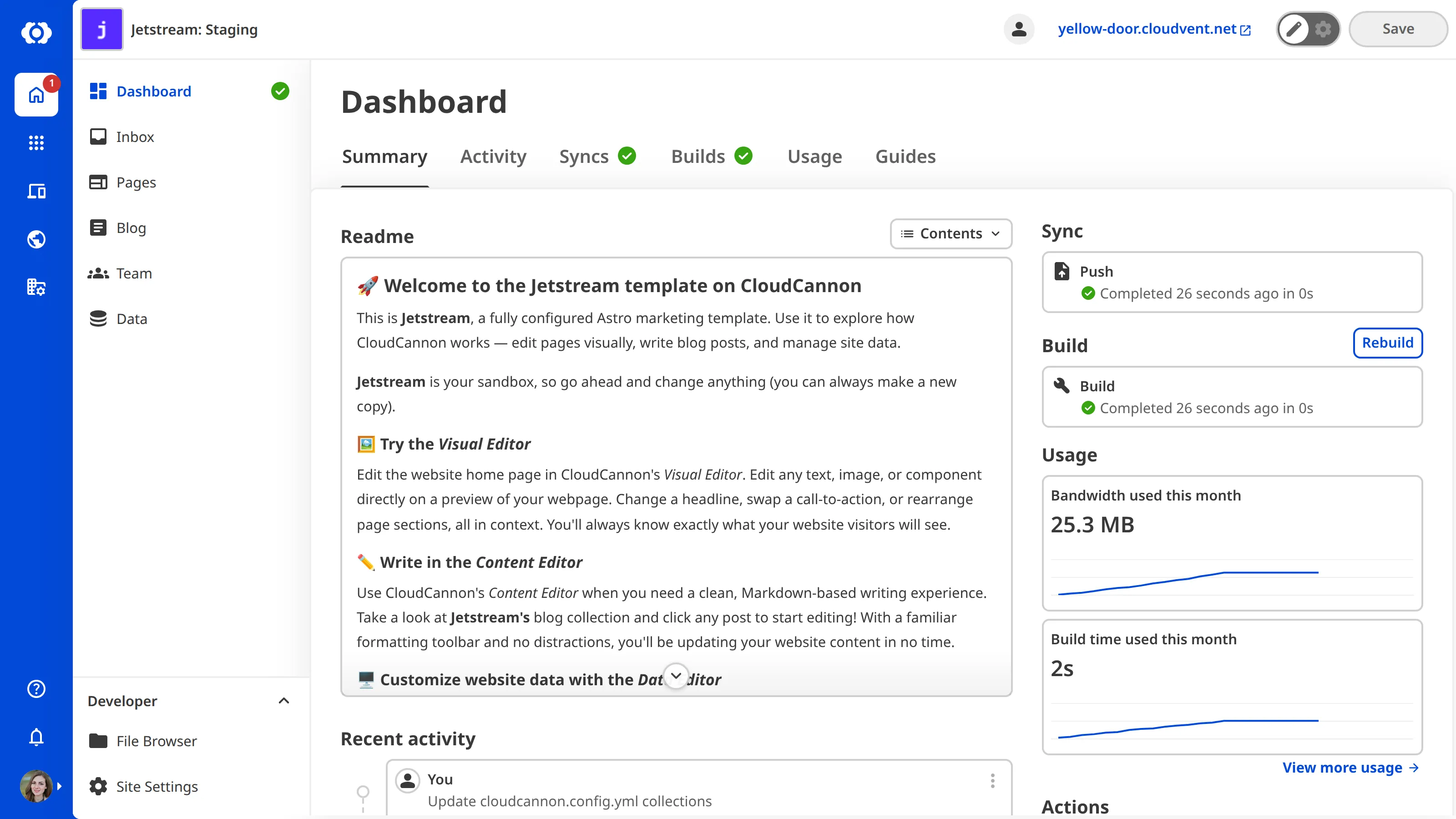
Click a Card in the Sites Browser to open that Site's Site Dashboard The main overview page for a specific Site in CloudCannon, displaying key information such as build status, recent activity, site statistics, and quick access to editing and configuration options.Site Dashboard
Creating a Site#
There are three ways to create a Site in CloudCannon: branch an existing Site, connect a branch from your Git Repository to a new Site, or let CloudCannon create Sites for you with Deploy Previews Deploy Previews are a set of automations that CloudCannon can run whenever a Pull Request is opened, closed, or updated in your Git Repository. When enabled, CloudCannon can post a comment on each Pull Request with details of any connected Sites, and automatically create and delete a Site for each Pull Request. This lets your team review and edit changes in CloudCannon before a Pull Request is merged.Deploy Preview
Branching an existing Site
If the website is already in CloudCannon and you want your own copy to work on, you can create a branched Site yourself. Members of the Editors and Technical Editors Default Permission Groups can do this without help from a developer, as long as the website already has a Project. Branching is available on our Team or Enterprise plan. For more information, please read our documentation on creating a branched Site.
Connecting a new Site to your Git Repository
Creating a Site from scratch means connecting a Git Repository and configuring how CloudCannon builds the website. Members of the Owners and Developers Default Permission Groups can create a Site this way. For more information, please read our documentation on getting started with CloudCannon, which covers the process from an empty Organization to a working Site.
Creating Sites automatically with Deploy Previews
If Deploy Previews are turned on for your Project, CloudCannon creates a Site for each Pull Request in your Git Repository. CloudCannon names each one after the Pull Request it was created for, such as "PR #12: Add a new blog post". Sites can appear and disappear from your Organization based on your Deploy Previews configuration. For more information, please read our documentation on what Deploy Previews are.
Working on your Sites#
When you want to edit content on your website in CloudCannon, you can open Site files in the Visual Editor, Content Editor, Data Editor, or Source Editor. Which Editing Interfaces are available will depend on the file type and how your Site and its Collections are configured. For more information, please read our documentation on editing in CloudCannon.
If you use CloudCannon to host your website on the internet, your Site will build each time you save changes to your content and display those changes on your Testing Domain A free .cloudvent.net URL that CloudCannon assigns to every Site for reviewing your live website content after a successful Site build. Each Testing Domain uses a randomly generated adjective and noun separated by a hyphen. By default, CloudCannon automatically de-indexes Testing Domains so that they do not appear in search engines.Testing Domain
CloudCannon can also build your Site without hosting it, using Build Deploys The process of building a static site and then deploying it to a hosting environment. In CloudCannon, this typically involves running the static site generator to create the final website files and then publishing them to make the site live.Build Deploys
Building is optional. A Site using Headless Mode has building and hosting turned off, so CloudCannon manages your content without producing a website from it. For more information, please read our documentation on what Headless Mode is.