Deleting an Organization is permanent and irreversible. It removes the Organization and all of its data, including every Site, Project, Inbox, and integration. CloudCannon's support team cannot recover a deleted Organization or its data. Make sure you have everything you need before you delete. If you have any doubts, contact our support team before you delete.
Deleting an Organization is different from canceling its Subscription. Canceling your Subscription ends paid billing and removes your access to paid features, but keeps the Organization, your Sites, and your files available. Your content and code stay accessible after you cancel.
However, deleting an Organization will remove your data from CloudCannon's servers entirely and immediately. There is no recovery period after you delete your Organization. We highly recommend using a Git Repository to store your code and content, so that a copy remains outside CloudCannon and stays with you after you delete the Organization.
Before you delete#
Before CloudCannon lets you delete an Organization, you must cancel its paid Subscription. CloudCannon blocks deletion until you do, to prevent accidental deletion. Canceling disconnects your Custom Domains and removes access for Organization Members. If a domain uses CloudCannon DNS, move your DNS to another provider and back up your DNS records first, because the CloudCannon-assigned nameservers cannot be recovered once released. For these steps, please read our documentation on canceling your Subscription.
Delete the Organization#
To delete your Organization:
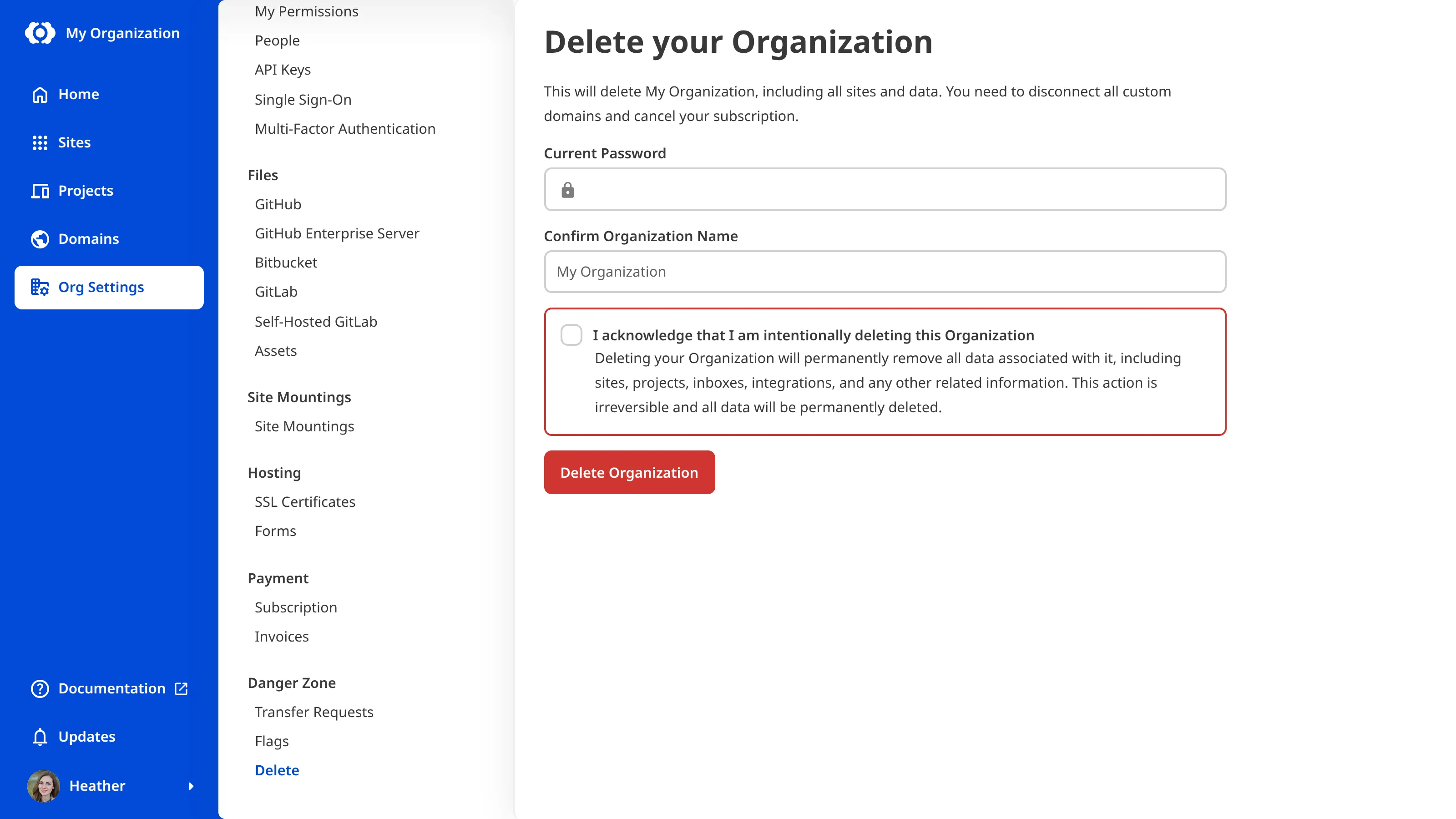
- Navigate to the Delete page under Org Settings.
- If your account has a password, enter it in the Current Password field.
- In the Confirm Organization Name field, type the Organization's name exactly.
- Select the checkbox to acknowledge that you're intentionally deleting the Organization.
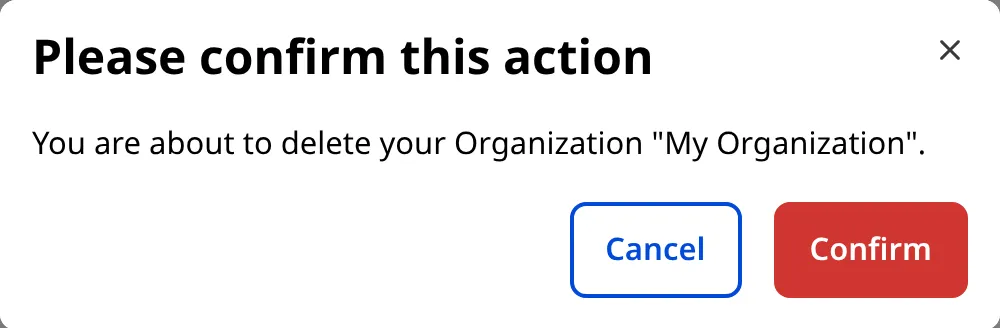
- Click Delete Organization, then confirm.
CloudCannon will permanently delete the Organization and all of its data.