The Permission Groups a Organization Member belongs to determine what they can do in your Organization. Permission Groups are additive, so adding an Organization Member to another Group grants them that Group's Permissions on top of any they already have. To confirm what an Organization Member can access after you change their Groups, please read our documentation on viewing your Organization as an Organization Member.
There are three ways to add an Organization Member to a Permission Group. The best method to use will depend on whether you want to:
- Add multiple Organization Members to multiple Permission Groups.
- Add a specific Organization Member to multiple Permission Groups.
- Add multiple Organization Members to a specific Permission Group.
Only members of the Owners Permission Group can update the members of the Owners Group.
Add multiple Organization Members to multiple Permission Groups#
Adding an Organization Member to multiple Permission Groups at once is available on our Team or Enterprise Plan.
Want to chat about whether this feature is right for your team? Our support team is always happy to hear from you.
To add Organization Members to multiple Permission Groups:
- Navigate to the People page under Org Settings.
- Under the Members tab, click the + Add members button on the right. CloudCannon will open the Invite Organization Members to your Organization modal.
- In the Email address field, search for the Organization Member(s) whose Permissions you want to update.
- Enter the Permission Group(s) to which you want to add these Organization Members. You must select at least one.
- Click the Add member(s) button.
CloudCannon will add the Organization Members to the selected Permission Groups.
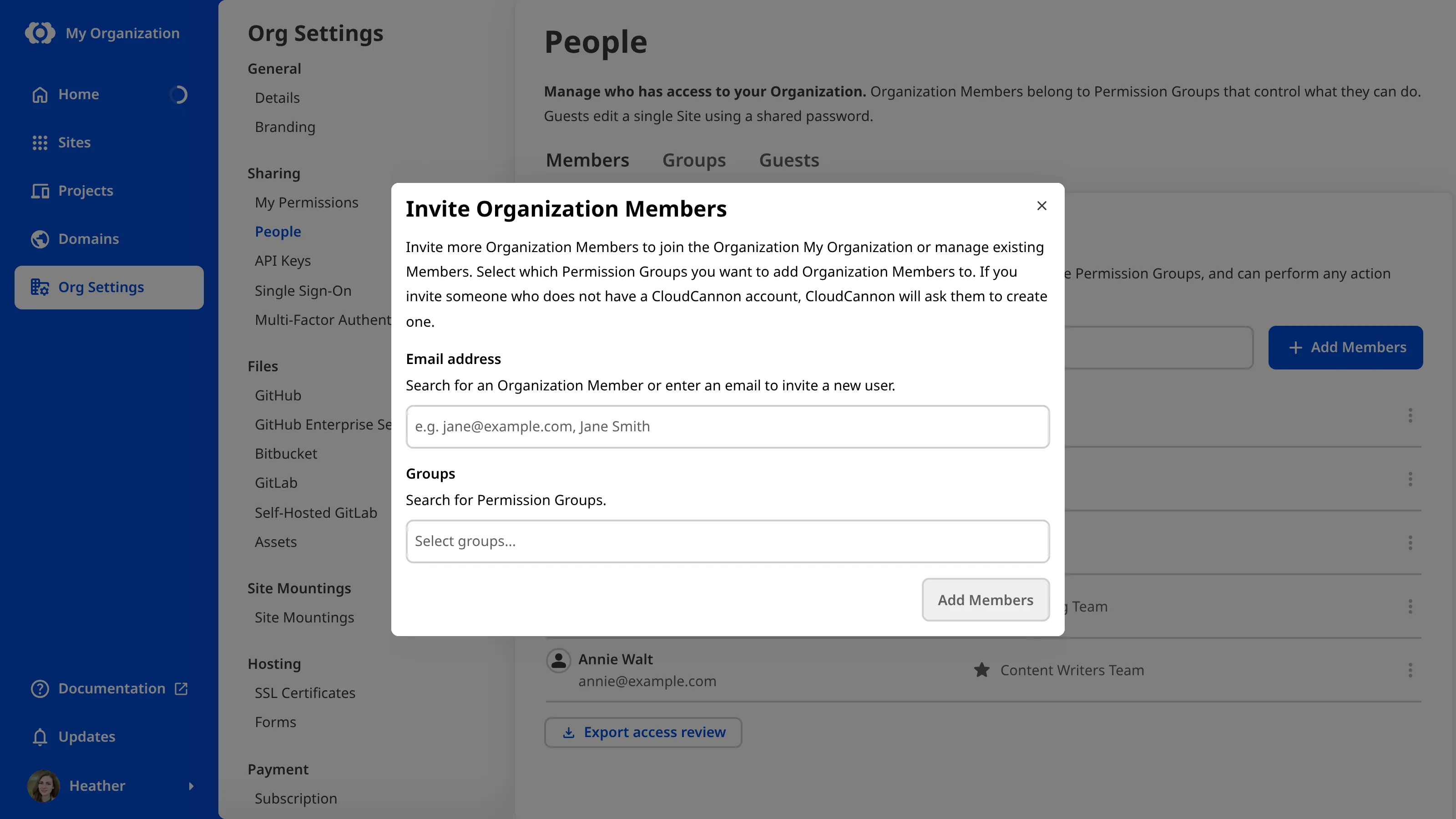
You can use the Invite Organization Members to your Organization modal to update the Permissions of existing Organization Members at the same time as inviting new users.
Add a specific Organization Member to a Permission Group#
To add a specific Organization Member to a Permission Group:
- Navigate to the People page under Org Settings.
- Under the Members tab, click on the member whose Permissions you want to update. This will open their Organization Member page.
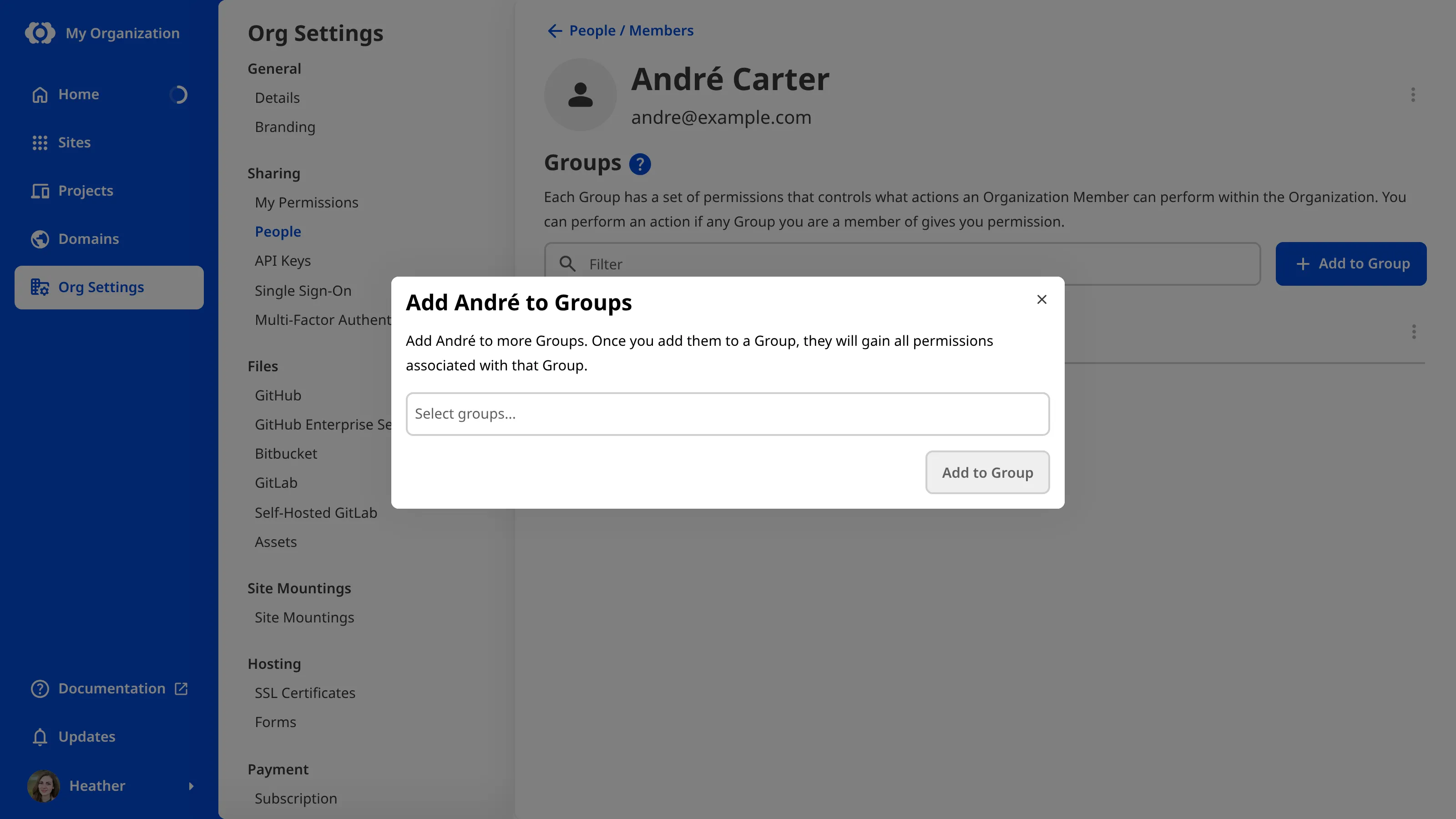
- Click the + Add to Group button on the right. CloudCannon will open the Add [Organization Member Name] to a Group modal.
- Enter the Permission Group to which you want to add this Organization Member.
- Click the Add to Group button.
CloudCannon will add the Organization Member to the selected Permission Group.
Add an Organization Member to a specific Permission Group#
To add one or more Organization Members to a specific Permission Group:
- Navigate to the People page under Org Settings.
- Click on the Groups tab.
- Under the Groups tab, click on the Permission Group to which you want to add members. This will open the Permission Group page.
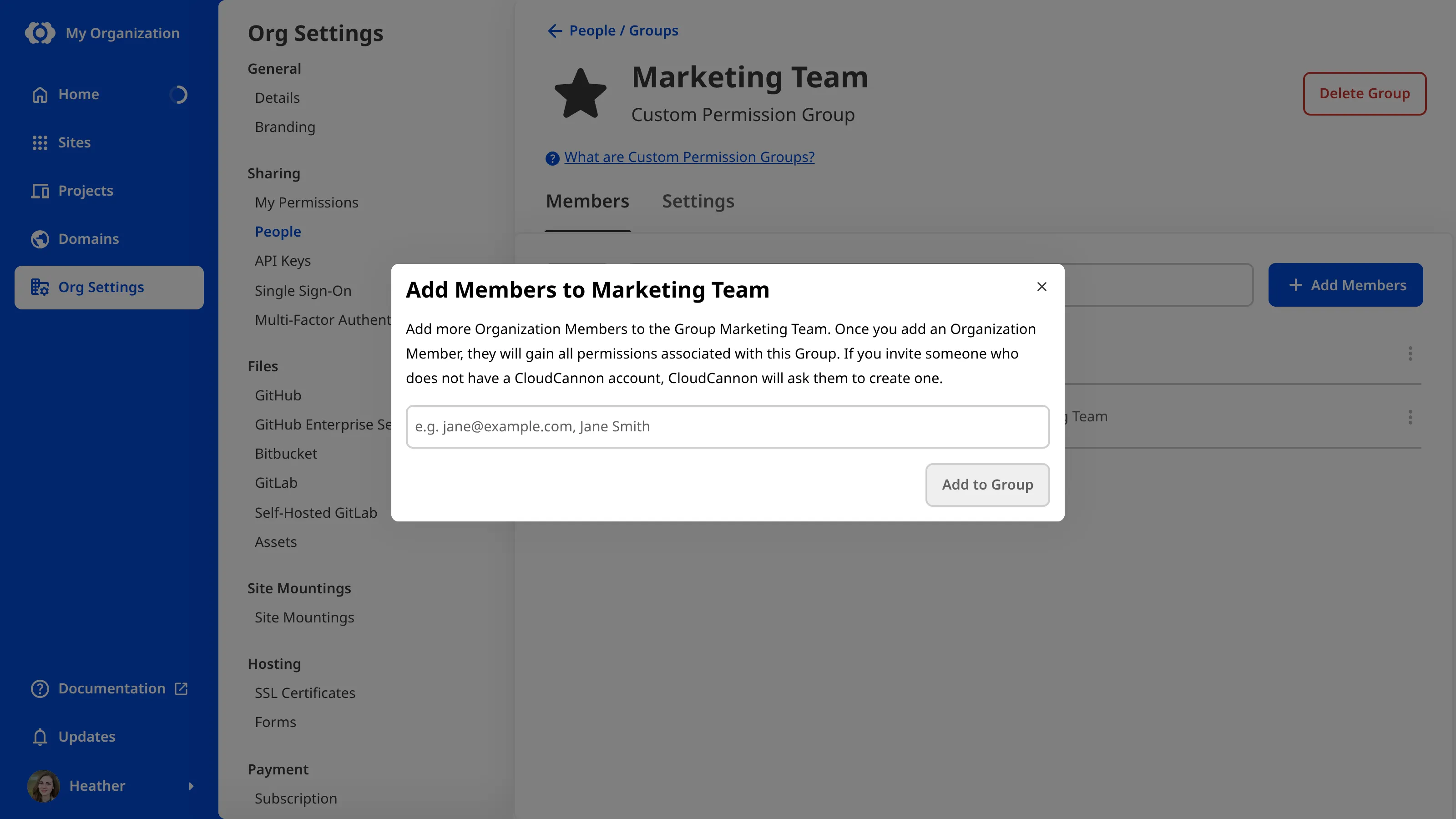
- Click the + Add members button on the right. CloudCannon will open the Add members to [Group Name] modal.
- Enter the name of the Organization Member(s) you want to add to this Permission Group. You can also enter the email addresses of new users you want to invite to your Organization.
- Click the Add to Group button.
CloudCannon will add the Organization Members to this Permission Group.