Organization Members A person who belongs to the same Organization as you. Organization Members are other CloudCannon users who have been invited to your Organization to collaborate on Sites, edit content, or manage settings. Each Organization Member has their own CloudCannon account with individual permissions assigned through Permission Groups, and uses one Seat in your Subscription Plan. Organization Members were previously called Team Members. A website in CloudCannon that includes all the files, content, configuration, and settings needed to edit, build, and host a complete website.Organization Member
Site
How many Organization Members can my Organization have?#
The maximum number of Organization Members allowed per Organization depends on your Subscription Plan. If you need to exceed this number, you can pay to add extra Organization Members to your Organization using Add-Ons.
Your Organization Member allowance is consumed in two ways:
- Each person in your Organization uses one Seat, whether you invite them directly or share a Site with them through Site Sharing.Glossary term
Site Sharing
A CloudCannon feature that allows you to invite an existing Organization Member from within your Organization to view, edit, and publish content for a specific Site. With Site Sharing, you can control what an Organization Member can interact with by limiting access to individual Sites rather than all Sites in your Organization. This is distinct from Guest Access, which is used to invite external clients who don't have CloudCannon accounts.
- Each Site with Guest Accessenabled uses one Seat, no matter how many people use that Site's Guest Password.Glossary term
Guest Access
A CloudCannon feature that allows you to invite someone from outside your Organization to view, edit, and publish content for a specific Site. Unlike Site Sharing, Guests invited through Guest Access do not need a CloudCannon account. Instead, they log in using a Guest Password through a dedicated Guest Login Page. Each Site with Guest Access enabled uses one Seat, regardless of how many Guests use its password. The Guest Access feature was previously called Client Sharing.
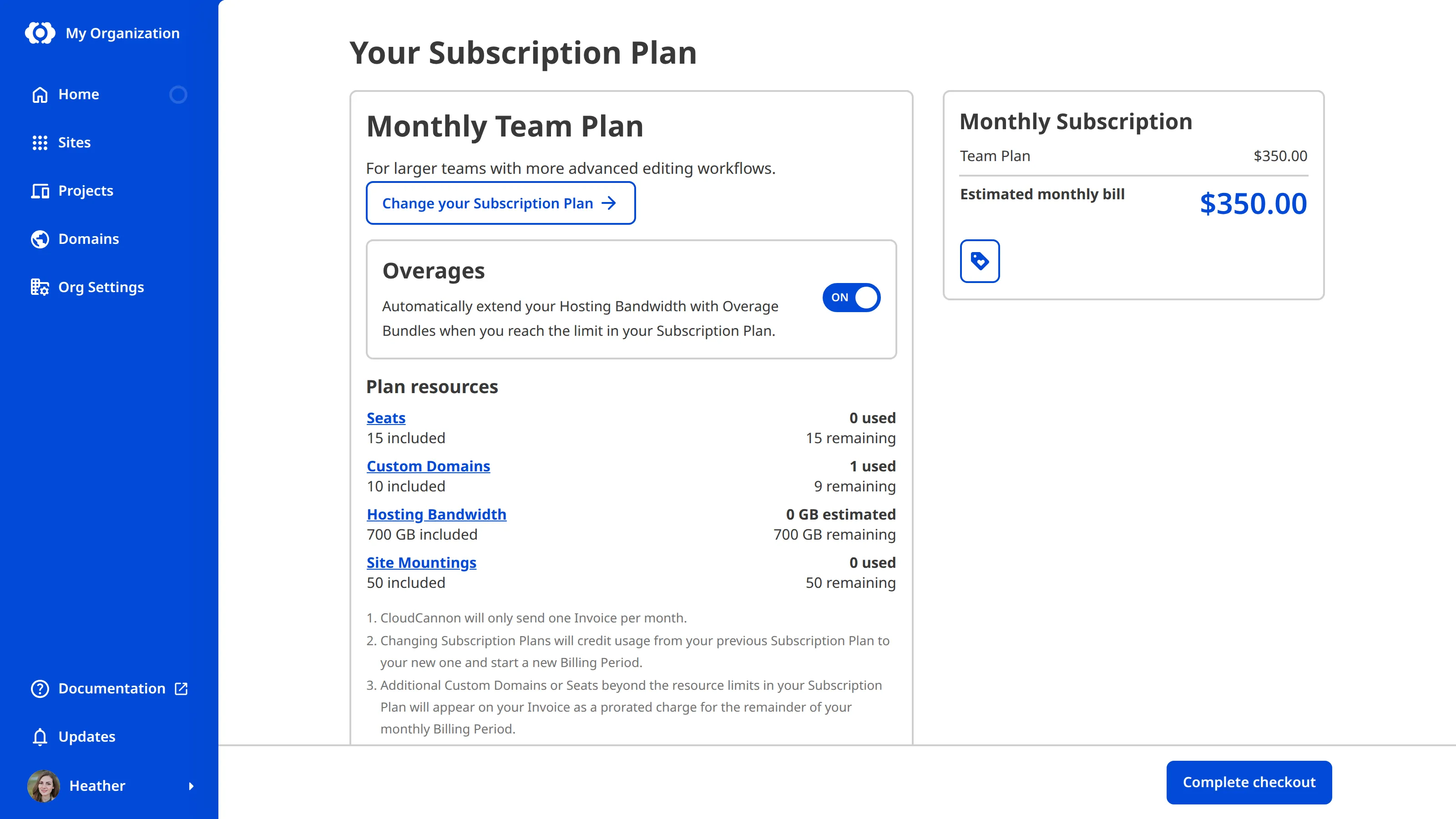
You can see how many Organization Members are included in your Subscription Plan on the Your Subscription Plan page, including the total seats, seats used, seats remaining, and how many extra seats you have added on top of your Subscription Plan.
Where can I see my Organization Members?#
The People page under Org Settings lists everyone in your Organization under the Members tab. Each Organization Member has a card showing their name and avatar, along with details such as how long ago they were last active and who invited them. Anyone you have invited who hasn't accepted yet appears with an Invitation pending label until they join. Select an Organization Member's card to open their page, where you can see the Permission Groups they belong to, depending on your own permissions.
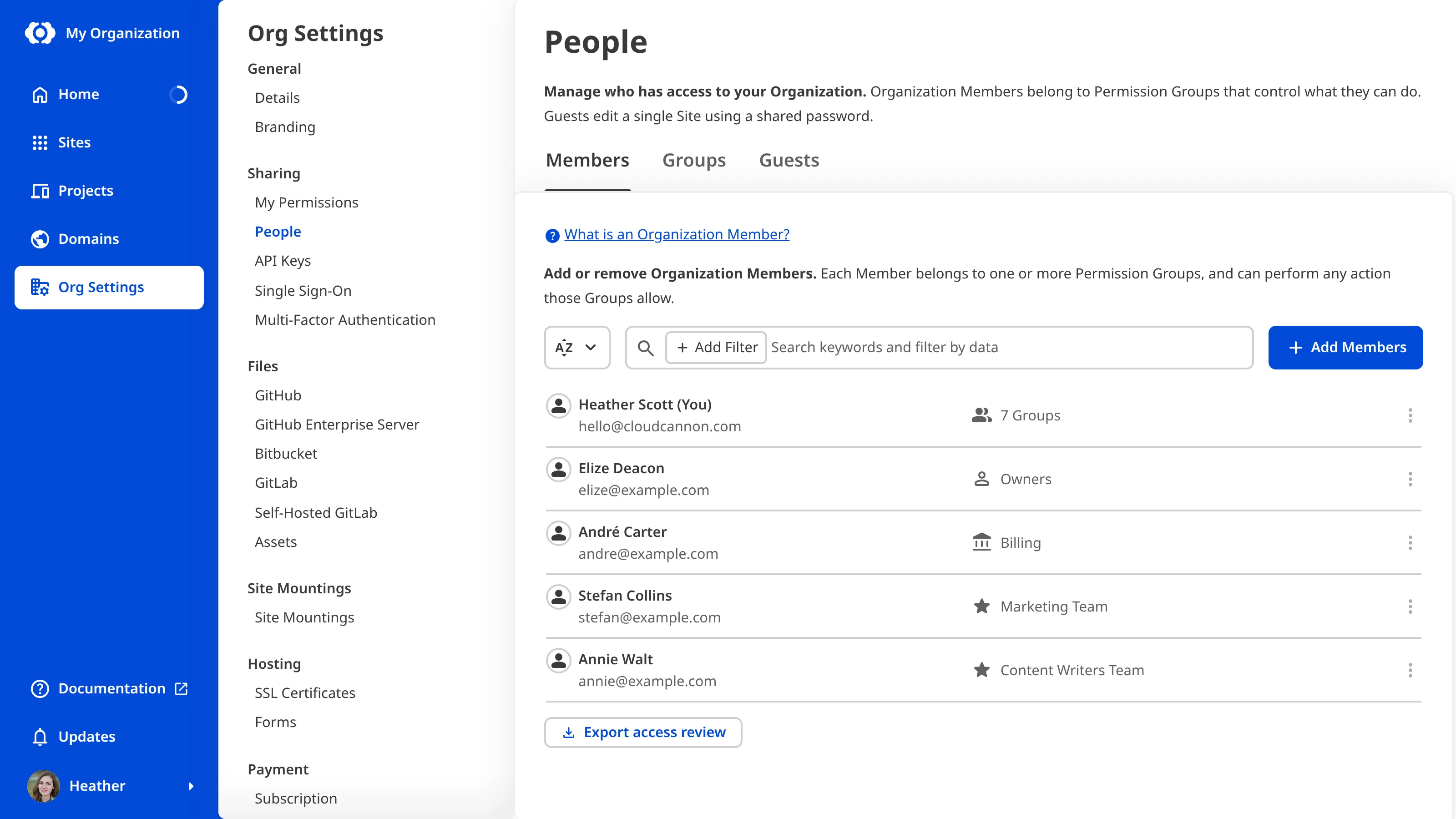
If you want the same list as a file you can search, sort, or keep as a record, please read our documentation on exporting your Access Review.
What can Organization Members do?#
In CloudCannon, Permissions Permissions define what you can see and do in a given CloudCannon Organization. Each permission has a scope (Global, Project, Site, Permission Group, or Domain), a resource (e.g., Site, Project, or Organization), and an action (Read, Write, or Create). You can review your permissions through your Org Settings.Permissions
If you want to give someone permission to access an individual Site without making them a member of your Organization, you can use Site Sharing or Guest Access. For more information, read our documentation on sharing a Site with Site Sharing and what Guest Access is.