The Domain Name System (DNS) allows your computer to translate a domain name The human-readable address of a website on the internet, such as example.com. Domain names are used instead of IP addresses to make websites easier to remember and access.Domain Name
- Domain name — The unique address to access a website (e.g., cloudcannon.com).
- Internet Protocol (IP) address — A unique string used to identify a device connected to the internet (e.g., a user's computer or phone or the web server hosting your website).
When a user enters a domain name into their Internet browser or clicks a link to access a website, the domain name must be translated (or resolved) to a machine-friendly IP address in a process called DNS lookup.
How does DNS lookup work?#
The DNS lookup process involves several servers, each contributing to translating the domain name.
- DNS resolver — The server responsible for translating a domain name into an IP address. This server is usually maintained by the user's Internet service provider, or is a public resolver the user chooses. Also known as a recursive resolver or a DNS recursor.
- Root nameserver — The first server in a DNS lookup. This server is an index for top-level domain (TLD) nameservers.
- TLD nameserver — The server responsible for a specific TLD in a URL (e.g., .com, .net, .org). This server is an index for all authoritative nameservers with a given TLD.
- Authoritative nameserver — The server responsible for maintaining the DNS records for a given domain. Often called "the nameserver".
- Web server — The server responsible for hosting your website content.
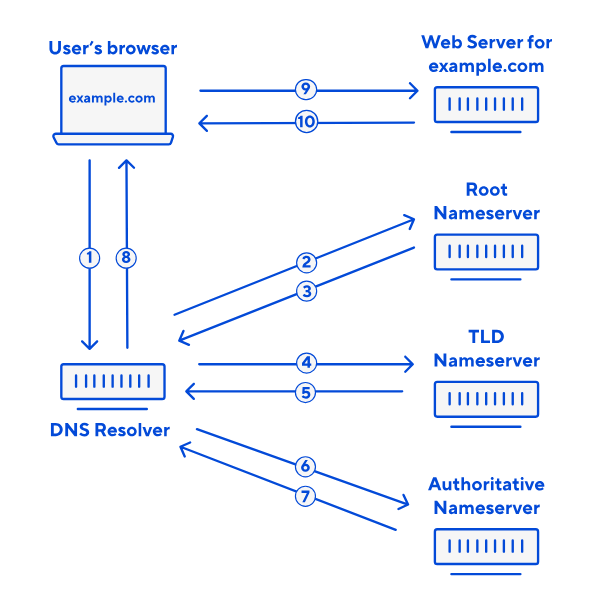
In simple terms, the DNS lookup includes the following steps:
- The user's browser provides the domain name of the website they want to access (e.g., cloudcannon.com) to the DNS resolver.
- The DNS resolver contacts the root nameserver and requests the list of TLD nameservers that manage the TLD (e.g., .com, .org) for a given domain.
- The root nameserver replies to the DNS resolver.
- The DNS resolver contacts a TLD nameserver for the domain name and requests the authoritative nameserver that manages the domain name (e.g., cloudcannon.com).
- The TLD nameserver replies to the DNS resolver.
- The DNS resolver contacts the authoritative nameserver and requests the IP address that matches the domain name.
- The authoritative nameserver replies to the DNS resolver.
- The DNS resolver provides the correct IP address for the domain name to the user's browser.
- The user's browser contacts the web server for the domain name using the IP address and requests the website content.
- The web server delivers the website content to the user's browser.
This process only takes milliseconds to complete, so it will not affect the user's experience on your website.
In many cases, the user's browser does not have to complete a DNS lookup at all, especially if the user is trying to visit a website they have been to before. After the browser has received the correct IP address for a domain name at least once, it caches that information for a period of time. If a user tries to access that domain while the IP address is cached, the browser can skip the DNS lookup process.
What is a nameserver?#
There are many nameservers involved in the DNS lookup process; however, the word "nameserver" typically refers to the authoritative nameserver, which manages all the DNS records for a particular domain name.
- Nameserver — Stores DNS records for a given domain name.
Almost all domains rely on multiple nameservers for redundancy, a primary and a secondary server. That means if one nameserver goes down, the other can still answer DNS queries.
All nameservers store identical DNS records for a domain name. Updating the DNS records for the primary nameserver will trigger an update in the secondary server.
What are DNS records?#
DNS records are instructions for a domain name managed by an authoritative nameserver. A DNS Provider will allow you to access and edit these records.
- DNS record — A record of important information, which might include a domain's IP address, email routing, owner validation, and more.
- DNS Provider — A service that assigns IP addresses to domain names and manages DNS records.
Each DNS record has a Time-To-Live (TTL) value, which indicates how often a DNS server should refresh a record to check for updates from the domain owner.

CloudCannon DNS supports the following DNS record types: A, AAAA, CNAME, MX, SRV, TXT, and NS.
- Address (A) Record — Specifies the IP address for a given domain name in IPv4 format (e.g., 93.184.216.34).
- Address (AAAA) Record — Specifies the IP address for a given domain name in IPv6 format (e.g., 3001:0db7:3c5d:0024:0000:0000:1a2f:3c1b). IPv6 is the newer version of the Internet Protocol, with longer addresses that allow many more unique IP addresses than IPv4.
- Canonical Name (CNAME) Record — Makes a domain name an alias of another domain name, so a DNS lookup for the alias returns the IP address of the other name. Often used for subdomains (e.g.,
www.example.comas an alias ofexample.com) or for hosting platforms. A CNAME record doesn't redirect visitors, and their browser keeps showing the alias. To send visitors from one address to another, use a Redirect Subdomain.Glossary termRedirect Subdomain
A Subdomain on your Custom Domain that sends every visitor to another domain instead of serving a Site, preserving the visitor's path and query string. Each Redirect Subdomain has its own certificate and status code. Redirect Subdomains don't count toward the number of Custom Domains in your Subscription Plan.
- Mail Exchange (MX) Record — Specifies where emails for a given domain name should be routed.
- Service (SRV) Record — Specifies the host and port number for services that need to connect to a specific port.
- Text (TXT) Record — Can store any text string but is commonly used to verify ownership of a domain name.
- Nameserver (NS) Record — Specifies which nameserver is authoritative for a given domain name, or delegates a subdomain to other nameservers.
Other record types include:
- Sender Policy Framework (SPF) Record — Specifies which servers are authorized to send emails from a given domain name. In CloudCannon DNS, add SPF policies as TXT records.
To point your domain at CloudCannon DNS, you update your nameservers with your domain registrar A third-party company that manages the registration and renewal of domain names. Domain registrars allow you to purchase and configure domain names, and they handle the administrative aspects of domain ownership. You must purchase a domain name from a domain registrar before you can connect it to your CloudCannon Organization as a Custom Domain.Domain Registrar
Which DNS Provider is right for your Site?#
On CloudCannon, any Custom Domain A domain you own and connect to your CloudCannon Organization, so visitors reach your Site at your own address instead of its Testing Domain. You buy the domain from a domain registrar, connect it to your Organization, then add it to your Sites. A workspace in CloudCannon that groups together Sites, Organization Members, and shared resources. It is also the unit CloudCannon bills for. You can define permissions for your Organization, controlling the access each Organization Member has to resources on CloudCannon. You can create and be a part of multiple Organizations. A DNS Provider option where CloudCannon manages the DNS records of your Custom Domain. CloudCannon adds the records each Subdomain needs, and the TXT records for your SSL Certificates, for you. To use it, you replace the nameservers at your domain registrar with CloudCannon's nameservers. Domain Name System configuration managed by a third-party DNS Provider rather than CloudCannon DNS. External DNS allows you to host your Site on CloudCannon but manage your DNS records elsewhere, such as with Cloudflare or on your own servers. You add the DNS records CloudCannon lists for each Subdomain at your DNS Provider.Custom Domain
Organization
CloudCannon DNS
External DNS
CloudCannon DNS
CloudCannon DNS lets you manage your DNS records through CloudCannon. It is free, runs on Cloudflare, and is the recommended option, selected by default when you connect a Custom Domain.
When you move your domain to CloudCannon DNS, CloudCannon becomes the DNS Provider for every record on your domain, including your mail records, so you need to add your other records to CloudCannon DNS before you update your nameservers. For more information about bringing over your other records, please read our documentation on configuring CloudCannon DNS.
CloudCannon DNS may also be right for you if:
- You want CloudCannon to add the TXT records for your certificates for you, and to fix the records that stop a Subdomainfrom reaching CloudCannon with the Fix button.Glossary term
Subdomain
An additional name on the front of your URL, prefixing your Base Domain name (e.g., "docs" in docs.example.com or "blog" in blog.example.com). In CloudCannon, every address on your Custom Domain, including the Base Domain itself, is a Subdomain with its own hosting, HTTPS, and DNS settings. Each Subdomain serves Sites, each at its own path, or redirects visitors to another domain. A Subdomain with no Site yet shows its visitors a 404 page until you add a Site.
- You want to manage all your domain settings in the same place you edit your content.
For more information, please read our documentation on configuring CloudCannon DNS.
External DNS
External DNS lets you manage your DNS records through a third-party service (e.g., Cloudflare) for your Sites A website in CloudCannon that includes all the files, content, configuration, and settings needed to edit, build, and host a complete website.Site
An external DNS Provider may be right for you if:
- You have existing DNS infrastructure with a trusted third-party provider.
- You want to proxy your Subdomains through your own Cloudflare zone with Cloudflare Proxy.Glossary term
Cloudflare Proxy
A hosting option for a Subdomain on your Custom Domain, where your own Cloudflare account proxies the Subdomain to CloudCannon. The Subdomain's record in your Cloudflare zone has the proxy turned on and points at
orange-cloud.cloudcannon.com. Choose it if you manage your DNS in Cloudflare with the proxy turned on.
If your domain uses external DNS:
- You add the records each Subdomain needs at your DNS Provider yourself. CloudCannon lists them on the DNS tab, tracks them in a setup guide, and checks them for you.
- On CloudCannon Hostingand Single OriginGlossary term
CloudCannon Hosting
The default hosting option for a Subdomain on your Custom Domain. Visitors reach CloudCannon through Cloudflare's global network. Cloudflare stores copies of your Site's files in data centers around the world and serves each visitor from the one nearest them. The Subdomain's DNS record points at
sites.cloudcannon.com., your Base DomainGlossary termSingle Origin
A hosting option for a Subdomain on your Custom Domain, where DNS points straight at CloudCannon's origin servers, or your own proxy sits in front of them. Visitors skip CloudCannon's Cloudflare network and its cache. CloudCannon doesn't recommend it unless you have specific setup requirements.
(e.g.,Glossary termBase Domain
The primary domain name for a website, without any subdomains. For example, in "www.example.com", the Base Domain is "example.com". In CloudCannon, you connect your Base Domain to your Organization as a Custom Domain.
example.com) can't use a CNAME record at your DNS Provider, so it uses two A records instead. Those A records point straight at CloudCannon's origin, so visitors to your Base Domain don't go through CloudCannon's CDN. - The wildcard SSL Certificatefor your Base Domain needs new TXT records at your DNS Provider each time it renews, unless you add the CNAME record CloudCannon offers, once, so that it renews by itself. For more information, please read our documentation on renewing the wildcard SSL Certificate on external DNS.Glossary term
Wildcard SSL Certificate
An SSL Certificate that covers every subdomain of your Base Domain you haven't set up on CloudCannon (e.g., *.example.com). It lets visitors to those subdomains reach your Fallback Redirect over HTTPS. On external DNS, the wildcard SSL Certificate needs new TXT records at your DNS Provider each time it renews, unless you add a CNAME record that lets Cloudflare renew it on its own.
- If you use Cloudflare as your DNS Provider and set a record's proxy status to Proxied, some additional configuration is required. For more information, please read our documentation on configuring Cloudflare Proxy.
For more information, please read our documentation on configuring external DNS.