Connecting a GitHub Git Repository to your Site allows you to work on your website files locally and sync your changes to CloudCannon. CloudCannon also syncs file changes you make in CloudCannon back to GitHub.
To connect a Git Repository on GitHub to your Site:
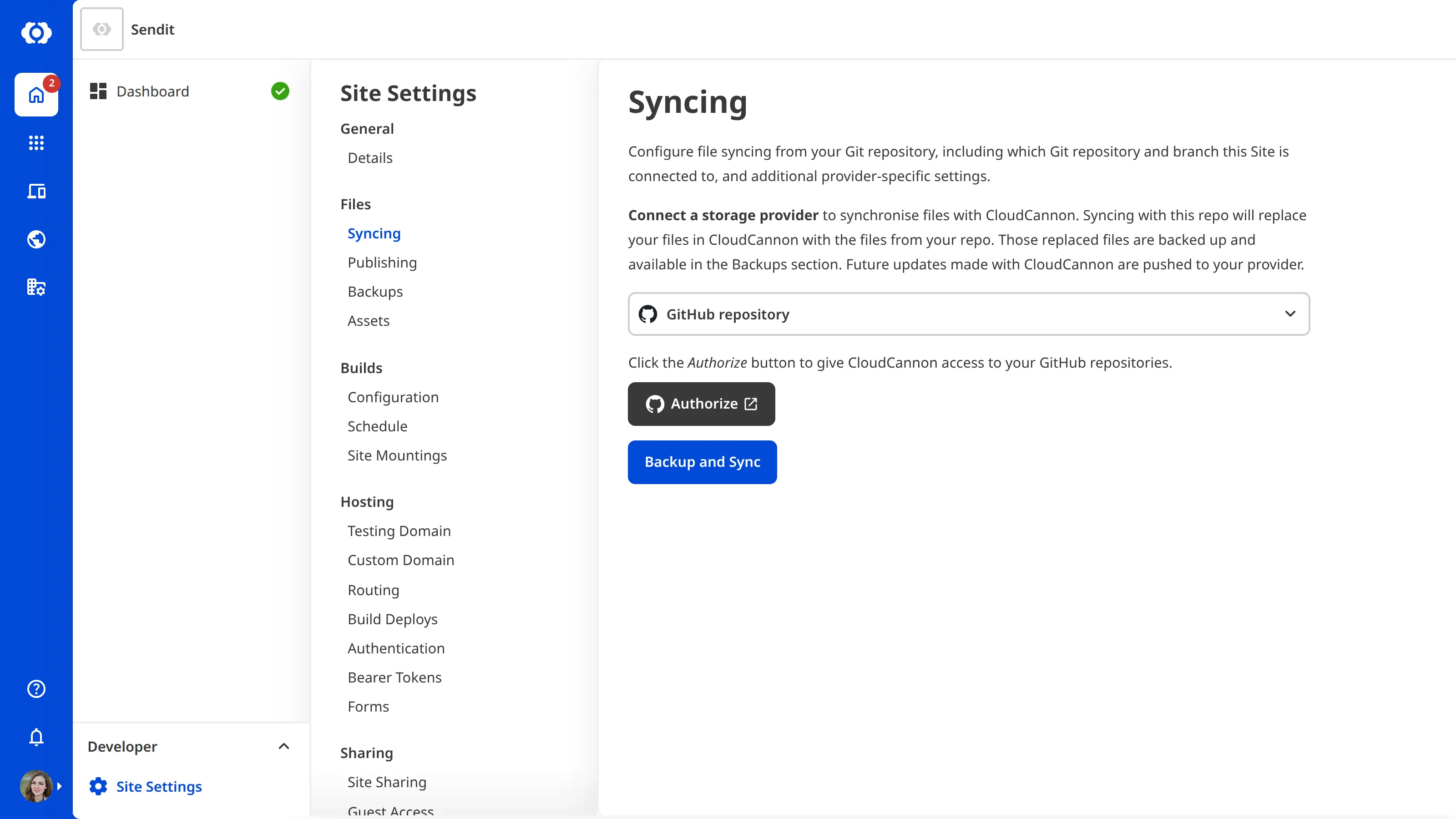
- Navigate to the Syncing page under Site Settings.
- Select the GitHub repository option from the provider dropdown.
- Click the Authorize button.
CloudCannon will redirect you to GitHub.
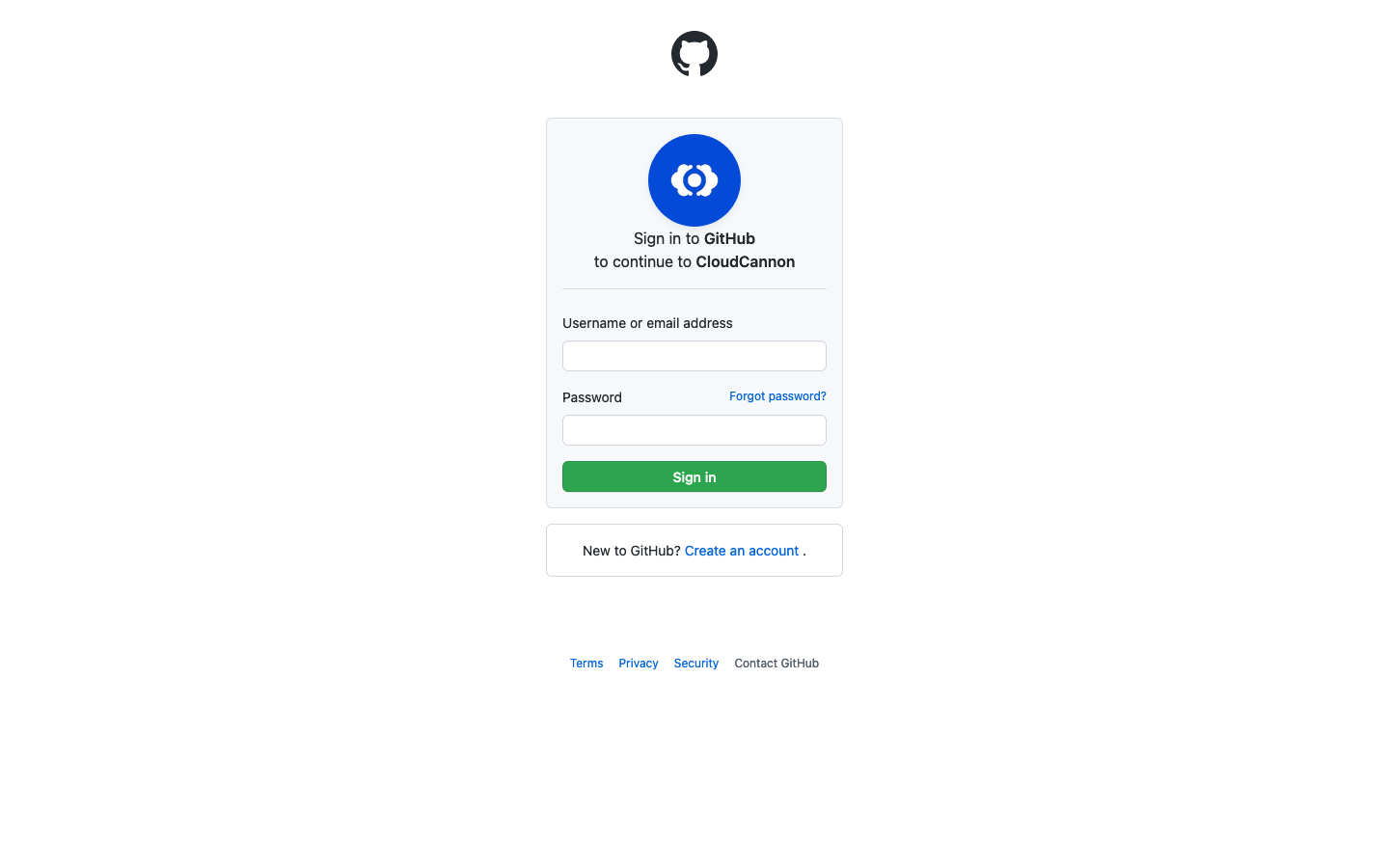
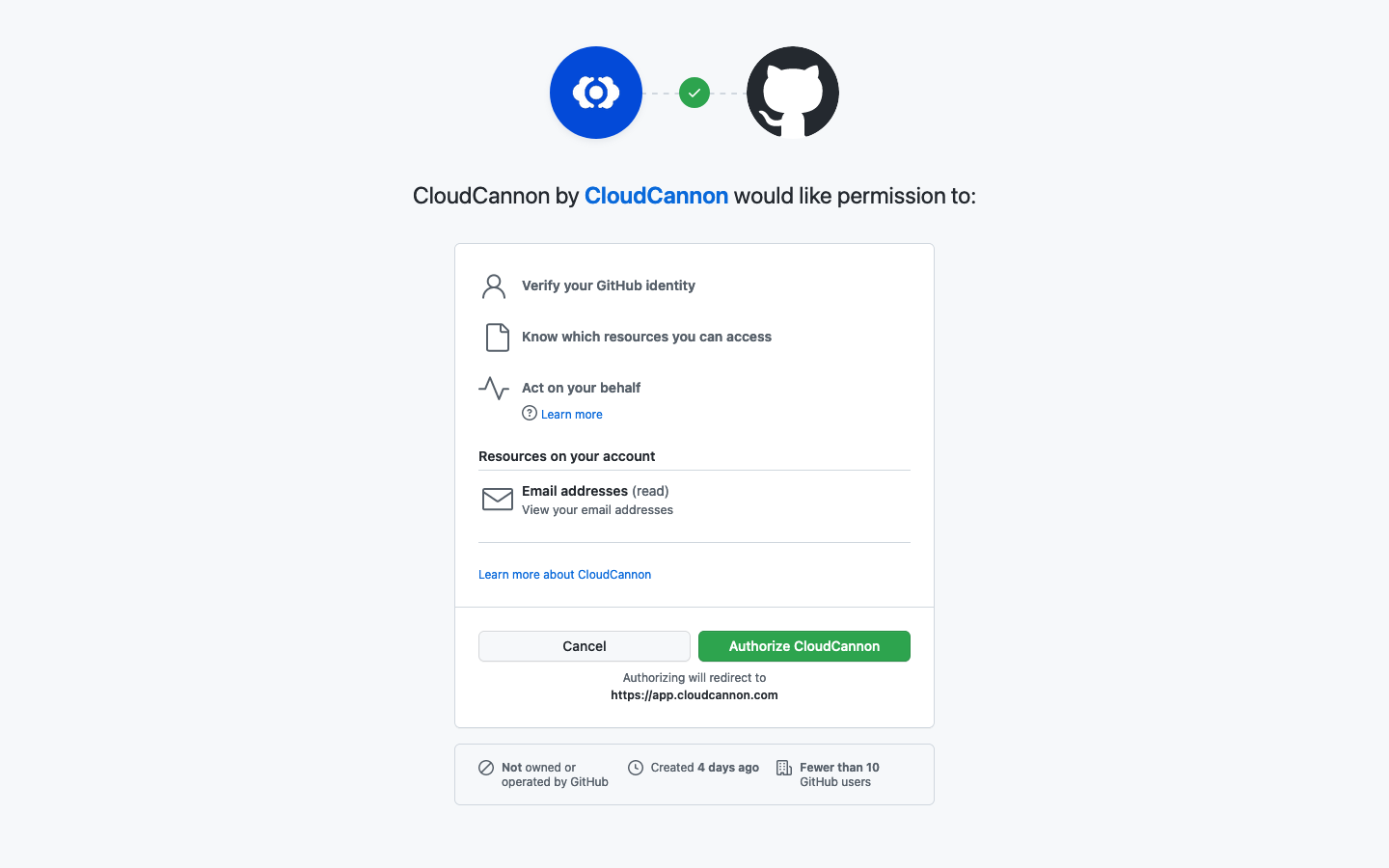
To give CloudCannon access to your GitHub account:
- Enter your GitHub credentials to sign in.
- Click the Authorize CloudCannon button.
If your Organization has no CloudCannon GitHub App installations yet, CloudCannon will take you to GitHub to install it. Otherwise, GitHub will redirect you back to the Syncing page. If you return without installing the GitHub App, click the Grant access on GitHub button on the Syncing page.
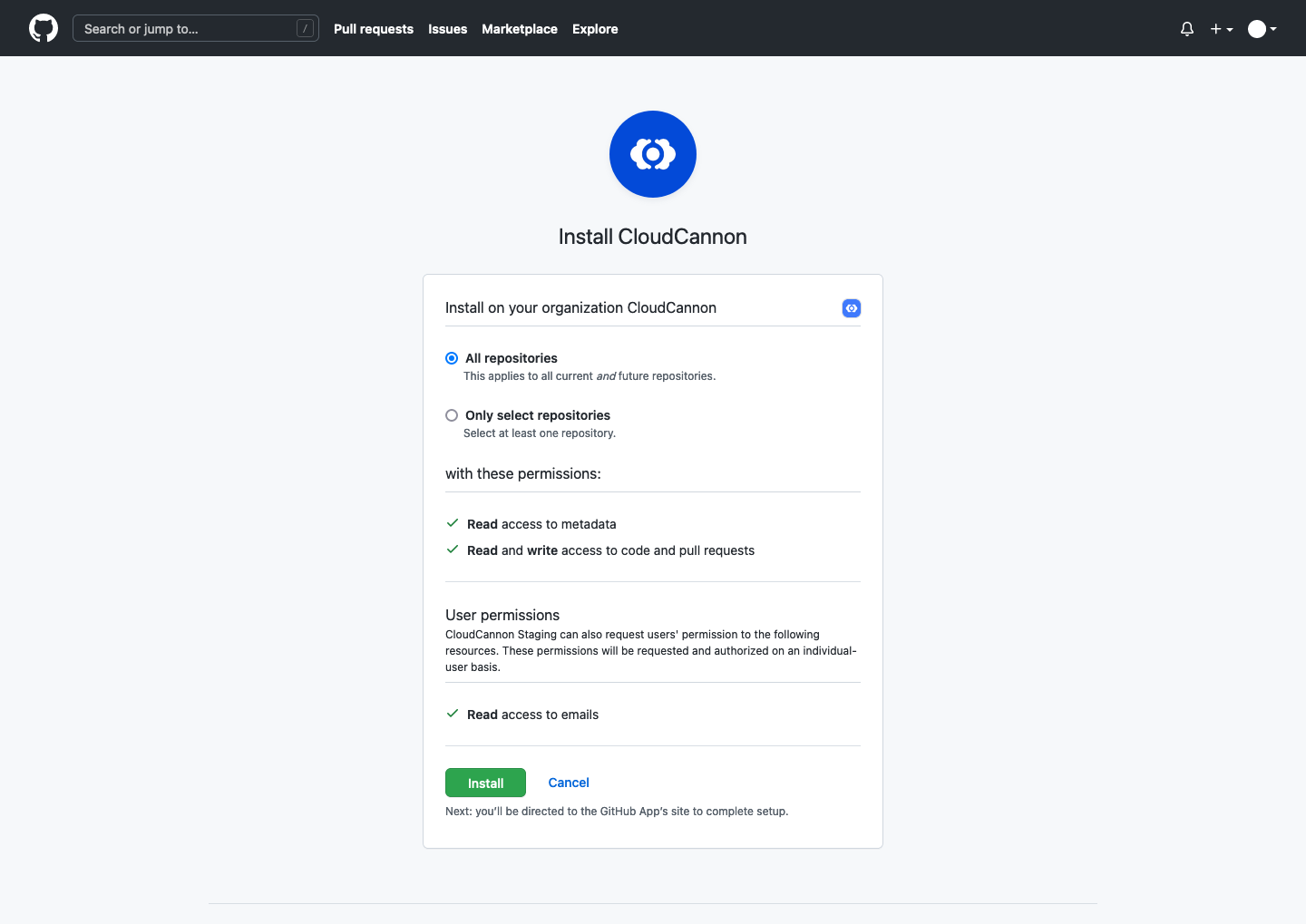
To install the CloudCannon GitHub App:
- Choose whether to install the CloudCannon GitHub App on your personal GitHub account or on your GitHub organization.
- Select the All repositories option or the Only select repositories option.
- Click the Install button.
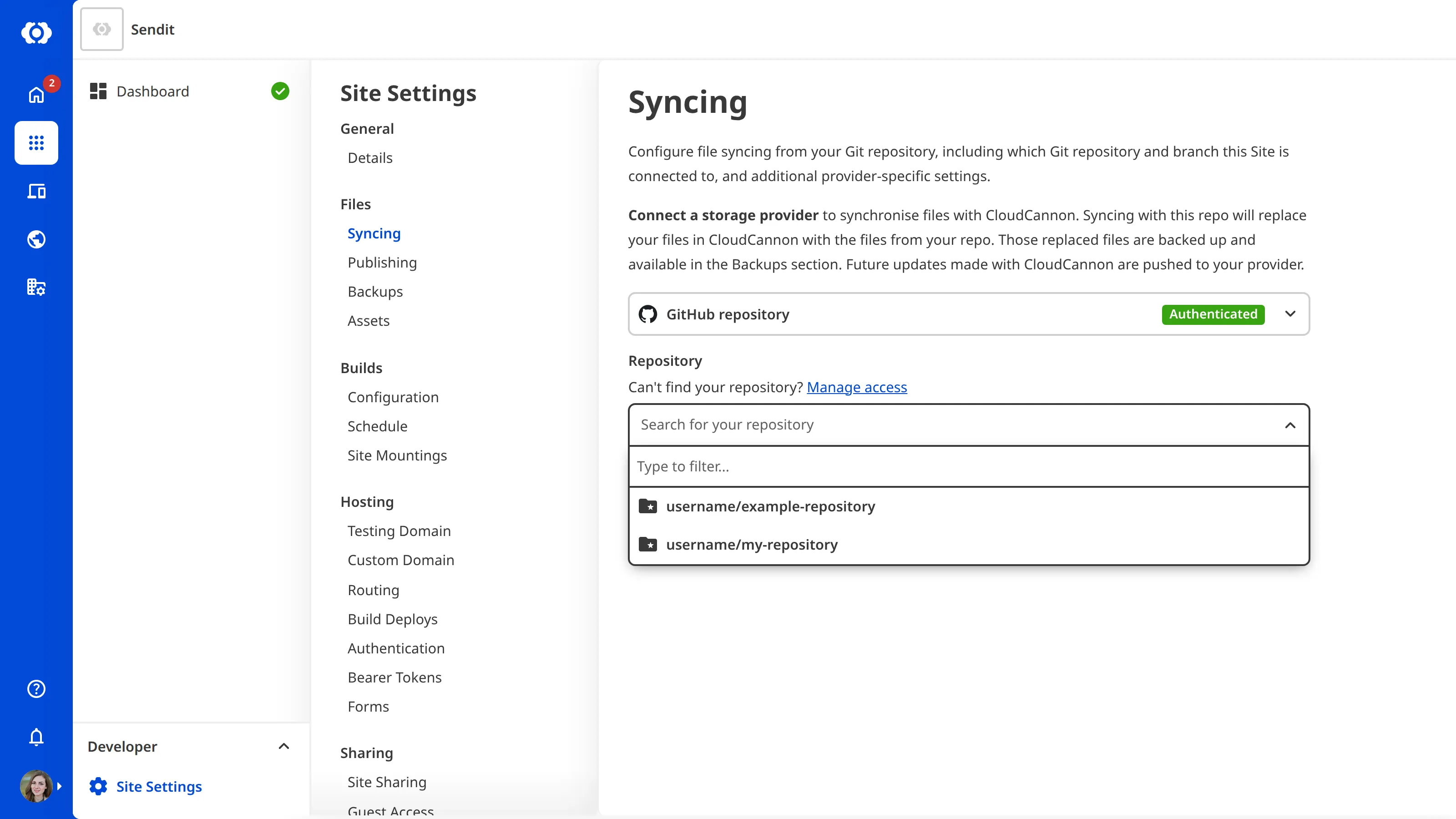
GitHub will redirect you back to the Syncing page, where you can select the Git Repository to connect.
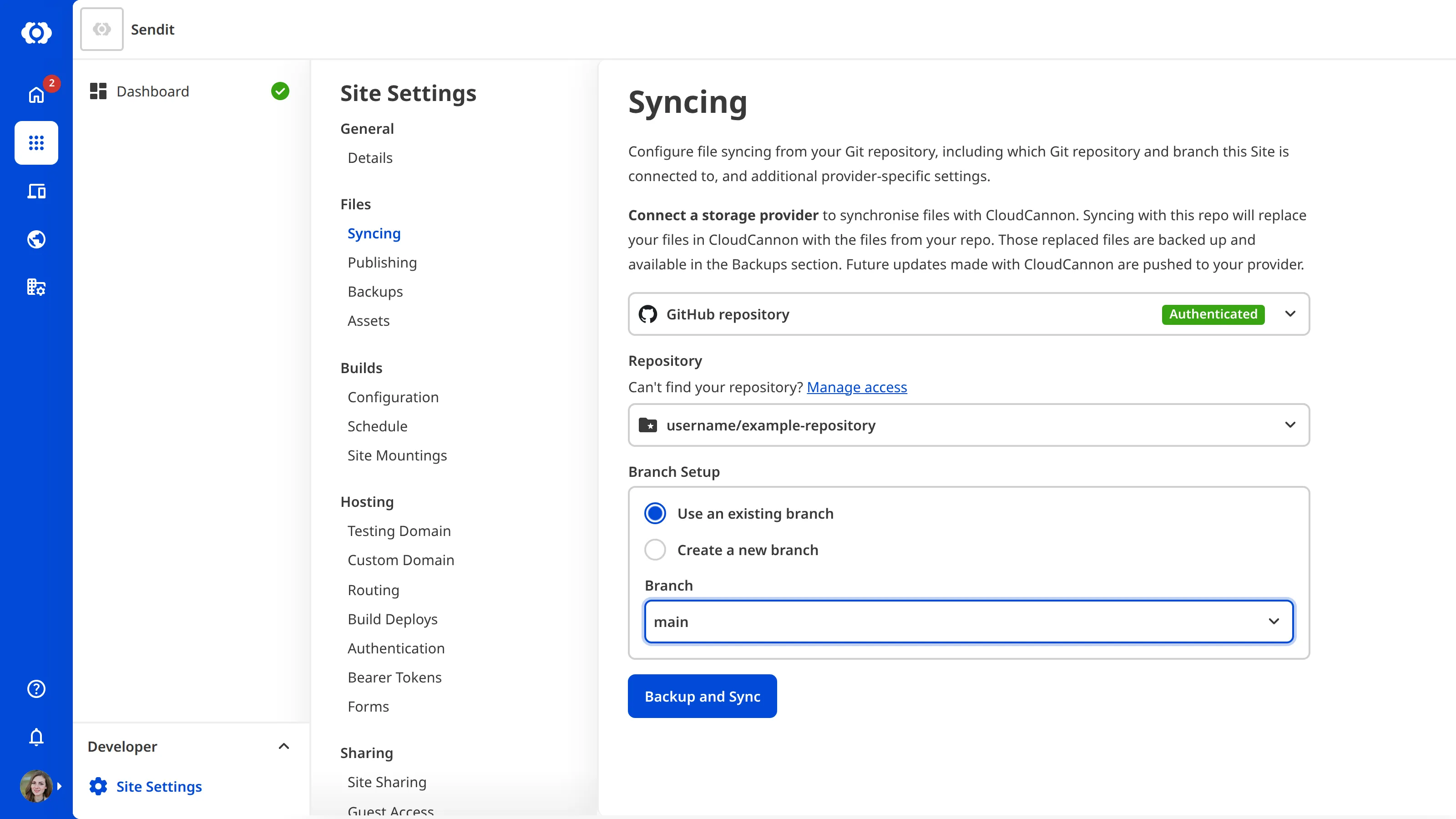
When you click the Backup and Sync button, CloudCannon will replace any existing files on your Site with the contents of the selected Git Repository. To cancel the process, exit the page instead.
To connect your Git Repository and branch:
- Select your Git Repository from the Repository dropdown.
- Choose the Use an existing branch option or the Create a new branch option under the Branch Setup heading.
- Pick your branch from the Branch dropdown. If you are creating a new branch, pick the branch to copy from the Source branch dropdown and enter a name in the New branch name field.
- Click the Backup and Sync button.
CloudCannon will connect your Site to your GitHub Git Repository. CloudCannon pulls in changes you push to your Git Repository, and automatically commits and pushes any changes you make in CloudCannon.
Change which Git Repositories CloudCannon can access#
If your Git Repository does not appear in the Repository dropdown, the CloudCannon GitHub App may not have access to it.
To change which Git Repositories the GitHub App can access:
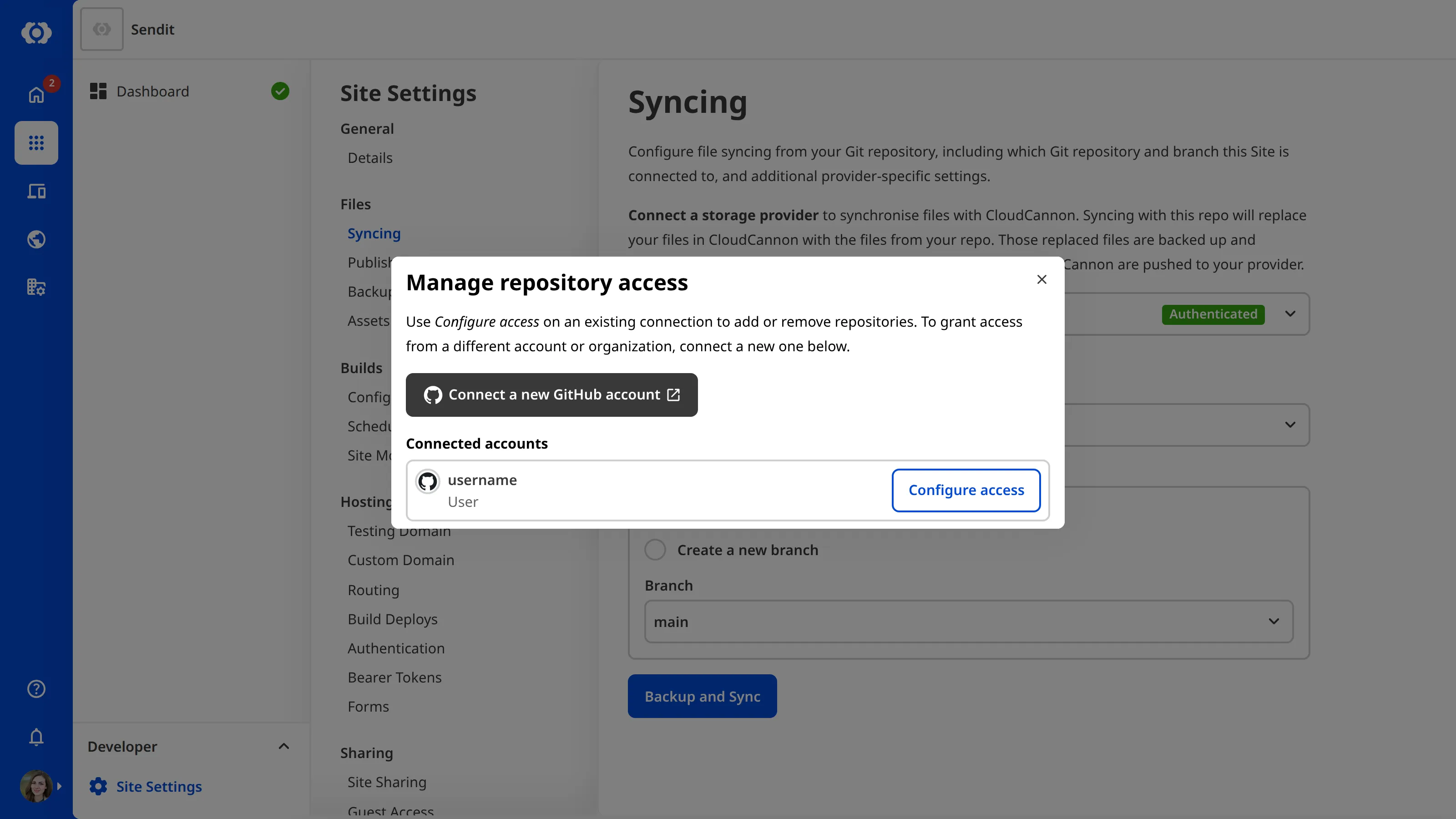
- Click the Manage access link above the Repository dropdown. CloudCannon will open the Manage repository access modal, which lists your GitHub App installations.
- Click the Configure access button on an installation to change its repository access on GitHub. To install the GitHub App on a different account instead, click the Connect a new GitHub account button, check the account shown in the Confirm account modal, then click the Connect a new GitHub account button again.
GitHub will redirect you back to the Syncing page once you save your changes.
Migrate to the GitHub App#
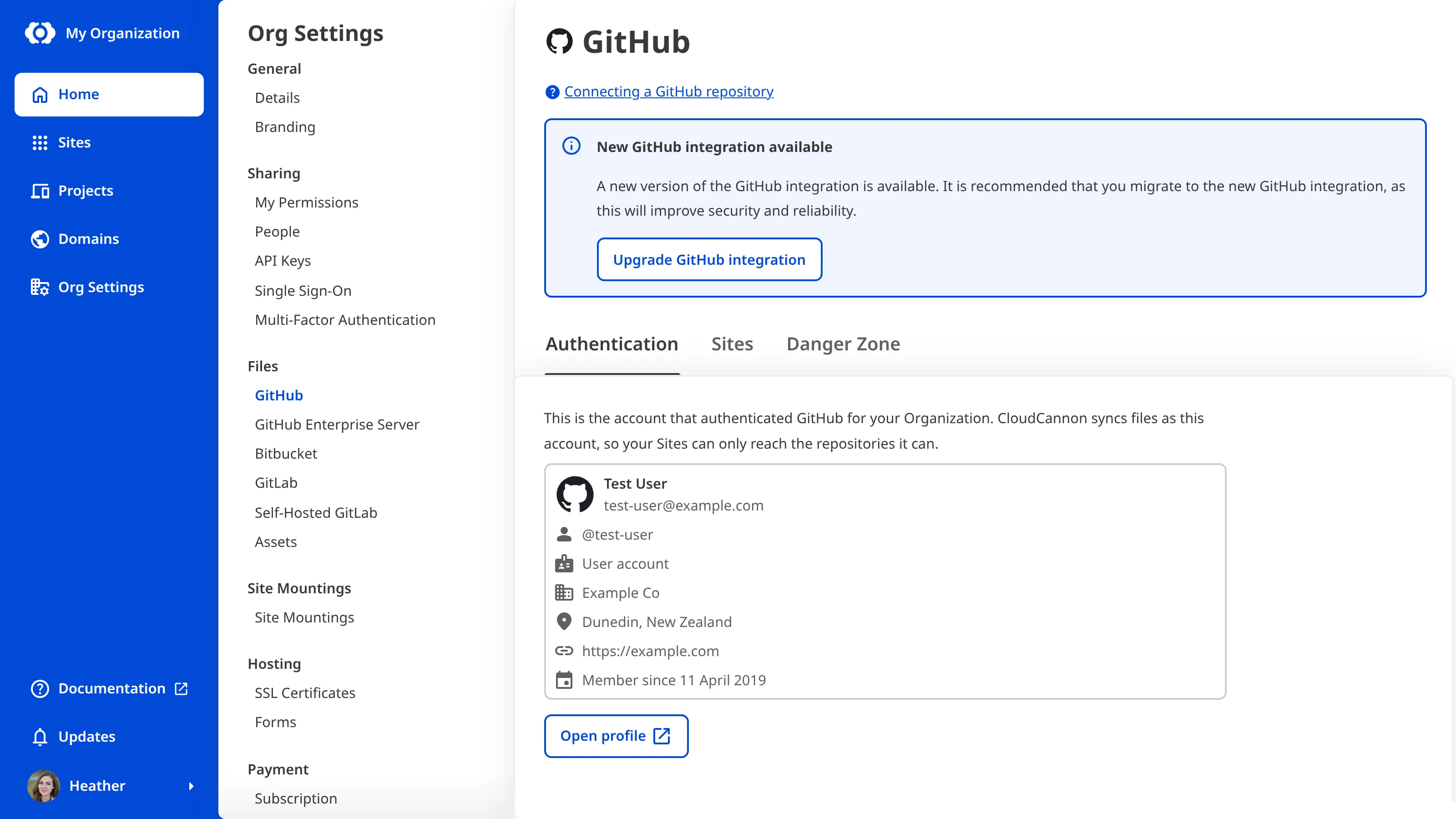
The GitHub App integration lets you control which Git Repositories CloudCannon can access. If your Organization uses the older GitHub integration, the GitHub page under Org Settings shows a New GitHub integration available notice below the page heading, above the tabs. The Syncing page under Site Settings also shows this notice for Sites that sync with GitHub.
To migrate to the GitHub App integration:
- Navigate to the GitHub page under the Files heading in your Org Settings.
- Make sure you are signed in to GitHub with the same GitHub account shown on the Authentication tab.
- Click the Upgrade GitHub integration button.
- Follow the prompts on GitHub, clicking the Authorize CloudCannon button and then the Install button to install the GitHub App.
Once the migration is complete, CloudCannon will send a confirmation email with a link to revoke any old authentication in GitHub. You can then delete any webhooks to CloudCannon on your Git Repositories.