Text Editable Regions A designated area within a webpage where Organization Members can modify text content directly through CloudCannon's visual editing interface. These regions allow inline text editing without requiring knowledge of HTML or Markdown.Text Editable Region
To avoid misconfiguration issues where CloudCannon cannot find the data property you want to edit, always add Editable Regions to values closest to the root of the file first (i.e., work from parent elements towards child elements).
These instructions assume you have configured your build settings and are comfortable editing HTML layouts, either in CloudCannon's Source Editor or your local development environment.
To configure Text Editable Regions in the Visual Editor:
- Identify the file to which you want to add a Text Editable Region. We recommend any layout files that contain templating that is populated by content files at build time.
- Open the file in CloudCannon's Source Editor or your local development environment.
- Identify the HTML tag that contains your templating and add the HTML attribute
data-editable="text". If no DOM element is available, you can wrap the templating in the<editable-text>web component. - Add the
data-prop=""HTML attribute to the same DOM element, or to the<editable-text>web component. The value ofdata-propshould be the path to the data property you want to edit. - Save your changes and rebuild your Site.
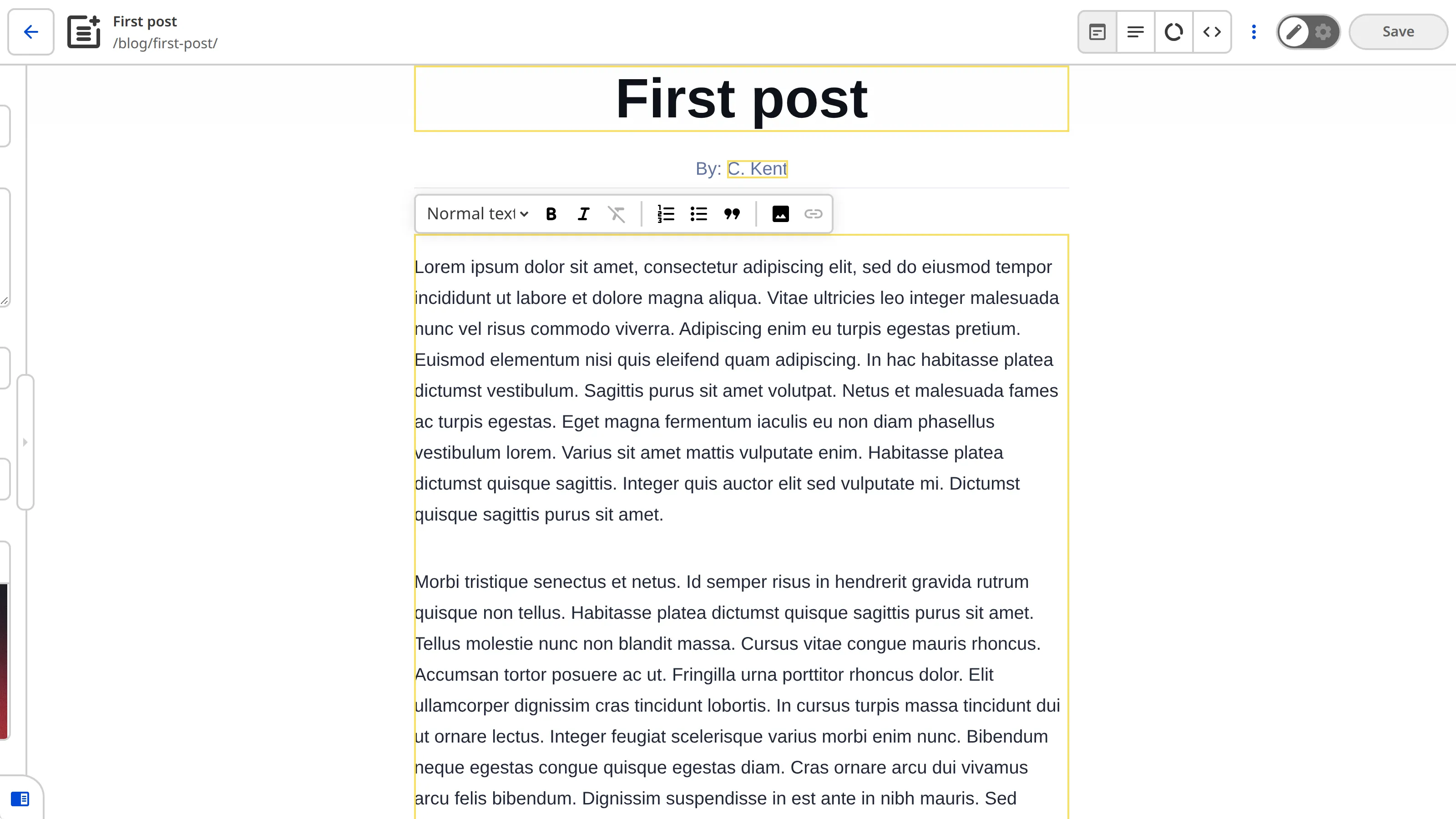
When you open the file in the Visual Editor, CloudCannon will show a yellow Editable Region box around the text field. If your text field contains rich text, CloudCannon will show a WYSIWYG toolbar for formatting your content when you click into the Editable Region.
Want to make a standalone HTML-like file visually editable?
We recommend configuring Source Editable Regions for standalone HTML-like files with hard-coded content (e.g., A designated area within a webpage where Organization Members can change an image in CloudCannon's Visual Editor. Image Editable Regions allow you to upload images from your local storage, select existing images from your repository or DAM, and manage image details like title or alt text..astro or .liquid pages) rather than several Text and Image Editable RegionsImage Editable Region
Examples#
Here are a few examples of different Text Editable Regions:
<h1 data-editable="text" data-prop="title" >{title}</h1> The data-editable attribute defines what kind of data this element contains, and the data-prop attribute defines the path to the data we want to edit. In this case, we want a Text Editable Region, so the value of data-editable is text, and we want to edit the title structured data key in the file front matter.
<p>By: <editable-text data-prop="author">{author}</editable-text></p> The <editable-text> web component defines what kind of data this element contains, and the data-prop attribute defines the path to the data we want to edit. In this case, we used the web component to wrap the {author} templating specifically, and we want to edit the author structured data key in the file front matter.
<editable-text data-prop="@content">
    <slot />
</editable-text>The <editable-text> web component defines what kind of data this element contains, and the data-prop attribute defines the path to the data we want to edit. In this case, we used the web component to wrap the <slot /> element, which will be populated by Markdown content at build time, and we want to edit the Markdown content of the file, as signified by the special value @content.
WYSIWYG toolbar formatting options#
Depending on whether your Editable Region contains plain text or rich text, CloudCannon may show you a WYSIWYG toolbar with different formatting options. These options are controlled by the data-type HTML attribute. You can manually define this attribute, or rely on CloudCannon's default behavior.
The data-type attribute accepts three values: span for plain text, text for paragraph-level rich text formatting options (e.g., bold, links, superscript), or block for multi-paragraph rich text formatting (e.g., bulleted lists, quote blocks).
When data-type is not defined, CloudCannon uses block or text for any Source Editable Regions, data-prop="@content", or Rich Text Inputs, and span where Input type is not Rich Text, or is not configured.
flowchart TD
Start([ Editable Region ])
Q1{Is data-type<br/>defined?}
Defined([ Use data-type ])
Q2{Content or<br/>front matter?}
Q2a{Support<br/>block-level?}
RblockA([ data-type = block ])
RtextA([ data-type = text ])
Q3{Is input type<br/>configured?}
RspanA([ data-type = span ])
Q4{Which<br/>input type?}
RspanB([ data-type = span ])
Q4a{Support<br/>block-level?}
RblockB([ data-type = block ])
RtextB([ data-type = text ])
Start --> Q1
Q1 -->|Yes| Defined
Q1 -->|No| Q2
Q2 -->|Content| Q2a
Q2a -->|Yes| RblockA
Q2a -->|No| RtextA
Q2 -->|Front matter| Q3
Q3 -->|No| RspanA
Q3 -->|Yes| Q4
Q4 -->|Other| RspanB
Q4 -->|markdown or html| Q4a
Q4a -->|Yes| RblockB
Q4a -->|No| RtextBIf you want to specify exactly which formatting tools are available, you can manually define your WYSIWYG toolbar under the _editables key in your CloudCannon Configuration File. For more information, please read our documentation on configuring your rich text editors.
Rich text styles#
Text Editable Regions with data-type="text" or data-type="block" support Rich Text styles, letting your team apply your own CSS classes to selected text from the WYSIWYG toolbar.
Define your styles with the styles option under _editables.text in your CloudCannon Configuration File, or under _inputs.*.options.styles for a Rich Text Input. The value is the path to a CSS file containing the classes you want to make available.
_editables:
  text:
    styles: /css/editor-styles.css
{
"_editables": {
"text": {
"styles": "/css/editor-styles.css"
}
}
}Misconfigured Text Editable Regions#
If your Text Editable Region is misconfigured, CloudCannon will replace it in the Visual Editor with a red Error Card headed Failed to render text editable region, followed by a message describing the problem.
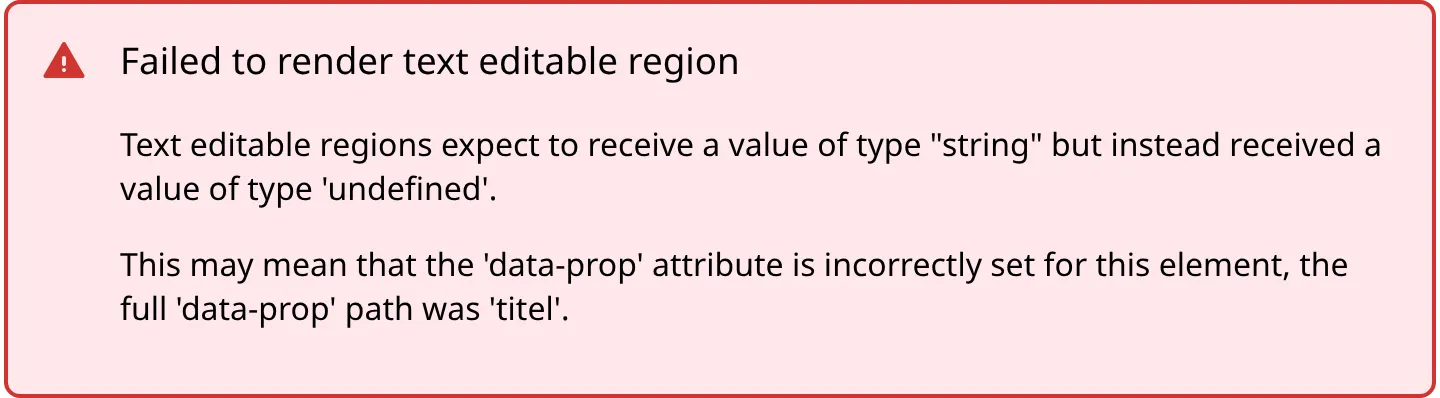
Text Editable Regions are misconfigured if:
- You did not define the
data-propHTML attribute. - The Editable Region has an invalid data type (e.g., your Text region has a number or object, instead of a string).
- You have an unsupported value for
data-type. It must bespan,text, orblock.