Managing your SSL certificate on CloudCannon requires you to host your Site A website in CloudCannon that includes all the files, content, configuration, and settings needed to edit, build, and host a complete website.Site
You can purchase a custom SSL certificate from a trusted third-party provider.
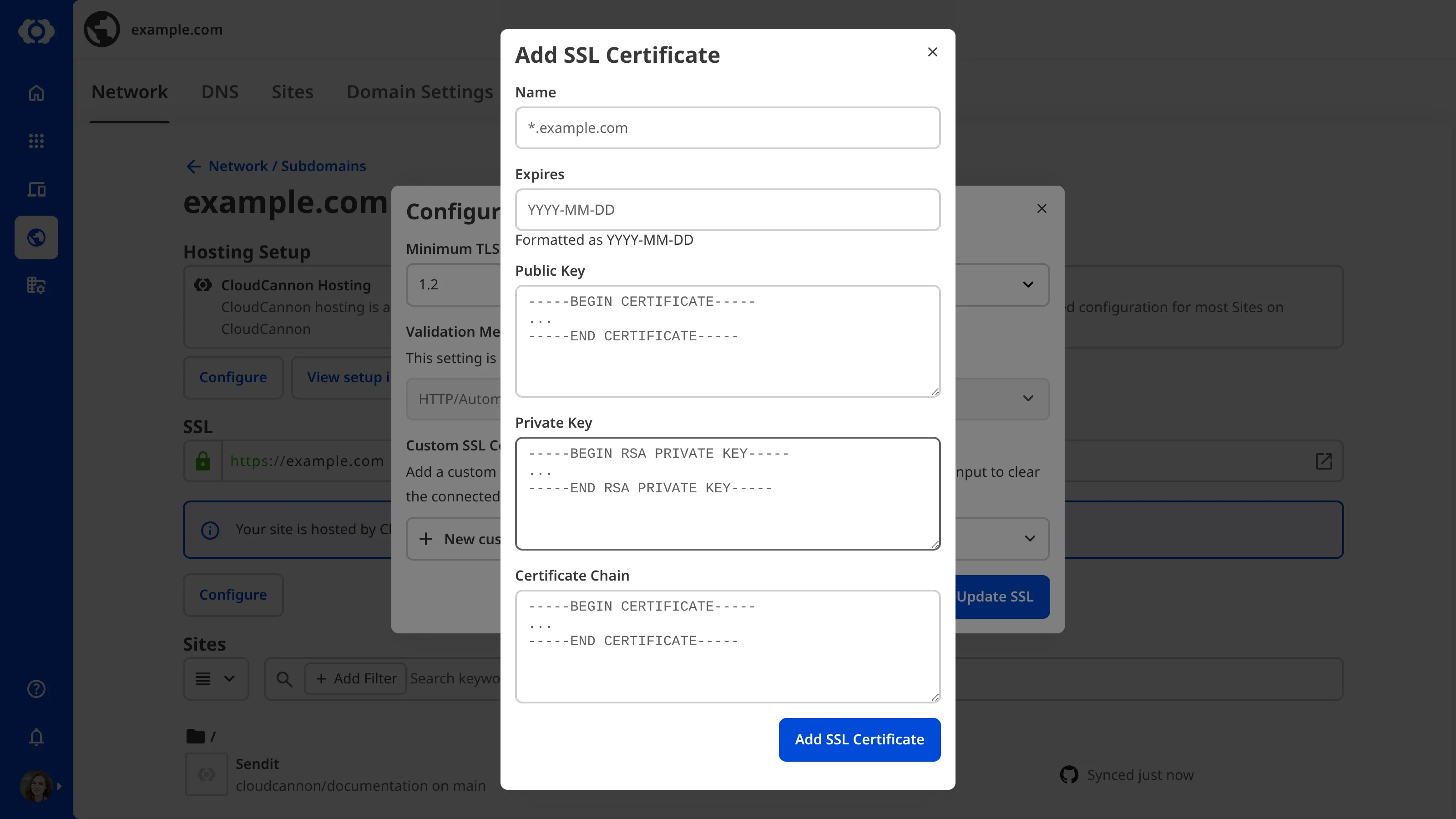
You need the following details to add your custom SSL certificate to a Custom Domain A unique address used to identify a website, such as cloudcannon.com. You can purchase a domain from a Domain Registrar and add it as a Custom Domain to your CloudCannon Organization before connecting it to any number of Sites hosted on CloudCannon.Custom Domain
- Name (i.e., Domain Name)
- Expires (formatted as YYYY-MM-DD)
- Public Key
- Private Key
- Certificate Chain
Your private key should only be given to your DNS An abbreviation of Domain Name System, DNS is the system which allows your computer to translate a domain name, which visitors are most likely to remember, into a machine-friendly IP address, which is required to access a website.DNS
SSL certificates last for about a year and should be renewed at yearly intervals to maintain your website's security. You can renew your SSL certificate more often, but most websites do not require this level of security.
Before you add an SSL certificate to your Site, you must add a Custom Domain to your Organization A workspace in CloudCannon that groups together Sites, team members, and shared resources. You can define permissions for your Organization, controlling the access each team member has to resources on CloudCannon. You can create and be a part of multiple Organizations.Organization
If you have recently added your Custom Domain to your Site, CloudCannon may need a few minutes to fetch your domain details before you can add an SSL certificate. If this process takes more than a few minutes, please contact our friendly support team.
To add a custom SSL certificate:
- Navigate to the Domains Browser by clicking Domains in the App Sidebar.
- Select the domain to which you want to add a certificate.
- Under the Subdomains heading, click the card for the subdomain to which you want to add the certificate.
- Click the Configure button under the SSL heading. CloudCannon will open the Configure SSL modal.
- Select a version number from the Minimum TLS Version dropdown.
- Select the New custom SSL certificate option from the Custom SSL Certificate dropdown. CloudCannon will open the Add SSL Certificate modal.
- Enter the details for Name, Expires, Public Key, Private Key, and Certificate Chain.
- Click the Add SSL Certificate button.
- Click the Update SSL button.
CloudCannon will apply your custom SSL certificate to the selected subdomain.
Alternatively, you can leave the Custom SSL Certificate dropdown blank, and CloudCannon will autogenerate an SSL certificate for you.
All certificates must use PEM encoding. The placeholder text indicates the correct start and end headers.
Redirect HTTP to HTTPS#
Once your SSL certificate is enabled, users can visit your Site on the more secure HTTPS URL. CloudCannon will redirect any users who request the HTTP An abbreviation of HyperText Transfer Protocol, HTTP is the foundation of data communication on the web. HTTP defines how messages are formatted and transmitted between web browsers and servers. CloudCannon supports both HTTP and secure HTTP connections, as well as HTTP redirects to more secure HTTPS.HTTP