You can create as many Organizations as you need, at any time. When you first create an account, CloudCannon creates an Organization for you unless you are responding to an invitation to someone else's Organization. Organizations are entirely independent from one another. Unless someone is a member of both Organizations, or a member of a linked Partner Organization, they will not be able to access any resources in your new one.
If you are a member of CloudCannon's Partner Program creating an Organization for a client, we recommend creating a Client Organization instead.
When you create an Organization, use the name of your business or agency. To create a new Organization:
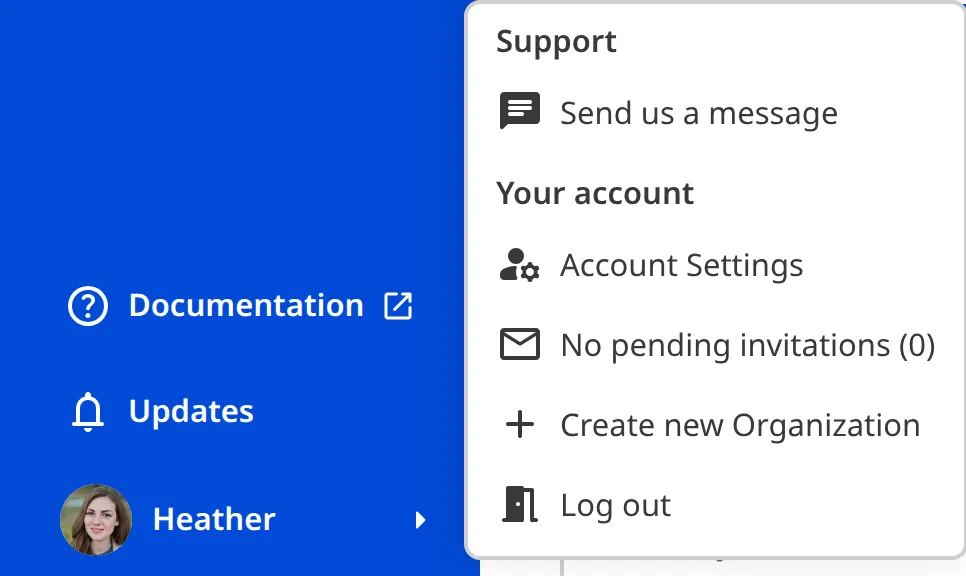
- Click your Avatar in the App Sidebar to open the Account Menu.
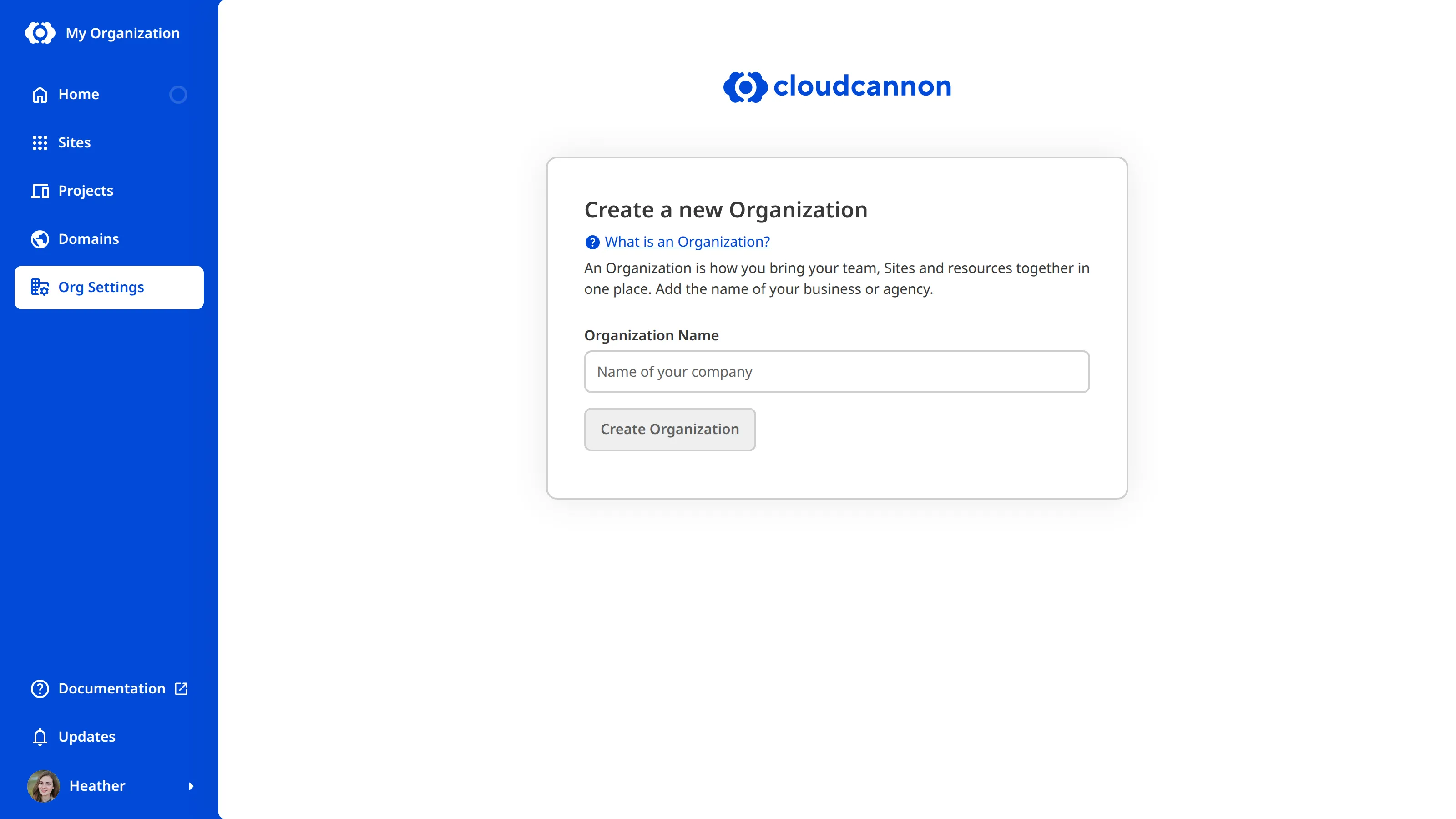
- Select the Create new Organization option. CloudCannon will open the Create a new Organization page.
- On the Create a new Organization page, enter a name in the Organization Name field.
- Click Create Organization.
CloudCannon will create the Organization, add you to the Owners Permission Group, and open the Organization Home page.
Every Organization you create starts its own 21-day Free Trial of the Standard Plan automatically, including Organizations beyond your first. For more information, please read our documentation on what CloudCannon's free trial is.