Some features are only available on our Team and Enterprise plans.
Want to chat about whether this feature is right for you? Our support team is always happy to hear from you.
Once you have created a Project, you can add Sites A website in CloudCannon that includes all the files, content, configuration, and settings needed to edit, build, and host a complete website. A way to group multiple Sites from the same Git Repository, allowing you to define a main branch, as well as branching and publishing rules. You can access the Projects Browser using the Projects link in the App Sidebar.Site
Project
Connect an existing branch#
If you already have a branch in your Git Repository A storage location for the code and files that make up your website. CloudCannon supports the repository providers GitHub, GitLab, and Bitbucket, and highly recommends using a repository to store your website's files for better version control and collaboration.Git Repository
- Click the Projects button in the App Sidebar. CloudCannon will open the Projects Browser.
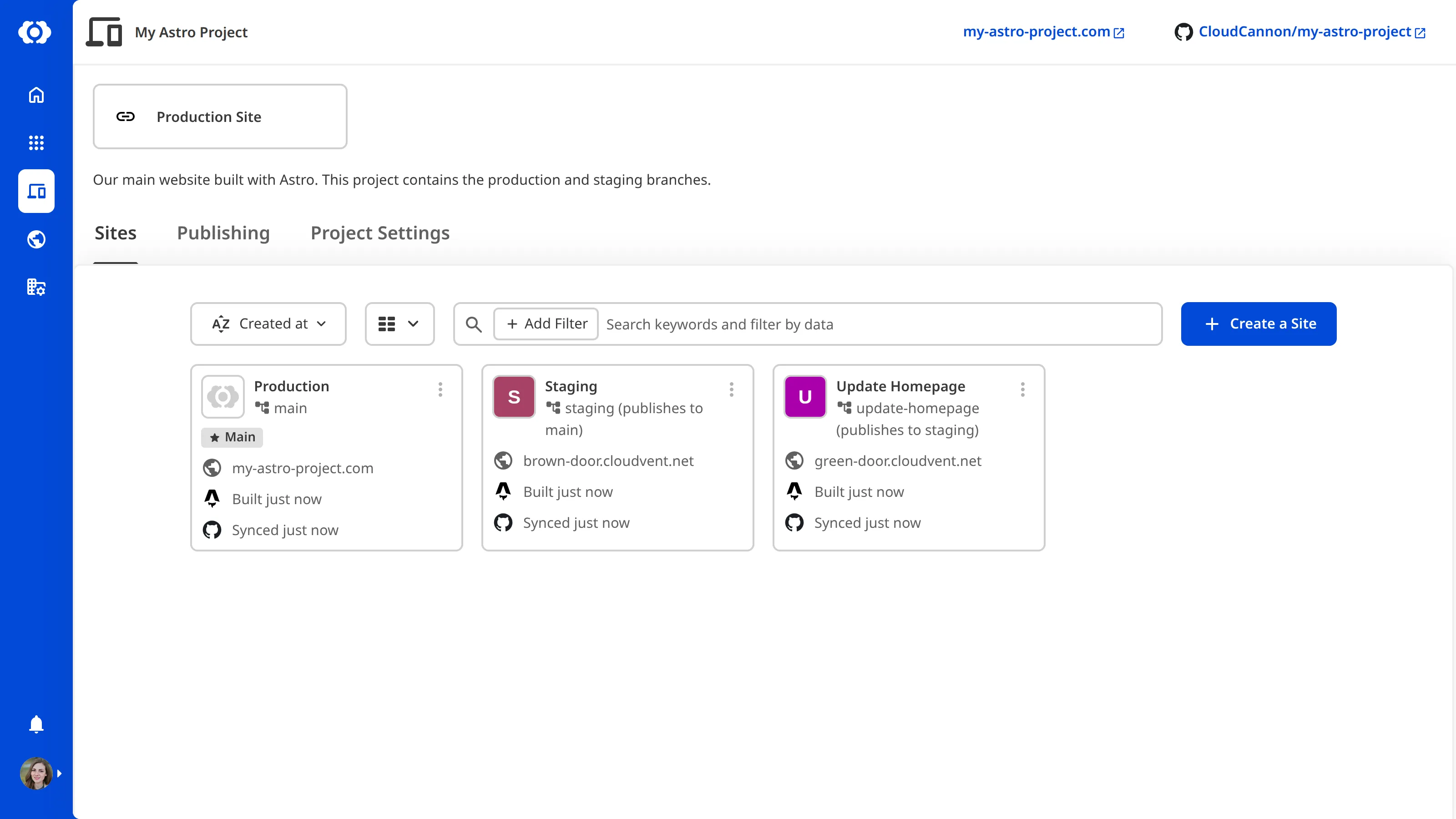
- Select the Project to which you want to add a Site by clicking on the Project Card. CloudCannon will open the Project Sites Browser.
- Click the + Create a Site button. CloudCannon will open the Create a Site page.
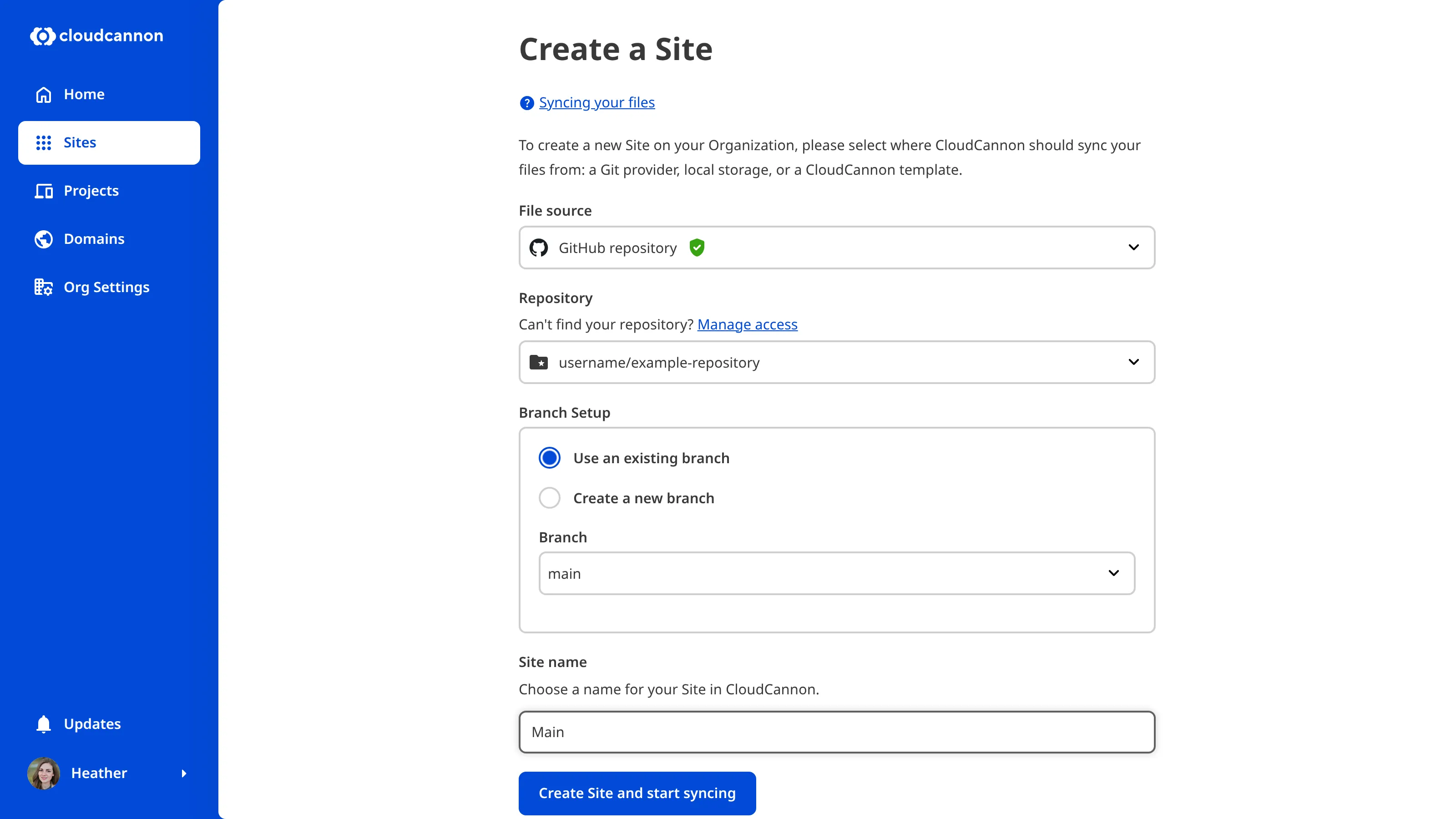
- Enter a name for your Site in the New Site name field. The branch will automatically receive the same name.
- Select the Use an existing branch option.
- Select the branch you want to connect using the Branch dropdown. CloudCannon automatically populates this using the branches in your Git Repository.
- Click the Create Site button.
CloudCannon will create a new Site in your Project.
Create a new branch Site#
This feature is available on our Team and Enterprise plans.
You can create a new branch Site from an existing Site in your Project. By allowing your team members to create Sites via branching in CloudCannon, you can enable them to work more independently and limit the number of people that require access to your Git Provider.
Branching from the Main Branch
To use this branching method, you must have set a Main Branch The branch in your Git Repository that represents your live or production content within a Project. The Main Branch determines where new branch Sites are created from and where changes are published to by default.Main Branch
- Click the Projects button in the App Sidebar. CloudCannon will open the Projects Browser.
- Select the Project to which you want to add a Site by clicking on the Project Card. CloudCannon will open the Project Sites Browser.
- Click the + Create a Site button. CloudCannon will open the Create a Site page.
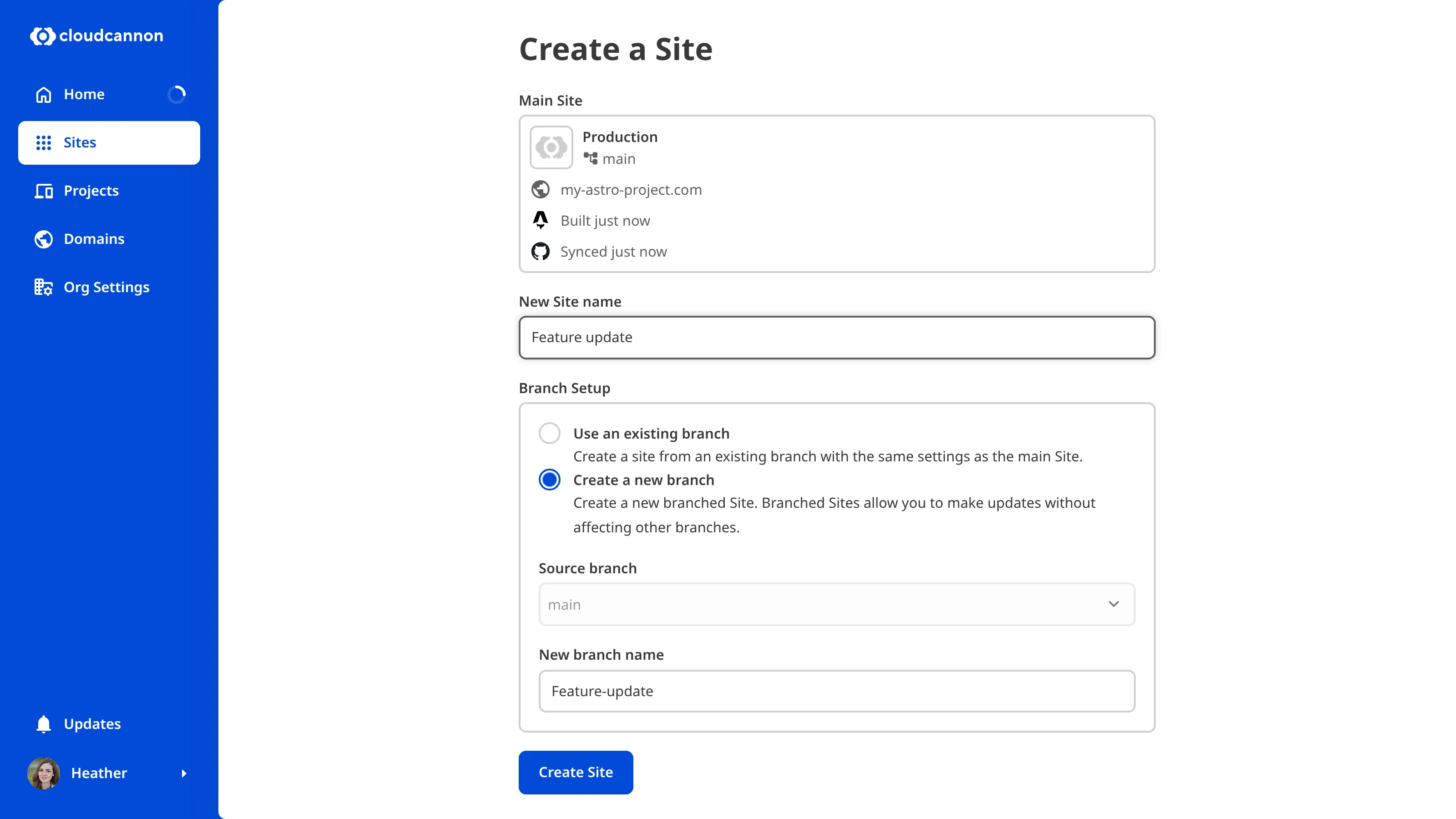
- Enter a name for your Site in the New Site name field. The branch will automatically receive the same name.
- Select the Create a new branch option. CloudCannon will automatically populate the Source branch field with your Main Branch.
- (Optional.) Enter a name for your new branch in the New branch name field, if it should be different to the Site name.
- Click the Create Site button.
CloudCannon will create a new Site in your Project. Once you have made changes on the branch Site, you can publish them back to the main branch. For more information, read our documentation on merging and Pull Requests.
Branching from another Site
You can also create a branch from another branched Site. When the branch Site is published, the changes will push back into the Site it was branched from. This option requires Allow all branching to be enabled.
To branch from an existing Site:
- Click the Projects button in the App Sidebar. CloudCannon will open the Projects Browser.
- Select the Project to which you want to add a Site by clicking on the Project Card. CloudCannon will open the Project Sites Browser.
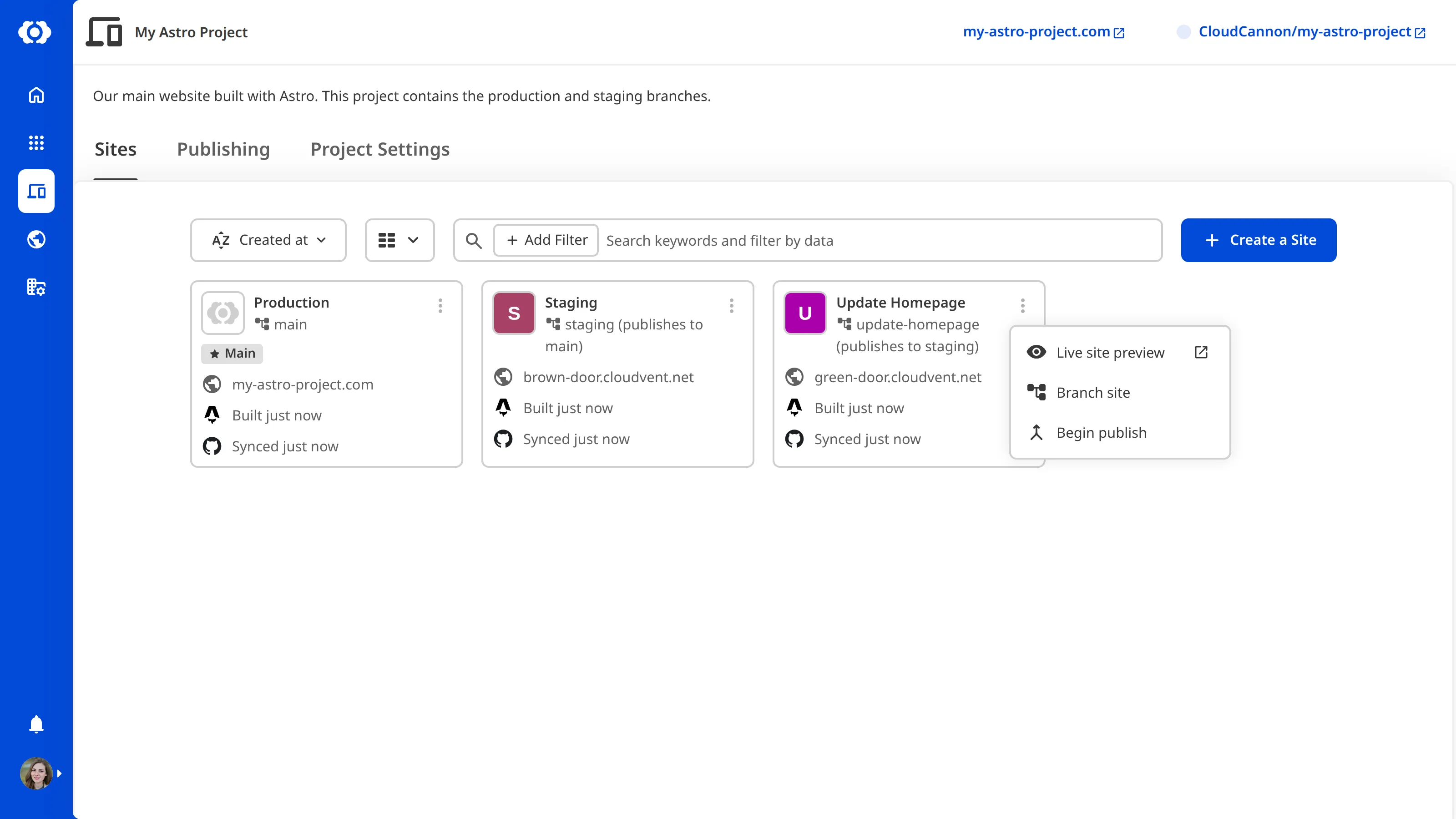
- Find the Site you want to branch from in the Project Sites Browser and open the Context Menuby clicking the three-dot icon on the top right Site card.Glossary term
Context Menu
A menu that appears when you click the six-dot icon in the top right of a File Card or three-dot icon in the top right of an Editing Interface. This menu provides quick access to file actions and options such as previewing a file live on your website, cloning or renaming a file, and more.
- Select the Branch Site option from the Context Menu. CloudCannon will open the Create a Site page.
- Enter a name for your Site in the New Site name field. The branch will automatically receive the same name.
- Select the Create a new branch option. CloudCannon will automatically populate the Source branch field with the Site you wanted to branch from.
- (Optional.) Enter a name for your new branch in the New branch name field, if it should be different to the Site name.
- Click the Create Site button.
CloudCannon will create a new Site in your Project.