Adding related links to your Project A way to group multiple Sites from the same Git Repository, allowing you to define a main branch, as well as branching and publishing rules. You can access the Projects Browser using the Projects link in the App Sidebar.Project
To add related links to your Project:
- Click the Projects button in the App Sidebar. CloudCannon will open the Projects Browser.
- Select the Project to which you want to add related links by clicking on the Project Card. CloudCannon will open the Project Sites Browser.
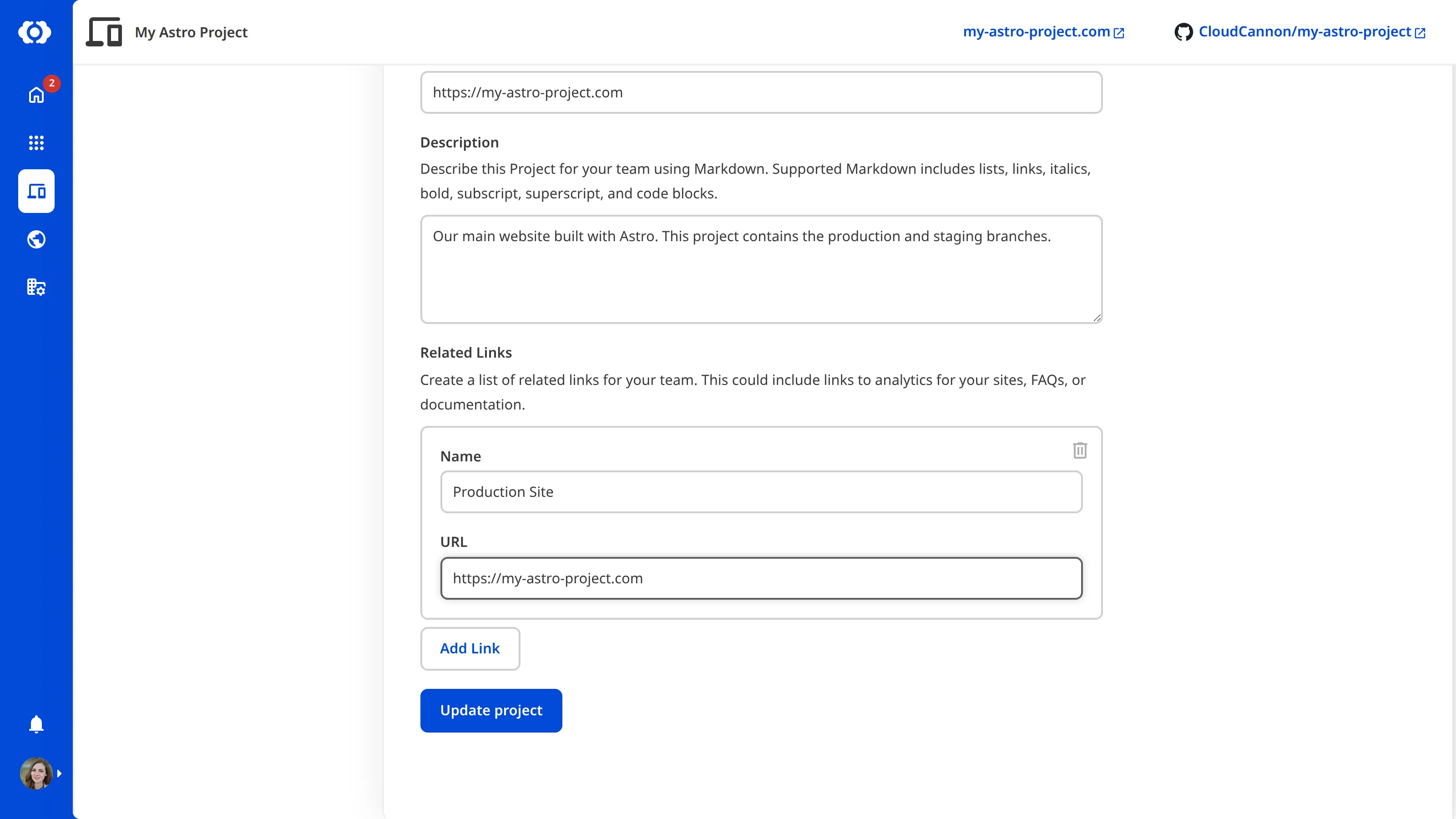
- Navigate to the Details section under the Project Settings tab and scroll to the Related Links section.
- Enter a display name for the link in the Name field.
- Type or paste your desired link into the URL field.
- (Optional.) If you want to add more than one link, click the Add Link button. CloudCannon will add an extra Name and URL text field.
- Click Update Project.
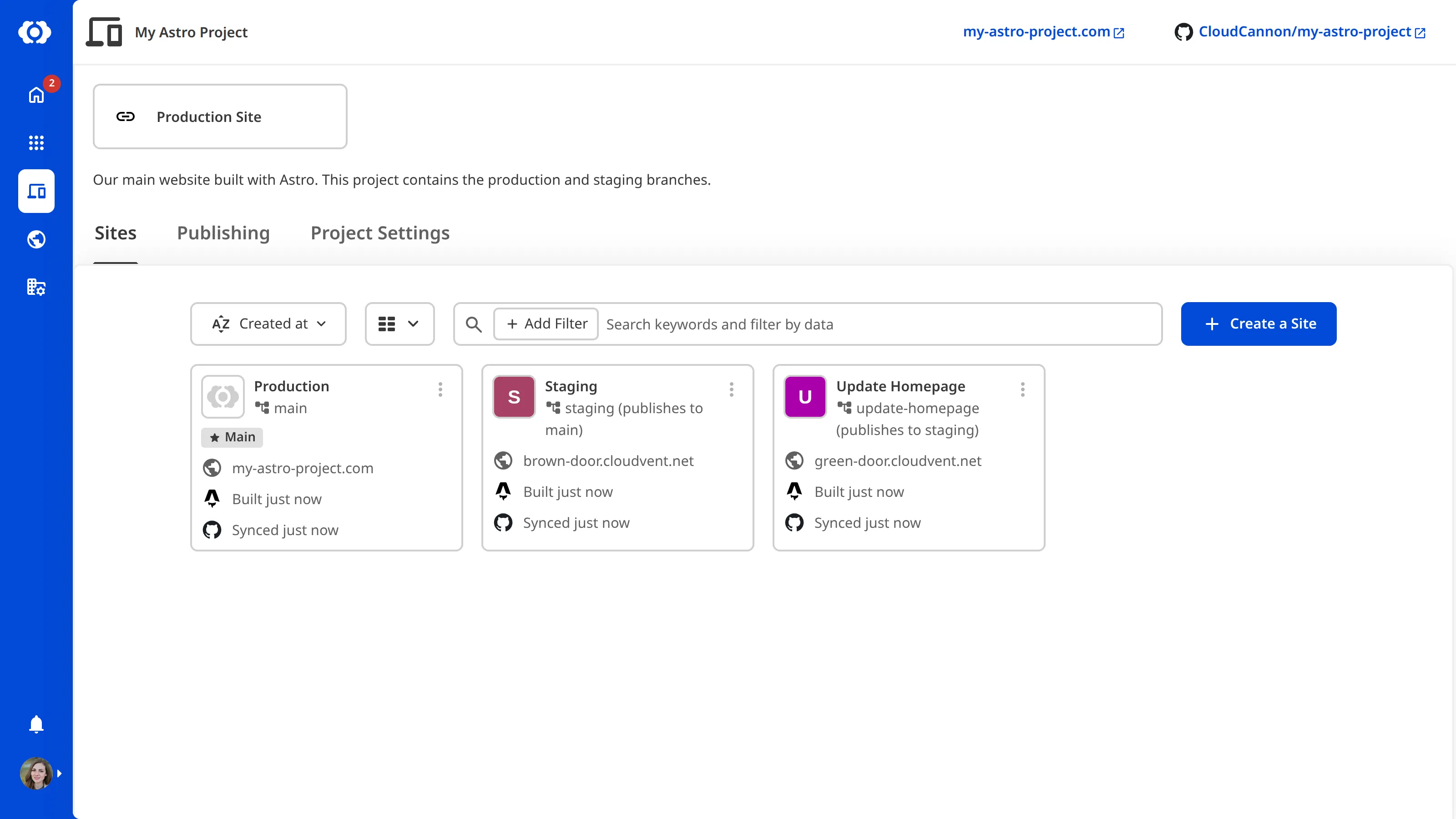
CloudCannon will display your link at the top of your Project page, above the project description (if applicable).
You can remove a related link from your Project by clicking the Delete icon in the top right of the link on the Project Settings page.