Connecting GitHub allows you to work on your websites locally and have the changes sync to CloudCannon. File changes made on CloudCannon are also synced back to GitHub.
To connect a GitHub repository and start syncing files, follow these instructions:
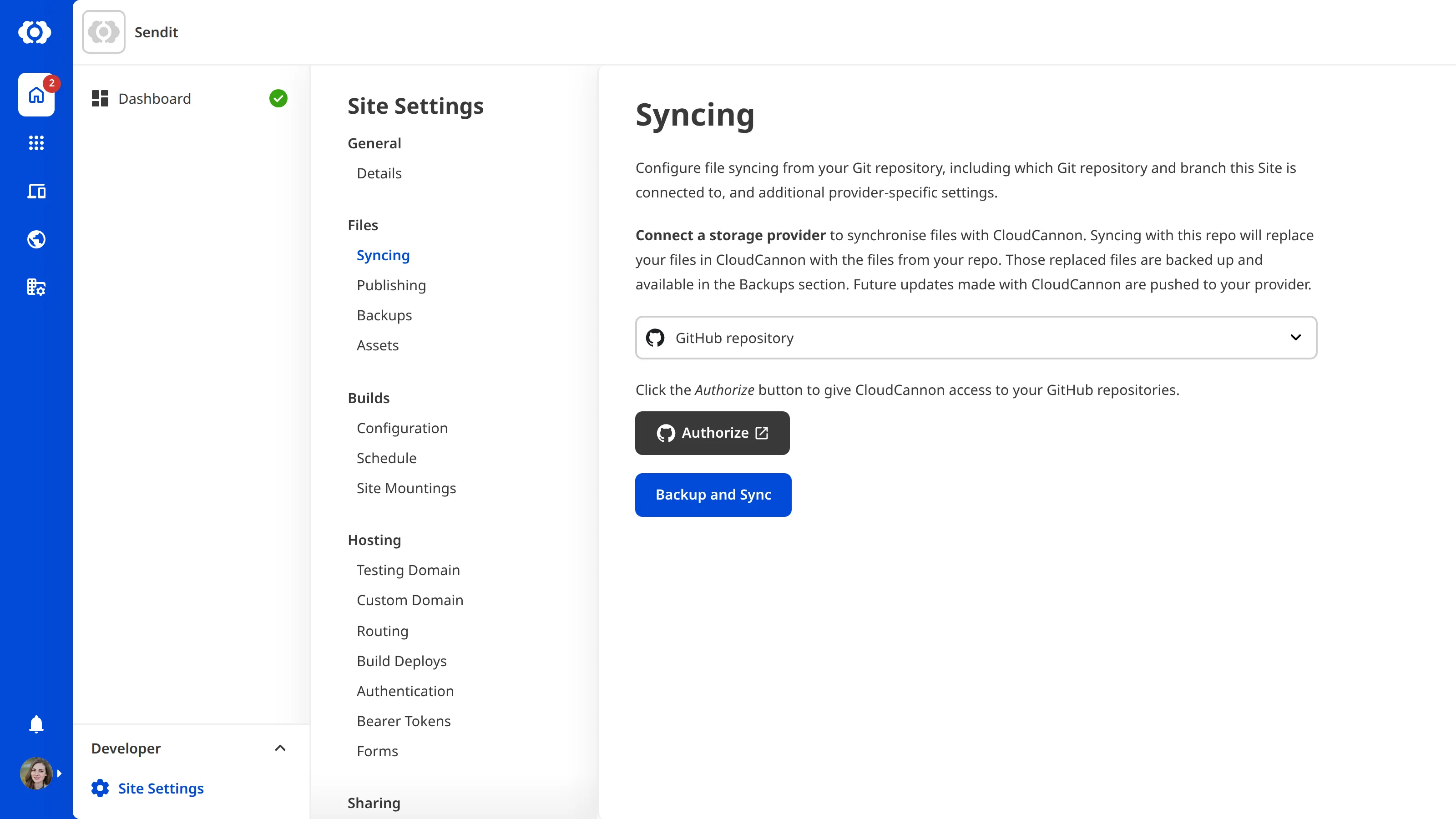
- Go to Site Settings / Syncing
- Select GitHub repository
- Click Authenticate
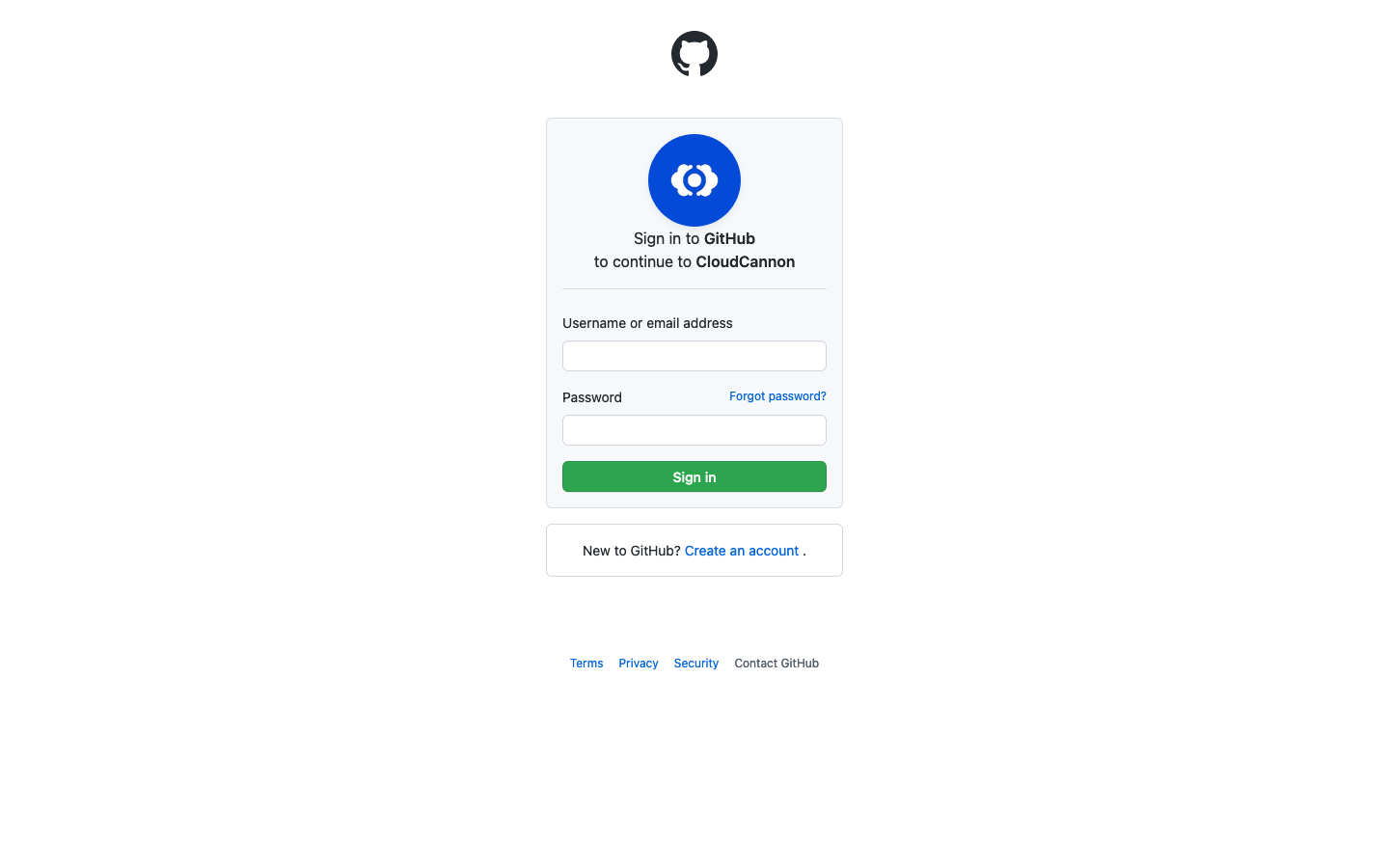
This redirects you to GitHub. Enter your credentials to continue.
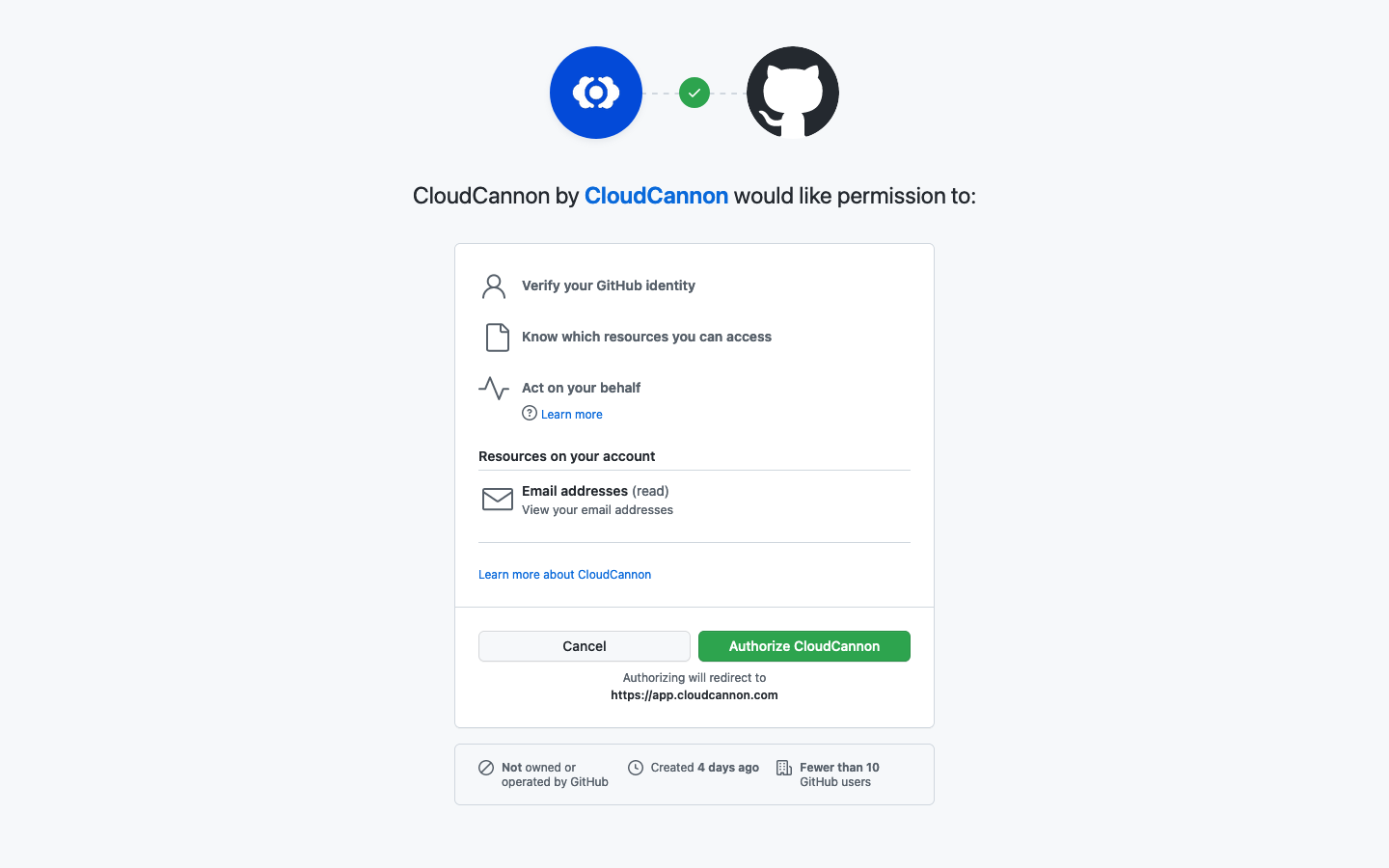
Give CloudCannon access to your GitHub Account by clicking Authorize CloudCannon.
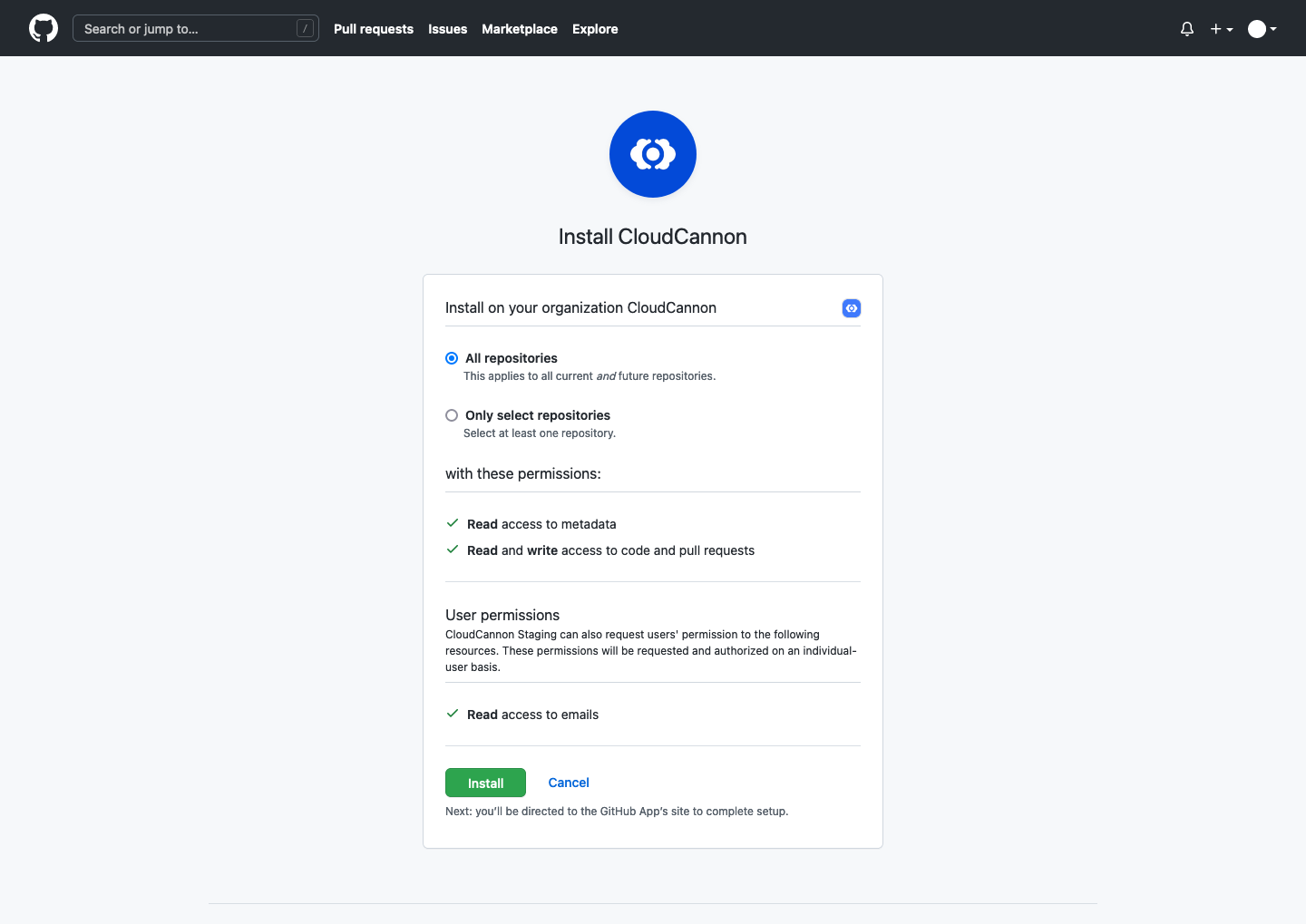
You’ll be redirected back to CloudCannon and asked to install the GitHub App.
Install the CloudCannon GitHub App on your personal account or on your organization. Select to grant access to all repositories or only select repositories.
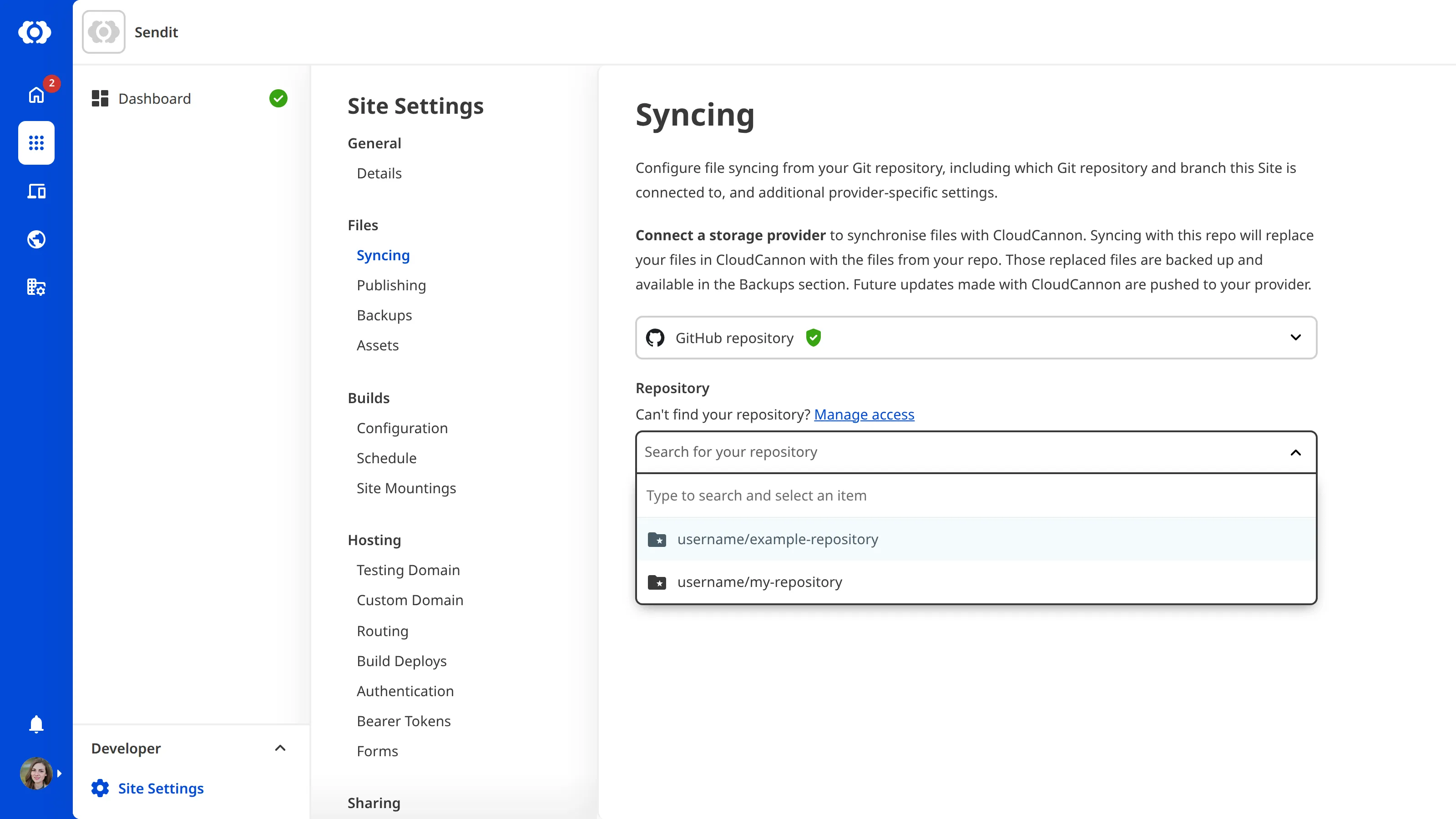
You’ll be redirected back to CloudCannon to pick a repository to connect.
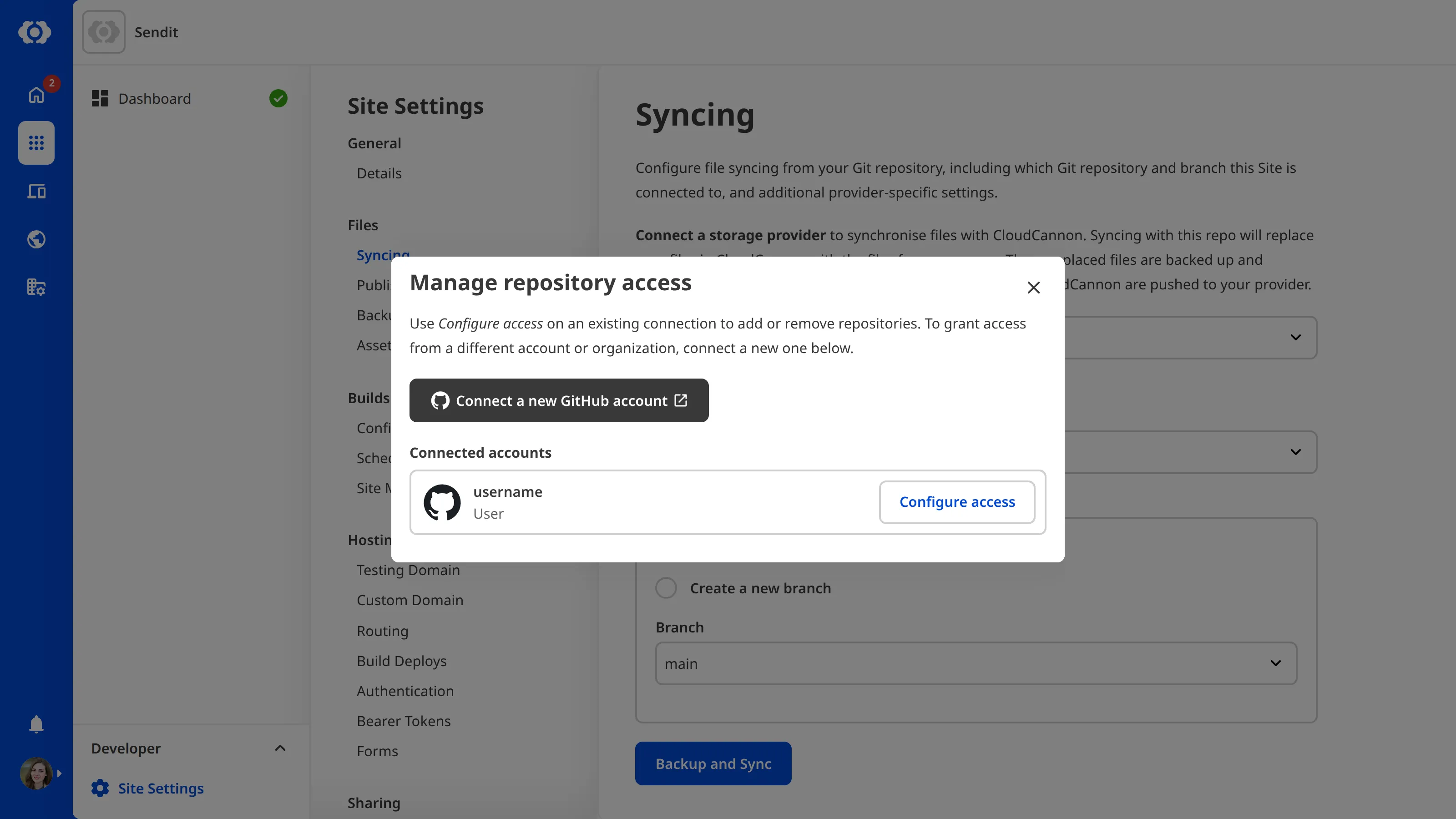
If you can't find your repository from the list, click **Configure the GitHub App **to change your repository access for an existing installation. Or click Install new GitHub App to install on a different account.
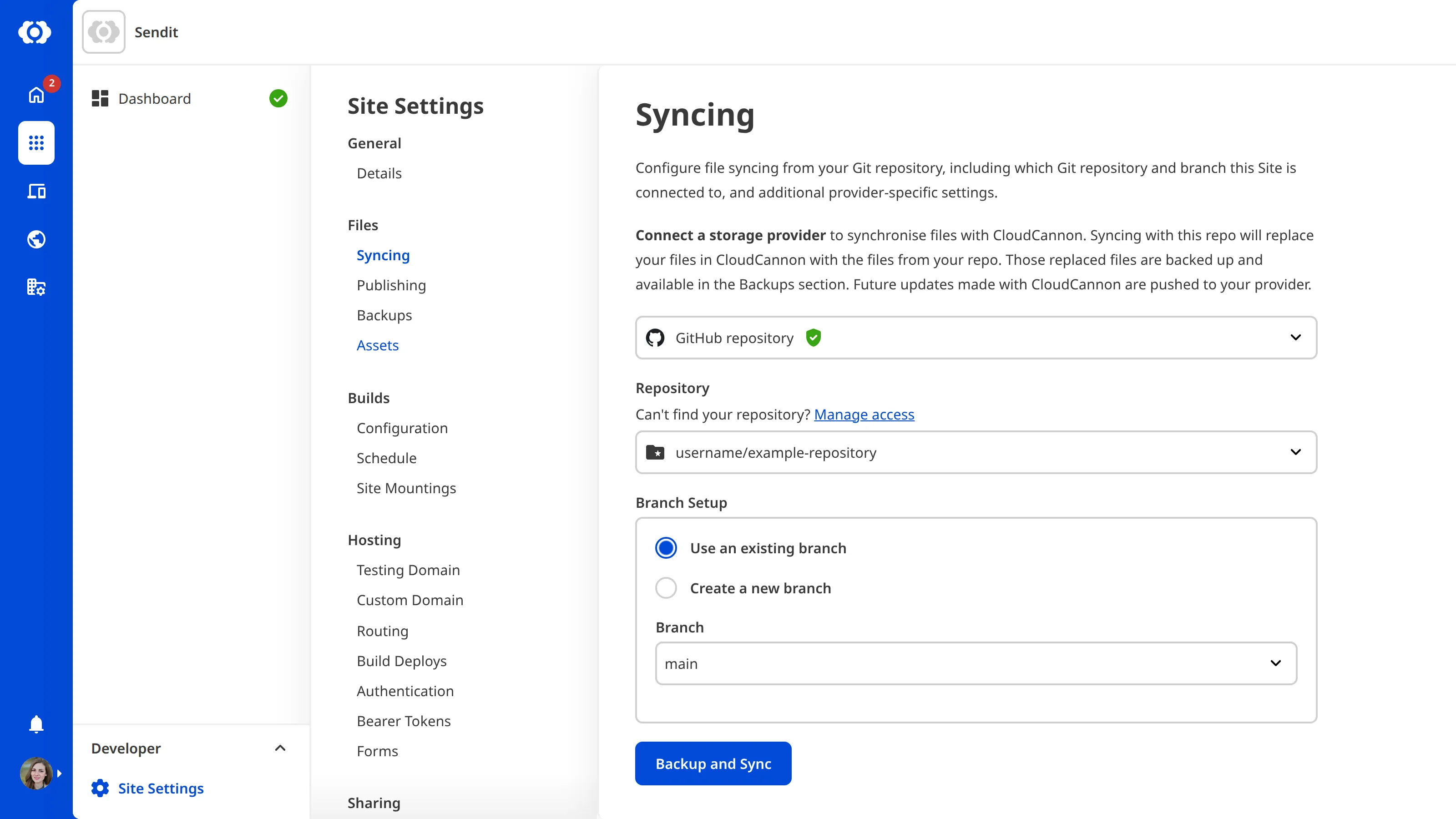
Any existing files on your website will be replaced with the contents of the selected repository. Click Backup and Sync to continue, or exit the page to cancel the process.
GitHub is now connected. Changes you push to the Git repository are pulled in by CloudCannon. Any changes made on CloudCannon are automatically committed and pushed.
Migrating to GitHub App#
By migrating to the GitHub App integration, you will be able to control the repositories to which you give CloudCannon access.
To migrate to GitHub App, follow these instructions:
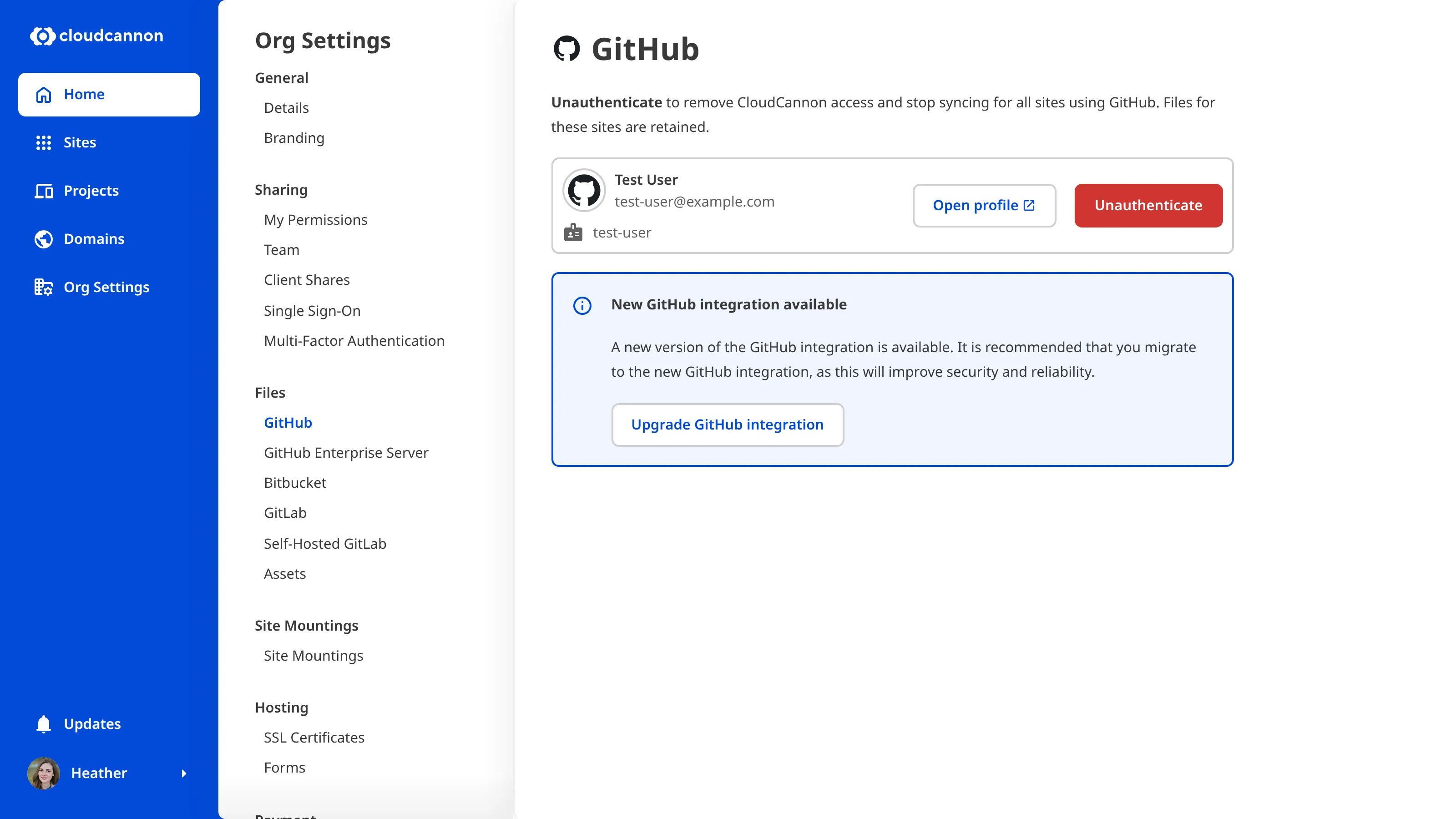
- Go to Organization Settings > Files > GitHub
- Ensure you are logged into GitHub with the same GitHub account displayed above
- Click Migrate to GitHub app
- Follow the steps to Authorize CloudCannon and subsequently Install the GitHub App
Once migrated, a confirmation email will provide a link to revoke any old authentication in GitHub. Webhooks to CloudCannon on repositories can be deleted.