You can add more context and instructions to your Site by adding a the Markdown is a lightweight markup language with plain text formatting syntax designed to be converted to HTML. CloudCannon supports the Markdown format for markup files and combination files with front matter. The main overview page for a specific Site in CloudCannon, displaying key information such as build status, recent activity, site statistics, and quick access to editing and configuration options..cloudcannon/README.md MarkdownMarkdown
Site Dashboard
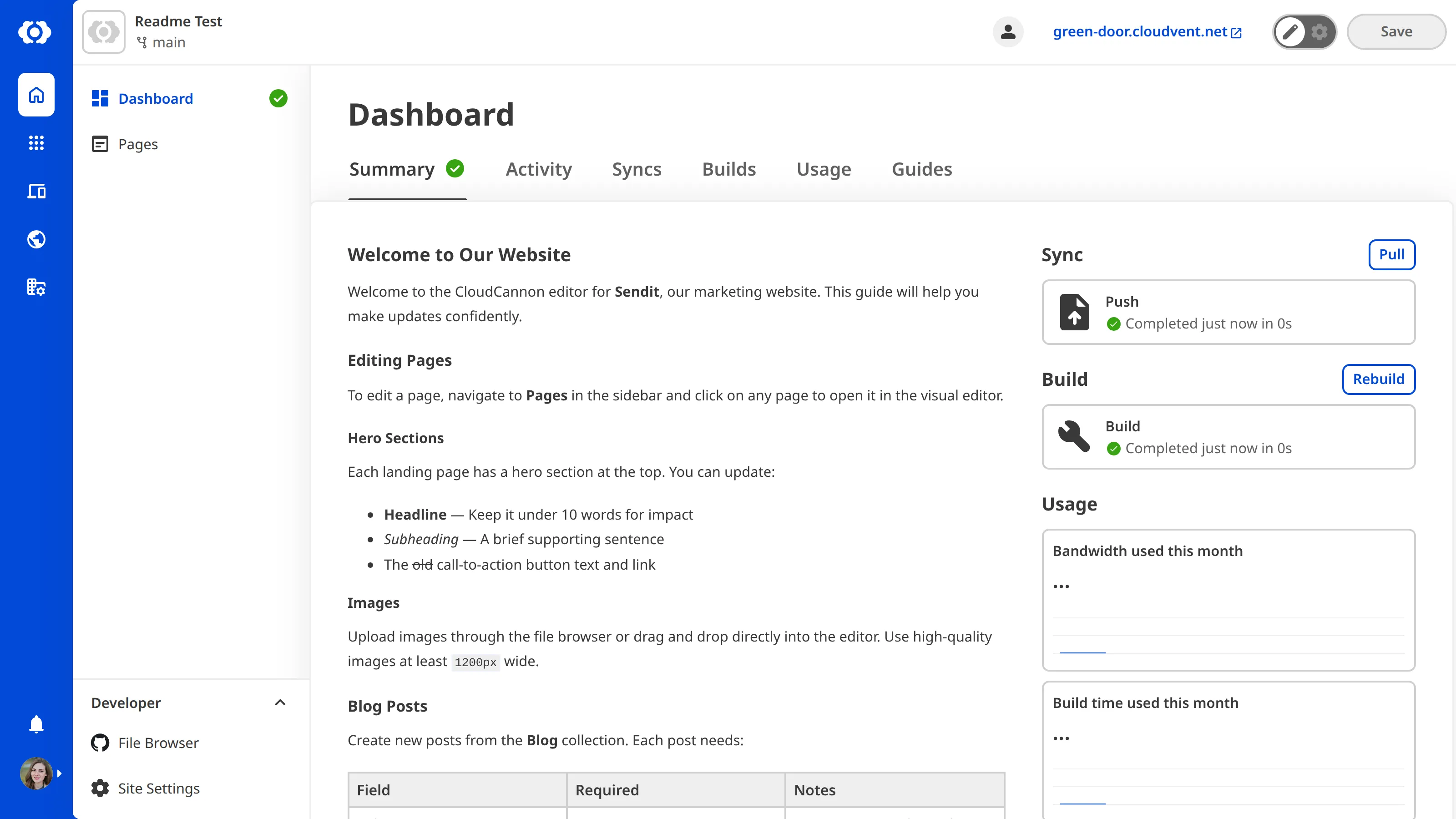
Why add a README to your Site Dashboard?#
The Summary tab of your Site Dashboard is a hub for information about your Site. It is the first page you see when you open your Site, and summarizes useful information such as Recent Activity, Syncs, Builds, and Usage. This make it an excellent page to add more information for your Site users.
A Site Dashboard README gives your team a single place to find essential project information without leaving CloudCannon. Instead of relying on external documents, emails, or team knowledge, you can put everything your team needs right where they work. You can use it to provide onboarding notes, project documentation, editing guidelines, or links to external resources for your team members. This is especially valuable for onboarding. When a new team member opens a Site for the first time, the README is the first thing they see on the Summary tab, giving them immediate context about the project and how to contribute.
You can include any information that helps your team work more effectively, such as:
- Onboarding notes for new team members
- Editing guidelines and content conventions (e.g., required front matter fields, recommended image dimensions)
- Links to external resources like design systems, brand guides, or project management boards
- Build or deployment notes relevant to the Site
- Contact information for the project owner or technical lead
Because the README is stored in your Git repository alongside your Site files, you can easily maintain versions of the file that are up to date with the rest of your project.
For instructions on how to create and edit your Site README, please read add a Site Dashboard README.
Supported formatting#
The Site Dashboard README supports a wide range of Markdown formatting:
- Headings
- Bold, italic, strikethrough, subscript, superscript, and underline
- Links
- Blockquotes
- Bulleted and numbered lists
- Inline code
- Fenced code blocks with syntax highlighting
- Horizontal rules
- Tables
Headings
CloudCannon automatically adjusts heading levels in your README to fit within the Site Dashboard layout. Your heading hierarchy is preserved, but levels are shifted so they appear as sub-headings within the dashboard. You can write headings naturally starting from # without worrying about the dashboard context.
For example, if your README contains #, ##, and ### headings, CloudCannon shifts them to render as smaller headings that sit beneath the dashboard page headings.
Code blocks
Fenced code blocks in your README render with syntax highlighting using CloudCannon's styled code block component. Specify a language after the opening backticks for language-specific highlighting.
For example, the following Markdown in your README:
## Heading

Description:

```yaml
title: My Site
description: A great site
```This renders on the Site Dashboard with a styled code block that includes syntax highlighting, line numbers, and a copy button.
CloudCannon links
You can add links to CloudCannon pages using the CloudCannon link protocol. This allows you to link directly to a page on CloudCannon, such as a file or Collection on your Site, or to relevant pages outside your Site, such as the Custom Domain or Project Browser.
For example:
## Quick links

* [Edit the home page](cloudcannon:collections/pages/index.md)
* [View all blog posts](cloudcannon:collections/posts)
* [Site Settings](cloudcannon:settings)